Many users of Notepad++, a popular Windows Notepad replacement, do not know that the program ships with a plugin system that allows them to extend its functionality. I will explain briefly how to find and use Notepad++’s plugin manager before I point you in the direction of some of the useful plugins found within.
You can start the plugin manager of Notepad++ the following way. Start the text editor and then open Plugins > Plugin Manager > Show Plugin Manager on the menubar.
All stable plugins are now displayed in a table like interface. You can display unstable plugins with a click on Settings and the selection of “show unstable plugins” in the new window there.

Plugins are listed with their name, category, version and stability there. A description is displayed below the table when you select one of the plugins in the list. You install plugins by selecting them first (place a checkmark in their box) and then the Install button in the Plugin Manager interface.
The plugin will be downloaded from the Internet and installed automatically. It may be necessary to let the program close and re-open itself to complete the plugin installation.
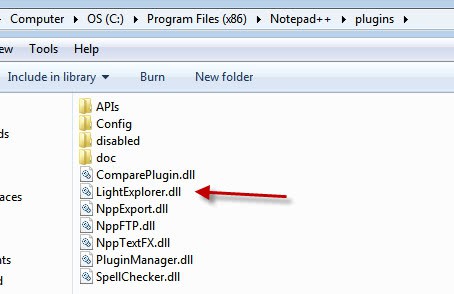
An alternative to the process described here is to download and install plugins manually. You find a list of Notepad++ plugins on the official Sourceforge project page. All you need to do is to download the plugins there, unpack them and place the dlls into the Notepad plugin directory. The site lists additional plugins that are not available in the plugin manager.
Notepad++ checks for compatibility on every startup. You may receive a message that one or multiple plugins that you have installed manually are not compatible with the installed version of Notepad++ on the system.

I suggest you make sure that you run the latest version of the program before you install any plugins. You can do that from within the application. Click on the question mark in the menubar and select Update Notepad++ from the menu there to run an update.
Notepad++ Plugins
This plugin tracks changes made to documents, and enables navigation between changes, with a distinction being made between saved and unsaved changes. The change indicator is either a bar in the left margin or a specific highlighting.
CSS-eXplorer is a CSS and HTML plug-in for Notepad++. It allows easy navigation and edit of CSS files with Notepad++. Main features:
TreeView: Allows easy navigation in CSS file.
Validation Service: Check errors in CSS file, and provide detailed report.
Web Page Preview: Test your work on CSS file immediately via HTML Web Page Preview Window.
CSS Editor: Add new parameters and design options to CSS file quickly and easily (support CSS 2.0 defines).
Function list offers a list of functions (or sections) according of the language of current document, in order to access to the function or section you need quickly.
MultiClipboard plugin implements multiple (10) text buffers that is filled up via copying and/or cutting of text.
To paste any text from the buffers, use Ctrl-V or middle mouse click (normal paste):
to paste the most recently copied/cut text Ctrl-Shift-V or Shift-middle mouse click:
to pop up a menu with the text buffer entries. Select the desired menu item to paste it
A Notepad++ plugin that allows users to develop regular expressions and test them against their open documents
This is only a small selection of Notepad++ plugins. I have tested them with the latest version of the text editor (Notepad++ 5.9.6.2 at the time of writing).
Are you making use of Notepad++ plugins? If so, which plugins are installed on your system?
© Martin Brinkmann for gHacks Technology News | Latest Tech News, Software And Tutorials, 2011. | Permalink |
Add to del.icio.us, digg, facebook, reddit, twitter
Post tags: notepad, notepad replacement, plugins