Pages

Showing posts with label application-launcher. Show all posts

Thursday, December 29, 2011

Qatapult is a Great Looking Keyboard Launcher for Windows

Windows users can start applications in a number of ways. They can use the start menu for that, shortcuts on the desktop, start the program from its program directory or the command line, or pin programs to the taskbar if they use Windows 7. And then there are keyboard launchers which put program starts at the user’s fingertips.

The application launcher Qatapult has been developed for this year’s Donation Coder Nany challenge. You can start using the program right after you have downloaded and unpacked it on your system. The program displays a small overlay window on the screen that you can use to type in the first letters of the application that you want to launch.

The top matching application and the most likely action are displayed in the program interface once you start typing the first letters of the application name.

keyboard launcher

A tap on the enter key loads the program on the system. It is alternatively possible to press tab to switch to the list of available actions for the active application (and use shift-tab to switch back). Available actions are taken directly from the program’s context menu. They usually include opening the application, opening the properties window, deleting the application or using the run as command to run the application with different privileges.

The keyboard launcher seems to take program information from the Windows start menu. You can use it to start applications but not documents or other files, at least not directly.

The only option to launch files from within the program’s interface is to enter a path in the launcher window. The folders and files under that structure are then displayed by the program, with options to select and launch files this way.

You can also use the built-in email to action if you configure a mail server in the program options. You can even authorize the program to fetch your Gmail contacts for some fast email sending action.

The program window stays on top all the time. You need to use the shortcut Shift-Space to hide it on the system. The same shortcut can also be used to bring it back to the front.

Windows users looking for a fast great looking keyboard launcher that is actively developed can download the latest version of the software from the Donation Coder website.


© Martin Brinkmann for gHacks Technology News | Latest Tech News, Software And Tutorials, 2011. | Permalink |
Add to del.icio.us, digg, facebook, reddit, twitter
Post tags: , ,


Tuesday, December 27, 2011

Stardock Tiles, Application Manager and Launcher

Windows users who want fast access to their applications have several options at hand. They can use desktop shortcuts or the Windows start menu, and Windows 7 users can use the taskbar on top of that (the quick launch bar offered similar features on previous versions).

Sometimes though that’s not fast enough. That’s where application launchers like Launchy, Jump To or QuickPop come into play.

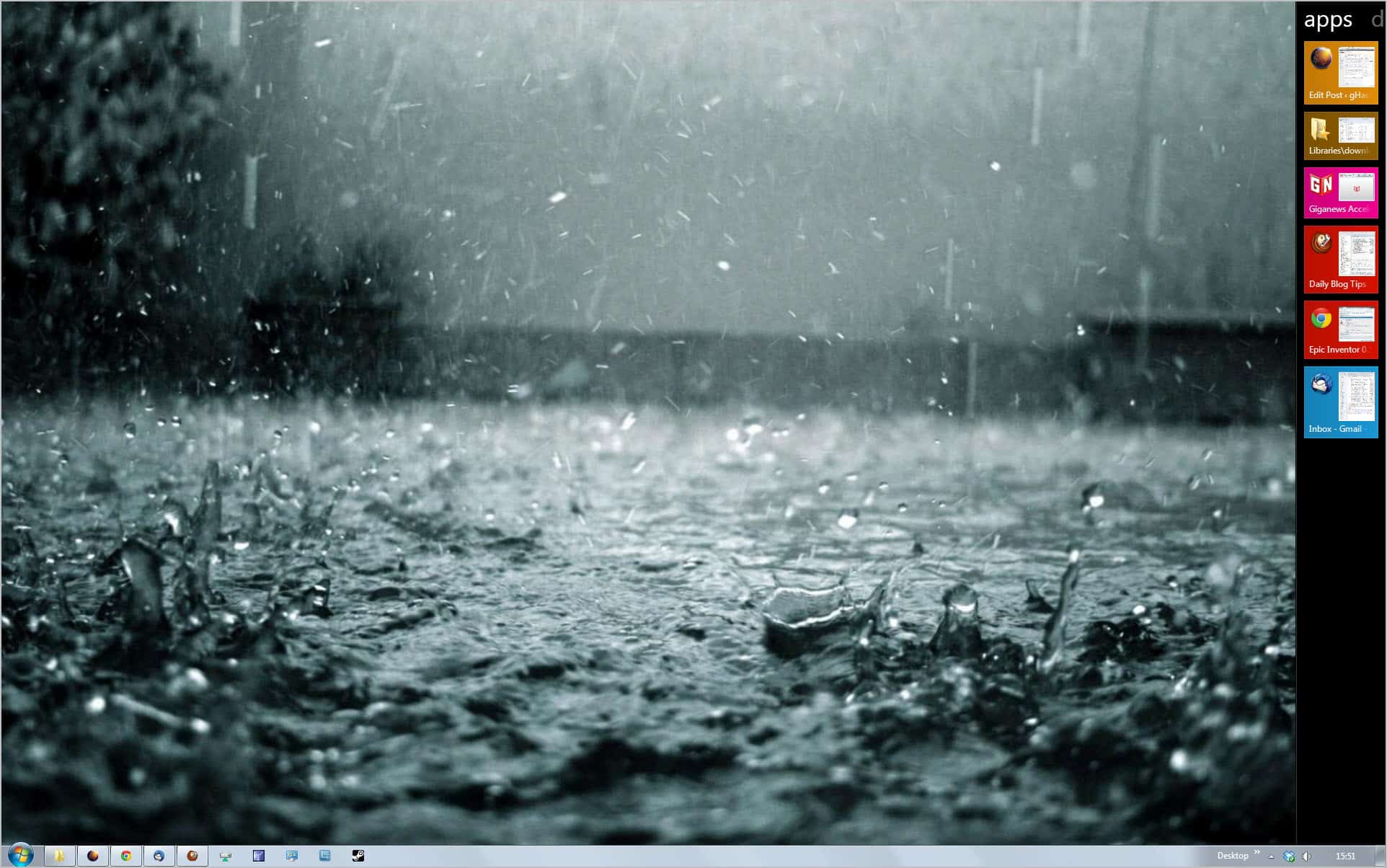
Stardock Tiles offers a slightly different approach to app management. The free version of the program adds a sidebar to the Windows desktop that is set to be always on top by default. The sidebar displays two different application listings by default; first open applications that are currently running on the system, and the user defined applications that are blank by default and fully customizable.

It is furthermore possible to enable a third listing displaying recently opened documents in the sidebar. A click on the title bar at the top of the sidebar switches between the enabled listings.

tiles application launcher

A click on a program brings the application window to the front. Documents are loaded automatically in the default application. A right-click on the sidebar and the selection of Configure Stardock Tiles opens the program’s configuration menu.

Here it is then possible to enable or disable sidebar pages, change appearance settings and other options.

Each page comes with its own customization options:

  • Only show windows from a list of applications
  • Show all windows in any state
  • Show all minimized windows
  • Show all non-minimized windows
  • Show all applications that have been recently opened (Windows 7 only)
  • Show all recent documents

configure pages

The size and location configuration menu controls where and when the bar is displayed on the screen. This includes changing the size of the bar, the position of the bar (on the left or right), and options to hide the bar automatically.

The options and appearance pages finally display additional configuration options, from enabling support for multi-touch gestures to grouping same process windows together. It could pay off to look through all options to customize the application manager further.

It may not much sense on first glance to display open program windows in the sidebar, considering that they are also displayed in the taskbar. Users who have disabled the taskbar on the other hand may benefit from Stardock Tiles. The ability to display recent documents and programs may speed up the workflow further.

I personally think that the program is missing options to quickly switch between page listings. A keyboard shortcut and keyboard navigation options would be quite useful.

Windows users can download Stardock Tiles from the official program website. The software is compatible with 32-bit and 64-bit editions of the Windows operating system.


© Martin Brinkmann for gHacks Technology News | Latest Tech News, Software And Tutorials, 2011. | Permalink |
Add to del.icio.us, digg, facebook, reddit, twitter
Post tags: , ,


Thursday, November 24, 2011

SliderDock is a Stylish Application Dock for your Desktop

There are several interesting application docks available and several of them have been mentioned on this site. Desktop customization is easy with Windows 7 and many users enjoy personalizing as much as they possibly can. You can fill up your Toolbar with icons and have the ordinary look or you could use other application dock software with a more flashy appeal. SliderDock has a unique user interface that is shaped like a floating ring on the desktop. You rotate the ring of applications using the mouse wheel and double-click the right icon to launch the desired application. This one truly stands out and can be customized and adjusted several different ways.

slider dock

Download SliderDock from this link: http://sliderdock.wikidot.com/start

SliderDock features animation quality and high resolution icons. You can customize the backgrounds for the icons, alter their size, and change the size and location of the ring easily. Install from the following link and read the instructions carefully before installing. One thing that is very important if you are running a 64-bit system is that you do not install SliderDock in the default location of Program Files(x86). Instead, you will need to change the destination folder to Program Files during installation as seen in the
image below. For a 32-bit system, you can use the default location.

installation folder

After you initially install SliderDock, there will be only a few icons in the ring. To add application icons, drag and drop the icons to the SliderDock icon which looks like this:

dock

This icon is rather important, as it is the point from which you access the right-click context menu and the settings. Select “Dock settings” from the context menu that pops up when you right-click the icon.

The Dock settings allow you to customize General settings, Appearance, Controls, Shortcut Keys, and Shading effects. Click the tabs one by one from top to bottom and read the options on each page. It is all self-explanatory for the average user. If you play with the different appearance settings for awhile, you will find the right look that you are going for with your particular personalized desktop.

With the Appearance tab, you can choose different background images for your icons. The ones that will look the best depend on your desktop background. If you use rotating backgrounds from a slideshow, perhaps the “white square” icon backgrounds will be the most appropriate. If you use a solid color background, just about any of the choices look good. Here are four examples of the icon backgrounds available.

There is also a SliderDock tutorial icon in the ring by default that links to a site describing everything you need to know about using SliderDock. There is far more to the subject than can be described in this article. This just gives you a quick look at some of the features and appearances. If you do choose to try it out and you want to use the tutorial, click the icon that looks like this:

tutorial

It looks like an Internet Explorer icon, but the “e” is a darker blue and the ring around it is a rainbow ring rather than a solid color. Additional customizations described in the tutorial provide instructions on how you can change icon images to make icons like this easier to find. Have fun customizing!


© Melanie Gross for gHacks Technology News | Latest Tech News, Software And Tutorials, 2011. | Permalink |
Add to del.icio.us, digg, facebook, reddit, twitter
Post tags: , ,