Pages

Showing posts with label Windows. Show all posts

Saturday, February 18, 2012

VLC 2.0 Has Been Released, Download Links Inside

We have followed the latest VLC development ever since Videolan pushed the first build of the media player’s new version to the public ftp server. It did not take long after that initial release before the first release candidate build was made available.
The developers today have released the final version of the media player. Interested users can download it directly from the official website where it is available for Microsoft Windows, Apple Macintosh and Linux operating systems. The 64-bit version of Windows has not been posted yet on the VLC 2.0 download page. Only a 64-bit Mac OS X version has been posted yet. It is not clear if the developers have postponed the released of the 64-bit Windows version, or if they plan to release the first official 64-bit release for the operating system in one of the next releases instead.
The release notes lists all the important changes of VLC 2.0 Twoflower sorted into groups such as video, audio, formats or professional users.
The developers have added experimental Blu-Ray disc support to VLC 2.0. It is experimental because of its limitations. This first version does not support menus yet, and does not ship with AACS and BD+ DRM libraries that are needed to play back copy protected Blu-Ray discs.
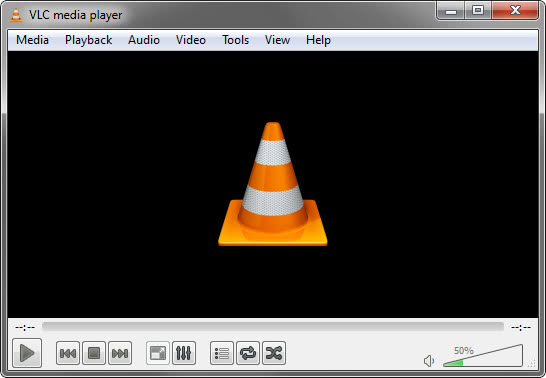
vlc 2.0 media player
Other changes include a rewritten video output core and modules, new video outputs for Windows 7, Android and iOS, and multi-threaded decoding for H.264, MPEG-4 and WebM. The developers have added support for several professional codecs and formats, including HD and 10bits codecs as well as SDI and HD-SDI card support for input on Linux.
Mac users benefit from extensions support and OS X Lion integration, continued support for OS X 10.5 and Power PC users, and support for all QTKit devices.
VLC 2.0 improves the decoding performance on multi-core processor systems, systems that support gpu hardware decoding and mobile hardware the player runs on. A click on Tools > Preferences > Input & Codecs > Use GPU accelerated decoding reveals whether gpu hardware acceleration is enabled in the media player. It is turned off by default.
Users who do not want VLC to remember which videos they played in the media player can disable the history feature in the Interface Settings under Save recently played items.
Have you worked with VLC 2.0 already? If so, what is your opinion of the new release? Oh, and if you prefer direct links to the downloads, use this link.

DriverIdentifier, Scan Your PC Hardware For Driver Updates

I’m not a big fan of applications that scan a system for hardware driver updates, as it can happen that updates are suggested that are either not compatible with the installed hardware, or not beneficial to the system. These programs have their purpose, but only for users who care to double-check suggested driver updates before they install the drivers on their system. Users who just blindly install the suggested drivers may

DriverIdentifier is a free application that scans all drivers currently installed on the system to compare their versions with the latest recorded version in the service’s database.

update drivers driveridentifier

The program needs to be installed on the system before it can be run. A click on the Scan Drivers button checks the PC’s hardware and installed drivers. This takes about 30 seconds before results are opened in the default web browser. That’s one of the issues that some users may have with the program, as some would prefer the list to be displayed on the desktop and not the web.

The web page lists general information about the PC at the top, and below that a large listing of drivers that are installed on the system.

driver identifier

Drivers are listed with their name, the manufacturing company, the version and release date. Outdated drivers are listed at the top, with every other driver listed below that. Download links are listed for all outdated drivers to download driver updates directly or find updates with the help of the Google search engine.

There is unfortunately no option to filter out drivers, for instance all Microsoft first-party drivers, to improve the accessibility of the list.

How is DriverIdentifier comparing to a software like DriverEasy? DriverEasy displays results in the program window on the desktop, which is way more comfortable than a web listing. The software furthermore filters results by unknown or outdated drivers, and lists download and installation options right in its interface.

The downside is that the free version does not support backups or uninstallation of drivers, limits the available bandwidth for driver downloads and does not create system restore points when driver updates are installed.

DriverIdentifier is compatible with all recent 32-bit and 64-bit editions of the Microsoft windows operating system.

Update: Please note that the program will install a toolbar and modify the default search provider and homepage if you do not disable the installation by selecting the custom option instead of the quick installation option.


Friday, February 17, 2012

Merge Subtitles and Movies With Movie Subtitler

Movie subtitles repositories are popular sites on the Internet, as they provide users with movie subtitles in many different languages. This can be useful if you got hold of a movie in a language that you do not understand for instance, if you want subtitles displayed to learn a language, or if you are hearing impaired and need subtitles to enjoy movies.

Subtitles come in two flavors. They are either hard coded into movies, or available as separate files. Both have their distinct advantages and disadvantages. Separate subtitles for instance allow you to disable the subtitle whenever you like in a movie, and to edit them in case you have spotted an error. Their main disadvantage is that there are many different subtitle formats available, and that most video players do not support all those formats. This is especially true for many home DVD players.

That’s why programs like Subtitle Converter are popular as well. For hardcoded subtitles it is the other way round. They cannot be edited or disabled anymore, but load in any video player that supports the format the video has been created in.

Movie Subtitler is a free portable program for the Windows operating system that can add a subtitle permanently to a movie file on your computer.

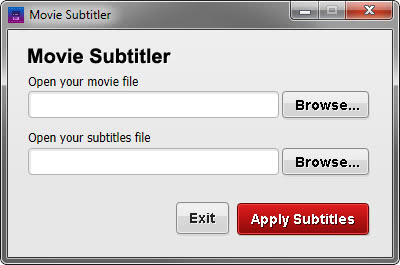
movie subtitler

You need to select a movie file and subtitle for that video from your computer first after you have started the software. The program supports avi and mpg videos, and srt and sub subtitle files. A click on the apply subttitles button merges the video and the subtitle so that it is permanently embedded in the video file. The processing may take a while, depending on the length of the movie and the performance of the computer.

This process can be useful if you want to watch the movie on your home DVD player or in a media player that is not supporting subtitles.

Movie Subtitler is compatible with all recent versions of the Microsoft Windows operating system. You can download the latest program version from the developer website.


Tuesday, February 14, 2012

VLC Media Player 2.0 Final To Release This Week

Back in January we reported that VideoLan was about to release VLC 2.0, and that a first release candidate was to be released in that week. This release candidate has been out for about a month now, and VideoLan is preparing to ship the final version of VLC Media Player 2.0 later this week.

The developers have already pushed a Linux test version of VLC 2.0 to the test servers indicating that a release is near.

The new version of VLC will introduce several new features to the client that should get lots of users excited about the release. Probably the biggest feature addition is support for Blu-Ray media that users can then play in the video player, provided that their computer has a Blu-Ray drive. VideoLan notes that the feature is experimental, and that copy protected Blu-Rays won’t play in this version of the player.

Other features include ports of VLC to Android, iOS and 64-bit versions of the Windows operating system, C-64 SID file playback support, and a switch to Direct2D video outputs on Windows 7 and Windows Vista systems.

Changes do not stop here though, the official changelog lists more than a hundred changes and improvements over previous versions of the video player. If you are interested in a summary of those changes, check out our VLC 2.0 coverage from back in January.

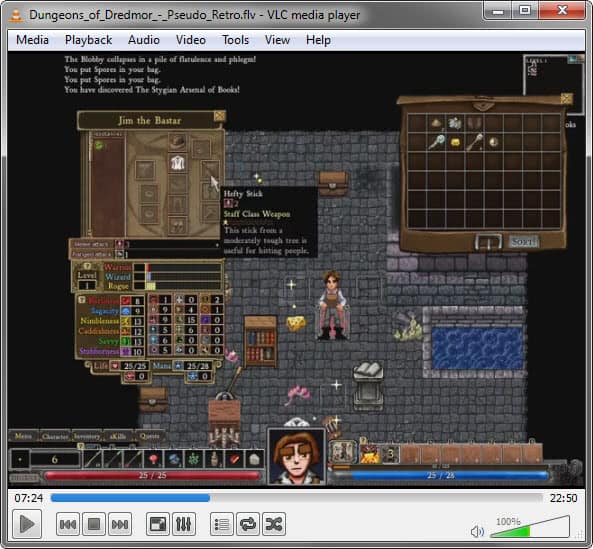
vlc media player 20

VLC users can check for updates frequently under Help > Check for Updates or on the official VideoLan website where the new versions will be available for download once they have been released.

Adventurous users can download the release candidate from the following address: VLC Download Server

The Linux version is listed in the root directory. Windows and Mac users need to click on the respective directories for downloads for their operating systems.

Some Windows users have reported that the VLC 2.0 RC1 is running slow on their systems. They managed to resolve the issue by enabling GPU decoding in the options. This can be done by clicking on Preferences > Input & Codecs > Use GPU accelerated decoding.


Monday, February 13, 2012

Mozilla To Release Firefox Version For Windows 8 Metro UI

If you are a regular reader of this blog, you know that Microsoft’s upcoming operating system Windows 8 will ship with two different interfaces. First a classic interface that is more or less identical to what current Windows users are working with, and the new Metro user interface that is more tablet centric and minimalistic.

You cannot just use desktop applications in the Metro interface and the other way round, which means that you may also access two different versions of the same application depending on the interface you are in. A special version of Internet Explorer 10 has been designed for the Metro UI that is in many regards fundamentally different from the classic desktop version of the browser. Among the changes are a minimalistic interface, the lack of browser plugins or the fullscreen mode.

Mozilla has published two new Wiki pages that detail how the company intents to cope with the changing design requirements.

The Windows 8 wiki describes that Mozilla plans to release a Windows 8 Metro-specific Firefox browser, to complement the classic version of the browser. This Metro-specific version would be accessible on Windows 8′s Metro user interface only.

The wiki page describes some of the challenges that the developers face at this point in the planning stage:

  • Firefox on Metro, like all other Metro apps will be full screen, focused on touch interactions, and connected to the rest of the Metro environment through Windows 8 contracts.
  • We will need to determine if the Firefox front end on Metro will be built in XUL, C/C++, or HTML/CSS/JS (I’m assuming for now that .Net and XAML are off the table.)
  • Firefox will have to support three “snap” states — full screen, ~1/6th screen and ~5/6th screen depending on how the user “docks” two full screen apps. Our UI will need to adjust to show the most relevant content for each size.
  • We’ll need to handle being suspended by the OS when out of view.
  • We may want to offer a live tile with user-centric data like friends presence or other Firefox Home information updates
  • Ideally we’d be able to create secondary tiles for Web-based apps hosted in Firefox’s runtime.

The second Wiki page, Windows 8 Integration, highlights additional restrictions or challenges:

  • Unlike Desktop, Metro apps will ONLY be available through the Windows store.
  • There are no overlapping windows, nor traditional popup windows, everything is chromeless, everything is designed to be consistent across applications.
  • Not possible to simply and easily port existing apps to Metro. A significant amount of conventional desktop functionality will not be available.
  • Some interprocess communication is possible within Metro, but it is very limited.

It appears as if Mozilla is currently in an information gathering stage to find out if and how they can create a Metro UI version of the Firefox web browser.

No release related information are provided on the two wiki pages. It is however likely that we won’t see alpha or beta versions before the release of the Windows 8 Release Candidate, or maybe even later.

There is a lot of uncertainty. Users for instance might want to know if they can use their extensions in the Metro UI version of the browser, or if that would be prevented somehow.

Windows 8 users with the intention to use Metro UI will surely welcome options to switch the default interface browser.

A Firefox Metro UI version, would that be something that you are interested in? Or do you think that Mozilla should concentrate development on the desktop version of the browser?


System Explorer, A Lightweight Task Manager Alternative

When we first reviewed System Explorer back in 2007, we came to the conclusion that it was a great Task Manager, Process Explorer and Autoruns hybrid. The developers of System Explorer have released version 3.8.0 yesterday, and I would like to use this release to publish an updated review here on Ghacks.

System Explorer is offered as a portable version and installer. The latest version brought full support for 64-bit operating systems, making the software compatible with all versions of Windows from Windows XP on.

When you first start System Explorer you get the option to run a security scan on the system. This optional scan checks all running processes against an online database. Results are then displayed in the Processes tab next to each process.

system explorer

The program itself divides information into tabs at the top. The four tabs Tasks, Processes, Performance and History are displayed by default, with options to add new tabs with a click on the tab-bar’s plus icon. Here you can enable a good dozen additional services, from auto start entries to installed software, all open connections or installed system drivers.

The process manager displays all running processes in tree form by default so that you see dependencies right there. Each process is listed with its name, cpu and memory utilization, security status, process id and start up parameters if available. A filter at the top allows you to hide Microsoft process, services or processes from all users. A real time search lets you find process fast, and the convenient right-click context menu offers to check a file at online virus scanning services Virustotal or Jotti, or on Google, Process Library or the service’s own process database.

It is furthermore possible to change process affinities and priorities temporarily or permanently, and to end, suspend or restart processes right from within the interface.

The performance tab informs you about the processor and ram usage. One interesting aspect is the highlighting of the process that is taking up most of the system’s Ram and swap (which is Firefox in this case).

system explorer performance

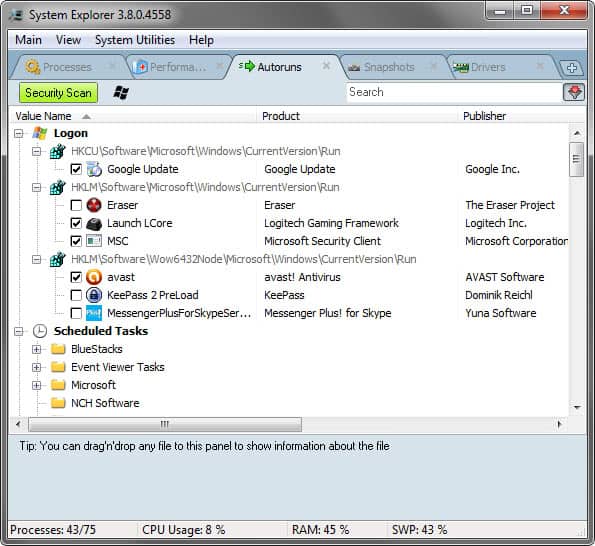
The autoruns tab displays all auto-start programs and scheduled tasks. You can hide Microsoft items here to get a better overview of third party programs that are run during system start.

autoruns

You can disable programs that are loaded during log on with a single click.

You can configure System Explorer to replace the default Windows task manager. The program is then opened when you use the Ctrl-Alt-Esc hotkey to bring up the task manager.

System Explorer is one of the top task manager replacements for the Windows operating system. You can download the latest program version from the developer website.


Messenger Plus! Is A Skype Chat Log Viewer, Call Recorder And More

Skype is a popular voice over IP software that you can use for a number of purposes. From audio and video calls over the Internet, to landline calls or messaging. The software has been recently acquired by Microsoft and it is expected that the Redmond company will integrate the technology into several of its core products.

If you have used Skype throughout the years, you have probably identified a few areas of improvement. Messenger Plus! for Skype is a free plugin that adds several missing features to the software.

The plugin attaches a small toolbar to the left of the Skype window which links to various plugin features, and a few web links that you may not be interested in at all.

skype messenger plus

The first six icons and the last of the toolbar link to the features that the plugin adds to Skype. Recording lets you record Skype audio and video conversations, with options to automate the recording in the program options. You need to click on the record button by default to start a recording. The third button links to the directory all recordings are saved into on the system.

The share button allows you to add animations and winks to Skype. This feature requires Flash to be installed on the system to function properly. The plugin ships with 35 animations that you can preview in a window before sending them to people you communicate with on Skype.

skype animations

The last feature adds a log viewer to Skype. If you use Skype to chat regularly with contacts, you may have noticed that Skype displays all messages on a single page. There is no sorting available, for instance by date.

The log viewer, once activated, keeps track of your chats and displays them in an easier to access interface. It is for instance possible to select a specific month, day or user directly without having to double-click on the user in Skype to fiddle around in the interface to find the message you are looking for.

Even better, you can search, preview and print any conversation, or export them into text, html, csv or xml files.

skype log  viewer

You may want to pay a visit to the plugin’s options page. Here you can for instance change the recording quality, enable automatic recording of incoming calls, or disable automatic updating.

skype video recording preferences

I have already mentioned that you find a few links in the toolbar that redirect to the website of the developer. It is easy enough to ignore those. You may also want to pay extra attention to the installation process, as you may end up with a new toolbar, search provider and browser homepage otherwise.

Interested users can download Messenger Plus! for Skype from the developer website. The program is compatible with all recent versions of the voice over IP software.


The Alternatives to Windows 8

Windows 8 is unique in that it is the first version of Microsoft’s mighty operating system that faces serious and stiff competition from its rivals.  For the first time there are not just one but a great many serious contenders for the role of your desktop OS.  So with so many people wary about the changes that Microsoft are bringing forth I thought I’d take a look at the alternatives, see how they might fit with your Windows world, and examine just how realistic a switch away from Windows this year can actually be.

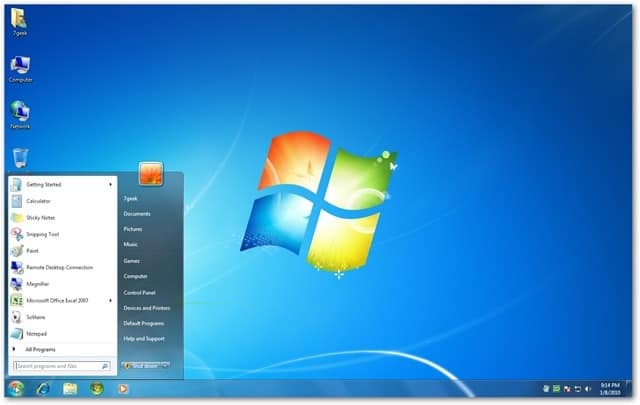
Windows 7

The obvious place to start is with Windows 8′s predecessor, Windows 7.  One thing is certain, that this operating system will be hugely popular right up until support ends for it in January 2020 and possibly even beyond as it wouldn’t be without precedent for Microsoft to extend the support life for a version of Windows.  Windows 7 could be considered the ‘ultimate’ version of the desktop OS, not just because it’s the last true desktop OS from Microsoft, but because of its reputation for reliability, compatibility, stability and security.  There is also XP Mode to run any older Windows software that won’t run natively, but with support ending for XP in April 2014, it would be unwise to use any XP software after this time that requires Internet access, and many including Microsoft and security researchers would advise not using it at all after this time.  Sticking with Windows 7 is probably the best solution in many ways.  It will still be on sale and being shipped with new PCs until the autumn of this year and many will consider it the operating system to use going forward.

Windows Vista

Few people would now consider Windows Vista as a viable alternative to Windows 7 or Windows 8.  Notoriously slow, especially on older hardware, and with software compatibility that was largely broken, almost all Vista users have either upgraded to Windows 7 already or plan to do so as soon as possible.

Windows XP

Despite the popularity and compatibility of Windows 7, it’s Windows XP that has won hearts and minds in the way no other Microsoft operating system ever has.  This comes despite some huge security issues that have plagued the platform and its default web browser Internet Explorer 6.  This operating system is already out of mainstream support, so no more service packs and updates are being issued, and extended support for security and stability fixes ends in less than two years, before the launch of Windows 9.  A lack of suport for new technologies including USB3 and Thunderbolt also count against this OS, unless you are able to get specific third-party drivers.  Anybody sticking with Windows XP will need to have a very good understanding of the security risks involved in doing so, this really isn’t a strong contender for your OS choice for the next few years.

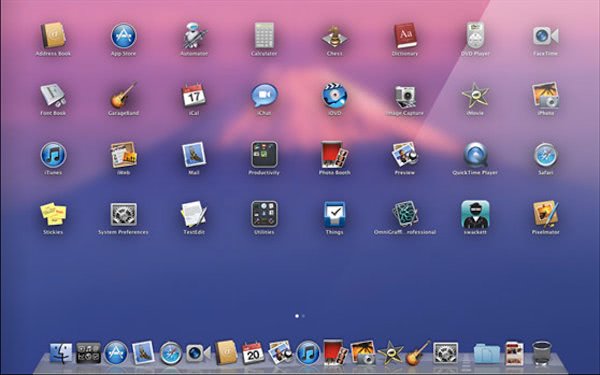
OS X

Apple’s desktop operating system has a great many strengths, but a few major weaknesses as well.  Those strengths involve being one of the most stable and secure operating systems the world has ever seen.  It’s eminently usable too with gesture control that Windows 7 simply can’t match and a software base every bit as strong as that for Windows.  It’s not going anywhere either.  On the minus side there are still questions about how Apple are set to integrate their iOS tablet features into the desktop, effectively doing what Microsoft are doing with Windows 8 but probably to a slightly lesser degree.  Moving to OS X would also not just require buying a new and sometimes expensive computer (or even computers) but unless you were going to run Windows 7 or Windows 8 in Boot Camp or the Parallel’s virtual machine, you would have to re-purchase all your software as well, as very little software these days comes with both PC and Mac licensing.

Ubuntu

Three years ago GNU/Linux was still the rank outsider in the desktop OS world, but times have changed with Canonical turning their Ubuntu OS into an operating system every bit as polished and usable as OS X or Windows 7.  The best part is that this operating system is free and, with version 12.1 now comes with long-term support, meaning it’s no longer essential to upgrade your operating system every few months.  On the downside, software support, especially for the major apps is still lacking with traditional Linux apps lagging behind their OS X and Windows alternatives.  Ubuntu’s new HUD (Head up Display) for finding menu items in software might not be to everyone’s tastes either.  This feature can be switched off and traditional drop down menus reinstated, but Ubuntu still needs that all important software support to compete on a level playing field.

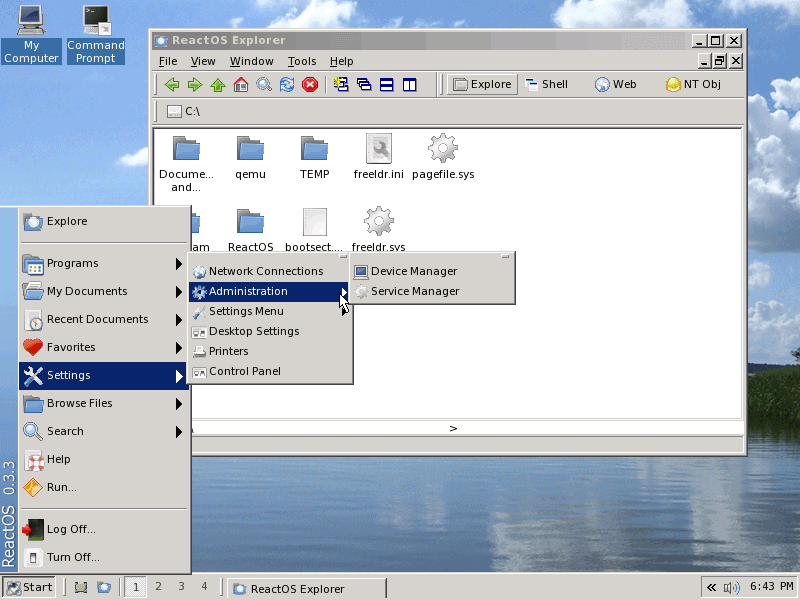
ReactOS

Currently in alpha, this Russian organised Windows NT/XP clone promises to be binary compatible with Windows and support every piece of hardware and software that works with Windows XP.  It’s a bold claim that so far seems to be panning out.  It should be complete and bedded-in by the time Windows XP support ends so it could be a viable alternative.  On the down side, Microsoft has a way of aggresssively going after any “Windows Clone” and having already shut down Lindows a few years ago they will soon have their guns trained on ReactOS, no matter how well the developers might be covering themselves in terms of copyright.  There is also the fact that ReactOS has been in an alpha stage now for an extremely long time, and frankly may never be completely finished.

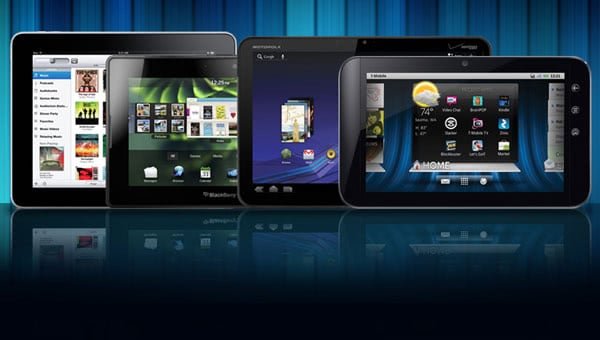
iOs, Android, QNX

Do you actually need a full desktop operating system any more?  This is an interesting question as the majority of tasks we perform on our PCs can now be done equally well on a tablet running Apple’s iOS, Google Android or RIM’s QNX.  These tasks, including email and web browsing are actually pleasurable on modern tablet operating systems and this situation is only set to improve.  The burgeoning app stores, and the quality of those apps is improving every day too with companies like Adobe showing how advanced photo editing, another of our major tasks, can be made simple and pleasurable on a tablet.

Here the problem is storage and file management.  With a tablet you’re restricted to storing your files mainly in cloud services and in order to get those files on the tablet in the first place, or indeed into the cloud, you need to synchronise with a desktop computer.  We can fully expect these devices to become more independent over time, and perhaps even support external hard disks and USB pen drives.  Unless and until this happens though these tablets (and I’m obviously excluding Windows 8 tablets from the list) just aren’t quite ready to handle our ever expanding collections of music, videos, files and photographs.

Summary

So this is my own take on the alternatives to Windows 8 and how effective and realistic a move to each one might be.  You will probably have your own ideas on what would make a good alternative and why.  You might be just sticking with XP despite the security concerns, or sticking with Windows 7.  You may even decide that now is the time to get rid of your desktop PC altogether and move solely to a tablet.  Perhaps your music is already stored in the cloud or you use a service like spotify, and maybe your new digital camera can upload your files directly to Picassa or another cloud service for you.  Why not tell us your thoughts in the comments.