Pages

Showing posts with label delete cookies. Show all posts

Saturday, November 12, 2011

Internet Explorer Expired Cookies Cleaner

Cookies, those small data files that can do good (saving preferences or session information) or bad (tracking), have all an expiration date. The expiration date is set by the webmaster of each visited website and can range from seconds or minutes to years. Cookies will expire eventually and when they do they cannot be used anymore by the domain they have been created on.

Expired cookies are not only useless to the site though. Internet users cannot use the cookies as well anymore and they may even leak privacy related information to third parties should they get access to the computer.

It makes therefor sense to delete expired cookies on the computer. And while that is possible in most web browsers, Microsoft’s Internet Explorer does not seem to be doing it.

The free portable software Expired Cookies Cleaner comes to the rescue of Internet Explorer users who want to get rid of out of date cookies on their system. All it takes is to run the application, click the Process button and wait until the application has processed all of the cookies that Internet Explorer has stored on the system.
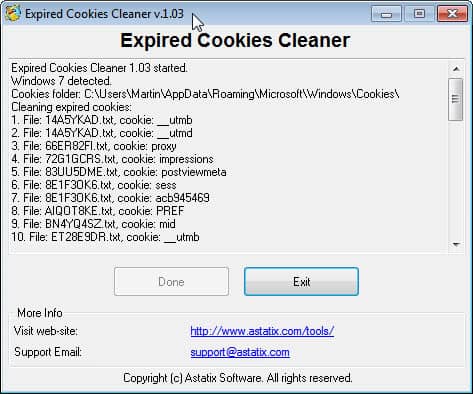
expired cookies cleaner

The program displays all cleaned cookies in a log in the application window. A summary is displayed in the end that lists information about the overall cookie count on the system and the number of expired cookies.

The program deletes expired cookies from the system or individual cookie files if more than one cookie is saved in a file. It happens that only some of the cookies stored in the file are expired while others are still valid. The program removes the expired cookie information from the file and keeps the remaining cookie information on the system.

You can run the software without graphical user interface from the command line. This can be handy if you want to run the program on a regular basis, for instance as part of a batch file.

The command C:\>ExpiredCookiesCleaner.exe a FileName runs the program and saves the output in filename. You can replace the file name parameter with nul if you do not want a log file written.

Expired Cookies Cleaner is compatible with all version of the Microsoft Windows system and all versions of Microsoft Internet Explorer. Interested users can download the tiny portable program from the developer website. (via)


© Martin Brinkmann for gHacks Technology News | Latest Tech News, Software And Tutorials, 2011. | Permalink |
Add to del.icio.us, digg, facebook, reddit, twitter
Post tags: , , , ,


Sunday, October 30, 2011

AskForSanitize, Display Clear Private Data Prompt On Firefox Shutdown

Firefox users have several options at hand to delete private browsing data. This includes running the browser in private browsing mode, configuring it to delete the data on shutdown or running the clear recent history module manually to delete some or all data this way. Veteran users may remember a time when the browser displayed a prompt on exit to delete all or select browsing data on shutdown.

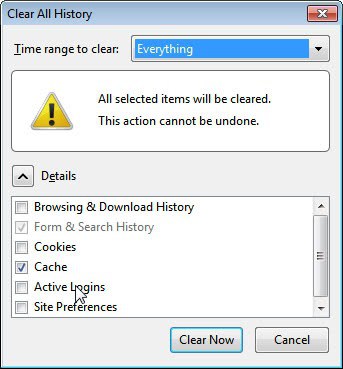
This prompt since then has been removed by Mozilla. Firefox users who want to re-enable the prompt in the Firefox browser can install the AskForSanitize add-on to do that. The add-on basically displays the clear recent history window whenever the user closes the browser.

clear all history

Here it is then possible to clear everything or only select data sets. Users can for instance delete the cache, browsing and download history or site preferences in the dialog. The time range to clear pulldown menu can be used to delete data that is older than the selected time range.

The Firefox extension ships with a toolbar button that triggers the delete browsing data prompt on mouse click. It is not added automatically to a toolbar, which means that users need to place it there manually (by right-clicking a toolbar, selecting customize and dragging and dropping the button to the desired location on a Firefox toolbar).

One question that may come up is this: Why would anyone want to display the delete browsing history window on exit if it can be configured to run on exit automatically?

The core reason here obviously would be if the data only needs to be deleted at times and not on all exits of the browser. The automation here is a more comfortable than triggering the deletion dialog manually whenever it is needed.

Which leads directly to the following question: How often do you clear your browsing data?


© Martin Brinkmann for gHacks Technology News | Latest Tech News, Software And Tutorials, 2011. | Permalink |
Add to del.icio.us, digg, facebook, reddit, twitter
Post tags: , , , ,


How To Clear Individual Cookies In Google Chrome

Question on how to clear individual cookies in the Google Chrome web browser just came up and I thought I write a small guide here on Ghacks about it. Google Chrome, just like any other modern web browser, accepts all cookies by default. Cookies are small data packages that are saved by domains on your computer. They can be used for positive things like saving preferences or session data, and negatively perceived things like tracking the user on the Internet.

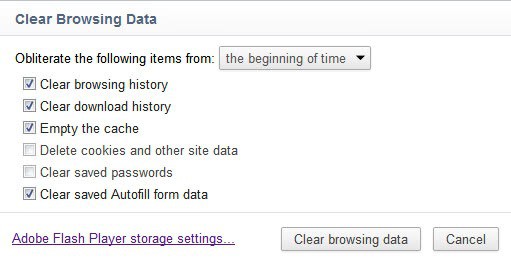
Google Chrome users can clear all browsing data, which includes cookies but also other data like the browsing and download history, by clicking on the wrench icon in the toolbar and selecting Tools > Clear Browsing Data from the menu that pops up.

It is alternatively possible to use the keyboard shortcut Ctrl-Shift-Del for the same effect. A window is displayed where the data can be cleared.

clear browsing data

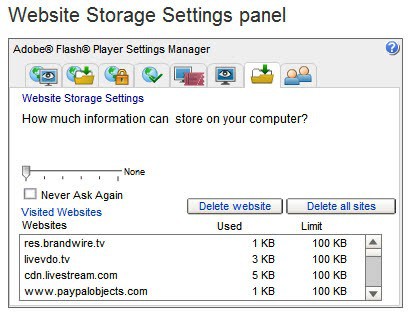
Please note that there is a link to the Adobe Flash Player storage settings. If you click on that link you will be taken to Adobe’s Website Storage Settings panel where you can delete all or select Flash cookies.

clear adobe flash cookies

If you go back to the Chrome browser you may have noticed that the clear browsing data window does not offer to clear individual files. Sometimes you may want to delete a specific cookie or a set of cookies only. This can be handy for web developers testing a new site feature, users who accidentally visited a site and want to delete its traces or users who want to clear personalized data.

The easiest way to clear individual cookies in Google Chrome is to enter chrome://settings/cookies into the address bar. This opens the cookies and other data listing in the browser. All stored cookies are displayed here. It is possible to remove all cookies or search for individual cookies.

A click on a site displays all cookies stored by that site on the computer. It takes another click to display detailed information about the cookie and the Remove button. If you click on Remove the selected cookie will be deleted from the system.

cookies and other data

And that’s how you delete standard and Flash cookies in the Chrome web browser individually.


© Martin Brinkmann for gHacks Technology News | Latest Tech News, Software And Tutorials, 2011. | Permalink |
Add to del.icio.us, digg, facebook, reddit, twitter
Post tags: , , , ,