Pages

Showing posts with label Browsing. Show all posts

Saturday, February 18, 2012

Chrome Connecting To Random Domains On Start? Here Is Why!

If you are monitoring your network traffic closely you may have noticed that the Google Chrome web browser and its Open Source counterpart Chromium are both trying to connect to three random ten letter words on start up. For most users, it is not clear why the browser is making those connections, and some have even assumed that they were either made to send information privately to Google, for tracking purposes, or even caused by malware running on the system.

Mike West analyzed the part of the browser’s source code that was responsible for making the connections. He discovered that Chrome and Chromium are making those connections to help the browser’s Omnibox figure out user intents correctly.

The issue that Google aims to fix with these connections is easily explained. Some Internet Service Providers have started to intercept requests that do not resolve properly. If you enter ghacks for instance in the address bar and tap on the return key afterwards, Chrome needs to figure out if you want to search for the term ghacks, or if you want to visit the site http://ghacks/. Since it cannot do that, it displays an infobar if the word would resolve to an existing domain name giving the user the chance to open the domain with another click.

When ISPs intercept the lookups to display their own error pages, usually filled with advertisement and search options, then it appears to the browser as if the word would resolve just fine. This in turn would mean that users would see the infobox in the browser even for words that do not resolve.

To prevent this, Google is making these three initial lookups on start up to see if ISPs intercept requests that cannot be resolved. It compares the IP addresses of the pages that are returned, and turns the infobox off if they are identical (as this suggests an ISP is intercepting the look ups).

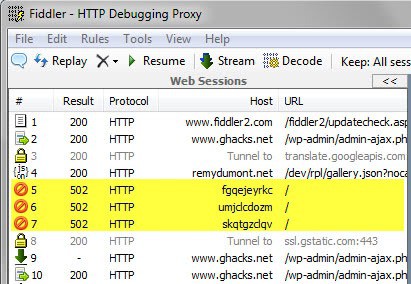
How can you find out if Chrome or Chromium are making those requests? You can use programs that monitor traffic on the system. One example would be the free tool Fiddler which can show you the connections the browser makes.
google chrome random requests

The three random connections are highlighted in the screenshot above.

The three connections are nothing that users need to worry about. Thanks Mike for finding that out for us.


Resize Images Directly On Web Pages In Firefox

It happens that you stumble upon a site where images are posted that are simply to small to make out all of the details. Some let you view a larger version of the image when you click on it, while others do not offer larger versions of the images at all. This can be a problem, for instance on shopping sites if you’d like to zoom in on a photo of an item that you consider purchasing.

We have covered extensions and userscripts before that can do that, like the Image Zooming extension or the userscripts Mouseover Popup Image Viewer and Zoom Image.

The Image Resizer/Scaler extension offers a different solution, that many Firefox users may find more comfortable and less obtrusive to use. Instead of zooming an image on mouse over, or on right-click, the extension adds drag zooming to the web browser.

All that it takes to zoom an image is to hold down the left mouse button while the mouse cursor hovers over it, to either zoom in or out by moving the mouse into the upper left or lower right direction. The cursor changes once you start moving the mouse to indicate that you can now zoom in or out with the mouse.

You need to keep in mind though that the image is limited to the space it was posted on, which means that you may not see all of the image if you zoom out to much. This is for instance the case on Google+ where images cannot go beyond the post width.

Two additional features have been added by the author of the extension. A right-click on the image resets it to its original size, while a double-click maximizes it automatically. You can also hold down the Ctrl key to disable the feature for the time being on the current page.

All in all a useful extension for users who want mouse image zooming capabilities in the browser.


Friday, February 17, 2012

Hide Offline Contacts From Facebook Chat

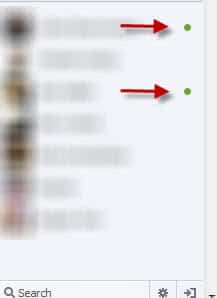
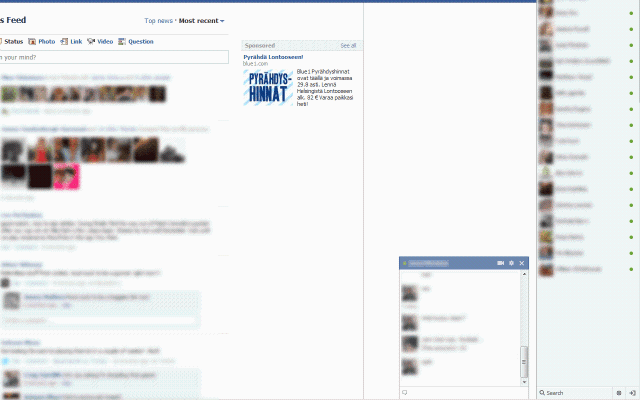
Facebook fairly recently made a change to Facebook Chat that is irritating many users of the site. The chat interface, displayed in the lower right corner of the screen is now not only listing contacts who are online, but also those who are not. To make matters worse, online and offline friends are mixed in the listing. The only way to identify online contacts is the green icon next to the contact’s name.

It is not really clear why offline contacts are displayed next to online contacts there. While it is possible to send messages to offline chat partners, it is probably not something that a lot of Facebook users would want to do, as they could use the site’s messaging options instead for that.

facebook chat contacts

Messages send to offline chat partners are displayed to them the next time they come online. Some Facebook users may prefer to hide offline chat partners from Facebook Chat to increase the visibility of the feature.

The following extensions and scripts let you hide all offline contacts from Facebook’s Chat window.

Firefox add-on: Tidy Facebook Chat

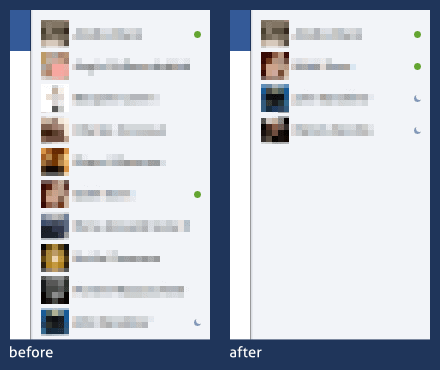
This add-on for the Firefox browser hides all Facebook contacts who are currently offline from the friend’s listing in the sidebar.

facebook chat addon

Google Chrome: Facebook Chat Fix

This add-on shows only online friends on Facebook in the chat bar. It furthermore hides the mini news-feed that you see on the site as well.

facebook chat

Userscript (Firefox, Google Chrome, Opera): Facebook Old Chat Sidebar

This one is the most sophisticated option of them all. It returns Facebook to the old chat interface. It hides offline friends, so that only online and idle friends are shown, orders friends by first name, displays the total number of online friends and groups friends by status.

That’s not all though. It automatically adjusts the size of the chat bar and makes the chat bar stick to top.

The userscript is probably the best choice as it offers more customizations and options than the browser extensions.


Mozilla Firefox 10.0.2, Thunderbird 10.0.2 Released

Mozilla has just released Firefox 10.0.2 to the public, the third release in less than a month’s time (you can read up on Firefox 10 and Firefox 10.0.1 by following the posted links). The previous update fixed several crash related issues that affected a high number of Firefox users.

Firefox 10.0.2 is a security update that is resolving one critical security vulnerability in the browser. The vulnerability could allow attackers to cause a crash and potentially exploit the issue. Affected by the vulnerability are both Firefox 10.0.1 and 10.0.1 ESR, as well as Thunderbird 10.0.1 and 10.0.1 ESR, and SeaMonkey 2.7.1.

The developers have implemented additional changes and improvements into the new Firefox version. Firefox is now supporting Anti-Aliasing for WebGL and accelerated layers via OpenGL ES. The bdi element for bi-direction text isolation with supporting CSS properties has been added in the release as well.

The only other changes are a fix for a rare issue where the browser would not load web pages or close tabs anymore, and a new Set Up Sync menu entry in the Firefox home menu.

firefox 10.0.2

Existing Firefox 10.x users should see update notifications in their web browser. A click on Firefox > Help > About Firefox opens a screen where update checks can be performed manually. Here you also see the current version of the web browser.

New users can download the latest stable version of Firefox from the official website. You can open the release notes here to take a look at the changes and known issues. All known issues seem to affect the Firefox mobile browser Fennec for the Android operating system only.

Minor updates like these should not cause any problems for existing Firefox installations.

Thunderbird users can download the latest version of their email client from the Thunderbird website. Existing Thunderbird users should receive update notifications in the client by now. Only the security issue was fixed in the email client.


Encrypt Facebook Group Communication With Encrypt Facebook

Social networking sites may use the contents that you post on their sites in a variety of ways. They may sell them to advertisers, use them to personalize advertising on their sites, may report them to local authorities or ban your account.

Encrypt Facebook is a new Google Chrome extension that offers an ingenious way out for users who want to communicate on Facebook privately. The idea is simple: All messages are posted in encrypted form on the site, and saved as thus in the Facebook database. Facebook cannot read the contents, and the same is true for third parties requesting access to the contents.

The setup process is divided into three steps:

  • Create a Facebook group or use an existing one
  • Install the Google Chrome extension, and configure it
  • Create a security key that is used to encrypt and decrypt the contents that get posted.

The biggest hurdle to setting this up correctly is getting the security key to all participants. Only those with the correct key can read the encrypted data on Facebook, and can post protected contents on the site that are readable by others.

You need to click on the extension’s icon in the address bar to set it up correctly. Here you are asked to enter the Facebook Group page url and the encryption key.

facebook encryption

Once done, you can write posts or reply as usual on that group page. Your contents are automatically encrypted whenever you finish writing the message. A click on post adds the message to the site

encrypt facebook messages

Group users visiting the page with the extension and correct encryption key installed will see all messages in decrypted form. Everyone else with access sees only the encrypted messages.

The extension uses an AES 256 key to encrypt the messages. The key is stored locally.

The extension has primarily been created for users in oppressive or corrupt governments to allow citizens to communicate freely without fear of repercussion.

Two issues need to be mentioned. It first needs to be noted that the key is posted in plain text on the local system. Anyone with access will be able to access the group messages as well, provided that the group is known and accessible.

Facebook may also notice the garbled contents on their site and put an end to it when they discover it.

Chrome users can download the extension from the official Chrome Web Store.


Thursday, February 16, 2012

CNET Download.com NoBadware, Bypasses Cnet Installer Downloads

We were one of the first sites to report that Cnet.com was replacing direct download links on their site with downloads pointing to a Cnet software Installer. This installer, according to Cnet, has been designed to deliver the requested downloads more securely to the client’s computer. The installer at the same time was used to push third party software programs, which many would call adware, to the computers of unsuspecting users. To make matters worse, users had to opt-out of the installation of toolbars and other software that more often than not changed the user’s homepage and search engine among other things.

The web installer caused other issues as well. Users who wanted to install the program on a system without permanent Internet connection ran into troubles as the Cnet installer required a web connection to deliver the program to the user PC.

Cnet has been criticized heavily for this practice, and some software developers as a consequence have pulled their applications from the site. Others requested to remove the web installer from the program’s distribution channel. Cnet as well seems to have removed the installer from some applications.

CNET Download.com – NoBadware: Direct Download Links is a userscript that skips Cnet’s web downloader when downloading files from the download portal. It automatically replaces all links pointing to Cnet’s secure downloader with direct software links, even for users who are not logged in or registered at the site.

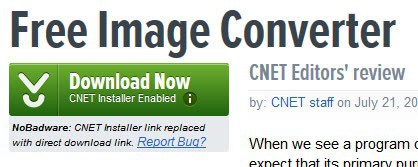
The script indicates the change on the site by adding a small notification below the Download Now link on each program’s download page.

bypass cnet installer

This way it is immediately clear if the download button points to the Cnet installer or the original file that was requested by the user. A click on the button opens the “your download will begin in a moment page” where the originally file is then offered for download.

The userscript has been tested in Firefox and Google Chrome, and it worked in both browsers exactly as advertised. Firefox users need to install Greasemonkey or Scriptish before they can install the userscript in their browser. The userscript may work in other browsers as well.

All in all an excellent script for users who sometimes download software from download.cnet.com and prefer direct downloads. (thanks Vineeth Reedy)


Wednesday, February 15, 2012

YouTube Center Adds All The Missing Features To YouTube

There are quite a few things that you cannot do on YouTube due to lack of controls. It is for instance not possible to repeat videos automatically or stop videos from automatically playing if you load it on the video hosting site. Most of the annoyances and missing features on YouTube become available through add-ons or userscripts that you can install in the web browser. Some target a specific feature like the ability to download videos from YouTube, others add a bunch of features to the site.

YouTube Center is one of those scripts that add a lot of features to YouTube. It does that in a way that is not overloading the site or changing it significantly.

Google Chrome users can install the userscript right away, while Firefox users need to have the Greasemonkey or Scriptish add-ons installed before they can do the same. There is no mentioning of support for other browsers.

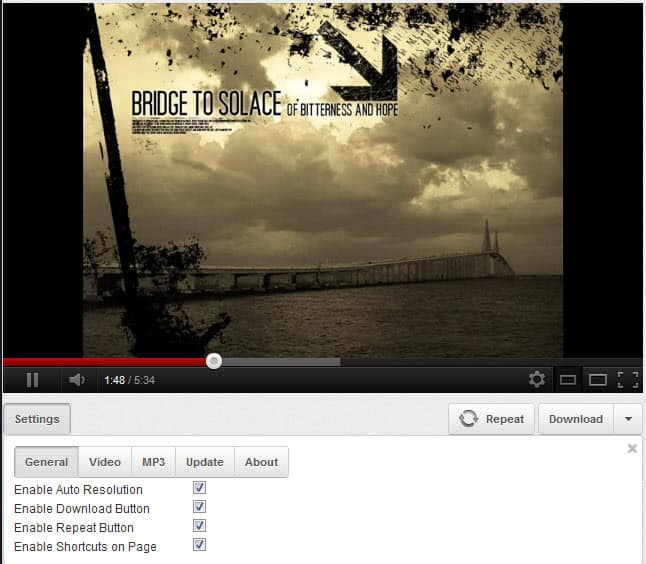
Once you have installed the userscript in your browser, you will notice a new small toolbar attached to the bottom of videos on YouTube.

youtube center

The three buttons Settings, Repeat and Download are displayed by default. A click on Settings opens the configuration menu where you can make the following changes:

  • Enable Auto Resolution – Select a preferred video resolution that videos will be played in if available.
  • Enable Download button – Options to set a preferred download quality and format. The down arrow next to the download button lists all available qualities for download.
  • Enable Repeat button – Displays the repeat button to automatically repeat videos for as long as you stay on the page. Repeat can be automatically activated in the settings.
  • Enable Shortcuts on Page – Enable shortcuts on all of the page, including abilities to go to a specific video position with the 0-9 keys, space to pause the video or left and right arrow to go back and forward ten seconds.
  • Prevent Auto-Play and Auto-Buffering – Stops videos before they start to buffer or play automatically.
  • Download mp3 – Option to download the audio of videos to the mp3 format.

YouTube Center is a useful userscript for YouTube regularly who wish they had more control on the site.