Pages

Showing posts with label ssd. Show all posts

Saturday, November 5, 2011

SSDLife Free, Show Life Expectancy Of Solid State Drives

Solid State Drives are slowly becoming the new mainstream storage devices. It may still take a few years before they replace platter based hard drives but it will happen eventually. Currently both price and storage volume are not competitive, but this will change in the future. PC users who followed SSDs from the very beginning may still have stories about bad life expectancy and locked storage in their mind. The first retail generation of solid state drives had lots of issues in this regard.

With newer generation drives those factors have been mitigated or eliminated completely. Still, some PC users may need to check on their SSDs from time to time to make sure that they provide the same performance and reliability as in the beginning.

SSDLife Free is a Windows software program that can check the life expectancy of a solid state drive. It interprets the SMART data of the drive. The free version of the program supports only one connected SSD. If more than one drives are connected only the first will be analyzed and displayed.
ssd drive health live expectancy

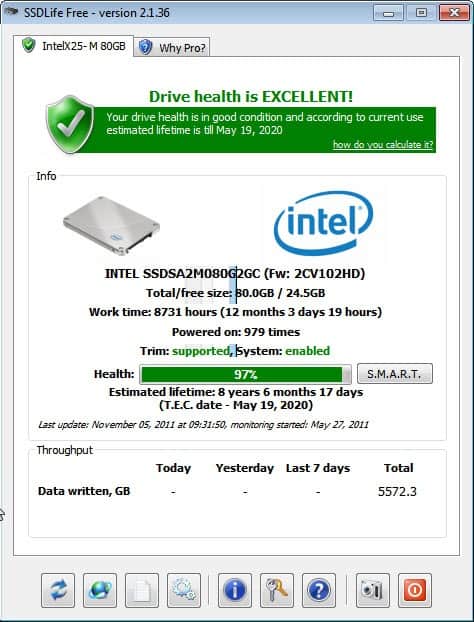
When you start the program for the first time data about the first SSD of the system is collected and then displayed on the screen. This includes a general drive health rating at the top with the estimated lifetime of the solid state drive. The information are more detailed in the middle of the window. Here you see your drive’s model, the total drive space and free space, the work time in hours and days and the times the drive has been powered on.

The program displays furthermore if TRIM is supported by the drive, and the estimated life expectancy in more detail. Lastly, it also displays how much data was written in Gigabyte in the SSD’s life.

The expected lifetime is handy to know, as it allows users to make preparations to replace the drive when the time of “death” comes nearer.

SSDLife Free can display the SMART data of the drive in an online report in the web browser.

Users with one Solid State Drive installed on their computer can download the free software from the developer website.


© Martin Brinkmann for gHacks Technology News | Latest Tech News, Software And Tutorials, 2011. | Permalink |
Add to del.icio.us, digg, facebook, reddit, twitter
Post tags: , , ,


Saturday, October 29, 2011

Intel SSD Toolbox 3 Released

With the rise of Solid State Drives came software from hardware manufacturers to manage and control those drives in a computing environment. Intel’s SSD Toolbox has recently been released in version 3. We have covered both the initial Intel Solid State Drive (SSD) Toolbox release and Intel Solid-State Drive Toolbox 2 release before. Lets see what’s new in the third major installment of the SSD toolbox.

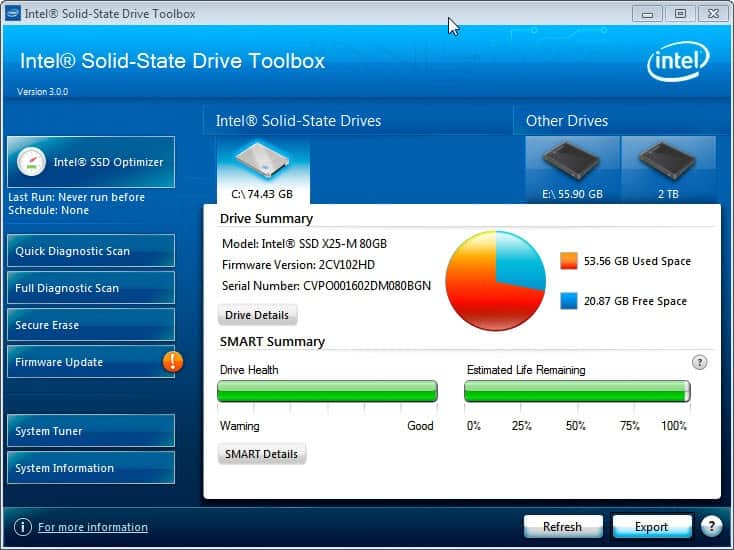
Users of previous versions of the Intel Solid-State Drive Toolbox will notice that the new installment ships with a redesigned interface. The start screen display information about all hard drives connected to the computer. The drives are separated by Intel SSD and Other Drives tabs. Information about the drive model, firmware version and serial number are displayed here next to drive health and estimated life remaining bars.

Linked from here are the drive details section and the SMART details section of the program.

intel solid-state drive toolbox 3

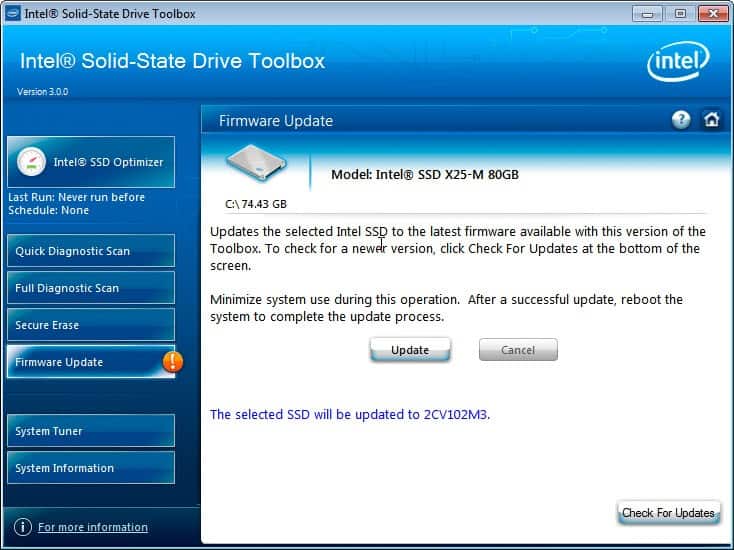
Probably the biggest new feature in this version is the new firmware update button that checks online for new firmwares for the SSD and informs the user if new versions are available. Users can install the new firmware right away from within the program interface and Windows. Intel surprisingly though only recommends to minimize system use during the operation and not to create a backup of the data on the drive prior to installing a new firmware.

Another issue here is that the update screen lacks information about the changes in the new firmware version. The new firmware version is however displayed on the screen so that a manual search for the version should reveal the update information. It is highly recommended to check the changes before installing the firmware update.

intel ssd firmware update

The program still offers to run the Trim command regularly on Windows operating systems that do not support it to retain the performance levels.

Windows 7 and newer users who can make use of the built-in Trim functionality can use other features of the toolbox that have already been available in previous versions of the application. Among them the System Tuner which runs a quick check to see if operating system features such as the disk defragmenter, ReadyBoost or Superfetch and Prefetch are configured optimally.

The Secure Erase feature on the other hand can be used to remove all data from the drive which can be handy before selling, lending or giving it away.

Windows users can download the latest iteration of Intel’s Solid-State Toolbox from the Intel website.


© Martin Brinkmann for gHacks Technology News | Latest Tech News, Software And Tutorials, 2011. | Permalink |
Add to del.icio.us, digg, facebook, reddit, twitter
Post tags: , , , ,


Saturday, October 15, 2011

SSD Fresh, Optimize Windows For SSD Usage

When it comes to connecting one of those blazing fast solid state drives to your computer system you’ll be well advised to make sure that the PC is optimized for SSD storage devices. The core reason for this is to make sure that the top speed that you’ll experience during the first weeks of usage remain near that top level over time.

This includes among other things to make sure that automatic defragmentation of the SSD is disabled or that Trim is enabled on Windows 7. (Users of other [Windows] operating systems need to run software like Intel’s Solid State Drive Toolbox to run emulate the trim command.

For more optimization related tips check out Optimize Slow Solid State Drives, Optimize Windows For Solid State Drives Usage and Use A Ram Disk To Reduce Writes On Solid State Drives.

SSD Fresh is a free software program for the Windows operating system that can be used to optimize the computer automatically for using SSD hard drives. You are asked to register the program (free) by entering an email address and name.

The software displays an overview of all connected SSDs on the system after startup. Information include the drive’s name, type, size, number of partitions, file system and the pie chart visualizing the drive’s used and free diskspace. A drive’s S.M.A.R.T. information are displayed with a click on the Smart data button.

ssd fresh

A click on Optimization displays the list of suggested optimizations. The program scans the system automatically and displays the optimization status for each suggestion automatically.

optimize ssd

Each optimization is listed with its name, status, description and link to activate or restore the suggested feature.

Here is the list of all suggestions that are currently available in the program:

Indexing (disable search indexing)
Defragmentation (disable automatic defragmenting)
Timestamp (disable access time logs)
Prefetch (disable prefetching)
Defragmentation of boot files
Windows event logging
Systemrestore
8.3 name creation

The program can be used to enable or disable a specific feature or to optimize all of the settings at once. It is recommended to check all suggested optimizations manually before making the suggested changes. It is for instance not recommended to disable the operating system’s System Restore feature unless other forms of backup and restoration are available.

Experienced users can disable all of the suggested features manually, and maybe even faster considering that the software needs to be registered before it can be used. The program fails to address some important optimizations that include the Windows pagefile or the location of the temporary files folder on the system.

Another issue is that it is not possible to make optimizations only for select solid state drives. The changes that you make in the software affect all SSDs on the system.

Interested users can download the SSD optimizer from the Abelssoft website. The program is compatible with 32-bit and 64-bit editions of the Microsoft Windows operating system.


© Martin Brinkmann for gHacks Technology News | Latest Tech News, Software And Tutorials, 2011. | Permalink |
Add to del.icio.us, digg, facebook, reddit, twitter
Post tags: , , , ,