Pages

Showing posts with label usb. Show all posts

Wednesday, December 7, 2011

Log USB Drive Connections In Windows With USBLogView

Can you find out if someone else has been on your PC, has connected an external USB drive to it, and copied data from it to the drive? Tools like USBDeview tell you which USB devices have been connected in the past. The program even tells you when a device has been connected to a particular PC (local and remote are supported) the last time. But it ends there. You cannot see how many times a drive has been connected and for how long.

USBLogView has been designed to fill the gap. The new portable software monitors plug-in and unplug events of external USB devices for as long as it runs on the system.

Plug and unplug events are recorded along with other information about each particular event. This includes the date and time the event took place, the device name, description and type of device.

The program furthermore highlights drive letters, serial numbers and other information about each external USB device that got connected or disconnected while the application was running in the background.

usb device log

If you run the program all the time you get a detailed list of all connections to the PC the software is running on. It needs to be noted that this is not a 100% safe way of finding out. Users with access to the PC could close the program and restart it to avoid detection. They would however need to either look for monitoring software or know that it is running to do so.

USBLogView comes with the usual options Nir Sofer adds to his software programs. It is possible to export connection data, create a HTML report, print data or copy and paste it directly.

The software is compatible with 32-bit and 64-bit editions of the Microsoft Windows operating system. Interested users can download it from the developer website.


© Martin Brinkmann for gHacks Technology News | Latest Tech News, Software And Tutorials, 2011. | Permalink |
Add to del.icio.us, digg, facebook, reddit, twitter
Post tags: , , ,


Saturday, November 26, 2011

USB Manager, Manage USB Device Types

USB is currently the most popular way of connecting external devices to the computer. The majority of external storage devices, printers, scanners, audio devices with built in sound chips and other peripherals are connected via USB to the PC.

You sometimes may want to prevent that other people connect USB devices to your PC, for instance to avoid that they download data from the PC to external drives. Or, you might want to prevent users from using the connected USB printer whenever you are not on your computer.

While you could do that with Registry hacks and other means, it is usually a lot easier to use a program like USB Manager for that job. Keep in mind that disabling USB devices or device types is not a 100% protection against data theft, copying or printing of data.

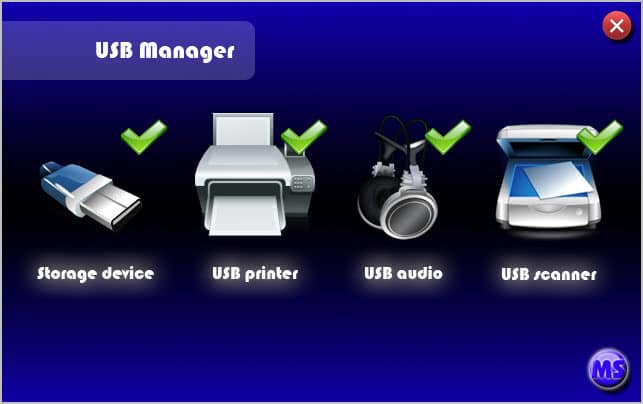
USB Manager displays the four USB device types that it supports in its interface on program start. All four of them, that is storage devices, usb printers, USB audio devices and USB scanners, are enabled by default indicated by the green checkmark next to each symbol.

usbmanager

You can disable a specific device type, e.g. printers, with a click on the device icon in the program interface. You can alternatively use the program’s system tray icon to enable or disable device types.

All it takes is a few clicks to disable or enable USB devices on the system. It is furthermore possible to set a program access password in the options to avoid that others enable devices again that you have disabled.

The options are also the place to configure hotkeys, hide the system tray icon or configure the application to autostart with the Windows operating system.

USB Manager serves a specific purpose. Depending on the USB devices, you may notice that some are not disabled even though they should be. This was for instance the case with my Logitech G930 wireless headset which was not disabled when I disabled USB Audio using the software.

Windows users who would like to give it a try can download the software from the developer website. A commercial server client is available that can be used to control USB devices on remote computer systems.

Please note that the program offers to install an optional software package during installation. Make sure you click cancel here if you do not want to install several unrelated programs that may also make changes to your browser’s default search engine and homepage.

Update: The audio headset has been disabled correctly after a reboot. Please also note that you need to run the program with elevated rights.


© Martin Brinkmann for gHacks Technology News | Latest Tech News, Software And Tutorials, 2011. | Permalink |
Add to del.icio.us, digg, facebook, reddit, twitter
Post tags: , , , ,


Thursday, October 6, 2011

Free USB Guard, Never Forget Your USB Flash Drive Again

It is pretty easy to forget to remove an USB Flash drive or stick from a computer system on shutdown. Some devices are that small that it is easy to overlook them when shutting down a computer. While that’s not a big issue at home, it can very well be one if you happen to use public computers or computers at work. Maybe you have important data stored on the stick or drive like a password manager with all of your account passwords, or documents that are important for work or study.

The problem here is that it is very likely that someone else will eventually spot the drive or key and take it with them.

Free USB Guard is a program that checks for connected USB devices on system power changes. If devices are found, the user will be notified to avoid the aforementioned scenarios. The application is a portable software. Just unpack it, for instance on the USB drive or stick to run it from there whenever you are working on systems that are not your own.

Whenever you change a power state, for instance by selecting to shut down or log off, you are reminded by the program that USB devices are still connected to the system.

usb guard drive removal warning

The program for the most part sits quietly in the Windows system tray. It displays a list of all USB drives that it currently monitors. This list is automatically updated whenever a new device is connected to the PC that is monitored by the application.

usb guard

The program will autostart with Windows unless you uncheck the options in the program’s right-click context menu. Free USB Guard can monitor external hard drives as well. A list of available drives is displayed, including internal drives, which can be added to the program’s monitoring. You basically get the same warning message if you change the power state then.

Free USB Guard is not the only program that can do that. In How To Protect USB Sticks And The Data On Them I mentioned the program USB Stick Watcher which basically can do the same. The program comes with additional functionality, including sound alerts.

Free USB Guard is available for download at the developer website. The program is compatible with all recent 32-bit and 64-bit editions of the Microsoft Windows operating system.


© Martin Brinkmann for gHacks Technology News | Latest Tech News, Software And Tutorials, 2011. | Permalink |
Add to del.icio.us, digg, facebook, reddit, twitter
Post tags: , , , ,