It sometimes happens that one of your favorite add-ons gets an update that you are not happy about. A new add-on version can for instance break functionality, introduce changes that you do not want or decrease the browser’s stability or security. If you do not want to uninstall the affected add-on, you could consider installing an older version of it to overcome the issue that you are experiencing.
Firefox users have three options to downgrade add-ons in the browser. It is not necessary to uninstall the new add-on version before installing the old one. Keep in mind though that older versions may be incompatible with your version of the browser.
Installing old Firefox Add-on versions
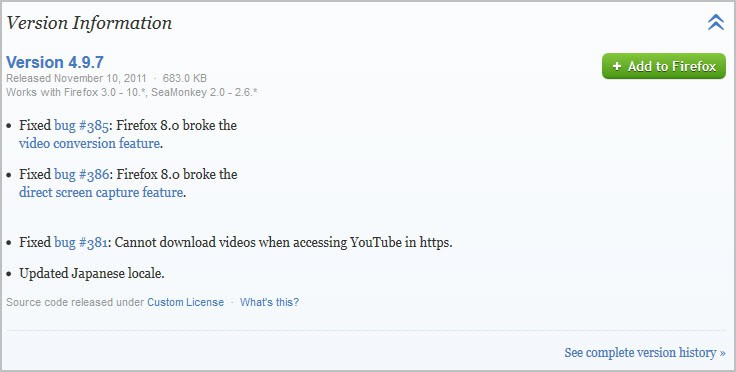
You have several options at your disposal to install an older version of an add-on. The first option is presented on the add-on’s page over at Mozilla. Lets take Video DownloadHelper as an example. Load the page in Firefox and scroll all the way down until you reach Version Information near the bottom of the screen. Click on the link to expand the selection. Locate See complete version history there and click on it.
This opens a new page where the majority of previous add-on releases are listed. Make sure you read the “be careful” section at the top to understand the risks.
You can install an older version of the add-on by moving the mouse cursor over a version and clicking on the Add to Firefox button to start the installation.
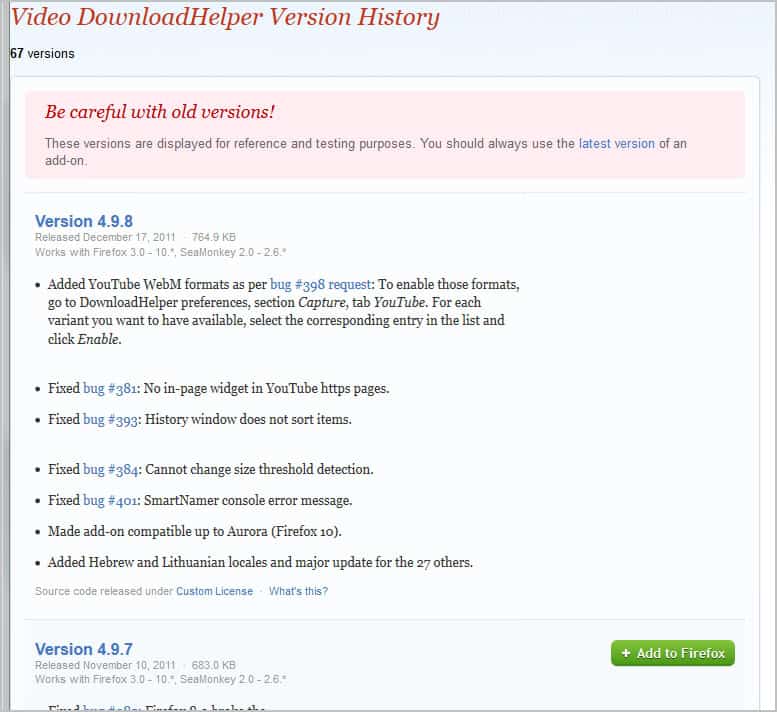
Release notes are usually offered for every version listed on the version history page. Just install the add-on and restart the browser afterwards to complete the process. The add-ons manager should now display the installed version and not the latest one.
Alternatives
You can alternatively connect to the public Mozilla ftp server to download a previous add-on version. You do however need the unique add-on ID which is not displayed publicly anymore (Mozilla switched from displaying the unique ID in the url to descriptive names instead). If you do know the ID, you can download it from the ftp server as well.
A third alternative comes sometimes in the form of the add-on homepage on the Internet (not on Mozilla). Developers sometimes offer download links to old add-on versions on their websites. It is however usually a lot easier to use the official Mozilla Firefox site for that.
Disable Updates
You are not done yet. If you would stop right here Firefox would try to install the latest add-on version automatically. Open about:add-ons in the Firefox address bar and click on the More link next to the extension that you have just downgraded.
Locate Automatic Updates there and switch it from Default to Off. This disables automatic updates for the selected add-on. See How To Turn Off Automatic Updates For Individual Firefox Add-Ons for an in depths guide.
© Martin Brinkmann for gHacks Technology News | Latest Tech News, Software And Tutorials, 2011. | Permalink |
Add to del.icio.us, digg, facebook, reddit, twitter
Post tags: Firefox, firefox add-ons, firefox tips


0 comments:
Post a Comment