Pages

Showing posts with label firefox tips. Show all posts

Wednesday, February 15, 2012

How To Turn Chrome or Firefox Into A Single-Site Browser

A Single-Site browser serves a very specific purpose. You use it to access one, and sometimes a handful, of websites and services on the Internet. This can be financial sites, your email accounts or other sites with personal information like a medical related sites. The basic idea is to block access to all other sites to protect the account and information from certain attack forms like cross site scripting or clickjacking.

All connections are blocked except to those sites that you have explicitly allowed. This means that third party scripts won’t be loaded if they originate on a non-whitelisted domain, and that you won’t be able to open third party sites manually in the browser.

This guide demonstrates how to turn Firefox and Google Chrome into a single-site browser. Inspiration has been taken from Vasa’s post over at the Wilders Security Forum.

Google Chrome

Google Chrome users can make use of the –host-rules parameter to block all domain connections except the ones they whitelist. The general parameter looks like this:

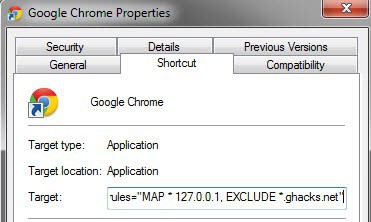
--host-rules="MAP * 127.0.0.1, EXCLUDE *.ghacks.net"

This redirects all connection attempts to localhost, except for connections to the ghacks.net site or one of its subdomains.

You can also add multiple inclusions in the following way:

--host-rules="MAP * 127.0.0.1, EXCLUDE *.ghacks.net","MAP * 127.0.0.1, EXCLUDE *.microsoft.com"

Windows users can add the parameter to Chrome in the following way:

  • Locate a Chrome shortcut in the Start Menu, Taskbar or Desktop
  • Right-click the shortcut and select Properties
  • Append the parameter to the end of the Target listing, with a space in between.
  • Click Ok to apply the settings.

google chrome single-site browser

You could alternatively create a second shortcut to use it for accessing your important sites, and keep the general shortcut for all other sites that you visit in the browser.

Firefox

Mozilla Firefox users need to install the SimpleBlock extension for their browser first. They then need to create a SimpleBlock.ini file in the user profile folder and add a regular expression to it to allow access to certain sites.

R: https?://(?!(My.bank.com|Second.site.com|Third.site.com))

This would allow access to the three domains mentioned above, and block all other connection attempts.

It is probably best to create a new user profile for this. You can use an add-on like Switchy or the new Firefox profile manager application.

Closing Words

It is best to create new profiles or shortcuts to work with Single-Site browsers. Security add-ons like NoScript can mitigate the issues if they are configured properly.


Saturday, February 4, 2012

How To Uninstall Firefox Add-ons With No Remove Option

You can uninstall most Firefox add-ons from the addons manager page in the web browser. All you need to do is type in about:addons in the address bar and tap on the enter key to open the page. A click on remove next to an add-on uninstalls it from the browser. You may need to restart the browser to complete the process. The add-on afterwards has been removed completely.

Some add-ons on the other hand do not show a remove option at all in the addons manager. Most of the add-ons that you cannot uninstall from within the browser are called global extensions. They are installed from third party sources, for instance when you install or update security software or another application on your system. The Babylon Toolbar is an example extension as it is often attached to software installations.

The majority of extensions are installed in the extensions directory of the Firefox profile folder. I’d suggest you start there to see if the extension that you want to remove from Firefox is listed there.

firefox extensions

You may run into two issues here. First that extensions sometimes install with cryptic names so that it may be difficulty to identify them, and second that you may not find the extension that you want to uninstall listed here.

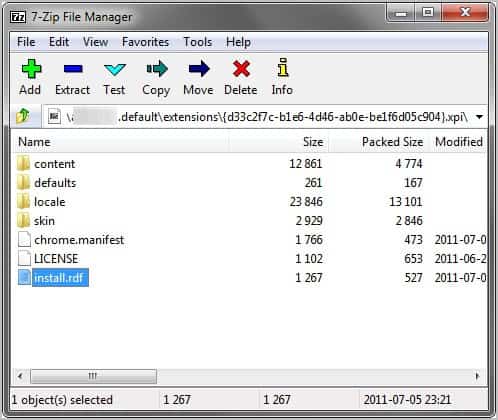
The easiest way to identify add-ons here is to load them into archiving software like 7-zip. Double-click on the install.rdf afterwards and look for name there.

unknown firefox addon

extension name

Some extensions are already unpacked in a folder. Just open the folder of the extension in that case and double-click on the install.rdf file in there to identify its name.

It is however likely that you do not see the extension in the directory.

Global extensions

Global extensions can be installed into any directory. The most likely folder is the extensions folder in the Firefox installation folder. This is usually C:\Program Files (x86)\Mozilla Firefox\extensions for 64-bit Windows operating systems, and C:\Program Files\Mozilla Firefox\extensions for 32-bit systems. Keep in mind though that you can install Firefox into any directory. Portable Firefox users need to open the extensions folder under the portable path.

Repeat the steps outlined above to identify all extensions listed here.

The third and final option is the Windows Registry. You may find extension information under the following two Registry keys:

  • HKEY_CURRENT_USER\Software\Mozilla\Firefox\Extensions\
  • HKEY_LOCAL_MACHINE\Software\Mozilla\Firefox\Extensions\

Use the shortcut Windows-r to bring up the run box. Enter regedit in there and hit enter. Navigate to the keys in the Windows Registry and check if extensions are listed there.

registry extensions

Information that you will find there includes the extension path.

extension path

Backup the Registry key first by selecting File > Export. Open Windows Explorer and navigate to the directory of the extension. Backup that directory as well, before you delete both the directory and the Registry key that links to it. Repeat the step for all extensions that you want to delete.

Please note that you need to close Firefox before you start deleting extensions on the system this way.

If you follow the method, you should be able to delete any extension that you cannot uninstall from within the browser interface.


Monday, January 23, 2012

Firefox 12 Inline Autocomplete Feature

When you type in characters into the Firefox address bar you will notice that a suggestion box appears right below it. This suggestion box lists sites that you have visited in the past or bookmarked so that you can access those sites faster with just a click or the down cursor. Add-ons like Enter Select make this feature more comfortable by loading the first appearing result with the enter key.

A recent feature addition to Firefox 12 is causing some controversy among users. Firefox 12 is currently available in the Nightly channel before it moves on to the Aurora, Beta and then Stable channel. This means that the majority of Firefox users will experience the new feature – if not altered – in about 13 weeks.

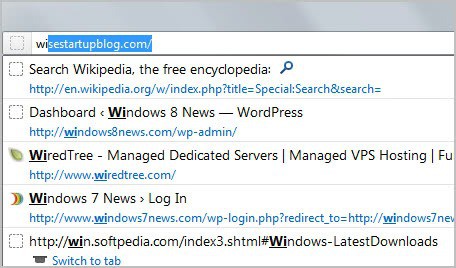
Firefox 12 introduces the inline autocomplete feature in the browser which displays the first matching root url in the address bar. Firefox users can then use the enter key to automatically load the website in the browser.

firefox inline autocomplete

The two core problems here are that Firefox is not displaying the most popular url in the address bar, and that it only looks at the root url and not page title for a match. As you can see on the screenshot above, entering the characters wi does not autocomplete to en.wikipedia.org or another appropriate hit, but to wisestartupblog, a site that I read an article once on.

One could now say that it does not really change the existing functionality, as it is still possible to select suggested results from the list with the mouse or cursor keys. The change is visual on the other hand and may irritate users who are not used to seeing entries being auto-completed. The issue that weights far more heavily is how results are selected. Instead of displaying a site that the user likely wants to visit, the first matching site is displayed. And while this may sometimes be the site the user wants to visit, it often may not be that site especially since there is no popularity check involved.

Firefox users who do not want the feature can turn it off, here is how it is done:

  • Enter about:config in the address bar and hit enter to load the Firefox advanced configuration menu.
  • First time users see a warning page before they can actually access the configuration.
  • Filter for the term browser.urlbar.autoFill
  • A double-click sets it to false, which will turn the feature off.

You can repeat the process to turn the auto fill in the address bar on again. (thanks Sören for the tip)


Sunday, January 1, 2012

The Best Firefox Tips Of 2011

Now that we have covered the best Firefox add-ons of 2011, it is time to look at the best tips for the browser as well. A lot has changed development wise in 2011. Mozilla has switched to the rapid release process after the release of Firefox 4 which has increased the version of the browser to 9 (stable) at the end of 2011. That’s five new versions in less than a year, and the prospect to see Firefox 18 to be released at the end of 2012.

Mozilla is facing more competition than ever. First and foremost from Google’s Chrome browser that is posed to overtake the Firefox web browser in market share in 2012 (depending on the stats you are looking at it may have already happened). This has not kept the organization from signing an agreement with Google to keep Google the default search provider in the coming years.

Add HTTP Back To Address Bar – Mozilla has removed the http prefix in the address bar. Here is how you can add it back.

Change Firefox’s Minimum, Maximum Tab Width – Display more or less tabs in the browser at the same time without scrolling.

Configure Firefox To Delete All Cookies On Exit But Select Ones – Cookies can be beneficial, e.g. to stay logged in, and not beneficial, for instance when they are used for tracking purposes.

firefox address bar

Configure Firefox To Install Add-Ons Faster – Save a few seconds every time you install add-ons in the Firefox web browser.

Delete Old Extension Preferences In Firefox – Extensions may add preferences to the browser during installation that do not get removed on uninstallation of the add-on. Here is how you can remove them.

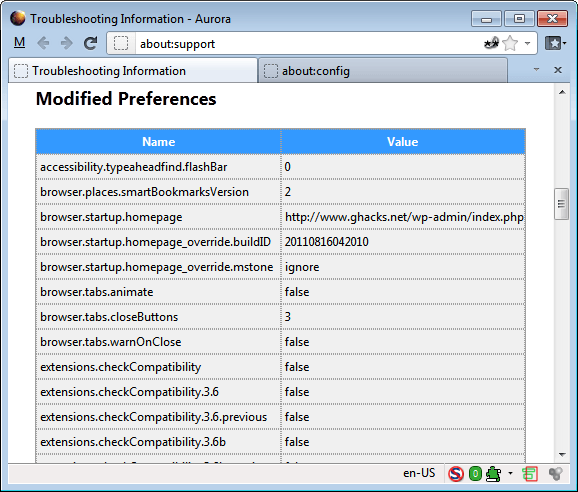
Display All Modified Firefox Preferences – Sometimes you may only want to display modified preferences in Firefox to quickly change or reset them.

firefox modified preferences

Don’t Like The New Firefox Button? Then Change It! – How to change the Firefox button.

Firefox, Thunderbird Lagging? Lag Fix Inside – If you are experiencing lags in Thunderbird or Firefox, you might want to try this fix.

How To Downgrade Firefox Add-ons – This explains how to install an older add-on version in the browser. Can be useful if the new version has bugs, is incompatible or features that you do not like and do not want to use.

How To Run Firefox Stable, Beta, Aurora And Nightly Simultaneously – Firefox is offered in four different channels, and even some special test versions. (see also How To Create Multiple Firefox Profiles For Specific Tasks).

How to setup a Firefox Test Environment – A test environment can be useful for various purposes, for instance to test add-ons or browser related settings, or to divide different usage scenarios (e.g. work and after-work).

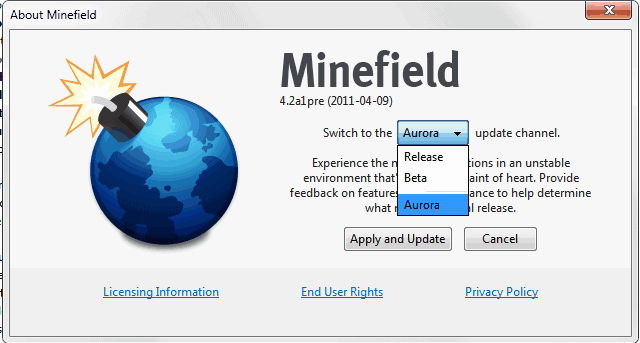
How To Switch Firefox Update Channels – How to switch between Nightly, Aurora, Beta and Stable channels of the browser.

firefox release channels

How To Tweak The Firefox Address Bar – A detailed tutorial on customizing the browser’s location bar.

How To Uninstall The Babylon Toolbar Completely – A detailed uninstallation guide.

The Best Firefox Privacy Add-Ons – A list of privacy related add-ons for the Firefox web browser.

The Best Firefox Security Add-Ons – The best security add-ons for the browser.

Why Are 2 Plugin-Container.Exe Processes Running? – Explains why you may see more than one instance of Firefox’s out-of-process plugin process running on your system.


© Martin Brinkmann for gHacks Technology News | Latest Tech News, Software And Tutorials, 2012. | Permalink |
Add to del.icio.us, digg, facebook, reddit, twitter
Post tags: ,


Wednesday, December 28, 2011

Firefox Checking Update Compatibly Every Time? Try This Fix

Firefox since yesterday was checking for add-on compatibility on every browser start. It displayed the window that you only see after upgrading to a newer or downgrading to an older version of the browser. I first though that this was caused by the excellent sandboxing software Sandboxie, but this turned out to be not the case. I tested it by disabling Sandboxie before running the browser. The add-on update check was still displayed every time I started the browser.

I then checked if it was an issue with the prefs.js or another file that does not get updated properly forcing the browser to repeat the same process on every start.

While I was looking through the Firefox profile folder I noticed a user.js file in there. And that file, according to Mozilla does not exist by default. The Firefox developers furthermore note that that “once an entry for a preference setting exists in the user.js file, any change you make to that setting in the options and preference dialogs or via about:config will be lost when you restart your Mozilla application because the user.js entry will override it”.

This for my situation meant that the user.js file was blocking Firefox from updating properly. I have no idea how and why it was created in the first place, but decided to create a backup and delete it to see if it resolves the issue.

I closed Firefox first, copied user.js from the profile folder to the Windows desktop, and deleted the file afterwards. Firefox on next start did not check for add-on compatibilities anymore and the browser seems to have returned to its former self.

It is also interesting to note that the user.js file has not been created again by the browser.

Hope this helps Firefox users who are encountering the same issue that I did. I suggest you create backups of the file just in case for an option to restore it if this does not resolve the issue you are experiencing.


© Martin Brinkmann for gHacks Technology News | Latest Tech News, Software And Tutorials, 2011. | Permalink |
Add to del.icio.us, digg, facebook, reddit, twitter
Post tags: ,


Tuesday, December 27, 2011

How to setup a Firefox Test Environment

It happens often that I stumble upon an extension, tweak or tip for the Firefox browser that I’d like to try out. I could obviously try it out on the version of the browser that I use on a day to day basis, but possibility is there that it could lead to unforeseen issues. Issues include privacy or security problems, changes in the interface or browser behavior. And while it is usually not a problem to restore the old status quo, it sometimes can become a problem if that’s not entirely possible.

A Firefox test environment is the perfect alternative, as long as it does not share data with the default browser version.

This tutorial explains how to setup a test environment that you can use to test add-ons or tweaks without affecting the default browser that you use regularly.

A few options are available: A portable version of Firefox could be enough for some users, others may want to use a virtual machine or only a different profile.

The portable version is probably the easiest to setup, it should not pose difficulties even to inexperienced users.

Portable Firefox

You can download a portable copy of Firefox from Portable Apps. Just install the portable version into a directory on your machine. You will notice that you cannot launch the portable and regular version of Firefox at the same time, which can be a serious problem.

The startup parameter -no-remote makes it possible to run multiple instances of Firefox at the same time. There is however even an easier option for the portable version of the browser. Go to the FirefoxPortable\Other\Source directory and copy the file FirefoxPortable.ini into the root folder. Open the file with a text editor and change the AllowMultipleInstances value to true.

firefox multiple instances

You should now be able to launch Firefox Portable even if the installed version of the browser is already running.

firefox portable

You can now install add-ons and themes, modify settings and do other modifications that do not affect your default Firefox profile and installation.

The portable version has one disadvantage that needs to be mentioned. Everything that you change in the portable version remains, which means that you could run into a situation that you cannot recover the browser from. You could re-install the portable version, or keep a backup copy at hand to resolve the situation.

One Firefox, Two Profiles

The -no-remote parameter can be used to run multiple profiles that use the same Firefox core at the same time. Two steps are needed to complete the setup.

1. Creating a profile

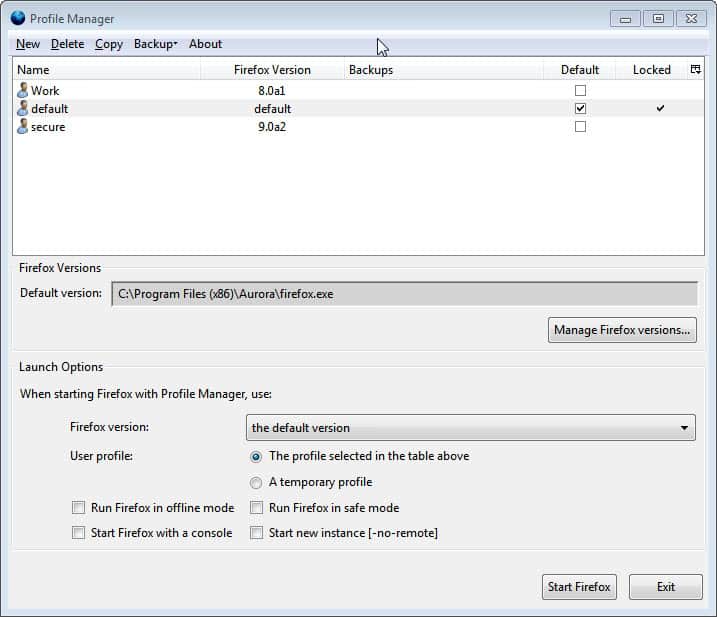
You obviously need to have two profiles to run them at the same time. For that, you can use the new Profile Manager.

mozilla profile manager

Just select New to create a new Firefox profile and that it is linked to the right version of the browser. You also need to make sure that Start new instance [-no-remote] is selected under Launch Options.

You can start Firefox with the newly created profile directly from the profile manager. It is however not that comfortable to launch the profile manager every time you want to start the second Firefox profile. Here is what you can do to circumvent this.

Create a new Firefox shortcut. Windows users can open the Firefox installation directory in Windows Explorer (C:\Program Files (x86)\Mozilla Firefox\), right-click firefox.exe and select the create shortcut option from the context menu. The shortcut is either placed in the same directory or on newer versions of Windows on the desktop.

Right-click the shortcut and select Properties. Locate the Target line and add the following parameter to it at the end: -P profilename

Replace profilename with the name of the profile. If you are not sure how it is named open the Profile Manager again and take a look.

Click ok to apply the changes. I suggest you rename the shortcut as well to avoid confusion. If you have done everything correctly you should be able to launch a second instance of Firefox on your computer.

This method has the same disadvantage as the portable version environment. Everything that you do remains, which may lead to unrecoverable issues.

Virtual Machines, Sandbox

Virtual machines or sandboxing is the third possibility. This is usually more complicated to setup but has the advantage that changes are only temporary. You can use free programs like VMWare, Microsoft’s Virtual PC or the excellent Sandboxie.

You could use a Firefox browser appliance for VMware. Please note though that you need to update the browser as it uses an old version of Firefox (Firefox 8 at the time of writing).

To use it, you first need to install VMware on your computer. To run the browser application do the following:

In the VMware Player dialog box, browse for Virtual Machine Configuration File, browse to the directory where you installed the Browser Appliance, select the file Browser-Appliance.vmx, and click Open.

Closing Words

Users who test a lot benefit from setting up a test environment. This opens up lots of possibilities. You could run a cutting edge test environment, e.g. with the latest nightly versions of the browser to test your web pages and applications against it, or the same version as your standard profile is using.

Are you making use of different profiles in the browser? And if you are, for what purpose? Let me know in the comments.


© Martin Brinkmann for gHacks Technology News | Latest Tech News, Software And Tutorials, 2011. | Permalink |
Add to del.icio.us, digg, facebook, reddit, twitter
Post tags: ,


Sunday, December 18, 2011

How To Downgrade Firefox Add-ons

It sometimes happens that one of your favorite add-ons gets an update that you are not happy about. A new add-on version can for instance break functionality, introduce changes that you do not want or decrease the browser’s stability or security. If you do not want to uninstall the affected add-on, you could consider installing an older version of it to overcome the issue that you are experiencing.

Firefox users have three options to downgrade add-ons in the browser. It is not necessary to uninstall the new add-on version before installing the old one. Keep in mind though that older versions may be incompatible with your version of the browser.

Installing old Firefox Add-on versions

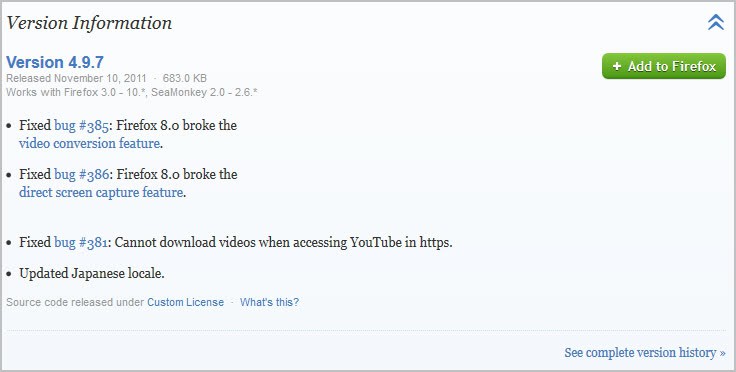
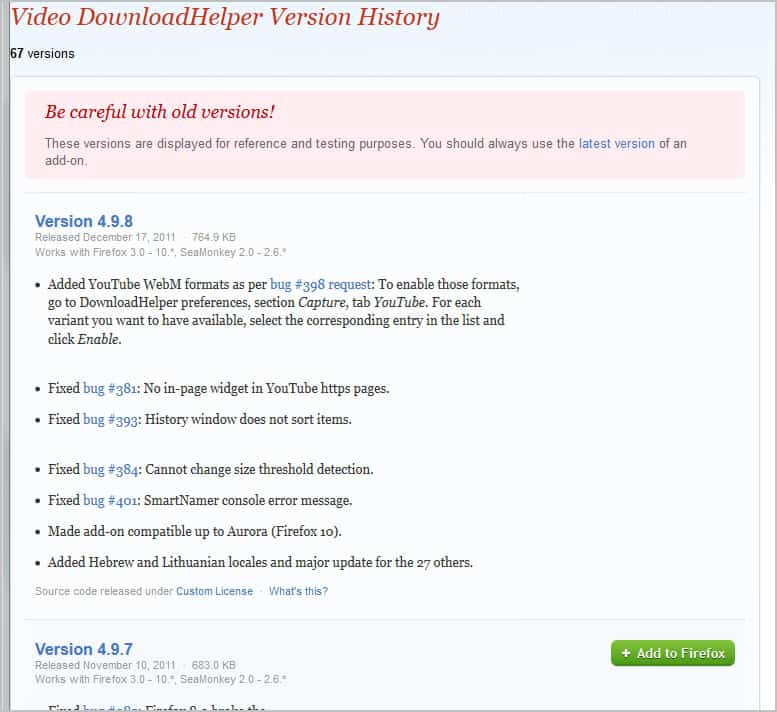
You have several options at your disposal to install an older version of an add-on. The first option is presented on the add-on’s page over at Mozilla. Lets take Video DownloadHelper as an example. Load the page in Firefox and scroll all the way down until you reach Version Information near the bottom of the screen. Click on the link to expand the selection. Locate See complete version history there and click on it.

version history

This opens a new page where the majority of previous add-on releases are listed. Make sure you read the “be careful” section at the top to understand the risks.

You can install an older version of the add-on by moving the mouse cursor over a version and clicking on the Add to Firefox button to start the installation.

install old firefox addon versions

Release notes are usually offered for every version listed on the version history page. Just install the add-on and restart the browser afterwards to complete the process. The add-ons manager should now display the installed version and not the latest one.

Alternatives

You can alternatively connect to the public Mozilla ftp server to download a previous add-on version. You do however need the unique add-on ID which is not displayed publicly anymore (Mozilla switched from displaying the unique ID in the url to descriptive names instead). If you do know the ID, you can download it from the ftp server as well.

A third alternative comes sometimes in the form of the add-on homepage on the Internet (not on Mozilla). Developers sometimes offer download links to old add-on versions on their websites. It is however usually a lot easier to use the official Mozilla Firefox site for that.

Disable Updates

You are not done yet. If you would stop right here Firefox would try to install the latest add-on version automatically. Open about:add-ons in the Firefox address bar and click on the More link next to the extension that you have just downgraded.

Locate Automatic Updates there and switch it from Default to Off. This disables automatic updates for the selected add-on. See How To Turn Off Automatic Updates For Individual Firefox Add-Ons for an in depths guide.


© Martin Brinkmann for gHacks Technology News | Latest Tech News, Software And Tutorials, 2011. | Permalink |
Add to del.icio.us, digg, facebook, reddit, twitter
Post tags: , ,