Pages

Showing posts with label firefox bookmarks. Show all posts

Monday, November 14, 2011

Add Bookmark Here, Better Firefox Bookmarking

Web browser bookmarks seem to have lost much of their appeal in past years. The same can be said for bookmarking sites like Delicious which have seen a drop in user count. Question is: What are users doing instead? Are they posting interesting links to their social networking profiles to have them available there? This does not seem overly practical as it may take quite a while to find a link again, especially on a busy page or profile.

Add Bookmark Here is a Firefox add-on that improves the Firefox bookmarking behavior big time. Firefox users who have bookmark folders displayed in the browser, for instance on the bookmark’s toolbar, have now access to a Bookmark Here link in every bookmark folder. This speeds up the bookmarking as they can simply click on the folder and then add bookmark here to add the bookmark to that folder. While it is possible to bookmark via drag and drop, it is not something that most users know about or do.

firefox bookmark here

When you open the options of the add-on you will notice that it offers additional bookmarking related features and options.
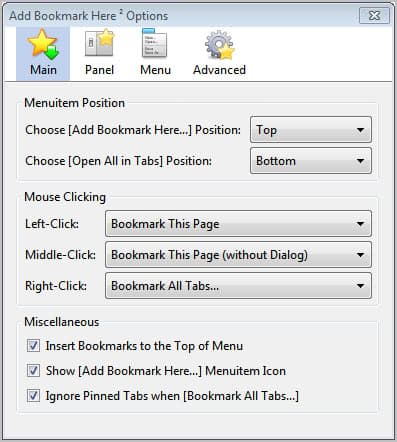
add bookmark here

You can modify the position of the add bookmark here and open all in tabs menu items in each bookmark folder (top, bottom, hidden), set the mouse clicking behavior and configure where bookmarks are added to a bookmarks folder (top or bottom).

The remaining menus list additional options. Available here are options to configure left-click, right-click and middle-click behavior when clicking on the bookmark star or a bookmarks folder, and to configure the edit bookmark dialog and bookmark menu.

The program expands the add bookmarks menu automatically so that all entries are accessible directly. This is a big improvement over Firefox’s default bookmark adding menu which displays less information directly when triggered by the user.

Firefox users who work with bookmarks regularly should take a closer look at Add Bookmark Here. The extension adds several features to the bookmarking options of the browser. Especially options to configure mouse clicks can be used to speed up the bookmarking.


© Martin Brinkmann for gHacks Technology News | Latest Tech News, Software And Tutorials, 2011. | Permalink |
Add to del.icio.us, digg, facebook, reddit, twitter
Post tags: , , ,


Saturday, November 5, 2011

How To Restore Firefox Bookmarks

One of the things that I migrate to new computer systems that I build or but are my bookmarks. I have a collection of a few hundred sites in my bookmarks that I use regularly thanks to browsers recommending bookmarks when entering text into the address bar.

A corrupt or accidentally deleted bookmarks file could have a serious impact on my work day. Most modern web browsers come with synchronization and backup options that can be used to restore data in the browser. The majority of those features need to be activated though before they can be used to restore data.

Firefox users who cannot access all or part of their bookmarks anymore can make use of the browser’s built-in restoration option to restore bookmarks in the browser. This feature is enabled by default. Here is how it is done.

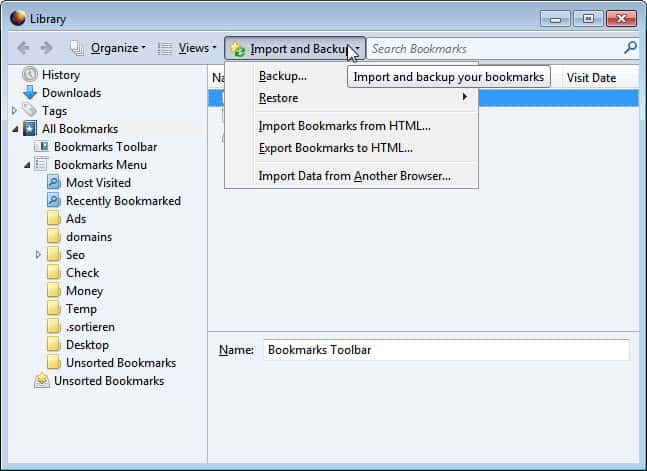
Use the keyboard shortcut Ctrl-Shift-b to open the bookmarks manager. Locate the Import and Backup menu at the top and click it to display its menu options.

firefox restore bookmarks

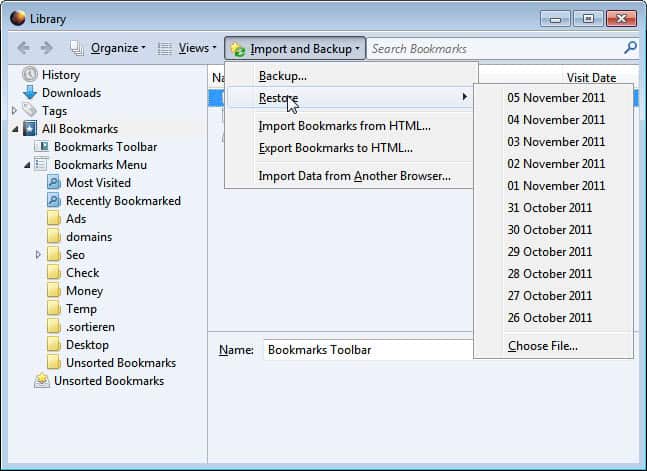
Move the mouse cursor over the Restore menu to display a list of bookmark backups that can be restored. Firefox by default backs up the bookmarks once per day (if the browser is used).

restore firefox bookmarks

Click on a data to restore that bookmarks backup in the browser. Please note that Firefox will overwrite the existing bookmarks with the backup. Bookmarks that you have added in the meantime will not be available once the restoration has completed.

Firefox users can make use of the export bookmarks to HTML in the same menu to create a manual backup of their current bookmarks file. It is always a good idea to backup the file before restorations. This manual copy can then be restored by selecting the Import bookmarks from HTML option in the same menu.

Bookmarks can also also be backed up as JSON files instead by selecting the Backup option of the menu. These bookmark backups can then be restored via the Restore > Choose File option.

Firefox users can alternatively configure the synchronization option under Tools > Set Up Sync to synchronize the bookmarks with a cloud server.

Have you ever lost bookmarks in Firefox? What did you do to restore them?


© Martin Brinkmann for gHacks Technology News | Latest Tech News, Software And Tutorials, 2011. | Permalink |
Add to del.icio.us, digg, facebook, reddit, twitter
Post tags: , , ,