Pages

Showing posts with label google translate. Show all posts

Monday, February 6, 2012

QTranslate, Versatile Desktop Translator For Windows

Having a translator at hand can be quite useful when you are browsing the Internet. With users from different social background and countries coming together, there is always the chance that you stumble upon text written in languages that you do not understand. Often your only option to make sense of the text is to use a machine translation service like Google Translate or Microsoft Translate.

Web browsers like Google Chrome offer built-in translation options, others offer add-ons like Quick Translator to add this functionality to the web browser.

But browser add-ons or features are limited to one browser, which may not be enough if you are also receiving emails, messages or documents in languages that you are not fluent in.

That’s where desktop translation clients come into play. QTranslate is a lightweight free translation software for the Windows operating system. The program supports six different translation engines: Google Translate, Microsoft Translate, Promt, SDL, Yahoo Babel Fish and Yandex.
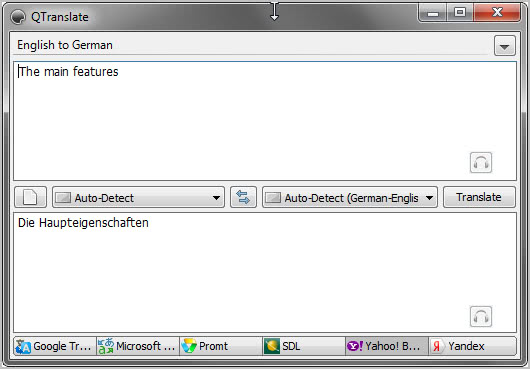
qtranslate

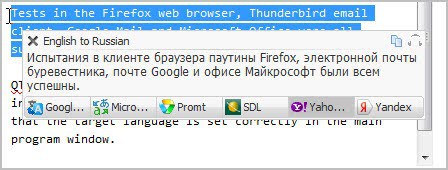
QTranslate registers several global hotkeys that let you translate text from any open program window. The two most important hotkeys are Ctrl-q, which displays a translation of the highlighted text in a popup window, or Ctrl-Ctrl which sends the highlighted text to the program window where it is then translated.

Tests in the Firefox web browser, Thunderbird email client, Google Mail and Microsoft Office were all successful.

QTranslate detects the original language the highlighted text is written in automatically. First time users need to make sure that the target language is set correctly in the main program window.
desktop translator

The keyboard shortcut Ctrl-e furthermore uses text to speech synthesis to read the text out loud. This only works if Google Translate or Microsoft Translate are selected as the translation engines.

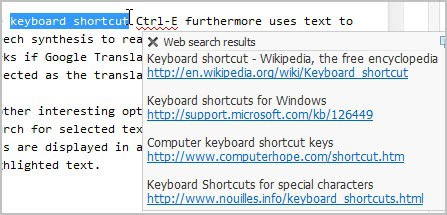
Another interesting option is the ability to run a web search for selected text with the shortcut Ctrl-w. Web hits are displayed in a small popup window next to the highlighted text.
web search

The program keeps track of all previous translations, which can be displayed in a history window with the shortcut Ctrl-H.

Verdict

QTranslate is a versatile translation software for the Windows operating system. Support for six translation services and hotkey driven translations are the program’s main selling points.


Thursday, November 17, 2011

Microsoft Translator Bookmarklet

While Google Translate is probably the most popular online translation service, there are others that may be less popular but are often equally good when it comes to translating contents into other languages.

Microsoft’s Translation service is without doubt not as popular as Google’s service. The service is available over at Microsoft Translator. It works pretty much as Google Translate works. The translation service auto-detects the original content language and offers to translate it into one of the supported languages.

Users can enter text or website addresses at the translator site to get the textual contents translated.

Microsoft has released a bookmarklet for their translation service recently that everyone can use to translate web contents on the fly. The bookmarklet is available on this page.

You first need to select the language that you want the original text to be translated to. The pulldown menu lists many languages, from English and German to Spanish, Portuguese or Japanese.

You then need to drag and drop the bookmarklet to your browser’s bookmark’s bar or bookmarks. You can alternatively right-click the link on the Translator Bookmarklet page to bookmark it this way. Depending on the frequency of use, you may want to place it prominently in the browser.

A click on the bookmarklet on a foreign language page invokes the translation. The bookmarklet adds a small toolbar to the top of the page that is visualizing the translation process and the original and destination language.

microsoft translator bookmarklet

A click on a language displays a selection menu where it can be switched to another language. That’s handy if the automatic language detection did not detect the correct language used on the page, or where you may want the text to be translated into a different language.

The original text on the page is displayed whenever you move the mouse over a translated sentence.

Microsoft’s Translator bookmarklet is a handy tool for users who need to translate web contents regularly. Google is also offering translate bookmarklets for their Google Translate translation service. (via)


© Martin Brinkmann for gHacks Technology News | Latest Tech News, Software And Tutorials, 2011. | Permalink |
Add to del.icio.us, digg, facebook, reddit, twitter
Post tags: , , ,


Wednesday, October 26, 2011

Translate This For Firefox, Translate Web Pages

One of the features of the Google Chrome web browser that I really like is the option to translate foreign web pages automatically using Google’s Translate service. Firefox users can either use an Internet translation service manually or install an extension to add a similar functionality to the browser.

One of the extensions is Translate This for the Firefox web browser. The extension uses the Google Translate service to translate selected text or the whole page.

The restartless add-on adds an icon to Firefox’s add-on bar. New users need to hold down Shift and left-click the icon to open its configuration settings. The most important one is the target language which is set to English by default. Users who want a different target language need to enter the country code (e.g. de for Germany) into the settings window.

translate this firefox

The settings hold two additional configuration options. You can change the default keyboard shortcut that triggers the translation of the web page and whether translated pages should be opened in new tabs or the same tab.

You need to use the keyboard shortcut (default Ctrl-Alt-t) or left-click on the extension’s icon in the Firefox toolbar to translate the full web page.

If you only want part of the page translated do the following: Select the contents with the mouse, right-click the highlighted text afterwards and pick Translate This – Selection from the context menu.

This replaces the original text with the translated version directly on the page. The page is not reloaded, only the text is replaced.

translate text

It is furthermore possible to translate linked pages directly. A right-click on a link on a normal page and the selection of Translate This – Link opens the linked translated page in a new tab in Firefox.

Firefox users can install Translate This at the official Mozilla Firefox add-on repository. The extension is versatile and easy to use. Only the ability to modify the Ctrl-Alt part of the keyboard shortcut would have been handy.


© Martin Brinkmann for gHacks Technology News | Latest Tech News, Software And Tutorials, 2011. | Permalink |
Add to del.icio.us, digg, facebook, reddit, twitter
Post tags: , , , ,