Pages

Showing posts with label outlook tips. Show all posts

Wednesday, January 18, 2012

Microsoft Outlook Window Not Appearing Fix

Outlook is not my main email client and I never really used it that much. Still, I have it installed as a part of my Office 2010 installation, and I tend to use it sometimes to test a new plug-in or feature that I would like to write about. For the past month or so I have been experiencing a rather puzzling issue that I never bothered to look into until today.

Whenever I would start Outlook on my computer, it would launch minimized in the Windows taskbar. A left-click on the Outlook icon, which normally should display the window on the desktop, had no effect at all. A right-click and the selection of the task had not effect either. Last but not least, a left-click on the Outlook icon in the system tray area, or a right-click and the selection of Open Outlook did nothing either.

No matter what I did, I could not get the window to show up on my desktop.

After some playing around I discovered a solution to bring back the Microsoft Outlook window. Here is what I did:

Click on the start menu and locate Microsoft Outlook there. Right-click on the program and select Properties from the options. Locate the Run menu and select Maximized from the options. Please note that you need elevated rights to save the change. Windows will automatically display an authorization prompt when you click ok or apply in the menu.
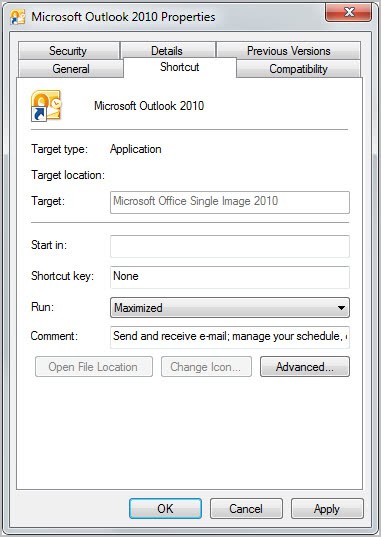
outlook window maximized

Relaunch Outlook once you have completed the process and clicked on the ok button.

You should now see the Outlook window open in fullscreen on the desktop. This has fixed the issue only partially though. Once you minimize the window you will notice that you cannot open it up again. While you could now close Outlook to start it maximized whenever you need to access the program, you’d probably prefer a permanent fix.

With Outlook displayed in full screen on the Windows, right-click the Windows taskbar and select the Cascade Windows options from the right-click context menu.

cascade windows

Once you have done that, you have fixed your Outlook issue. To check that you can now open Outlook normally again do the following:

  • Close all running instances of the messaging client on your system.
  • Go to Start > Microsoft Outlook, right-click the entry and select Normal Window under run.
  • Start Outlook normally. If the window appears, you have fixed your issue.

Here is a video that walks you through all the necessary steps.

Hope this helps Outlook users who are experiencing the same issue.


Tuesday, December 13, 2011

How to Find Your PST Files in Microsoft Outlook 2007 and 2010

Outlook stores your email in a PST file. PST stands for personal storage table. Outlook uses this file format to store your data including emails, contacts, calendars, etc. Depending on your settings, you may need to use your password to open them and they may or may not be encrypted. Most likely, if you did not encrypt them, they are not encrypted unless some gremlins crawled up into your CPU. Now that may be fine, but sometimes trying to figure out where the PST files actually are can be confusing. “Where are my PST files?” screams the frustrated user. There is no need to fret! It is just a matter of finding where the file is located. This should help you find the location of the file and finally recovery your PST files.

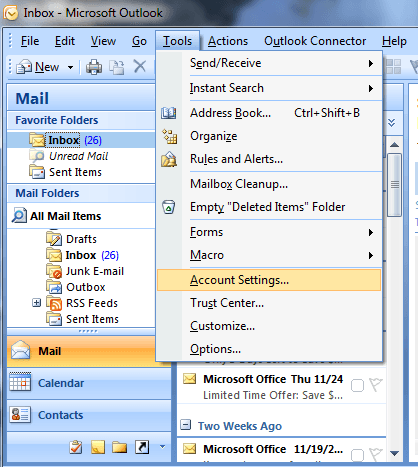
Open Outlook and see what you always see: an interface. Brilliant, now where are the PST files? There are two ways to find them and it is very simple. In Outlook 2010, open the File menu and click Account Settings. In Outlook 2007, click the Tools tab and select Account Settings.

outlook pst files

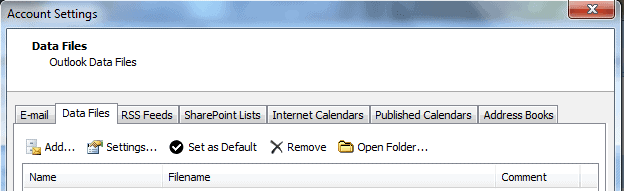
This will open a window with various tabs that help you organize your Outlook content. Click the Data Files tab and you will see your Outlook data files, including PST and OST files. They will be clearly indicated by name. Highlight the PST file listing and then click Open Folder just above the list.

outlook data files

Your PST files are saved in your User Data folder by default and this is the folder location that will open. Simply double click the listing for your PST files and there they are.

Alternatively, you can open your PST files directly from the User Data folder without opening Outlook. Open Windows Explorer and in the address bar, type:

%localappdata%\Microsoft\Outlook\

outlook directory

Press Enter and the folder will open. Once again, simply double click your PST files and they should open. If this leads you to a read-only file that you cannot open, right-click the file and select Properties. Under the security tab, you can make sure that you have allowed all permissions for the user account. The default account is often the SYSTEM user and permissions are restricted.
Click the edit button to define permissions for certain users, select which account you are using and all permissions. Click Apply and restart your system.
At that point, you can try the above steps again and it should work out. If this all seems like too much to bother with, there a applications that will find the PST files for you, but it is just as easy to try this first.

Other troubleshooting issues may be inactive services with Outlook and Windows Live. This can also cause problems accessing PST files. Check to make sure that all services associated with these programs are enabled and active.
Normally, you should not have any trouble retrieving the PST files from Outlook. If you continue to have problems retrieving PST files from outlook, also check for firewall issues.


© Melanie Gross for gHacks Technology News | Latest Tech News, Software And Tutorials, 2011. | Permalink |
Add to del.icio.us, digg, facebook, reddit, twitter
Post tags: , ,