Pages

Showing posts with label Tutorials Basic. Show all posts

Thursday, February 9, 2012

How To Bypass SmartScreen Filter (Windows Protected Your PC) In Windows 8

SmartScreen Filter is a security module that is integrated into several Microsoft products such as Internet Explorer or Windows Live Messenger. It basically warns users if they are about to open a potentially dangerous website or file. A warning is displayed and it is up to the user to continue or stop at this point. The filter has been criticized in the past for being too obtrusive and annoying, criticism that it shares with the User Account Control feature.

A new version of SmartScreen Filter has been integrated into the Windows 8 Developer Preview. It is not clear yet if the feature will make it into the final version of Windows 8 in this form, or at all, but it is likely that it does. Whenever you execute a file that you have downloaded from the Internet, it is first checked by SmartScreen Filter against a database. Files that cannot be identified are blocked automatically, and a warning is displayed instead.

windows protected your pc

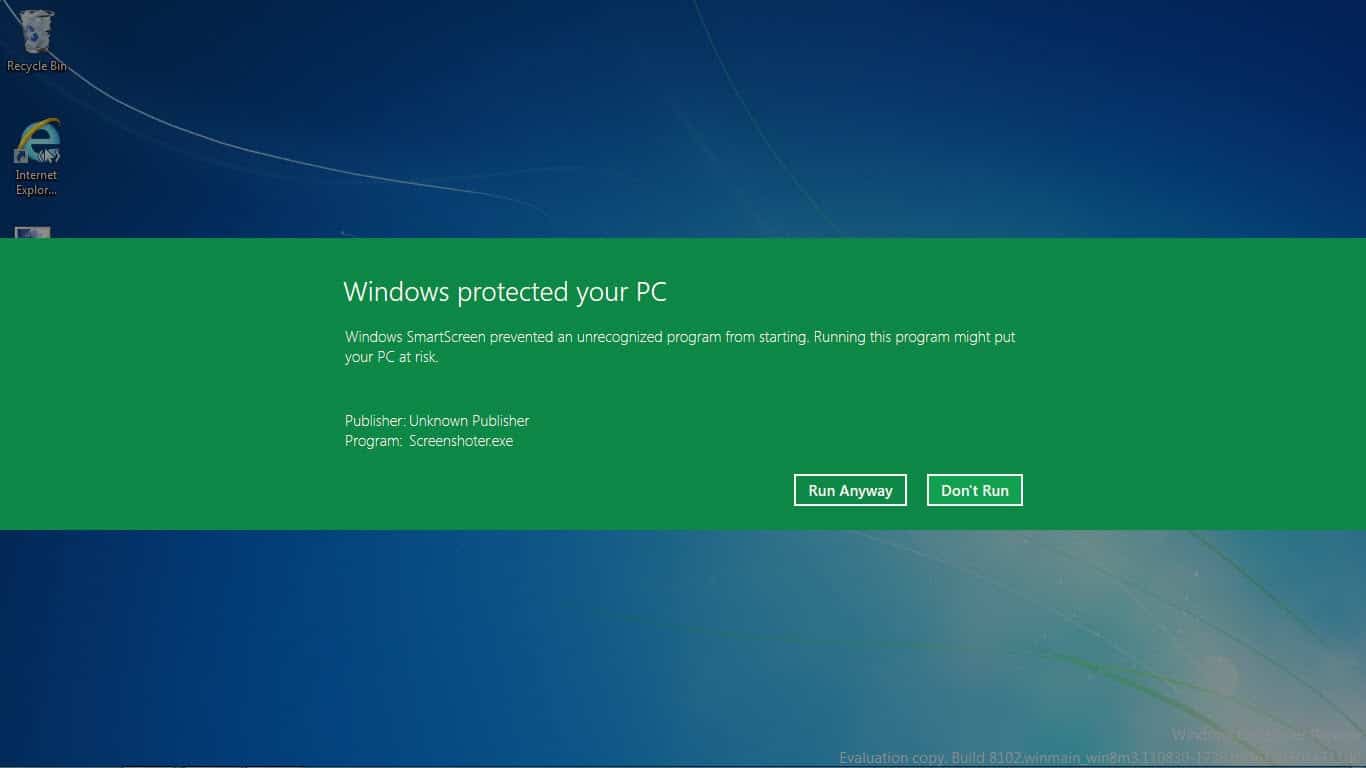
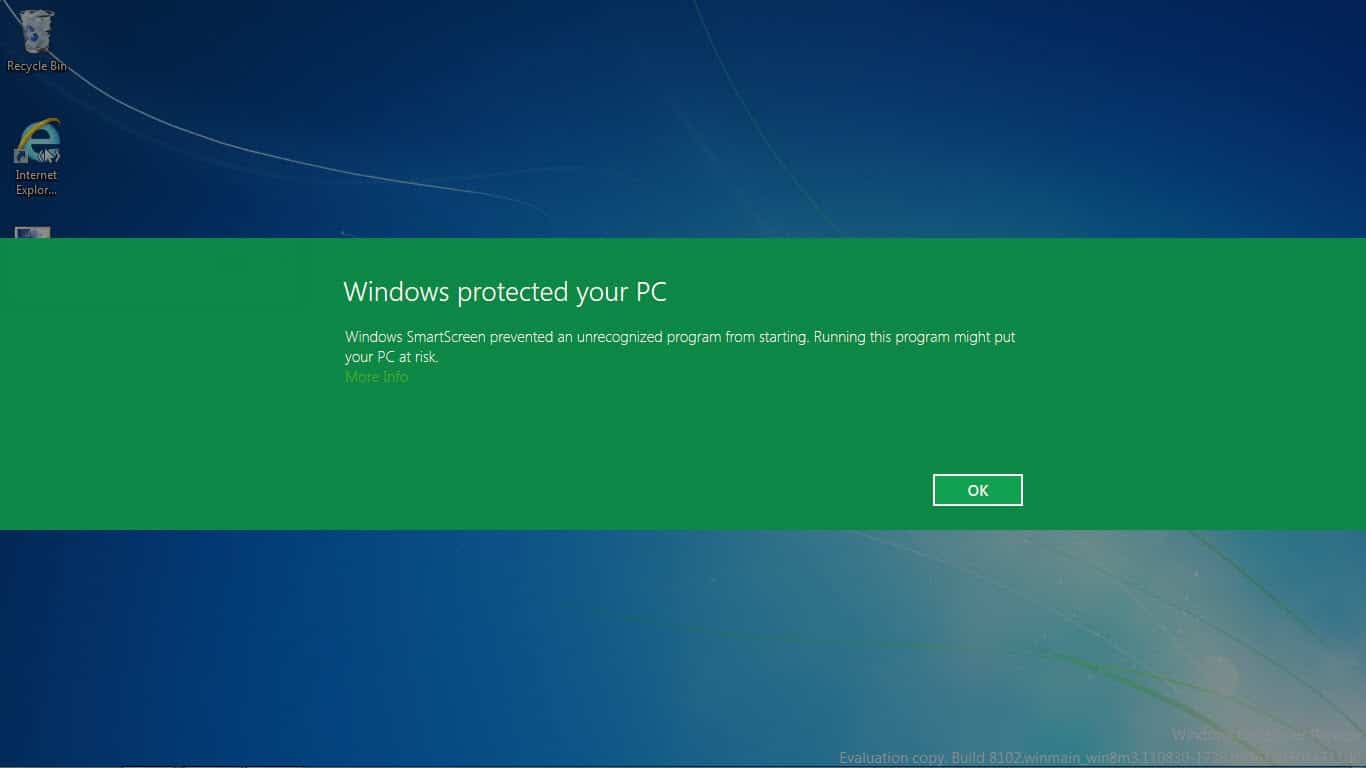
Windows protected your PC

Windows SmartScreen prevented an unrecognized program from starting. Running this program might put your PC at risk.

The only two options on the screen are the highlighted OK button, and a more info link that is nearly as distinguishable from the background. A click on OK closes the message and blocks the executable from being started. If you want to start the program, you need to click on More Info. This changes the Windows protected your PC screen slightly.

windows smartscreen

Microsoft displays publisher and program information, and a run anyway button. The program will be executed on your system if you click on that button.

This feature has the potential to cost you some time and a lot of nerves. If you are running an up to date antivirus software, you probably have no need for SmartScreen Filter’s additional protection.

Disabling SmartScreen Filter In Windows 8

You can disable SmartScreen Filter in the Windows Control Panel. Use Windows-Pause to bring it up, and click on Control Panel in the address bar afterwards. Select System and Security and then Action Center afterwards.

change smartscreen settings

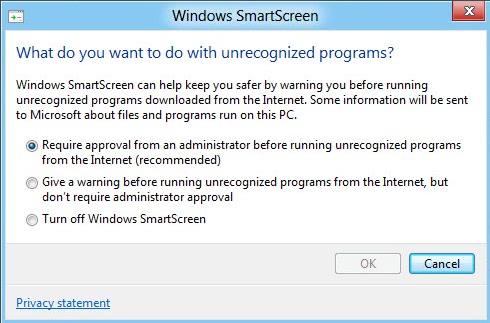
Select Change SmartScreen Settings on the left. This opens the following menu where you can turn Windows SmartScreen off.

windows smartscreen

The following options are available:

  • Require approval from an administrator before running unrecognized programs from the Internet (recommended)
  • Give a warning before running unrecognized programs from the Internet, but don’t require administrator approval
  • Turn off Windows SmartScreen

Windows SmartScreen could be Windows 8′s User Account Control. A feature that aims to make the system more secure and annoys the hell out of users at the same time. (thanks Caschy for the tip)


Wednesday, February 1, 2012

Using Virtualization in Windows 7 Free Webcast

As we all use computers over more and more years we become comfortable with software that “just works” and we want to continue using it for as long as possible.  This causes problems though as Microsoft develop new versions of Windows as, no matter how well each version of Windows is supposed to be compatible with all the Windows software that came before it, they’re just not.

The solution is to use virtualisation tools and on any modern PC this becomes relatively simple (depending on the tools you use).  In my monthly free webcast for February I’m taking a beginner’s look at virtualisation, examining what it is and the different tools available, and looking at how you can use it on your PC to help you keep running older software and how you can have multiple operating systems running side by side.

With a PC bought in the last couple of years you can run multiple operating systems side by side with little or no performance loss overall, as modern processors are very efficient at handling the extra OS calls virtualisation produces, and the amount of memory in modern PCs is more than enough for even demanding tasks.

The webcast takes place online at 10AM PT San Francisco | 6pm – London | 1pm – New York | Fri, Feb  3rd at 5am – Sydney | Fri, Feb  3rd at 3am – Tokyo | Fri, Feb  3rd at 2am – Beijing | 11:30pm – Mumbai on Thursday 2nd February.  It’s completely free and if you can’t make it live you can watch it recorded afterwards provided you have registered before it begins.  You can register for this webcast here.


Sunday, January 29, 2012

Diagnosing a Blue Screen of Death Error in Windows

For many years now the famous Blue Screen of Death (BSoD) has been the ultimate indication that something disastrous has happened to make your computer die, but how useful is the information in the BSoD and the respective crash dump file that Windows produces?

The best article I ever found explaining the BSoD in depth is here on the Microsoft website, however it’s quite technical and doesn’t discuss how to actually troubleshoot a problem.  The crash dump file is just technical details of what was being held in the computer’s memory at the time of the crash, and this will include details on every driver and service that was loaded, and every piece of software that was running.

The most useful pieces of information are to be found on the BSoD itself and are highlighted on the screenshot below.  These are the BSoD error name, the stop error code and the name of the driver or service that has failed (this last one might not always appear).  Performing a search online for these in conjunction, and the long string codes after the main stop error can give much more information, can help considerably in diagnosing where the problem lies.

But is it even easier than this to diagnose a BSoD stop error?  Commonly a BSoD will be caused by something that has recently changed, such as a Windows Update where a new hardware driver has been installed.  Windows has to support completely limitless combinations of hardware and software and so, no matter how much testing Microsoft might put hardware drivers, and software patches through before releasing them on Windows Update, there’s never any guarantee that a particular driver, service update or patch won’t cause problems with your particular mix of hardware and software.

One of the things I highlight in my book Troubleshooting Windows 7 Inside Out is the importance of working through a problem to figure out what’s new or what has changed on a computer system.  If you don’t change anything then it’s extremely unlikely that a system that runs perfectly stably for weeks, months or even years will suddenly produce an error later on (unless a critical file has become corrupt after an event such as a sudden restart).  So it’s very likely then that something new or changed will have cause the error, perhaps a graphics card driver as these are embedded deep within the Windows system.

There are ways around this, such as running a System Restore to roll back the system to before changes were made.  You can then, for example, check Windows Update to see if it tried to install any drivers and if necessary, right-click on them to hide them completely.  If the system is really unstable you can use Safe Mode or Windows Safe Boot mode to start the computer in a reduced functionality mode.

One other scenario however that can commonly trigger a BSoD is a computer’s fans becoming clogged with dust, especially for the processor and power supply.  You should always clean (carefully!) the inside of your computer on a regular basis and clean out accumulated dust to make sure that the computer doesn’t overheat.

Armed with this information it shouldn’t be too difficult to diagnose a BSoD and repair the problem that has caused it.  Whatever happens you can be sure that you will not be the first person ever to have encountered this problem, and usually you will find an article or forum post online where somebody is detailing exactly what the issue is.  Failing that, a little bit of lateral thinking and diagnosis usually saves the day.


Tuesday, January 24, 2012

How to Create a Hidden Encrypted Volume With True Crypt

A judge recently ordered a US citizen to decrypt storage space on a computer so that police forces could analyze protected files on the system. In this particular case, the defendant was ordered to decrypt the hard drive of her Toshiba notebook no later than February 21, or face the consequences “including contempt of court”.

The ruling may still get overturned, but at this point in time it is not clear how this will turn out.

Encryption makes sure that only authorized users can enable access to data provided that there is no loophole or backdoor built-into the software itself. People traveling to the US may have their mobile computers analyzed by federal agents even without probable cause.

Users have a number of options at their disposal to protect their data from prying eyes. Encryption for instance requires a pass phrase or key to be entered to decrypt the contents of the storage device. If you forget the password, you cannot open the encrypted contents anymore.

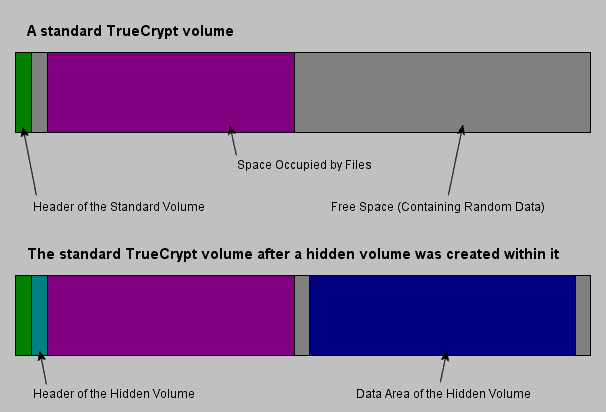
There is however a better option for users who want to make sure that they private files stay personal. True Crypt supports so called hidden volumes. These volumes are encrypted volumes inside an encrypted volume. True Crypt calls the concept plausible deniability. You put your important files into the hidden volume, and other files that you do not mind to share with others in the regular encrypted container. When someone asks you to decrypt your data, you enter the password to decrypt the first volume that you do not mind sharing with anyone.

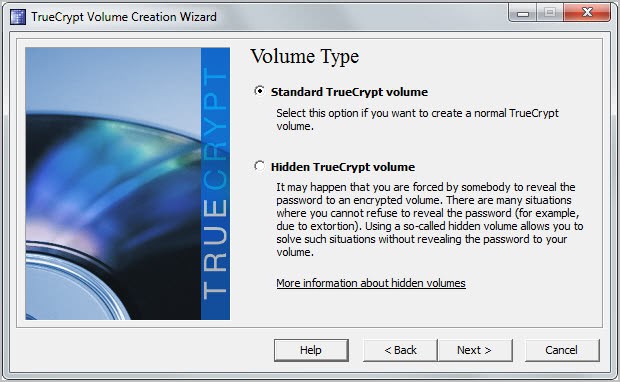
It may happen that you are forced by somebody to reveal the password to an encrypted volume. There are many situations where you cannot refuse to reveal the password (for example, due to extortion). Using a so-called hidden volume allows you to solve such situations without revealing the password to your volume.

true crypt hidden volume

The principle is that a TrueCrypt volume is created within another TrueCrypt volume (within the free space on the volume). Even when the outer volume is mounted, it should be impossible to prove whether there is a hidden volume within it or not*, because free space on any TrueCrypt volume is always filled with random data when the volume is created** and no part of the (dismounted) hidden volume can be distinguished from random data. Note that TrueCrypt does not modify the file system (information about free space, etc.) within the outer volume in any way.

Hidden volumes can be created quite easily in True Crypt. New True Crypt users should read through the tutorial posted on the site first to understand the basics of creating encrypted volumes on the computer.

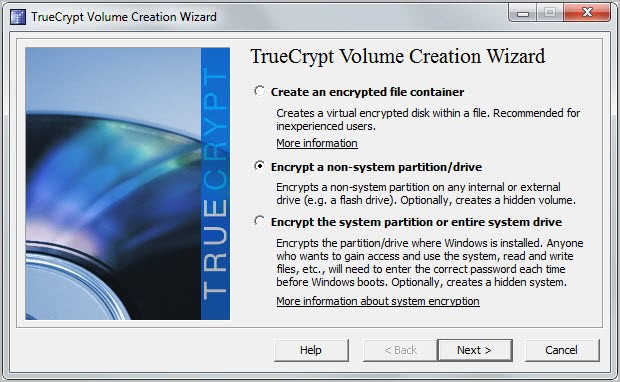
You have the option to create both volumes in one go though, by following the process outlined below. Click on Tools > Volume Creation Wizard. You have two options now how to proceed:

  • Create an encrypted file container: This option can be used to create an encrypted file on one of the computer’s hard drive and add a hidden file container to it, or add a hidden file container to an existing encrypted file.
  • Encrypt non-system partition/drive: This is basically the same option as above, only that it works partitions and hard drives, and not with files. Please note that all contents of the selected hard drive/partition will get deleted in the process.

I suggest you start with an encrypted file container to see how the process works.

create hidden volume

Select Hidden TrueCrypt volume on the next page

hidden truecrypt volume

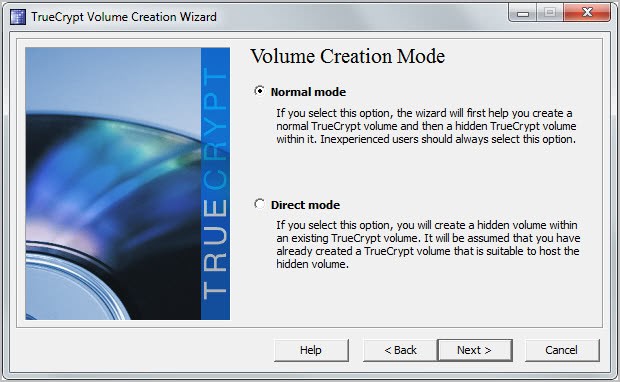
Now you have the option to select normal or direct mode. Normal mode creates both the outer and the hidden volume in the process, while direct mode creates a hidden volume inside an existing True Crypt file container.

true crypt hidden volume

Lets pick normal mode to demonstrate how both the standard encrypted container and the hidden container within are created.

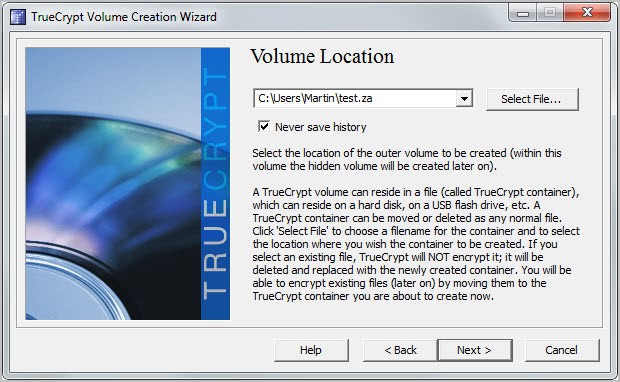
You now need to select a file name for the outer container. Pick any directory and file name that you want. You can use the file name to your advantage, for instance by making it a .tmp file or a .avi.

create encrypted file

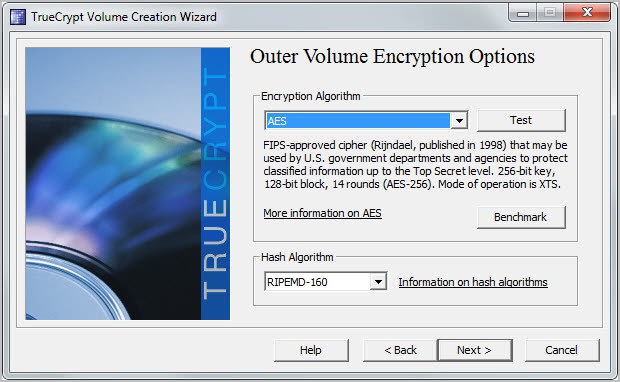
You are then asked to select the encryption algorithm and hash algorithm for the outer volume. Pick one each or keep the default settings.

truecrypt algorithm

You are then asked to select a size for the file container. Keep in mind that the hidden volume is added to this container file as well. Select a password on the next screen. This password is used to decrypt the files stored in the outer volume. The volume will be formatted afterwards. Move your mouse around to create random values. Click on Format afterwards to create the file. Depending on the size, you may need to switch the file system from FAT to NTFS.

Now that you have created the outer volume, you move on to the next step, the creation of the hidden volume.

hidden volume

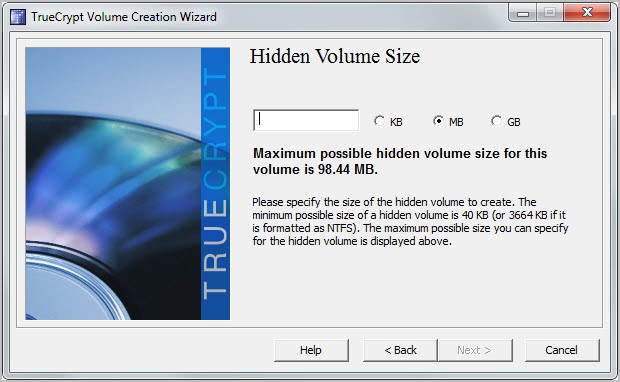
The process is nearly identical. You first select the encryption and hash algorithms, then the file size. True Crypt will display the maximum possible hidden volume file size on that screen. Don’t select the maximum if you plan on adding files to the outer volume as well.

hidden volume size

The remaining steps are identical. You now have one outer volume, one hidden volume and two pass phrases to decrypt the volumes on your computer.

Mounting the hidden volume

To mount either the outer or hidden volume do the following:

  • Select a free drive letter in the True Crypt interface.
  • Click on Select File and browse to the encrypted file that you want to mount.
  • click on mount afterwards.
  • Enter the pass phrase for the outer volume to mount it, or the password for the hidden volume to mount it instead.

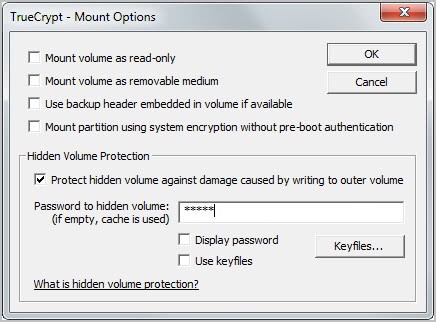
If you mount the outer volume you may want to click on mount options to check the “protect hidden volume against damage caused by writing to outer volume” box to avoid to protect the hidden container from being partially or fully overwritten. You need to supply the hidden volume password though for this option.

true-crypt-tip

The very same principle applies to the creation of a hidden volume inside an encrypted partition or hard drive.

What’s your take on this new ruling?


Attaching an Alert Task to a Windows Error

The Windows Event Viewer in one of the most useful, yet most under used features of the operating system.  Accessed by typing event into the Start Menu search box, or through the Computer Management Console it logs everything that happens in the OS, including warnings, errors and critical failures (sudden power losses or immediate restarts excepted).  When you have an error Windows will usually alert you by displaying a message on the screen, or by displaying the dreaded Blue Screen of Death.  Sometimes though a device driver, software package or Windows component will fail silently in the background, and you won’t be aware of the failure until you come to use it.

A couple of examples of this are a printer driver that fails silently, and you won’t notice until the next time you go to print something, or a networking component fails taking down a Homegroup or Internet Access.  Fortunately Windows does include a handy wizard utility to alert you when something happens silently in the background, and you access it in the Event Viewer.

The first step is to find the original error.  This isn’t actually as difficult as it sounds as events are all clearly labelled with plain English explanations.  The details will include the name of the driver, application or service which has stopped working and it’s normally not too difficult to find what you’re looking for as you can further drill down by the appropriate date and time.  There will never be too many errors and warnings on your system which again makes it easier to find the specific error event you are looking for.

Once you have found the appropriate error, double click to open it and all instances of the error will be shown.  Here is where we we attach a task to this event to let us know when it occurs next.  Why might we want to do this?  It could be that the error is caused by a conflict with another piece of software or hardware, or that some other force external to the failed component is causing the problem.  Attaching a task and alerting the user to the error can help you to diagnose the problem because, especially if it’s happening regularly you ought to be able to see a pattern.

In the right hand panel of the Event Viewer for a specific event you will see the option to Attach [a] Task to This Event and this is what you should click.  There are several things you can do, for instance run a program.  You could have a PowerShell or other script to report on the error.  Windows contains the command line WEVTUTIL which can be used to export the details of events from the Event Viewer as a text file, and you can read more about how you can use this command here.

You can also send an email, but note that this will only work if you have an email client such as Microsoft Outlook installed and configured.  What we want to do though is alert the user with a message.

The wizard really coiuldn’t be simpler and will allow you to set the title and content of a dialog message box.  For instance you might set the title as “Component Failure Alert!” and the message as “Please stop what you’re doing and phone IT, a component has failed and we need to know exactly what was happening and what you were doing on your computer the instant this message appeared.”

In short, attaching tasks to the event viewer can be incredibly useful, especially if you use Command or PowerShell scripts to automatically report on the problem, and the email system to then send the file on to someone.  It a great way for an IT department to be able to detect, diagnose and find a solution to the problem without the end user having to be too involved in the process, and given that tasks can be exported and installed on multiple machines quite simply this is a Windows feature that I’m surprised isn’t used much more often.


Sunday, January 22, 2012

Using Windows “Safe Boot” To Diagnose and Repair Problems

When something goes wrong with Windows it can be very difficult to diagnose or repair, and there are times when booting your computer into Safe Mode just isn’t good enough.  Safe Mode, a special diagnostic mode built into Windows strips the OS of all drivers and start-up software and presents you with a very limited version of Windows in which to diagnose what might be causing a problem, and repair it.  Many Windows features simply won’t operate in Safe Mode so there’s not very much you can do.

Fortunately though there is an alternative and it’s in every version of the operating system (XP, Vista and Windows 7).  This is called “Safe Boot” and you can find it in the MSConfig panel.  To open this type msconfig into the Start Menu search box in Vista or Windows 7, or run msconfig from the run option in XP.

Under the Boot tab in the MSConfig window you’ll see the Safe Boot option as a tick box.  Turning this on will make Windows use the Safe Boot option every time thereafter.  When you want to stop using Safe Boot and return to starting Windows normally you’ll need to return to the MSConfig panel and untick this option.  There are also several other options here including Minimal Boot, which will take you into the full Safe Mode, but the standard option will normally be enough for most people.

The Safe Boot screen, as you can see here is a half-way house between the full Windows desktop and Safe Mode.  What you will find though is that most of your hardware drivers will be installed and working though your startup software will still be disabled.

So when might you want to use Safe Boot?  Occasionally you will encounter a problem in Windows that you will need to go into Safe Mode to repair.  As I mentioned earlier however Safe Mode won’t allow you to perform some Windows tasks, and this is where the Safe Boot mode is useful.  You may also suspect that your problems aren’t being caused by a hardware driver, but by software instead.  This diagnostic mode enables you to have a full Windows desktop where nothing loads at startup and where you can run and check programs individually to see what effect they are having on your system.

As I have already mentioned Safe Mode is extremely limiting, not just in the very low screen resolution that it gives you.  If you need to run full diagnostics on your copy of Windows, to see what’s going on under the hood, or if you need to test individual software packages in a safe environment where they will be able to run properly then Windows Safe Boot is the way to do it.

Remember though that you will need to turn off Safe Boot when you are done, or else Windows will start permanently in this mode.  I have found this to be a very useful diagnostic tool in Windows and it’s extremely underused because, frankly, many people simply do not know that it exists.  Hopefully you will find it useful too.