Pages

Showing posts with label xp. Show all posts

Monday, February 13, 2012

The Alternatives to Windows 8

Windows 8 is unique in that it is the first version of Microsoft’s mighty operating system that faces serious and stiff competition from its rivals.  For the first time there are not just one but a great many serious contenders for the role of your desktop OS.  So with so many people wary about the changes that Microsoft are bringing forth I thought I’d take a look at the alternatives, see how they might fit with your Windows world, and examine just how realistic a switch away from Windows this year can actually be.

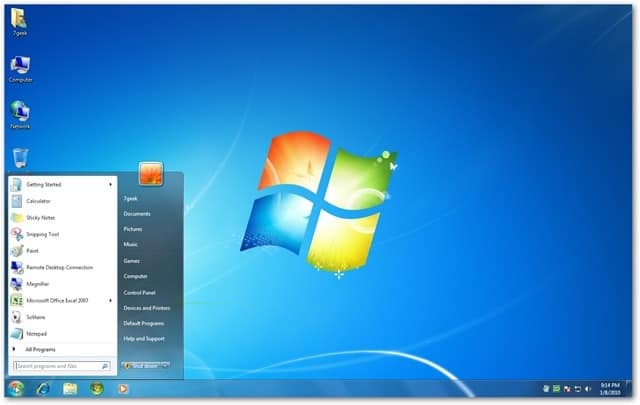
Windows 7

The obvious place to start is with Windows 8′s predecessor, Windows 7.  One thing is certain, that this operating system will be hugely popular right up until support ends for it in January 2020 and possibly even beyond as it wouldn’t be without precedent for Microsoft to extend the support life for a version of Windows.  Windows 7 could be considered the ‘ultimate’ version of the desktop OS, not just because it’s the last true desktop OS from Microsoft, but because of its reputation for reliability, compatibility, stability and security.  There is also XP Mode to run any older Windows software that won’t run natively, but with support ending for XP in April 2014, it would be unwise to use any XP software after this time that requires Internet access, and many including Microsoft and security researchers would advise not using it at all after this time.  Sticking with Windows 7 is probably the best solution in many ways.  It will still be on sale and being shipped with new PCs until the autumn of this year and many will consider it the operating system to use going forward.
Windows Vista

Few people would now consider Windows Vista as a viable alternative to Windows 7 or Windows 8.  Notoriously slow, especially on older hardware, and with software compatibility that was largely broken, almost all Vista users have either upgraded to Windows 7 already or plan to do so as soon as possible.

Windows XP

Despite the popularity and compatibility of Windows 7, it’s Windows XP that has won hearts and minds in the way no other Microsoft operating system ever has.  This comes despite some huge security issues that have plagued the platform and its default web browser Internet Explorer 6.  This operating system is already out of mainstream support, so no more service packs and updates are being issued, and extended support for security and stability fixes ends in less than two years, before the launch of Windows 9.  A lack of suport for new technologies including USB3 and Thunderbolt also count against this OS, unless you are able to get specific third-party drivers.  Anybody sticking with Windows XP will need to have a very good understanding of the security risks involved in doing so, this really isn’t a strong contender for your OS choice for the next few years.

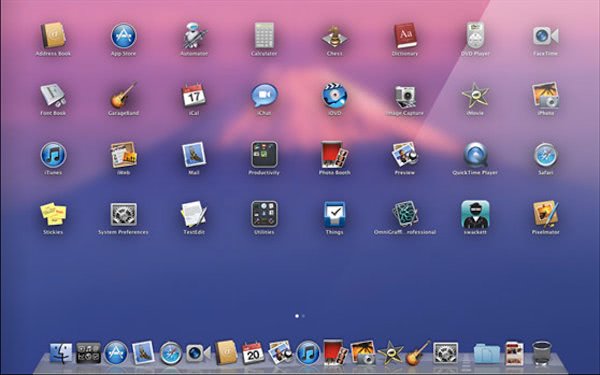
OS X

Apple’s desktop operating system has a great many strengths, but a few major weaknesses as well.  Those strengths involve being one of the most stable and secure operating systems the world has ever seen.  It’s eminently usable too with gesture control that Windows 7 simply can’t match and a software base every bit as strong as that for Windows.  It’s not going anywhere either.  On the minus side there are still questions about how Apple are set to integrate their iOS tablet features into the desktop, effectively doing what Microsoft are doing with Windows 8 but probably to a slightly lesser degree.  Moving to OS X would also not just require buying a new and sometimes expensive computer (or even computers) but unless you were going to run Windows 7 or Windows 8 in Boot Camp or the Parallel’s virtual machine, you would have to re-purchase all your software as well, as very little software these days comes with both PC and Mac licensing.
Ubuntu

Three years ago GNU/Linux was still the rank outsider in the desktop OS world, but times have changed with Canonical turning their Ubuntu OS into an operating system every bit as polished and usable as OS X or Windows 7.  The best part is that this operating system is free and, with version 12.1 now comes with long-term support, meaning it’s no longer essential to upgrade your operating system every few months.  On the downside, software support, especially for the major apps is still lacking with traditional Linux apps lagging behind their OS X and Windows alternatives.  Ubuntu’s new HUD (Head up Display) for finding menu items in software might not be to everyone’s tastes either.  This feature can be switched off and traditional drop down menus reinstated, but Ubuntu still needs that all important software support to compete on a level playing field.

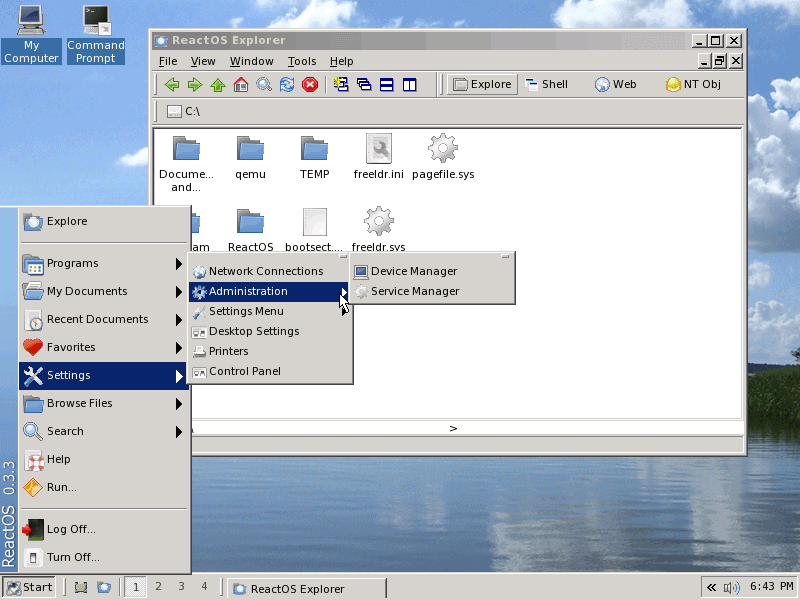
ReactOS

Currently in alpha, this Russian organised Windows NT/XP clone promises to be binary compatible with Windows and support every piece of hardware and software that works with Windows XP.  It’s a bold claim that so far seems to be panning out.  It should be complete and bedded-in by the time Windows XP support ends so it could be a viable alternative.  On the down side, Microsoft has a way of aggresssively going after any “Windows Clone” and having already shut down Lindows a few years ago they will soon have their guns trained on ReactOS, no matter how well the developers might be covering themselves in terms of copyright.  There is also the fact that ReactOS has been in an alpha stage now for an extremely long time, and frankly may never be completely finished.
iOs, Android, QNX

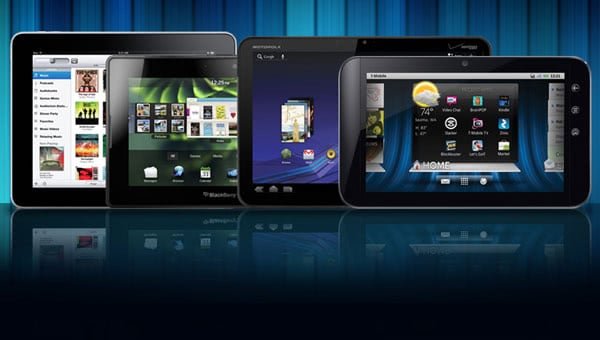
Do you actually need a full desktop operating system any more?  This is an interesting question as the majority of tasks we perform on our PCs can now be done equally well on a tablet running Apple’s iOS, Google Android or RIM’s QNX.  These tasks, including email and web browsing are actually pleasurable on modern tablet operating systems and this situation is only set to improve.  The burgeoning app stores, and the quality of those apps is improving every day too with companies like Adobe showing how advanced photo editing, another of our major tasks, can be made simple and pleasurable on a tablet.

Here the problem is storage and file management.  With a tablet you’re restricted to storing your files mainly in cloud services and in order to get those files on the tablet in the first place, or indeed into the cloud, you need to synchronise with a desktop computer.  We can fully expect these devices to become more independent over time, and perhaps even support external hard disks and USB pen drives.  Unless and until this happens though these tablets (and I’m obviously excluding Windows 8 tablets from the list) just aren’t quite ready to handle our ever expanding collections of music, videos, files and photographs.
Summary

So this is my own take on the alternatives to Windows 8 and how effective and realistic a move to each one might be.  You will probably have your own ideas on what would make a good alternative and why.  You might be just sticking with XP despite the security concerns, or sticking with Windows 7.  You may even decide that now is the time to get rid of your desktop PC altogether and move solely to a tablet.  Perhaps your music is already stored in the cloud or you use a service like spotify, and maybe your new digital camera can upload your files directly to Picassa or another cloud service for you.  Why not tell us your thoughts in the comments.


Sunday, February 12, 2012

ReactOS, the Windows XP Alternative

While we wait for the Windows 8 beta to be released at the end of the month questions are looming over what will happen with legacy software support and how we’ll run our older, but still useful and trustworthy, software in the future.  Windows 7 Professional, Enterprise and Ultimate can run the free XP Mode, a fully-licenced copy of XP Professional running in a specially modified virtual machine.  Here we can continue to use our older apps, as I do so myself, safe in the knowledge that they’ll plug right into our Windows 7 Start Menu and appear on the desktop without having to have the XP desktop open as well.

But there’s a problem looming, and it’s a biggie.  In April 2014, just over two years from now, all support for Windows XP will end.  This means that there will be no more security patches and fixes… ever!  Now if you use only XP apps that don’t connect to the Internet this won’t be a problem, but Windows 8 won’t support XP Mode at all because of this end of support and even though the operating system will include its own virtual machine, Hyper-V, we don’t know yet if plugging applications into the new Start Screen, or onto the Windows 8 Taskbar will be possible.

Then there’s the simple fact that, no matter what new IT Pro and business features the beta of Windows 8 will bring, some people will simply decide that its not for them.  Many businesses skip Windows releases after all and many are only just deploying Windows 7.  But for people who are still on XP and don’t want to move to either Windows 7 or Windows 8 because of software and hardware compatibility what will the alternative be after the April 2014 deadline?

The answer could come in the form of ReactOS, a Russian-developed Windows NT/XP clone.  On their website they describe the product as…

“ReactOS is a free and open-source operating system based on the Windows NT  architecture, providing support for existing applications and drivers, and an alternative to the current dominant consumer and server operating systems.”

This operating system, still in the alpha stage, promises to be binary compatible with all Windows XP hardware and software.  Rather than being a GNU/Linux OS with the Windows WINE emulator over the top, this is a complete Windows-clone OS.  When it’s finished the makers say that anything you can currently do with Windows XP you will be able to do with ReactOS.

As a product that’s new and currently in development there will be ongoing support too with patches and upgrades, and presumably they will make modifications to the underlying security system to rectify Windows XP’s inherent flaws.

Surely then Microsoft would go after ReactOS as aggressively as they have with other Windows clones such as Lindows?  ReactOS have several answers to that, one of which is…

“Most people  think of ‘NT’ as ‘WinNT 4′, while in reality the term NT refers to the NT series, which ranges from version 3 over NT5 (2000, XP, 2003) to NT6 (Vista, 2008 and 7). The NT architecture was designed by a team lead by David Cutler, a former  lead developer of VMS. It took them more than 4 years to combine the best of  UNIX, VMS and OS/2 and create the NT architecture.”

There is also the fact that Russia, the home of the OS, doesn’t observe International copyright law and so nobody can touch them… yet!  On December 16th 2011 Russia finally joined the World Trade Organisation (WTO) and we can fully expect that as a condition of membership, other countries will insist they respect International patents and copyrights.  When this happens we can be sure that Microsoft will go after ReactOS.

For now though the operating system is looking like a feasible alternative to Windows XP when all support ends in two years time.  By then the new clone OS should be finished, tested and stable and any person or company looking to migrate their ageing software and hardware library in a way where everything will still run, and where they will still be able to get support will have an alternative.

Microsoft’s lawyers no doubt already have their pens sharpened however and it’s all still to play for.  Watch this space and we’ll keep you updated.


Sunday, January 22, 2012

Using Windows “Safe Boot” To Diagnose and Repair Problems

When something goes wrong with Windows it can be very difficult to diagnose or repair, and there are times when booting your computer into Safe Mode just isn’t good enough.  Safe Mode, a special diagnostic mode built into Windows strips the OS of all drivers and start-up software and presents you with a very limited version of Windows in which to diagnose what might be causing a problem, and repair it.  Many Windows features simply won’t operate in Safe Mode so there’s not very much you can do.

Fortunately though there is an alternative and it’s in every version of the operating system (XP, Vista and Windows 7).  This is called “Safe Boot” and you can find it in the MSConfig panel.  To open this type msconfig into the Start Menu search box in Vista or Windows 7, or run msconfig from the run option in XP.

Under the Boot tab in the MSConfig window you’ll see the Safe Boot option as a tick box.  Turning this on will make Windows use the Safe Boot option every time thereafter.  When you want to stop using Safe Boot and return to starting Windows normally you’ll need to return to the MSConfig panel and untick this option.  There are also several other options here including Minimal Boot, which will take you into the full Safe Mode, but the standard option will normally be enough for most people.

The Safe Boot screen, as you can see here is a half-way house between the full Windows desktop and Safe Mode.  What you will find though is that most of your hardware drivers will be installed and working though your startup software will still be disabled.

So when might you want to use Safe Boot?  Occasionally you will encounter a problem in Windows that you will need to go into Safe Mode to repair.  As I mentioned earlier however Safe Mode won’t allow you to perform some Windows tasks, and this is where the Safe Boot mode is useful.  You may also suspect that your problems aren’t being caused by a hardware driver, but by software instead.  This diagnostic mode enables you to have a full Windows desktop where nothing loads at startup and where you can run and check programs individually to see what effect they are having on your system.

As I have already mentioned Safe Mode is extremely limiting, not just in the very low screen resolution that it gives you.  If you need to run full diagnostics on your copy of Windows, to see what’s going on under the hood, or if you need to test individual software packages in a safe environment where they will be able to run properly then Windows Safe Boot is the way to do it.

Remember though that you will need to turn off Safe Boot when you are done, or else Windows will start permanently in this mode.  I have found this to be a very useful diagnostic tool in Windows and it’s extremely underused because, frankly, many people simply do not know that it exists.  Hopefully you will find it useful too.


Monday, September 26, 2011

Backing up and Restoring Windows Drivers

The hardware driver support in Windows 7 is just fantastic, especially with consumer hardware with more and more companies submitting their drivers for official certification from Microsoft than ever before.  This not only means driver support on the Windows 7 installation DVD, but also through Windows Update.  You can still find computers however for which the driver support is lacking, my own laptop, the Dell M6600 is a great example of this where the drivers for the graphics (both internal Intel and nVidia), USB3, biometrics, touch-panel, Wi-Fi, Ethernet and SD Card reader are not installed automatically by Windows, nor by Windows Update.  Each one requires a driver download from the Dell website (which is annoying!)

So how do you back up the drivers in your Windows installation and how can you use these?  In all versions of Windows the drivers are stored in the C:\Windows\System32 folder in the sub-folders Drivers, DriverStore and if your installation has one, DRVSTORE.  These folders contain all the hardware drivers for your operating system.  In the folder location, C represents the drive on which you have Windows installed, this may be a different letter on your system.

You can simply copy these folders out to seperate storage (DO NOT MOVE THEM) such as an external USB drive or Pen Drive.  When time comes to reinstall the drivers you can copy the folders back.

Now there are a couple of ways to reinstall the drivers.  The easiest way is to simply restart the PC when the driver folders have been copied back to see if Windows automatically detects drivers for uninstalled hardware.  This is possible, but won’t be the case for all your hardware.

To install drivers for the missing hardware you need to open the Device Manager.  You can do this by typing Device Manager into the search box in the Start Menu.  You will see all your uninstalled drivers highlighted with a small yellow warning triangle icon.  You need to Right-Click on each one and select Update Driver.  Because the correct drivers are already in the drivers folders on your computer, telling Windows to find the drivers automatically should always install the correct one.  You may however, in some cases, have to tell the Device Manager which folder to look for.  You can either point it directly to one of the two drivers folders, or just at the System32 folder; making sure you tick the box “include subfolders”.

There is an important caveat with this.  The drivers for 64 bit (x64) and 32 bit (x86) versions of Windows are usually different.  This means that if you copy x86 drivers into an x64 copy of Windows; or vice-versa, they will not install.  Windows will recognise them as being incorrect.  You cannot use this method therefore when migrating your system from the 32-bit version of Windows to the 64-bit version when, for example, adding more memory to your PC.

You CAN use this method to migrate drivers between Windows Vista and Windows 7 (and back again) as both operating system share the same driver model, but again not between x86 and x64 builds.  You CAN’T use this to migrate Windows XP drivers to Vista or Windows 7 however as Windows XP uses an older driver model and the hardware drivers for XP are not compatible with the newer versions of Windows.


© Mike Halsey (MVP) for gHacks Technology News | Latest Tech News, Software And Tutorials, 2011. | Permalink |
Add to del.icio.us, digg, facebook, reddit, twitter
Post tags: , , , , , ,