Pages

Showing posts with label smartscreen filter. Show all posts

Thursday, February 9, 2012

How To Bypass SmartScreen Filter (Windows Protected Your PC) In Windows 8

SmartScreen Filter is a security module that is integrated into several Microsoft products such as Internet Explorer or Windows Live Messenger. It basically warns users if they are about to open a potentially dangerous website or file. A warning is displayed and it is up to the user to continue or stop at this point. The filter has been criticized in the past for being too obtrusive and annoying, criticism that it shares with the User Account Control feature.

A new version of SmartScreen Filter has been integrated into the Windows 8 Developer Preview. It is not clear yet if the feature will make it into the final version of Windows 8 in this form, or at all, but it is likely that it does. Whenever you execute a file that you have downloaded from the Internet, it is first checked by SmartScreen Filter against a database. Files that cannot be identified are blocked automatically, and a warning is displayed instead.
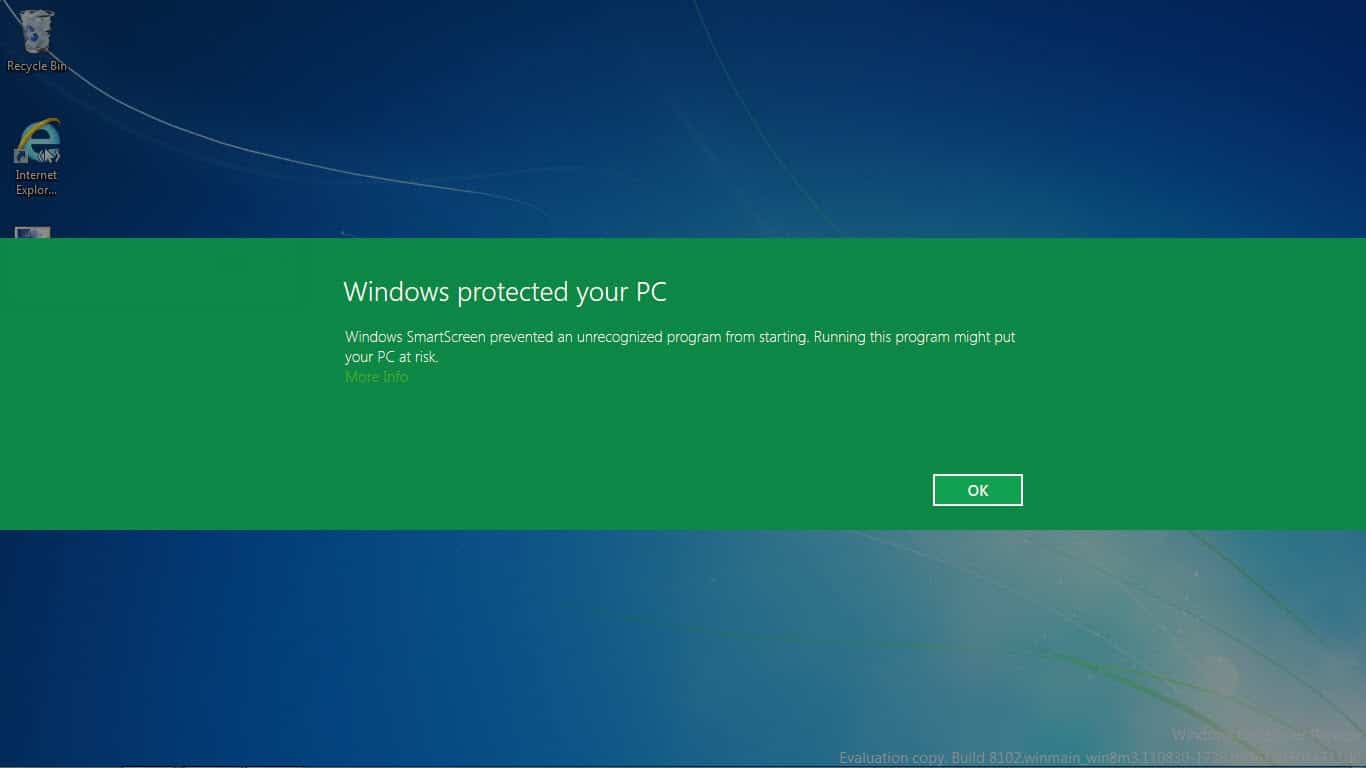
windows protected your pc

Windows protected your PC

Windows SmartScreen prevented an unrecognized program from starting. Running this program might put your PC at risk.

The only two options on the screen are the highlighted OK button, and a more info link that is nearly as distinguishable from the background. A click on OK closes the message and blocks the executable from being started. If you want to start the program, you need to click on More Info. This changes the Windows protected your PC screen slightly.
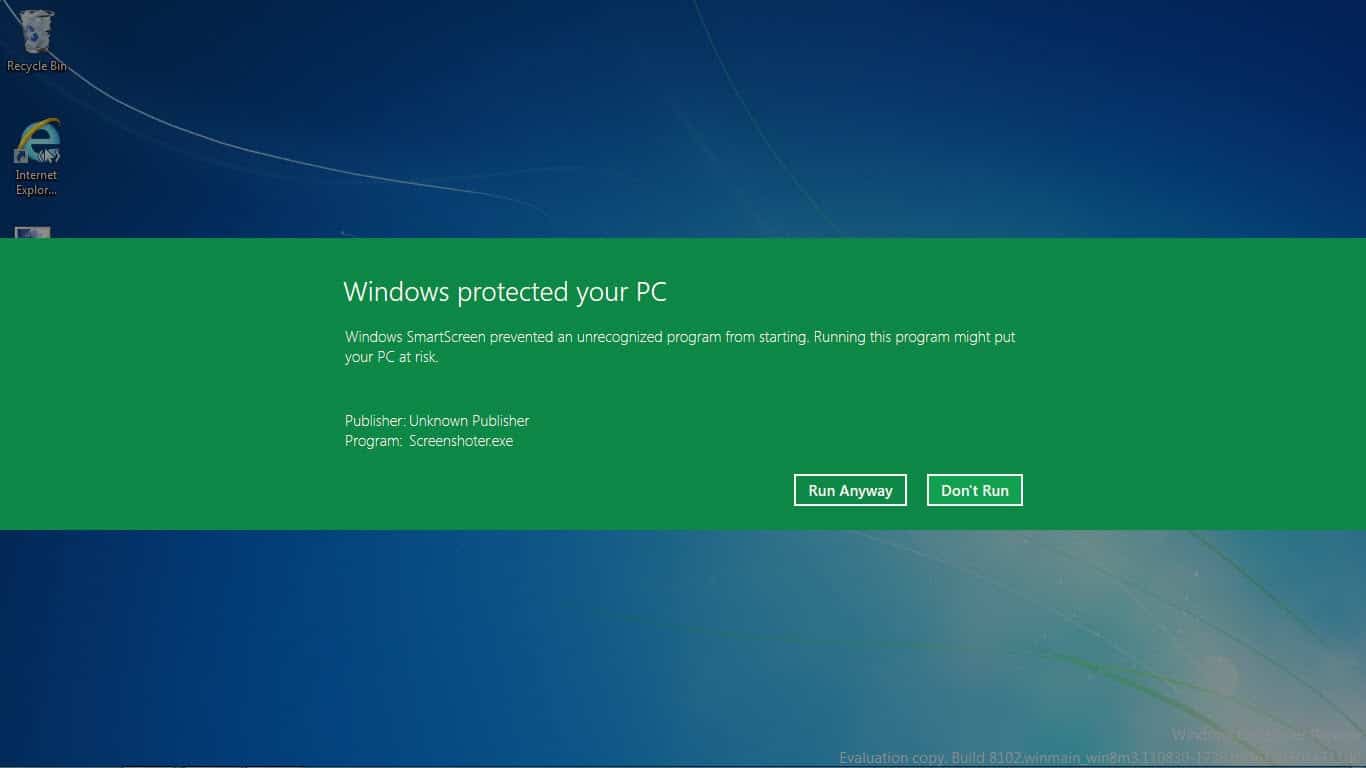
windows smartscreen

Microsoft displays publisher and program information, and a run anyway button. The program will be executed on your system if you click on that button.

This feature has the potential to cost you some time and a lot of nerves. If you are running an up to date antivirus software, you probably have no need for SmartScreen Filter’s additional protection.

Disabling SmartScreen Filter In Windows 8

You can disable SmartScreen Filter in the Windows Control Panel. Use Windows-Pause to bring it up, and click on Control Panel in the address bar afterwards. Select System and Security and then Action Center afterwards.

change smartscreen settings

Select Change SmartScreen Settings on the left. This opens the following menu where you can turn Windows SmartScreen off.
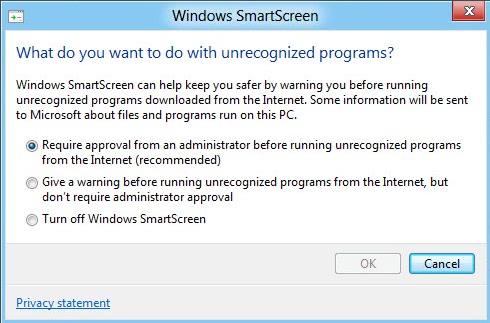
windows smartscreen

The following options are available:

  • Require approval from an administrator before running unrecognized programs from the Internet (recommended)
  • Give a warning before running unrecognized programs from the Internet, but don’t require administrator approval
  • Turn off Windows SmartScreen

Windows SmartScreen could be Windows 8′s User Account Control. A feature that aims to make the system more secure and annoys the hell out of users at the same time. (thanks Caschy for the tip)


Tuesday, October 11, 2011

Microsoft: Internet Explorer More Secure Than Chrome And Firefox

Your Browser Matters is a new site by Microsoft and partners that aims to make Internet users aware of security in general, and the web browser they use in particular. Some users may decide to ignore the site completely considering that it is maintained by Microsoft, others might want to check it out to see what it is all about and if the points that it tries to make are valid.

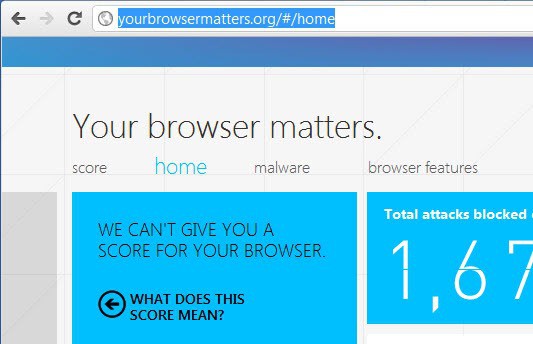
When you open the homepage of the informational site in a supported web browser you get a score for that browser right away. The site unfortunately does not support beta versions of web browsers which means that I was only able to get a score for Internet Explorer 9. Neither Firefox Aurora, Google Chrome Dev nor the latest stable Opera version were compatible with the site.

your browser matters

Microsoft’s Internet Explorer 9 scores 4 out of 4 points, which obviously is the highest possible score. Ed Bott ran Chrome Stable and Firefox Stable through the test and noticed that the browsers scored 2.5 (Chrome) and 2 (Firefox) respectively.

It all boils down to the test criteria. When you look at all of them in the screenshot below you will notice that Microsoft analyses how the browser handles the following four attack forms: Dangerous downloads, Phishing websites, Attacks on your browser and Attacks on websites.

web browser security features

You will also notice that no browser scores perfectly in all tests. Microsoft’s Internet Explorer 9 for instance fails in three of the sixteen tests, Chrome in seven and Firefox even in nine tests.

When you look at the core differences you notice that Microsoft’s Internet Explorer is the only browser in the test that passes all dangerous download tests which the company attributes to its SmartScreen technology. Both Firefox and Chrome fail in the tests.

All browsers pass the phishing websites tests. The attacks on your browser group of tests is divided into securing extensions and effective sandbox. Internet Explorer is the only browser according to Microsoft with the ability to restrict extensions and plugins on a per-site basis. The browser also passes the “benefits from Windows operating system features that protect against structured exception handling overwrite attacks” test where the two others fail.

Chrome on the other hand is the only browser in the list that passes the sandbox test.

Internet Explorer passes four of five tests of the attacks on websites test. It is the only browser that can automatically block insecure content from https pages and to sanitize HTML to remove potentially problematic code.

The question at this point is obviously if the tests are biased towards Internet Explorer by leaving out tests that might not be as favorable.

I can list a few missing tests without really thinking much about it, for instance:

  • Is the browser protecting the user from third party extension or plugin installations?
  • Does the browser warn the user of outdated plugins?
  • Can users disable security related features, like JavaScript on a per site basis.
  • Does the browser support different user profiles?

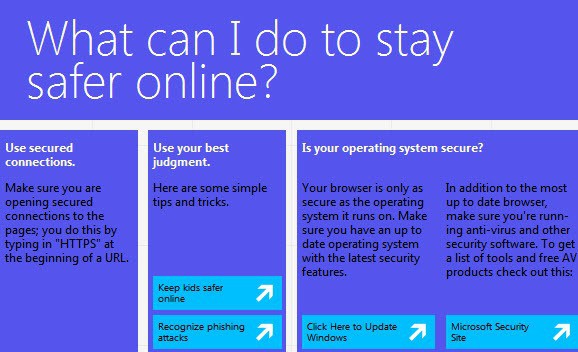
What I like about the site in general is that it offers information that educate users. The prevention tab for instance lists basic but important security information on one page.

safer online

Security is obviously only one feature when users pick a favorite browser that they use most of the time. There are other features like speed, extensions support or general compatibility with web standards that can make a difference.

What’s your take on Your Browser Matters? Is Microsoft making a valid point here or is this just marketing mumbo-jumbo?

Before you answer note that that Internet Explorer 6 scores 0 of 4 points and Internet Explorer 7 1 out of 4.


© Martin Brinkmann for gHacks Technology News | Latest Tech News, Software And Tutorials, 2011. | Permalink |
Add to del.icio.us, digg, facebook, reddit, twitter
Post tags: , , , , , ,