Microsoft has announced changes to the Windows Update mechanism of the upcoming operating system Windows 8. When you look at the current state of Windows Update, you will find it to be relatively disruptive to the user experience. This stems from the fact that the majority of updates require a system start before their installation is complete on the computer system. A system remains vulnerable, in the case of security updates, until the computer is rebooted and the update applied. That’s why Microsoft displays shutdown notifications to the user to reboot the system and apply the update.
Windows Update can be configured, but that tackles only how and when updates are downloaded and installed, and not the shutdown requirement.
Microsoft in a recent blog post over at the Building Windows 8 blog, described how Windows users are currently updating their system, and how the company intents to change that behavior with the release of Windows 8.
If you look at the current way of updating, you will notice that the majority of Windows 7 users are making use of automatic updates. Only minorities make use of notifications or never check for updates (that’s less than 10% total).
Automatically install updates – 89.30%
Notify me before install – 2.38%
Notify me before download – 3.44%
Never check for updates – 4.88%
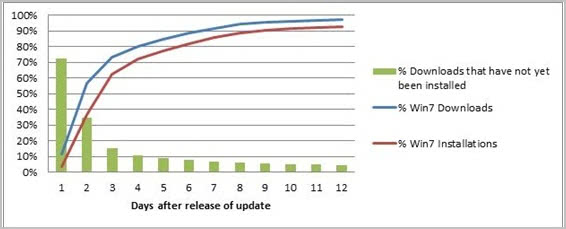
When you look at the time it takes to download and install updates, you will notice that 90% of all Windows 7 users install updates in a week’s time after release. Install here means download, install and reboot the computer to complete the update.
The breakout by type of install reveals additional information. 39% of all users of Windows 7 install the update at shutdown of the system, 30% at a scheduled time and 31% interactively.
Install-at-shutdown – The majority of automatic update users (39%) are updating when they shut down their systems. For these users, there is no automatic restart because the system can complete all steps of the installation during shutdown. This is the least disruptive experience for users, and so we do want to “hitch a ride” whenever we can on user-initiated shutdowns instead of inconveniencing users with a separate restart.
Install-at-scheduled-time – For the 30% who are scheduling automatic updates, their installations start at a scheduled time (the default is 3 AM in the time-zone where the PC is located) or the next time the user logs in (if we miss the 3 AM window). WU automatically completes any restarts necessary to finish the installation. To ensure that you get the chance to save any important files and data before the restart, we show you a 15-minute countdown timer before the restart.
Allowing restarts to occur without user interaction has helped us to rapidly update a major portion of the Windows ecosystem with critical updates. On average, within a week of releasing a critical update, 90% of PCs have installed the update (see Figure1). On the other hand, this behavior of automatic restarts has some unintended consequences for the user. Restarts can occur without notice, and might occur monthly or even more often if there is an out-of-band update. This unpredictability can potentially result in loss of user data. Most of our automatic installs and the subsequent restarts happen at 3 AM, when users are not around to save any important work. We have heard a lot of painful stories of users coming back to their PCs in the morning to find that a restart occurred, and that some important data was lost. In other cases, the user doesn’t lose data, but needs to restart a job that they were in the middle of (for example, a long copy job).
Interactive install – We were surprised to see 31% of users interactively installing updates; of these 31%, approximately 20% have selected to automatically install, but they manually intervene anyway. WU provides a pop-up notification telling you when updates are available if you have selected to automatically install. The notifications are clearly capturing people’s attention, so they click on the notification and interactively install the updates. But this is actually reinforcing an unintended behavior. If you signed up to get automatic updates, you really shouldn’t need to bother interactively installing an update every time one is available. Most installs should occur silently in the background, and WU should notify you only for critical actions (for example, a pending restart). This also matches feedback from customers, who tell us they find the constant notifications to be distracting. Their expectation when they choose automatic updating is that updating will occur automatically. This seems to be a case where making sure people are in control of their PC experience actually resulted in too much information, and ultimately the price of being in control was a feeling of a loss of control.
For Windows 8, Microsoft came up with guiding principles to design the update experience. They were:
- The automatic updating experience is not intrusive to users but keeps them aware of critical actions
- Minimize restarts and make them more predictable
- Continue to keep the PC and the ecosystem up-to-date and secure in a timely manner
The update process will change in the following ways on Windows 8:
Windows Update will consolidate all non-security updates and synchronize them with the monthly security updates. It is usually not a problem to skip the direct installation of optional updates. It is now not necessary to install the update right away (but still possible if the computer is restarted). The only exception to the once per month rule is the release of critical security updates that require immediate installation.
Windows Update will furthermore inform the user on the login screen that updates have been installed that require a restart.

The PC will be automatically restarted by Windows Update after this three day grace period. The program has been designed to wait until the lock screen is displayed after that period before the computer is restarted. This has been implemented to avoid data loss on the PC. In the case of critical applications running in the background while the computer is locked, the user will be asked to close all work on the next login as Windows Update will restart the PC within 15 minutes.
Windows Update can also detect specific system states like full screen movies, games or presentation modes. The program then waits until the state changes before the restart notifications are displayed to the user.
The core benefit of Windows 8′s update mechanism is that users won’t have to shutdown their system as often as they used to. Microsoft also made it clear that the company won’t include third party software updates in Windows Update.
© Martin Brinkmann for gHacks Technology News | Latest Tech News, Software And Tutorials, 2011. | Permalink |
Add to del.icio.us, digg, facebook, reddit, twitter
Post tags: automatic update, windows 8, windows news, windows-update