Pages

Showing posts with label office 2007. Show all posts

Friday, November 18, 2011

How to get your Microsoft Office Files to Open after Office 2010 Trial Expires in Windows 7

It is good that Microsoft offers a 60 day trial of Office 2010, but once it expires and you try to open Word or Excel Files, you will get an error message stating that it cannot be opened because the file is not a valid Win32 application. Sure, you can rearm the Office 2010 trial up to 180 days, but what do you do after that? Users will not be able to open any Office files until all Office 2010 suite instances are uninstalled. This is an annoying aspect of the Microsoft Office 2010 trial and it is a shame that Microsoft would do something like this. It will be necessary to know the procedure to remedy this issue.

not a valid win32 application

The first thing any Windows user would think to do is uninstall Microsoft Office 2010. This doesn’t work. Files still do not open. This is Microsoft’s way of goading users into buying the Office 2010 suite, which is fine if you want to do so. For users who do not, more steps need to be taken to regain control over the Office suite that you paid for.

When a file association is missing between a file and a corresponding application, various problems occur and the file cannot be opened. This is what happens when the Microsoft Office 2010 trial expires and you do not purchase the suite.

Click the Start menu and open the control Panel. Select Uninstall a program.

Scroll to find the instances of Microsoft Office 2010. Uninstall all instances of Office 2010 and you should be prompted to restart your computer. Restart as suggested.
The problem will most likely remain unsolved due to the instance of the Microsoft click-to-run application. Use the same steps to uninstall click-to-run (you don’t need it) and restart again.

Try opening a .doc, .docx, or .xml file and see if you get the same error message. You probably will because the default application to open the file has not been changed. Open the Control Panel again and click on Programs (indicated in green). This will open the Programs options. Under Default Programs, click “Make a file type always open in a specific program”.

default programs

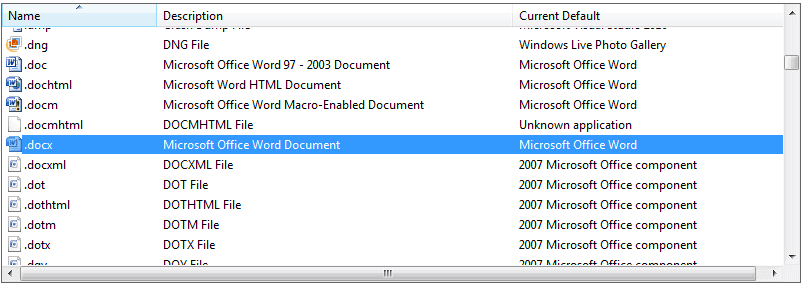
A list of all file associations will be presented. Scroll down to .doc, .dochtml, .docx, etc.
docx

The screenshot above shows the default applications to which you will need to change the file type to. This demonstration uses Office 2007. Change doc, dochtml, docm, docx and docmhtml files to Microsoft Office Word as the default application. Do this by double clicking each one individually and changing the file association. Change docxml, dot, dothtml, dotm, dotx and dqy file associations to the appropriate Microsoft Office component, which would be Office 2007 in this case (ideally in any case).

Files should open properly now. The process is slightly different for XP and Vista, but this should give you a good idea of how to approach this issue. There is absolutely nothing wrong with switching to Office 2010 if you want to. If you do, all of the above steps will be unnecessary. However, Windows 7 users who have encountered this problem will find this useful.


© Melanie Gross for gHacks Technology News | Latest Tech News, Software And Tutorials, 2011. | Permalink |
Add to del.icio.us, digg, facebook, reddit, twitter
Post tags: , , ,


Wednesday, October 26, 2011

Microsoft Office 2007 Service Pack 3 Released

Microsoft yesterday has released Service Pack 3 for their Microsoft Office 2007 suite. The update applies to both Office 2007 as we as Microsoft Office Project, Microsoft Office SharePoint Designer, Microsoft Office Visio, and Visual Web Developer.

The third service pack includes two main categories of fixes. The service pack includes all public updates, security updates, hotfixes and other updates that were released for Office 2007 through September 2011. It also includes fixes that were made specifically for the service pack. This includes according to Microsoft “general product fixes and improvements in stability, performance and security”.

Microsoft Office 2007 Service Pack 3 is a cumulative update, which means that it includes all fixes that were part of Service Pack 1 or Service Pack 2 for Office 2007. Office users and administrators can install the third Service Pack release to apply all patches to the software.

The service pack can be downloaded via Windows Update or Microsoft Update automatically, or manually from Microsoft’s Download Center.

The following
link points to the download of the 2007 Microsoft Office Suite Service Pack 3 (SP3) on Microsoft’s Download Center. The Office Language Pack 2007 is available as an alternative download as well. Please note that there is only one version of the service pack available (no 32-bit and 64-bit edition).

The core improvements are the following ones:

  • Documents that require custom security trimming are not returned from alert search queries, even if the user who created the alert could see and query for these documents.
    Non-Unicode characters in certain error message strings now display correctly.
  • Four new bibliography styles are now available in the “Word Citations & Bibliography” feature: Harvard Anglia, IEEE, APA Sixth Edition, and MLA Seventh Edition.
  • Chinese New Year holiday is now included in the Outlook calendar for Singapore.
  • Fixes an issue in which Excel 2007 sometimes crashes when you open an Excel workbook previously saved in a newer version of Excel. This occurs if the file uses a new feature that is not available in the 2007 Office system.
    Fixes issues with the Pre and Post Reform rules in the French Thesaurus.
  • Fixes an issue in which encryption settings are not configurable when they are used with a file format compatibility pack converter and Office 2003 or an earlier version of Office.
  • Fixes an issue in which a crash sometimes occurs when an Excel workbook is opened in Excel and then previewed by using the Windows Explorer preview pane feature.
  • Fixes an issue in which Excel Slicers and Ribbon customizations are lost when an XLSX file is first saved as an ODS file, and then saved as an XLSX file in Excel 2007.

Office users and administrators who notice issues after installing the service pack can use Microsoft’s Service Pack Uninstall Tool for the 2007 Microsoft Office suite to uninstall the service pack without affecting the core Office 2007 installation.


© Martin Brinkmann for gHacks Technology News | Latest Tech News, Software And Tutorials, 2011. | Permalink |
Add to del.icio.us, digg, facebook, reddit, twitter
Post tags: , , , ,