Pages

Showing posts with label sound. Show all posts

Thursday, January 5, 2012

Fixing No Sound Issues In Firefox and Chrome

I had one of the strangest experiences ever in the past 24 hours. Yesterday evening I noticed that I was not getting any audio in Firefox. I first thought this was a hiccup and restarted the browser to see if this resolved the problem. It unfortunately did not. I then tried to play videos on other sites first to see if it was a site specific issue or global.

Once verified that Firefox was not playing sound at all I checked if I could hear audio on the local system which worked fine.

I remembered that Windows 7 had audio mixers for every application capable of playing audio. It could have happened that the volume for the Firefox browser was all turned down. Turned out it was not unfortunately.
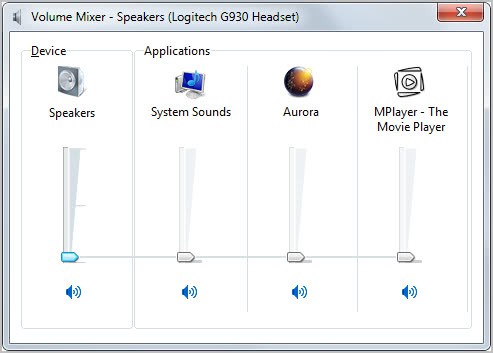
firefox audio

Next check was the Google Chrome browser, and this is when things got really weird. I could not hear any audio in Chrome either. Checked on YouTube and several other video hosting sites and sound was not playing.

My next guess was a issue with Adobe’s Flash plugin. I switched to HTML5 playback on YouTube, but audio was still not playing. A check on Adobe’s website revealed that the latest Flash version was installed on the system.

My next – and last guess – was that the installed audio driver was corrupt somehow. I did not put to much hope into the solution though as it felt unrealistic as audio was still playing on the desktop.

Still, I went to the Logitech website and downloaded the latest driver version for my G930 wireless headset. I checked playback in Firefox and Chrome after driver installation, and guess what; Audio was playing again.

I have no idea how this happened in first place. Lets take a look at the troubleshooting steps again:

  • 1. Restart the browser, play again in same browser.
  • 2. Check audio on other sites
  • 3. Check Mixer in Windows
  • 4. Check audio playback in a second browser
  • 5. Check if the Adobe Flash plugin is up to date
  • 6. Check another audio playback option, e.g. HTML5
  • 7. Reinstall the audio driver

Is there anything else that you can do if those steps do not fix the issue on your end? Nothing comes to mind to be honest. Anyone with additional suggestions?


© Martin Brinkmann for gHacks Technology News | Latest Tech News, Software And Tutorials, 2012. | Permalink |
Add to del.icio.us, digg, facebook, reddit, twitter
Post tags: , ,


Monday, October 17, 2011

Volume Concierge, Automatically Change The Windows System Volume

I behave with respect when I’m in a room with other people, in a train or on the street. This means that I have my mobile phone set to vibrate only, that I won’t answer it in crowded places, that I won’t use it to listen to music loudly (and without earbuds) and that I turn down the volume of my computer.

I remember that I once forgot to set my phone to vibrate only and that I felt totally embarrassed when I received a call in public. Others do not seem to share the same reservations that I do though. A recent trend is youngsters walking around with what I call the poor man’s car radio; A mobile phone playing loud music on the street.

You can use software on a computer to automatically adjust the volume. Volume Concierge is such a program. It can be used to schedule volume changes on a Windows system.

You could use it to automatically lower the volume to 20% in the evening which is nice if you have kids that go to bed early. Another option is to turn off the volume after the workday and turn it on again in the morning.

The program uses so called volume rules that the user can define. Each rule consists of a day (or all days or weekends), a starting time and a volume level.

volume concierge

You can add as many rules as you want and turn them on or off manually. The program can only be minimized into the Windows system tray. Despite having an option to schedule sound volume changes on the system it does not use the built-in Windows Task Scheduler to run those tasks. This is one of the shortcomings of the program. It would have been better if the program would only need to run on volume changing tasks.

Volume Concierge adds itself to the startup of the operating system. This can be disabled with a right-click on the system tray icon or other autostart editing applications. Removing the tool from autostart however removes all of its functionality from the system unless it is manually started by the user.

The program is free to use but asks you to register it on first run with an email address.

Windows users who want to try Volume Concierge can download the program from the official website.

Alternatives that I have covered before are Auto Mute which can be configured to automatically mute the operating system’s volume and the new Windows 7 volume control options.


© Martin Brinkmann for gHacks Technology News | Latest Tech News, Software And Tutorials, 2011. | Permalink |
Add to del.icio.us, digg, facebook, reddit, twitter
Post tags: , , ,