Pages

Showing posts with label youtube. Show all posts

Wednesday, February 15, 2012

YouTube Center Adds All The Missing Features To YouTube

There are quite a few things that you cannot do on YouTube due to lack of controls. It is for instance not possible to repeat videos automatically or stop videos from automatically playing if you load it on the video hosting site. Most of the annoyances and missing features on YouTube become available through add-ons or userscripts that you can install in the web browser. Some target a specific feature like the ability to download videos from YouTube, others add a bunch of features to the site.

YouTube Center is one of those scripts that add a lot of features to YouTube. It does that in a way that is not overloading the site or changing it significantly.

Google Chrome users can install the userscript right away, while Firefox users need to have the Greasemonkey or Scriptish add-ons installed before they can do the same. There is no mentioning of support for other browsers.

Once you have installed the userscript in your browser, you will notice a new small toolbar attached to the bottom of videos on YouTube.
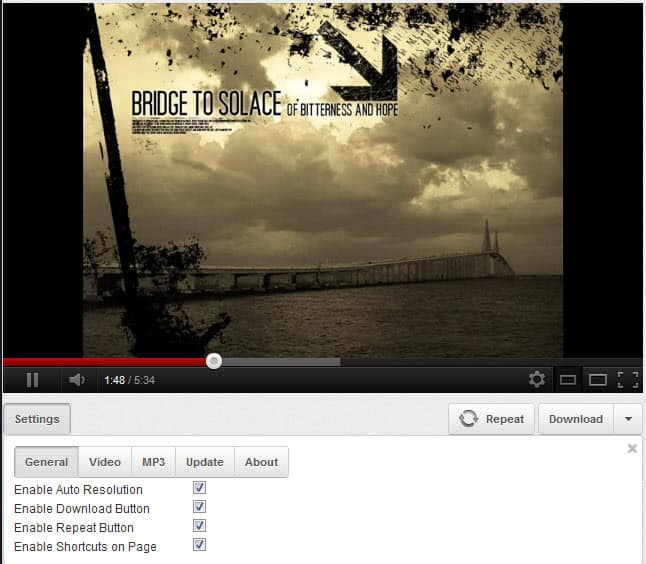
youtube center

The three buttons Settings, Repeat and Download are displayed by default. A click on Settings opens the configuration menu where you can make the following changes:

  • Enable Auto Resolution – Select a preferred video resolution that videos will be played in if available.
  • Enable Download button – Options to set a preferred download quality and format. The down arrow next to the download button lists all available qualities for download.
  • Enable Repeat button – Displays the repeat button to automatically repeat videos for as long as you stay on the page. Repeat can be automatically activated in the settings.
  • Enable Shortcuts on Page – Enable shortcuts on all of the page, including abilities to go to a specific video position with the 0-9 keys, space to pause the video or left and right arrow to go back and forward ten seconds.
  • Prevent Auto-Play and Auto-Buffering – Stops videos before they start to buffer or play automatically.
  • Download mp3 – Option to download the audio of videos to the mp3 format.

YouTube Center is a useful userscript for YouTube regularly who wish they had more control on the site.


Saturday, February 11, 2012

Gridtube Modifies YouTube’s Search Layout

The search results layout on the video hosting website YouTube has a few usability issues. When you search on YouTube, you are presented with a long list of scrolling results. For each result a small low res thumbnail image is shown prominently, and next to that the video’s title, part of the description and a few other information including the uploader and the number of views it has received yet. Especially the need to scroll down the list and the low resolution preview images face criticism.

The Firefox add-on GridTube modifies Youtubes search layout in several ways to make it more user friendly. It comes with two new viewing modes that change the search results listing.

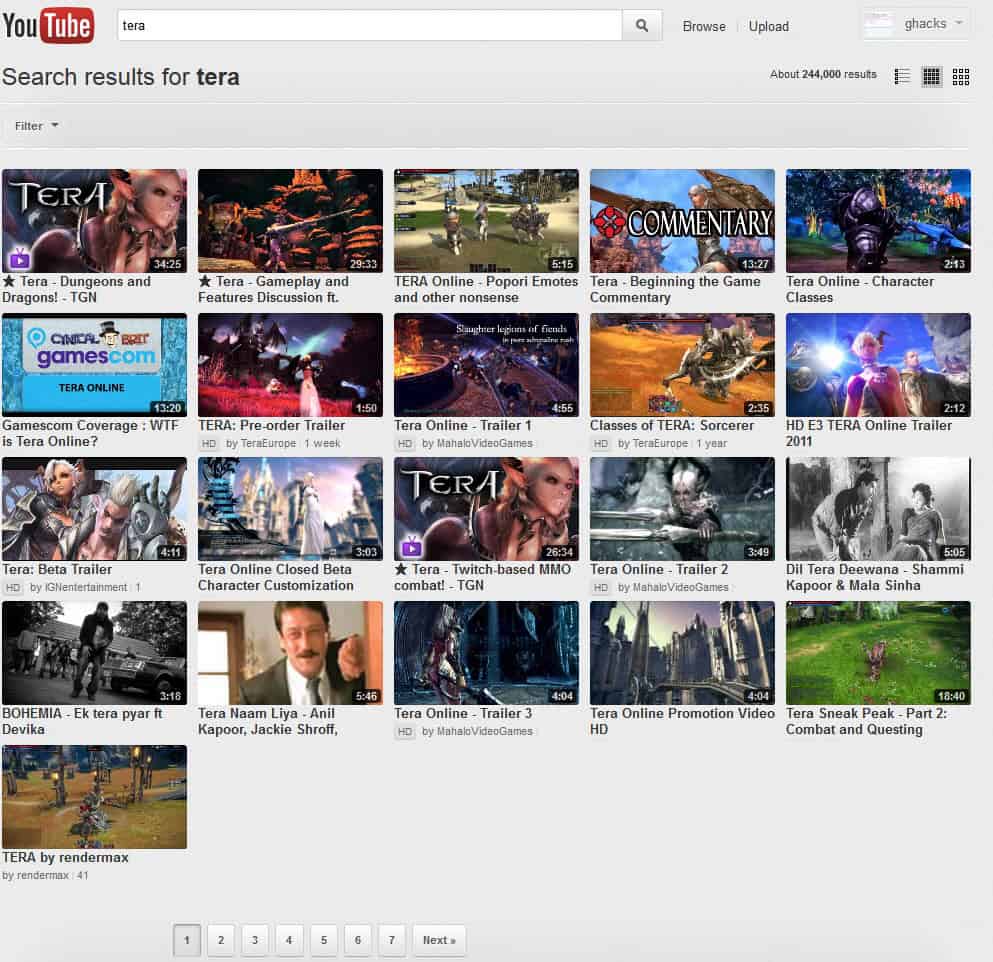
The small and large grid mode do away with the standard layout. They place the thumbnail images next to each other in a grid, so that it is no longer necessary to scroll down on larger screen resolutions. The only other information displayed – by default that is – is the video title and play time.

youtube search results

The different modes, and the information they display, are selected at the top right of the screen. Here it is possible to switch to the large grid view mode, or the standard list mode. The large grid mode displays larger video thumbnails. The list view mode on the other hand simply displays YouTube’s default layout, but with the option to turn off ads on the page.

You may notice that all three modes display higher quality video thumbnails. That’s useful if you do not like the low resolution video thumbnails that YouTube usually displays on search result pages.

youtube large results

Both small and large grid modes can be clicked again to display additional information for each video. When enabled, the uploader, views, quality and time since the upload are displayed as well.

You will notice that videos open in a new tab in the browser. This setting and the higher thumbnail quality can be disabled in the options of the add-on. The only other option there lets you select a default quality level for videos.

GridTube can be installed directly at the Mozilla Firefox add-ons repository.


Friday, January 27, 2012

YouTube Browse, Video Editor And Manager Updated

While closing some of the company’s lesser popular services, Google’s popular services such as Google+ or YouTube have received plenty of updates in the past. Google today announced that they have updated YouTube’s browse, video editor and video manager pages. Channels have moved into the focus on YouTube with recent updates, and the new browse pages reflects that. According to Google the updated page helps users “find even more great Channels on YouTube”.

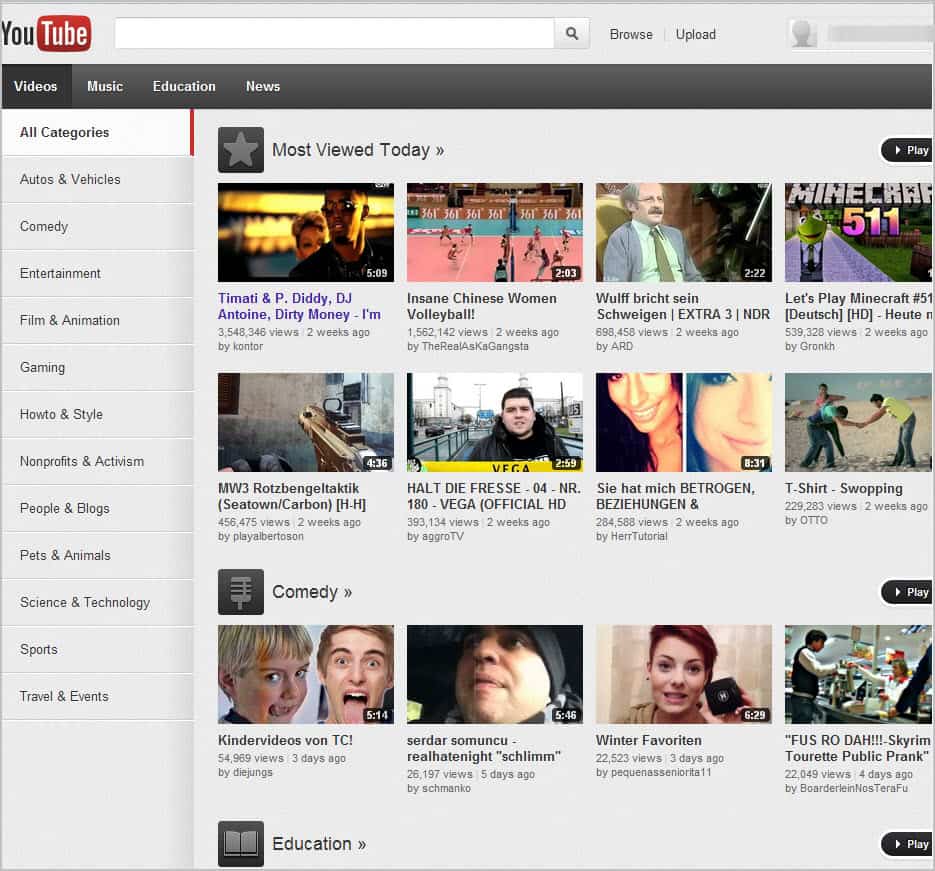
The new browse page on YouTube divides contents into categories on the left side. You can now browse categories like gaming, science and technology, or sports more easily. Each page displays the most viewed videos at the top followed by popular videos and select channels

youtube browse

Here is is then possible to click on a specific video to watch that video on YouTube, or on a channel name to open that channel on the website. YouTube users and companies listed on the pages should benefit highly from the new exposure.

YouTube has improved the capabilities and look and feel of the site’s video editor. The video editor has received a visual overhaul, a “cool new timeline, easier clip trimming and a moving playhead”.

youtube video editor

One interesting feature that is now available is the ability to join multiple uploaded videos into one. This is done by dragging and dropping the videos on the timeline. The video editor is a useful tool for basic or last minute video editing. On the downside, it does not come close to the functionality that desktop applications like VirtualDub provide.

Last December’s update of the Video Manager did not play well with many YouTube content producers. The new video manager resolves some of the issues that users had with the update. Likes and dislike statistics have for instance been re-added to the manager interface. Sorting videos by popularity has also returned.

The video manager furthermore has received a visual update, an improved “display of scheduled uploads and claimed videos”, and a search history.

You can read the announcement over at the official YouTube blog.


Friday, January 20, 2012

How To Skip Ads On YouTube

Depending on the videos that you like to watch on YouTube, you may be seeing way more video ads than a year or two ago. With YouTube finally taking off revenue wise, users are seeing more video ads before the actual videos that they want to watch on the site.

While it is understandable that Google wants to earn money from the service, it is also understandable that some users may be fed up with the video ads that they are forced to watch. This is especially true if the same video ad is showing up on multiple videos that you watch on YouTube.

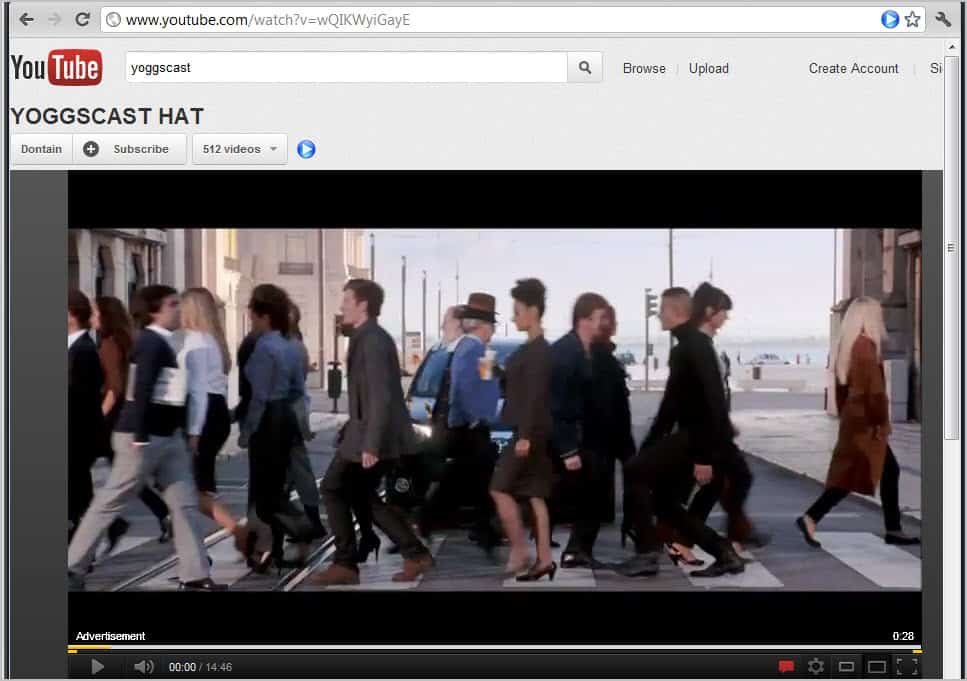
Some videos can be skipped after five seconds of play, while others cannot be skipped at all.

youtube video ads

Most users do not mind the occasional ad as they very well know that it costs a lot to operate a site like YouTube. If you have to endure video ads on YouTube constantly though, you may be inclined to look for a way to bypass those ads to improve your experience on the site.

The Google Chrome extension Skip Ads On YouTube does exactly that. It is a manual solution though and not automatic. The extension adds a blue play button to the YouTube video page. A click on the button skips any video ad that is playing at that moment and goes right to the hosted video.

The downside to this operation is that you have to click on the button every time you want to skip a video ad on the site. It also needs to be noted that it only works on YouTube directly, and not on third party sites.

The developer has made available a paid version of the extension that can skip ads on YouTube automatically. It is available for $4.

Google Chrome users can download and install Skip ads on YouTube from the official Chrome web store.

Several alternatives are available:

Know of another option to block video ads or those small overlay text ads on YouTube? Let everyone know about it in the comments.


Tuesday, January 17, 2012

Display The Inbox On The YouTube Frontpage

With YouTube’s redesign now live on the site and with no turning back opportunity anymore, it is time to realize that the changes have not all be for the better. If you are not logged in or an active YouTube user you can probably live with the new frontpage design and all, but if you are an active user who gets lots of messages and stuff you’d probably like a way to reach those messages more easily.

You see, YouTube made the decision to move the easily accessible inbox from the front page behind the account name in the top right corner of the screen. To reach the YouTube inbox, you need to first click on the name and then on Inbox to be taken there. Once there you still may need to select a different entry, e.g. comments instead of personal messages which means yet another click before you land there.

The free userscript YouTube startpage inbox changes this by adding the inbox and all of its links back to YouTube’s homepage.

youtube inbox

Once installed, you will see direct links to all inbox entries on the homepage again. The script adds them to the right sisdebar just above the recommended video section there. The links point to personal messages, shared with you, comments, contact suggestions and video responses. Each entry lists the number of unread messages which makes the feature that more convenient as you can now see directly if you have new messages or notifications waiting for you in your inbox.

The inbox at the top lists the total of unread messages and notifications.

Please note that the inbox is only displayed on the frontpage and not on other pages of YouTube.

The script has been tested in the Firefox web browser with the Scriptish extension. It likely works in other browsers such as Google Chrome as well.


Monday, January 9, 2012

How To Switch Back To YouTube’s Old Page Design

If you are a regular on YouTube you probably know that Google has recently redesigned the page completely, turning pretty much everything up side down. The new design has received quite the criticism, for instance for the centered fixed width layout, or the larger frame at the top of the YouTube home page.

Most YouTube users do not know that there is an option to reset the page to the old layout. This can be achieved by writing a cookie to the local system that tells the video hosting site that the old layout needs to be loaded and not the new page design.

Please note that this may cease to work at any time as YouTube may simply remove the old page design from their servers. Setting the cookie would have no effect then. For now though, it works splendid.

You can revert the YouTube homepage to its former self with the help of a userscript or by writing the cookie directly on the system. The userscript appears to be working in Firefox, with Greasemonkey or Scriptish installed, Google Chrome and Opera. The developer notes that Opera users need to import the script manually in the browser though. Instructions on how to do that are offered on the userscript page.

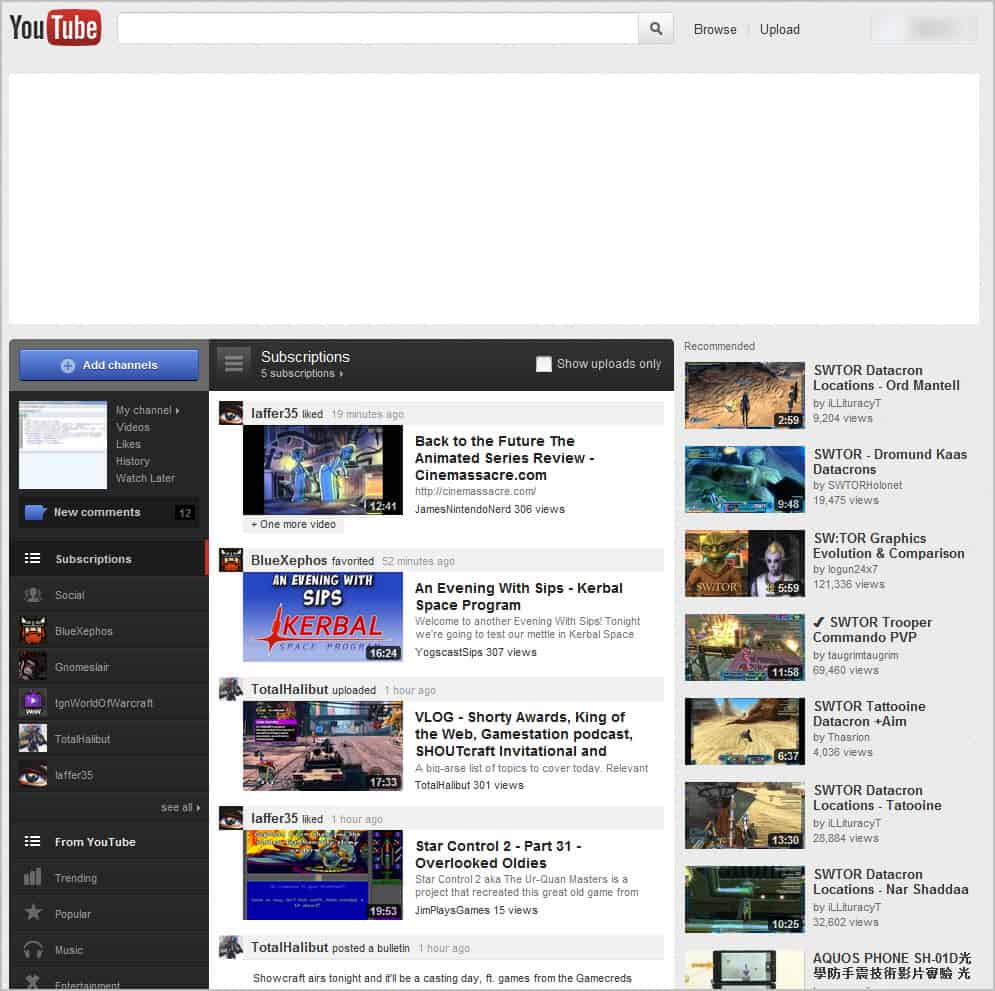
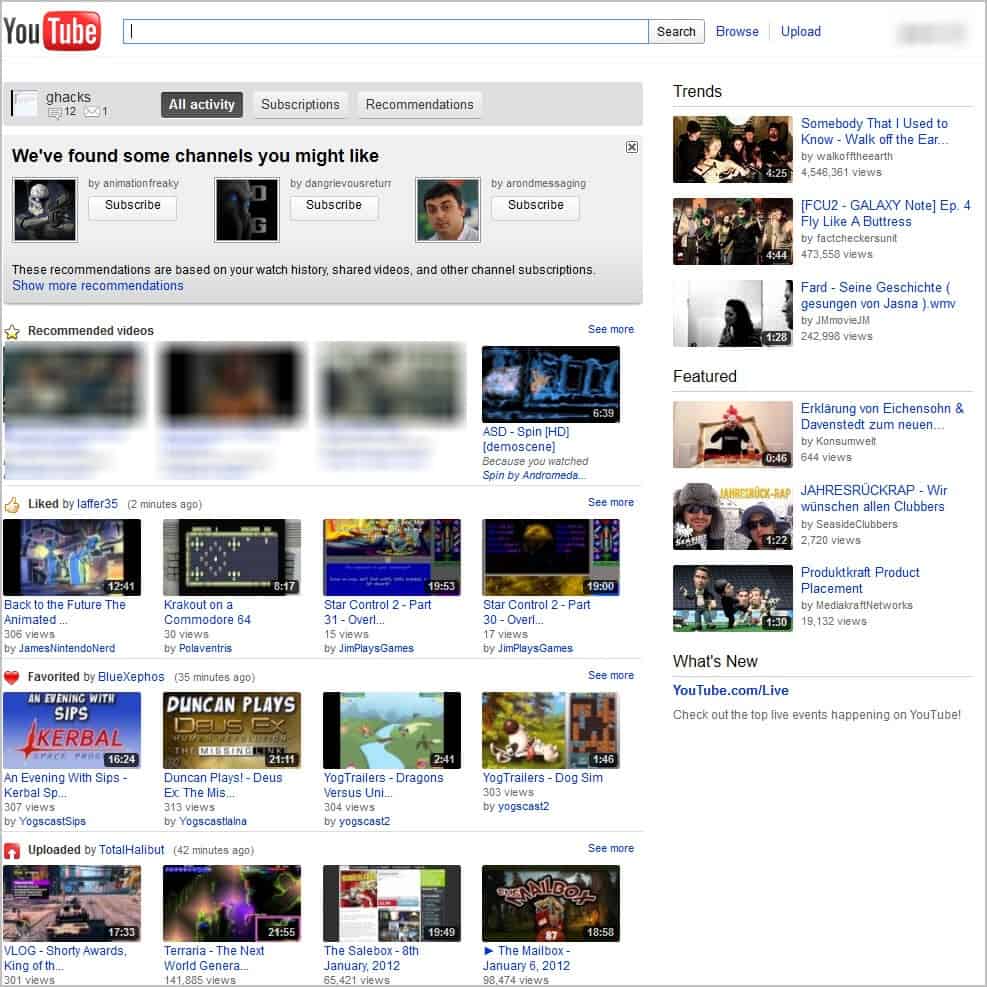
Take a look at the following two screenshots to see the difference. First the new YouTube page (no idea why the big header is showing up blank)

new youtube homepage

and then the old YouTube page.

old youtube page

All you need to do is to install the userscript to set the cookie. Please note that the homepage layout will stick even if you uninstall the userscript again. You need to clear the cookie that it writes on your system to get the new YouTube homepage layout again.

As I mentioned before, you can also set the cookie manually.

Open the YouTube website.
In Chrome, press Ctrl-Shift-j to open the Developer Tools
In Firefox, press Ctrl-Shift-k to open the web console
Enter document.cookie=”VISITOR_INFO1_LIVE=VISITOR_INFO1_LIVE=tYJElFX0sZI”; in the console tab and press Enter.
Reload the YouTube page.

If you are visiting YouTube regularly, which design do you prefer? (Thanks Odio for the tip)


© Martin Brinkmann for gHacks Technology News | Latest Tech News, Software And Tutorials, 2012. | Permalink |
Add to del.icio.us, digg, facebook, reddit, twitter
Post tags: ,


Saturday, January 7, 2012

YouTube Tip: Shortcut To Skip Part Of A Video

If you are an Internet regular you have probably heard about the Wadsworth Constant, an Internet meme that has come to some fame at the end of last year. A user named Wadsworth mentioned that he skipped 30% ahead of every YouTube he was viewing on the Internet. This spread quickly throughout the geeky parts of the Internet, with YouTube implementing the constant as a parameter on their site. If you add &wadsworth=1 at the end of the YouTube video url you are skipping the first 30% of the video. A bookmarklet has been created soon thereafter which automated the process.

There is however a much easier solution that that all YouTube users can make use of to skip ahead a certain percentage of the video. All that needs to be done is to press a number between 1 and 9 on the YouTube video page after you have clicked on the video. Nothing happens if you try to press the numbers once the video starts playing on the side. You need to click on the video, which pauses it, to use the functionality.

The numbers 1 to 9 correspond to 10 to 90 per cent of the play time of the video. If you press 3 you skip ahead 30% as suggested by the Wadsworth Constant, but you can select to skip more or less of the video by tapping on a different number on your keyboard.

This works well in combination with scripts that auto pause a video automatically, for instance to let it buffer for a while or save bandwidth by avoiding auto play. We have reviewed several scripts that can do that here on Ghacks. Check out the userscript Automatically Buffer Youtube Videos and Youtube Videos: Playback Problems And Fixes for general tips.

The constant works sometimes but not all of the time. It works great for trailers and videos produced by tv or film studios. You will obviously encounter videos where it does not work at all. Have you tried to skip ahead in videos to save time by skipping ahead to the important content?


© Martin Brinkmann for gHacks Technology News | Latest Tech News, Software And Tutorials, 2012. | Permalink |
Add to del.icio.us, digg, facebook, reddit, twitter
Post tags: ,