Pages

Showing posts with label folders. Show all posts

Wednesday, January 4, 2012

Smart Folders, An Easier Way To Move Files and Create Folders

Creating new folders has never been easier than in Windows 7. Just use the keyboard shortcut Ctrl-Shift-n to create a new folder. It is automatically selected to let you change the name of the folder to a more descriptive title.

It still takes multiple actions to copy files to that new folder, and while you could use a program like MyFolders to quickly move or copy files to selected folders, the action would still require multiple steps to complete.

Smart Folders is a free program for the Windows operating system that combines folder generation and file moving in one step.

When you start the program for the first time you need to click on the install button to register its functionality in Windows Explorer. Please note that you can only use it in Windows Explorer and not in third party file managers that you may have installed as well.

smart folders

The basic idea is simple: Drag and drop files onto each other to spawn a new folder creation prompt. Enter the desired name for the new folder to complete the action.

This works only with files that you drag on top of each other, and not with folders.

The program is by default compatible with all file extensions. You can limit that functionality in the program settings by registering only select file extensions. This did not work properly during tests though.

You can unregister the program functionality at any time with a click on the uninstall button in the program interface.

Smart Folders is a handy tool for users who often need to create new folders to move files into them. It is especially useful to move different file types quickly into different new folders.

Drop It is an alternative for that specific purpose. It can be used to sort files based on patterns into destination folders. A pattern can be a file extension for instance.

You can download Smart Folders from the Addictive Tips website.


© Martin Brinkmann for gHacks Technology News | Latest Tech News, Software And Tutorials, 2012. | Permalink |
Add to del.icio.us, digg, facebook, reddit, twitter
Post tags: ,


Tuesday, January 3, 2012

Add Folder Quick Links To Windows Explorer

Microsoft has improved Windows Explorer in recent versions of Windows. The ability to add custom folders and libraries to the left sidebar pane is used by many to quickly access folders that they use frequently in the operating system. Visibility is best if folders are limited to a dozen or less though, especially on systems that are connected to low resolution monitors.

My Folders is a free software for the Windows operating system that improves folder management and functionality of Windows Explorer significantly. It is in many regards similar to previously reviewed programs such as Folder Guide or Direct Folders.

It can be used to configure quick access folders for various operations, including opening, copying or moving to, and opening the command window in.

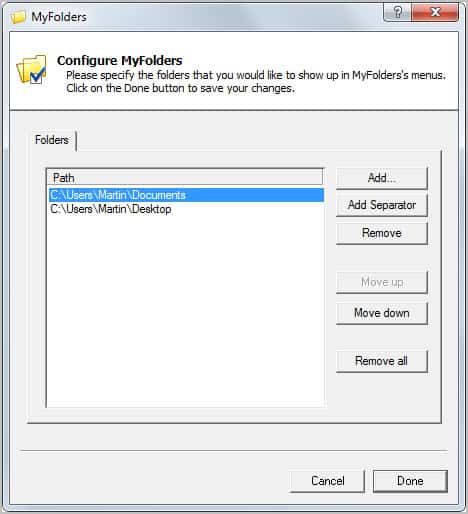
New users should run the configuration tool first which allows them to add, remove, order and separate folders from each other. Folder links to the My Documents and Desktop folder are already in place, with options to add an unlimited amount of new folders to the folder listing.

folder quick links

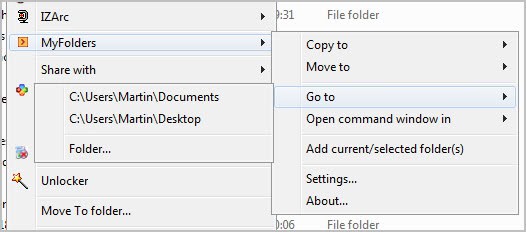
These folders appear then under the MyFolders context menu entry in Windows Explorer.

myfolders

Commands are displayed in submenus under the main menu entry. Here is a quick explanation of each entry’s functionality.

  • Copy To: Copies all selected files and folders to one of the quick links folders added during the program configuration phase.
  • Move To: The same as Copy To, but moves files or folders instead of copying them.
  • Go to: Opens the selected folder right away in Windows Explorer.
  • Open Command Window in: Opens a command prompt window with the selected folder as the starting path.

A (new) folder link is available in each submenu to run the command on new folders with options to add the selected folder to the folder listing permanently.

It is furthermore possible to add selected folders directly to the quick access listing.

MyFolders is a useful tool for Windows users who often have to copy or move files to specific destinations on the system. Instead of opening two Explorer windows or dragging and dropping files and folders, they can now simply right-click and select the copy or move command to perform the operation.

Windows users can download MyFolders from the developer website. The program is compatible with all recent versions of the Microsoft Windows operating system.


© Martin Brinkmann for gHacks Technology News | Latest Tech News, Software And Tutorials, 2012. | Permalink |
Add to del.icio.us, digg, facebook, reddit, twitter
Post tags: ,


Tuesday, December 6, 2011

Change The Default Folder Picture In Windows Explorer

Some folders in Windows Explorer show a single preview picture embedded in the folder icon. It seems as if the selected image is picked randomly from the available images in the folder. This guide will show you how to change the default folder picture in Windows Explorer.

When you use Windows Explorer in thumbnail view mode, and it does not really matter if you display folders and files in small, medium or larged size thumbnails, you will notice that some folders display one of the stored images in their icon. Folders without images display as blanks instead.

windows explorer folder image

You sometimes may want to change the image that is displayed by default, for instance if another image is more appropriately characterizing the folder or if you do not want that particular image to be displayed prominently in Windows Explorer.

It is possible to customize the folder picture thubmnail so that another image is shown instead. Please note that the following guide demonstrates how this is done under Windows 7. Other operating systems may or may not offer this feature at all.

Open Windows Explorer and navigate to the folder that you want to change the thumbnail image for. Right-click on the folder and select Properties from the options. Please note that you need to select the real folder path for that operation and not a virtual folder (like a library folder). The My Pictures folder for instance would require you to open C:\Users\username\Pictures in Windows Explorer.

Switch to the Customize tab in the Properties window and locate Choose File under Folder Pictures.

folder pictures

A click on choose file opens a folder browser where another image can be selected to be that folder’s preview picture. Just select the image and click on open to assign it to the folder. Click on ok again in the properties window to close it. The changes should be visible right away. You can repeat the process for as many folders as you like.


© Martin Brinkmann for gHacks Technology News | Latest Tech News, Software And Tutorials, 2011. | Permalink |
Add to del.icio.us, digg, facebook, reddit, twitter
Post tags: , ,