Pages

Showing posts with label windows explorer tips. Show all posts

Tuesday, December 6, 2011

Change The Default Folder Picture In Windows Explorer

Some folders in Windows Explorer show a single preview picture embedded in the folder icon. It seems as if the selected image is picked randomly from the available images in the folder. This guide will show you how to change the default folder picture in Windows Explorer.

When you use Windows Explorer in thumbnail view mode, and it does not really matter if you display folders and files in small, medium or larged size thumbnails, you will notice that some folders display one of the stored images in their icon. Folders without images display as blanks instead.

windows explorer folder image

You sometimes may want to change the image that is displayed by default, for instance if another image is more appropriately characterizing the folder or if you do not want that particular image to be displayed prominently in Windows Explorer.

It is possible to customize the folder picture thubmnail so that another image is shown instead. Please note that the following guide demonstrates how this is done under Windows 7. Other operating systems may or may not offer this feature at all.

Open Windows Explorer and navigate to the folder that you want to change the thumbnail image for. Right-click on the folder and select Properties from the options. Please note that you need to select the real folder path for that operation and not a virtual folder (like a library folder). The My Pictures folder for instance would require you to open C:\Users\username\Pictures in Windows Explorer.

Switch to the Customize tab in the Properties window and locate Choose File under Folder Pictures.

folder pictures

A click on choose file opens a folder browser where another image can be selected to be that folder’s preview picture. Just select the image and click on open to assign it to the folder. Click on ok again in the properties window to close it. The changes should be visible right away. You can repeat the process for as many folders as you like.


© Martin Brinkmann for gHacks Technology News | Latest Tech News, Software And Tutorials, 2011. | Permalink |
Add to del.icio.us, digg, facebook, reddit, twitter
Post tags: , ,


Wednesday, October 26, 2011

Why Are There Two Explorer.exe Processes Running?

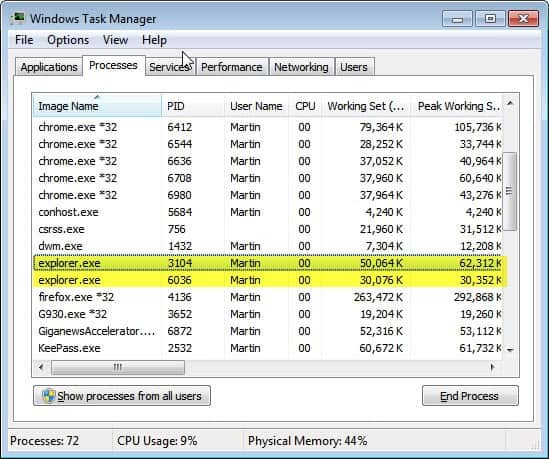
I check the running processes on my Windows system regularly to find potentially malicious or unnecessary processes. When I looked at the process listing today I noticed that two explorer.exe processes were running. I remembered that this could be a sign of malicious software disguising itself as a system process. When I checked the process paths I noticed that the location was identical and the standard explorer.exe location in the windows\system32\ folder.

Still, it felt strange that two process were started instead of just one. It took a bit of investigating to find the reason for this behavior.

When you look at both processes you will notice that they act independently of each other. You can see that for instance by looking at the memory usage or cpu utilization.

Two explorer.exe processes

I’d like to point out that you need to make sure that the two explorer.exe processes, or at least one of them, is not malicious in nature. It is a good idea to check the path first, if you see a different path for one process you may have a virus problem. You can check both explorer.exe files then over at services like Virus Total to check the files for malicious contents.

A settings in the Folder Options configuration of Windows Explorer explains the existence of two explorer.exe processes. Open Windows Explorer and click on Tools > Folder Options. Switch to the View tab there and scroll down until you find the following preference: Launch folder windows in a separate process.

If the preference is checked you have found the reason why two explorer.exe windows are running on your system. You can uncheck the option to have only one Windows Explorer process running at any time on the system.

The core reason for enabling the option is stability. It is usually safe to disable the feature so that only one explorer process is running on the PC.


© Martin Brinkmann for gHacks Technology News | Latest Tech News, Software And Tutorials, 2011. | Permalink |
Add to del.icio.us, digg, facebook, reddit, twitter
Post tags: , , ,