Pages

Showing posts with label password manager. Show all posts

Thursday, February 2, 2012

Dashlane, A New Password Manager For Windows and Mac

Just yesterday we have reviewed the Norton Identity Safe password manager which had been released as a beta version earlier this month. Today, I’m going to look at another password manager that is currently making the rounds.

Dashlane is currently in private beta, which means that you need an invite to start using it (thanks to The Next Web). Once you have have entered your email address you are redirected to a page where you can download the Windows or Mac client to your local system.

Dashlane currently connects with the Chrome and Firefox web browser only, with an Internet Explorer version in the making. Installation gives users choice to connect to one, multiple or all of the supported browsers, which is better than Norton’s all or nothing approach. It felt kinda weird though that you had to close all browsers, even if you unselected the extension from being installed in them.

The program ships with a desktop program that you can use for all management purposes, and a browser extension that handles input and detection in the web browser.

The browser extension basically acts as a link between the desktop app and the web browser. It can fill out login information automatically for you if you have configured it that way, and will automatically ask you if you want to send new logins to the password manager for safe keeping. It is furthermore possible to click into a login form directly to select one of the available accounts for the site.

You can configure the program to generate strong passwords for you whenever you register new accounts. Just click in the password field of the registration form, and then on the generate strong password button that appears right beneath it to create a strong password.
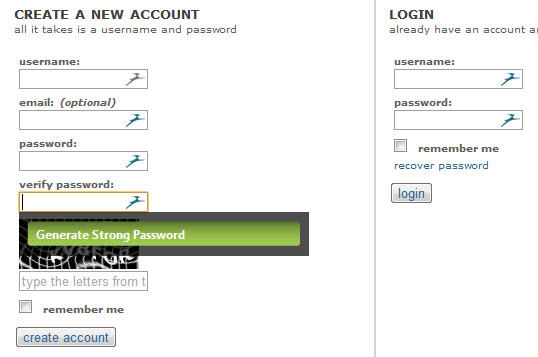
generate strong password

Dashlane furthermore can do all the form filling for you, if identity related information have been saved into the program’s database previously. The program takes care of multiple identities for you, and if you like also of ID related information and payments that you make on the Internet. These information can then be filled out automatically whenever you register a new account on a site.

One interesting feature of the desktop application is the security dashboard, which lists password strength ratings for all accounts.

password manager

Links point directly to low safety accounts giving users options to change their passwords on site directly to make them more secure.

The desktop app is protected by a master password which needs to be supplied on start before you are able to access the information. The developers have published a white paper that explains the security concept in detail.

You can synchronize password information easily, provided that your devices are running a support operating system and web browser. Data is encrpyted with an AES-256 key before it is written to the computer’s hard drive. Information may also be stored in the cloud, if users select to synchronize their information across devices for instance.

Users can access their data on the web as well, which is useful if you are on a public PC, mobile phone or computer that’s not compatible with the Dashlane desktop app. They should note though that the web app is read-only.

The program only asks you if you want to import your browser passwords into the password manager (and delete them afterwards). Users find desktop password manager import options under the File menu. Supported are popular password managers such as Last Pass, KeePass or 1Password.

Dashlane Presentation Video

Closing Words

Dashlane shows a lot of promise for a closed beta product. It is definitely superior to Norton’s password manager at this point in time. Not everything is golden though right now. The program lacks support for Internet Explorer, Opera and Safari currently, with only Internet Explorer listed as “soon” to be compatible.

An option to generate secure passwords, or to modify password creation rules, is not available currently.

It is also not clear if the developers plan to turn the service into a commercial password manager at a later point in time, or if they are going down the LastPass road which would keep the basic desktop version free.

If you are looking for a password manager for Windows or Mac, and are using Firefox or Chrome, I suggest you give it a try.


Norton Identity Safe Beta, PC And Mobile Password Manager

Password managers are essential tools to stay safe on the Internet. Most offer a lot more than just saving passwords in a secure database. My personal favorite KeePass for instance can generate secure passwords, export or import some or all into various other formats, integrate with web browsers to make the login more comfortable or save form and other important information safely as well.

Symantec has recently launched Norton Identity Safe, a password manager for Windows PCs as well as Android and Apple iOS mobile devices. The program ships with browser extensions for all five popular browsers (Opera, Internet Explorer, Firefox, Chrome and Safari).

Norton Internet Security and Norton 360 users may already know the program as it is integrated into their applications. Everyone else can download a free copy of the password manager from the Norton website.

The program stores password information in the cloud like Last Pass, another password management service, does. When you compare the two services you will notice that Last Pass has an edge over Norton’s tool, as it supports features like automatic form filling, a portable mode or 2-factor authentication. Some of those are on the other hand only available for Last Pass Premium account users who pay $12 per year for that service.

Norton’s Identity Safe on the other hand ships with Norton Safe Web which informs you about unsafe websites that you are about to visit. Norton Safe web Life then again is available for free.

Here is a short table comparing core features of both products:

password manager comparison

All Norton Identity Safe logins, notes and cards are saved with a master password that you need to create during setup. Norton requires you to use at least one upper and lower character, one number and one special char for the master passwords.

Toolbars are installed in all supported browsers automatically during installation, with no option to block the installation in some browsers. The toolbar is unfortunately not compatible with all browser versions. It failed to install for instance in Firefox Aurora.

norton identity safe

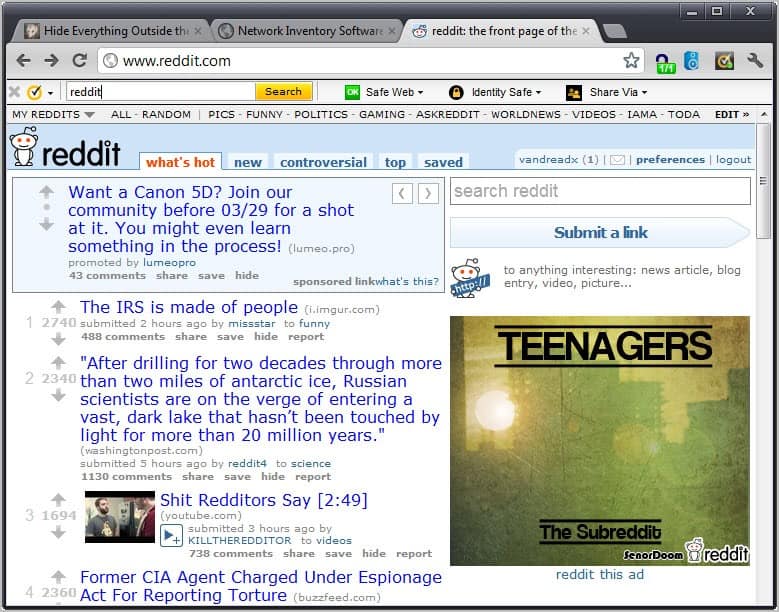
The toolbar displays a search form, Safe Web, Identity Safe and sharing options. The search links to a custom Norton search engine. The Identity Safe button in the toolbar appears to be the only option to control the password manager. I closed the toolbar in Chrome and could not get it to open up again as there were no options to do so.

The menu links to the Identity Safe homepage, settings, a log in list that is directly accessible from the menu and options to log out of the password manager.

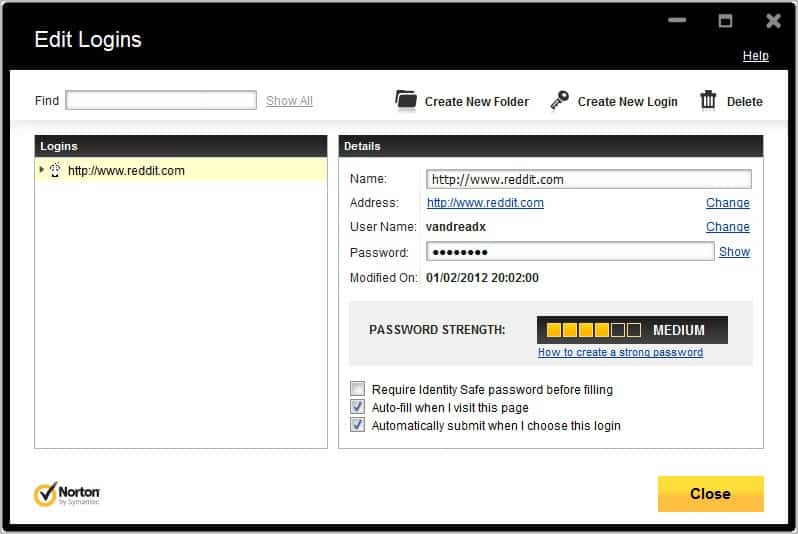
The password manager interface displays the password strength of the selected password. Here it is also possible to define whether the password information should be filled out automatically when the page is visited, whether a prompt for the master password should be displayed before that’s happening, and whether the program should you log in automatically if you select the login from the list.

norton password manager

The password manager works as expected most of the time. I had troubles getting it to work in Internet Explorer 9 though. The toolbar displayed fine in the browser, but new passwords and log ins were not recognized by the program.

Norton Identity Safe is an alternative to Last Pass, especially for users who want mobile access to their log in information. Most users will have troubles getting their stored passwords into the program in first place, which will keep many from using it (unless they use Internet Explorer for that).

The lack of browser selection during installation, missing form filling support, lack of frontend on the desktop and several bugs should keep most users from using it as their main password manager.

The Norton Identity Beta website offers no information on the future of the product. Will the final version remain free, or will it be turned into a commercial software that users have to pay for?

Have you tried Norton Identity Safe? If so, what’s your impression?


Friday, December 23, 2011

Kaspersky Password Manager Review [Giveaway]

Most password managers today offer more than just a secure storage space for passwords. Most come with options to generate secure passwords, automatically fill out sign in forms on the Internet, or to record notes and other related information.

The core purpose of a password manager however is the secure storage of passwords. With password managers, users can select secure and unique passwords for their online and offline accounts, without fear of forgetting the password at a later time.

Users without password managers often select easy to remember passwords like qwerty, abc123 or password. The problem with those passwords is that they are also easy to guess. Complex passwords like qmBU2tTW3oAC0rRJ4h are hard to remember even when no special symbols are used. Imagine having to remember dozens of strong passwords for your online accounts.

Kaspersky Password Manager is a commercial program for the Windows operating system that leaves little to be desired in this regard.

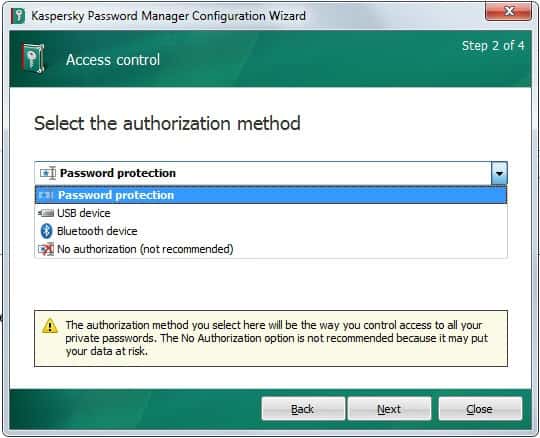
Users on first run need to select a master password to protect the database from unauthorized access. They can furthermore select a different authorization method, using USB devices or Bluetooth devices, if they so desire.

kaspersky password manager

Passwords can be imported from the web browsers Internet Explorer, Chrome and Firefox, the email client Thunderbird, AI Roboform and KeePass. Kaspersky Password Manager connects with Firefox, Chrome and Internet Explorer. This does not mean however that users with other browsers cannot use the password manager, as it is still possible to access the program’s functionality on the desktop. Only automatic sign ins and recognition of account creations is limited to those browsers.

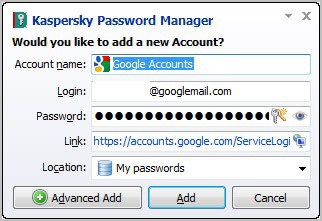
You can select the supported browsers that you want to connect the password manager with. Connecting offers several advantages. The application will notice sign ups and sign ins on websites automatically, and offers to add them to the password database.

password prompt

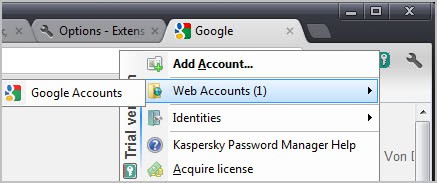
Accounts can also be added manually or by importing from other password managers. All user accounts that have been added to the program become then available for one-click selection. Chrome users for instance see a Kaspersky Password Manager icon in their address bar by default that displays a list of all web passwords for fast access.

chrome password manager

It takes two clicks to log in to any service this way. The same option is offered by the program’s system tray icon. A right-click on the icon displays a context menu with options to log in to any service saved in the password manager.

Another interesting option is that Kaspersky keeps track of frequently used passwords. These accounts are displayed prominently in both context menus (in the browser and system tray) for direct access.

The right-click context menu links to the built-in password manager as well. Here it is possible to generate secure passwords according to specifications. You can for instance create a 20 character password with upper and lower case letters, numbers, and selected special symbols. Generate passwords are automatically copied to the clipboard.

Web addresses can be added to the list of ignored urls. This basically prevents the password manager from interacting with those websites.

The program ships with an option to create a portable version of the password manager. That’s ideal for users who want to access their passwords on the go.

The identity manager makes form filling on the Internet a pleasant experience. Instead of having to enter the same data over and over again, it allows to create identities that contain pre-filled information that can be automatically filled out when needed.

Verdict

Especially Chrome, Firefox and Internet Explorer users benefit from Kaspersky’s Password Manager as it integrates directly into those browsers. The program ships with everything one would expect from a password manager, from secure storage over password generation and identity management.

The program has no option to synchronize passwords over the Internet. One option to overcome this is to use a service such as Dropbox for that.

Giveaway

We have seven Kaspersky Password Manager licenses for this giveaway. Leave a comment telling us about your current password management setup.


© Martin Brinkmann for gHacks Technology News | Latest Tech News, Software And Tutorials, 2011. | Permalink |
Add to del.icio.us, digg, facebook, reddit, twitter
Post tags: , , ,


Thursday, December 15, 2011

Password Improvements Coming To Windows 8

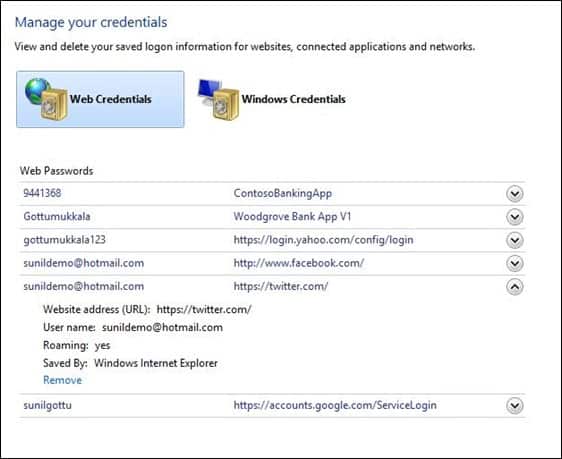
When I first read that Microsoft made the decision to improve Windows 8′s credentials feature I was all excited about it. Who would not want a built-in password manager that would be tied automatically to the user account of the system? But as I read on I noticed that the improvements are rather limited. Lets take a look at what Microsoft has in store in this regard.

Windows 8 can be used to store and retrieve “multiple account names and passwords for all the websites and applications you use”. This was the part that got me excited. The next sentence however puts a serious dent into this excitement. Why? Because the credentials manager is limited to Microsoft’s Internet Explorer 10 (Metro style apps can use it to store and remember app specific passwords). If you are using a different browser, you can’t use and won’t benefit from the feature at all.

Windows 8 simplifies the task of managing unique and complex passwords in two important ways. The first is by providing a way to automatically store and retrieve multiple account names and passwords for all the websites and applications you use, and do so in a protected manner. Internet Explorer 10 uses the credentials that we store to remember names and passwords for websites you visit (if you choose). In addition, anyone building a Metro style app can use a direct API to securely store and retrieve credentials for that app. (It is important to note that IE respects instructions from websites about saving your credentials – some websites specifically request that passwords not be saved.)

manage your credentials

The way the feature is integrated is also inferior to password managers like KeePass or LastPass, which offer auto-sign in or one-click sign in technologies. With Windows 8 and Internet Explorer 10, neither auto-filling of the username and password fields are supported nor automatic log ins. Internet Explorer users have to type in the first character of the username to get a list of matches for that particular sign-in form. A better option would be to auto fill unless there is more than one identity available for the active web service.

Another point of criticism is that Windows still does not have a unified password storage. Users could benefit greatly from a single storage location that would store passwords for FTP servers, HomeGroups, Bitlocker, wireless keys or Outlook in one place.

You can read more about the planned implementation over at the Building Windows 8 blog.


© Martin Brinkmann for gHacks Technology News | Latest Tech News, Software And Tutorials, 2011. | Permalink |
Add to del.icio.us, digg, facebook, reddit, twitter
Post tags: ,


Monday, December 12, 2011

LastPass Password Manager Now With Google Authenticator Support

One way to improve online account security is to use so called 2-step verification systems when they are offered by companies and services. Companies like Google, PayPal or Yahoo are already offering multifactor authentication systems to their users. These systems are optional for now and improve security by combining standard log ins with a second verification step. A mobile device is usually used for that second step, but other solutions (like PayPal’s ID Protection device) are available as well.

The password manager LastPass had been my password manager of choice before I switched to the Open Source password manager KeePass. LastPass supports multifactor authentication systems for some time now, for instance with the help of Yubikeys. But those usually came with a cost.

LastPass back in November introduced support for Google’s Authenticator app to add another multifactor authentication option to the service.

Google Authenticator is a mobile application for Android, iOS, Blackberry and Symbian devices that generates a temporary verification code that users need to enter when they log into LastPass from untrusted devices.

Google Authenticator needs to be linked to LastPass before the new security feature can be used. Here is how this is done.

  • Google Authenticator needs to be installed on a mobile device. Google offers installation instructions for Android, iOS and Blackberry devices. Please note that you need to enable 2-step verification using the phone number as Google Authenticator cannot be setup otherwise.
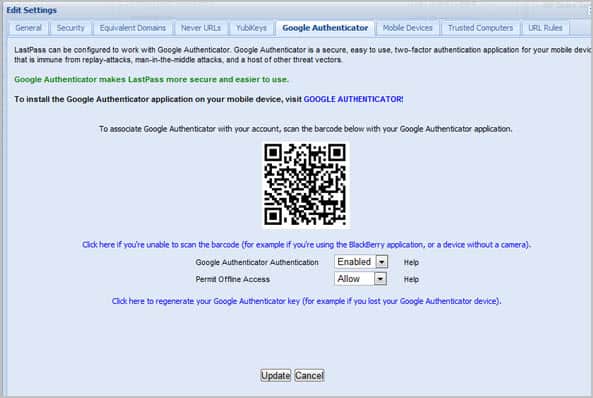
  • Once Google Authenticator is up and running properly, LastPass users need to visit this link to link the authenticator with their LastPass account. This is done by either scanning the displayed barcode with the mobile device, or by entering the Google Authentication key displayed on the website manually.

lastpass google authenticator

LastPass will from now on display a Google Authenticator Authentication page for log ins to the service from untrusted devices.

lastppass multifactor authentication

LastPass users then need to open the Google Authenticator app to generate a one-time verification code that they need to enter on the LastPass website. Users who require offline access to their LastPass password database can configure this during configuration. It is also possible to trust devices to avoid having to generate and enter verification codes on every log in.

Additional information about the setup are available on the LastPass Support website.

The new multifactor authentication adds a second layer of protection to the LastPass login process that makes it a lot harder for attackers to access a user’s password database.


© Martin Brinkmann for gHacks Technology News | Latest Tech News, Software And Tutorials, 2011. | Permalink |
Add to del.icio.us, digg, facebook, reddit, twitter
Post tags: , , ,


Thursday, December 8, 2011

RoboForm Everywhere Review [Giveaway]

Keeping track of online accounts is not necessarily an easy task. Especially so if you follow security guidelines to never use the same password on different sites. Web browsers offer basic password managers that store the data for the user, but this means that the data is only available in that browser. If you want to use a different browser or a different device, you need to find a way to transfer the data to that other system, which may not be possible all the time.

RoboForm is a password manager for Windows, Mac OS X and various mobile operating systems like Android that makes life easier and more secure. The program integrates well with Internet Explorer, Google Chrome, Firefox and Opera. Users who work with different programs or browsers can still use the RoboForm interface to store and retrieve passwords manually.

Passwords and other data are stored in encrypted form by the application. A master password protects the data from being stolen or looked at. Once the master password is entered correctly, access to the program database is granted.

Installation

Users can select the browsers that they want RoboForm to integrate with. A toolbar is added to the selected browsers which offers fast access to saved logins, the password generator or form filling module.

roboform toolbar

The toolbar can be disabled without losing the program’s functionality in the browser.

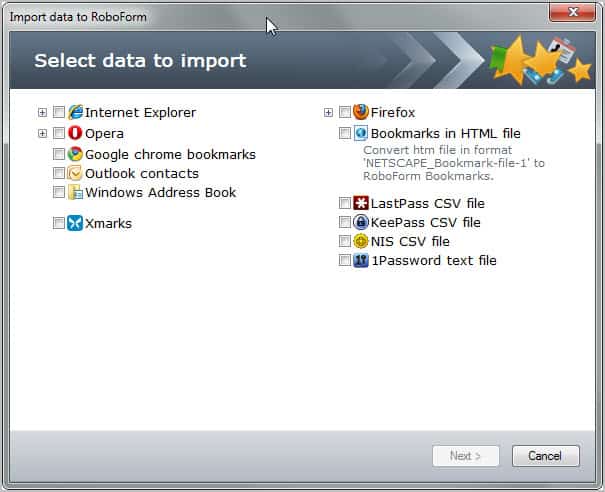
First time users who have been using a different password manager before should start with the program’s import option to transfer their login data to their RoboForm password vault. It is possible to import passwords, bookmarks and other data from all supported web browsers and from popular password managers like Last Pass or KeePass.

import login data

Importing data from other programs saves time but it is not a necessary step to make use of RoboForm. You can alternatively add login data to the program manually.

RoboForm Editor

Roboform ships with an editor for organizing and managing logins, bookmarks, identities, contacts and notes.

roboform editor

The editor can be used to edit existing data, create folders to organize the data and to add identities, contacts and safe notes to the program. It feels strange that it is not possible to add login data directly to the editor. You can create new logins either in one of the supported web browsers (by logging in to the service that you want to save) or by right-clicking on the password manager’s system tray icon and selecting Logins > New from the context menu.

One interesting option provided by the RoboForm Editor is the ability to sign in into one or multiple web services from the editor window.

Using the password manager

Once you have set up the program you are ready to make use of it. Toolbar users have all options in reach with just a single click. Most users on the other hand may prefer not to have an additional toolbar displayed in their browser.

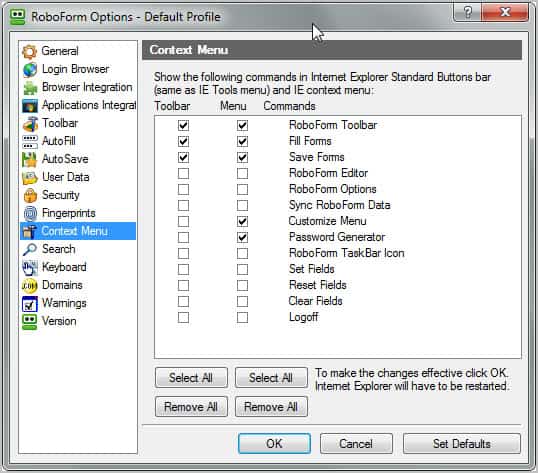
Part of the RoboForm functionality is also available via the right-click menu. Options to fill and save forms, to display the RoboForm toolbar and to customize the menu are displayed by default. The customize menu option offers to add or remove menu items.

customize roboform

The customization can be used to add links like the program’s password generator, the RoboForm Editor or a log off option to the context menu.

A right-click on a web page opens the context menu with all set options. It is for instance possible to select the Fill Forms option to fill out the username and password, and to optionally log in automatically on the site.

roboform login

RoboForm will automatically recognize new sign ups and first time log ins on websites. The program display a prompt offering to save the login data. Users can force the saving of data by Alt-clicking on the login button. A similar option is available for text field form data which can be automatically saved with the shortcut Shift-Enter.

RoboForm shortcuts are automatically enabled in supported browsers (with an option to disable the feature in the preferences). This basically can be used to open menus directly in the browser. Alt-X for instance opens the login menu with options to create a new login, edit an existing login or log in to one of the existing web sites or services.

Shortcuts are available for all core functionality. Individual shortcuts can be edited or turned off in the RoboForm Options.

RoboForm Everywhere

RoboForm Everywhere offers to save passwords and data in the cloud. The benefit here is that it is easier to synchronize data between multiple computer systems. All it takes is to install RoboForm on all systems and to log in with the same account information.

Users can furthermore log in on the RoboForm website to access their login data online, even if the program itself is not installed on the computer system.

Misc

The developers have integrated many convenient features into RoboForm. Among those features is a profile switcher to manage different data sets more efficiently, a domain equivalences option which basically enables a log in on multiple domains, the option to change the encryption algorithm, backup and restoration options or the ability to configure a specific browser for logging in on the Internet (which does not have to be the default browser).

Free limited versions of RoboForm are offered as desktop applications or browser plugins.

Verdict

RoboForm Everywhere is a feature rich password and data manager that makes online life more secure and convenient at the same time.

I have encountered two issues with the program. RoboForm first installed the Firefox toolbar even though I disabled Firefox integration during installation. The latest version of Opera seems to be incompatible with RoboForm. A single icon is displayed in the Opera browser that in theory should display or hide the RoboForm toolbar in the browser. A click on that icon has no effect

Giveaway

We have ten RoboForm Everywhere licenses to give away. Leave a comment below for a chance to win one of the licenses. Please let us know how you are currently managing your online passwords.


© Martin Brinkmann for gHacks Technology News | Latest Tech News, Software And Tutorials, 2011. | Permalink |
Add to del.icio.us, digg, facebook, reddit, twitter
Post tags: , , ,