Recently Netgear sent me their new DGND3700 router for review, which was very lucky as mine was playing up at the time. Now on the face of it you might not think the arrival of a router for review would be anything exciting, in this case you could very well be wrong. This model is one of the company’s top-end N600 range and it somehow manages to pack in just about every feature you could ever want in a router. The big question though is, is it any good?
Let’s begin with the hardware itself, it’s a tall, slender and very attractive device with a WPS WiFi connection button, a very helpful WiFi on/off button and a USB port on the front and on the back another USB port, four gigabit Ethernet sockets, a cable/fibre connection, a DSL connection the power socket and a power switch. Internally the features it boasts are many and varied. They include WiFi connection speeds up to 300Mbps, parental controls, range extension with dual-band antennas, gaming support, guest access, a traffic usage meter and ADSL2+ support.
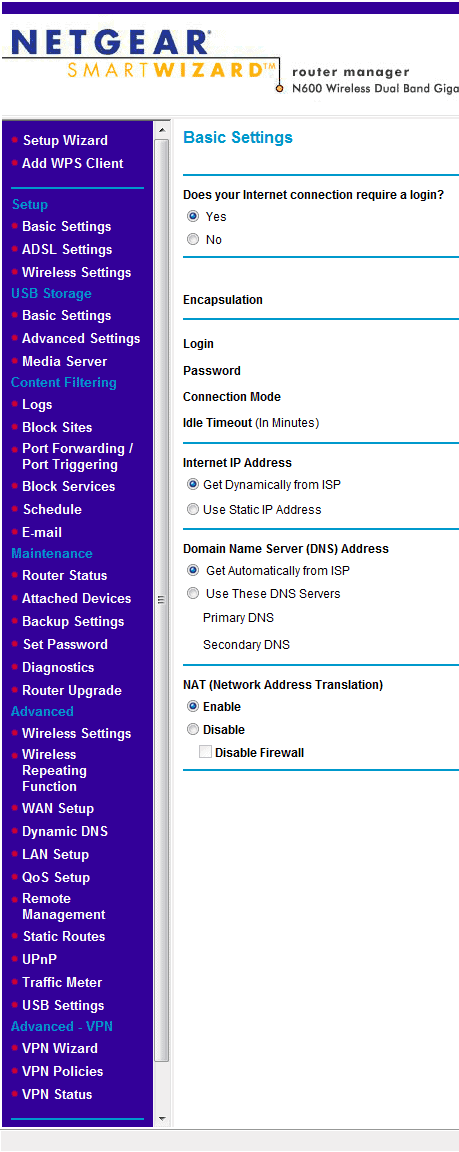
Adding the login details for my ISP was simplicity itself and I only encountered a problem when I found I couldn’t see my network storage devices. This was because they were set to a default IP of 192.168.1.x and the Netgear as default comes with 192.168.0.x so I decided it best to change this setting in the router. It was simple to find and a quick restart solved the problem and all was well.
I should comment on the restarts with this router. At no point during any router restart did the web interface kick me out or fail to refresh. This is the only router I’ve ever seen that is this good at keeping the interface window open when it restarts, even after an admin password change. This really is commendable and helps keep you working quickly and simply.
The amount of features on offer internally is simply huge. One of the best features from my point of view is the WiFi setup which not only allows for separate 2.4GHz and 5GHz networks to ensure maximum compatibility, but up to 8 separate SSIDs, each with their own password and different guest mode settings. This allowed me very simply to set up a basic Internet only SSID to prevent visitors getting access to my network backups and other attached computers.
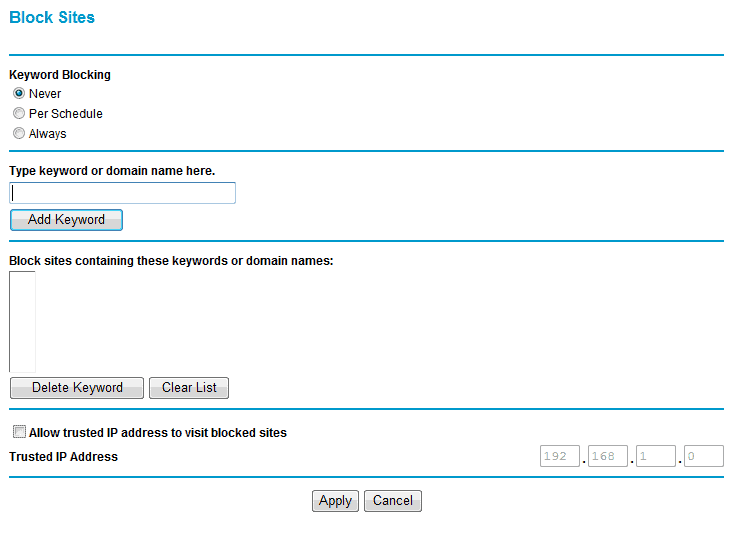
Perhaps less effective are the parental controls. You can block websites by name or content keyword which is very impressive, and disable network and Internet access on specific days and between user-specified times. Unfortunately there’s no way to map these across to specific SSIDs, so you can’t, for example, block sites and content or turn off Internet access for the kids without doing it for yourself as well. Hopefully this will be fixed with a firmware update.

The router is great with updates as well, checking for them whenever you log into it and installing them without booting you out of the admin console. Quite an achievement.
Range and reliability are great and the router has proven rock-solid for me so far where my old ISP-provided one was flaky at best, commonly needing to be reset several times a day during activities such as gaming. Just plugging it in improved my Internet speed too jumping from 5.4Mbps under my old router to just over 6Mbps, and I’m looking forward to trying it with the new fibre connection I’m having installed in a few weeks. On the more technical side there’s a dual SPI and NAT firewall, WPA, WPA2-PSK and WEP WiFi protection, a powerful 400MHz processor inside and even Denial of Service attack protection.
I use a NAS drive for network storage but plugging in USB devices, for storage, sharing and media is a very simple affair, as is setting up specific port rules for gaming. As I said, while the interface is a little technical, everything is very clearly labelled and help is always right there.
In all the Netgear DGND3700 is a solid all-round performer. There are areas where it’s not quite there, but this can be said for any product really and with Windows 7 offering pretty solid parental controls itself, the lack of full control here isn’t a deal-breaker.
For the flexibility this router offers with connections, WiFi networks, adding USB and other devices, managing security, guest networks and the added benefit of full support for VPNs and range extension makes it a solid all-rounder. If you’re looking for a powerful router for your home, or a business-ready model for the workplace it should be one of the models you seriously consider. Recommended!


