Pages

Sunday, October 30, 2011

How Long Will Your SmartPhone Loyalty Last and Where Might You Jump?

Now that Nokia have launched their new Windows Phones, and cemented their future with Microsoft (at least for the foreseeable future) we’re down to just four major players left in the smartphone space.  Apple with their hugely popular iOS operating system, Google’s free open-source Android, Microsoft’s new-kid on the block Windows Phone and RIM’s could soon be in trouble BBX.  In the last few months we’ve seen both Nokia’s wonderful MeeGO and HP’s equally lovely WebOS bite the dust.

I’ll start this conversation by getting all teary-eyed.  It’s a huge pity that two operating systems as capable as MeeGo and WebOS both seem to be on their way out forever.  We all know that the worldwide smartphone market is easily big enough to support them, but support is the issue as it costs millions for companies to develop and maintain these operating systems.  This is money that Nokia simply don’t have and that HP may not be willing to pay.

But what will this mean for you in the coming years?  For the moment people who have iPhones seem to want the next iPhone when their mobile contract ends, and people who are on Android seem to like it too.  Windows Phone hasn’t yet been around long enough for anyone to reach the end of their first contract using it but RIM’s Blackberry’s also have a loyal following.

There are several main reasons for smartphone loyalty.  These include people being resistant to change and not wanting to learn something new, just getting really comfortable with an operating system and also having paid a lot of money for all those apps you won’t be able to port to a new OS.

But loyalty and favouritism for the operating system isn’t the whole picture.  There is also loyalty to the handset manufacturer.  Many people love Nokia, or HTC because they’ve always had a good experience with their phones.  Many more people like Sony Ericsson (soon to be just Sony) for their gaming integration and so on.

In the end though we all tire of the mundane and want a change occasionally.  This could mean iPhone users jumping ship to Android or Blackberry users jumping ship to Windows Phone.  In short, it could mean anything and there are a whole lot of factors to consider.  There is also the question of if you have loyalty to any one manufacturer and how you feel about this?  I’m very fond of HTC but I’ve owned phones by LG, Sony and others and all have been very good too.

So I’m interested ot ask here what platform you are currently loyal to, if indeed you’re loyal to one at all and what other ones you would consider in the future if you’ve even thought that far ahead?  To start I’ll say I’m very loyal to Windows Phone but, as and when I get bored I’d consider either the iPhone or a BlackBerry.  This would be for several reasons, I’m not happy with the malware problem that still exists on Android and while I don’t like iOS very much, you can’t easily complain about Apple’s hardware.  For BlackBerry, they’d have to produce another handset similar to the Storm, a full touchscreen as I’d never want a full QWERTY keyboard.

So what are your preferences?


© Mike Halsey (MVP) for gHacks Technology News | Latest Tech News, Software And Tutorials, 2011. | Permalink |
Add to del.icio.us, digg, facebook, reddit, twitter
Post tags: , , , , , , , , ,


CoView, Digital Comic Viewer For Windows

If you are a comic fan you have probably downloaded a fair share of digital comics to your computer. There are several sites on the Internet where you can download comics for free. An alternative to that are online stores where you can buy individual comics or even complete comic series. While that’s not an option for comic collectors, it is very well one for comic lovers who do not want to pay thousands of Dollars to complete a comic book collection.

Amazon for instance offers digital collections of many Marvel comics. Examples? The complete Amazing Spider-Man comic book collection for $94, Iron Man for $72.99 or 40 Years of X-Men for $104. All of these collections include hundreds of digital comic books.

Regardless of how you acquire the digital comics books, you still need a suitable program to read them on the computer. And that’s where the problems begin. Some comic books come as pdf documents, others as individual image files or packed in archives, or in cbr or cbz containers.

A digital comic viewer such as CoView supports the majority of formats (all with the exception of pdf). The keyboard driven program starts up in fullscreen mode. The program shortcuts are displayed on the screen on start up. Important for new users are F1 to bring up the shortcut list again, F2 to open an individual comic file, F5 to open a comic book collection and i to change the program language from English to one of the other supported languages (Spanish, Portuguese among others).

The interface itself is very minimalistic, only two small interface elements are shown if a comic is open in the digital comic viewer.

digital comic book reader

New users will have to display the help contents on the screen in the beginning to look up the program’s keyboard shortcuts. While it is possible to perform some actions with the mouse, most are only accessible via those keyboard shortcuts.

Here is a list of useful shortcuts:

  • 1 – Fit to screen
  • 7 – Continuous Mode
  • 8 – Fit to two pages
  • Space – Next page
  • Backspace – previous page
  • n – next comic
  • r – rotate
  • m – add bookmark
  • l – list all bookmarks
  • c – change background color
  • Esc – Exit program
  • q – minimize program

The mouse can only be used to flip through pages, zoom in or out and perform other basic operations.

CoView is a very handy comic book viewer for the Windows operating system. The only issue that I personally had with it during use is that it cannot be used to view comics in a window.

CoView can be downloaded as a portable version or installer from the developer website.


© Martin Brinkmann for gHacks Technology News | Latest Tech News, Software And Tutorials, 2011. | Permalink |
Add to del.icio.us, digg, facebook, reddit, twitter
Post tags: , , , , , ,


AskForSanitize, Display Clear Private Data Prompt On Firefox Shutdown

Firefox users have several options at hand to delete private browsing data. This includes running the browser in private browsing mode, configuring it to delete the data on shutdown or running the clear recent history module manually to delete some or all data this way. Veteran users may remember a time when the browser displayed a prompt on exit to delete all or select browsing data on shutdown.

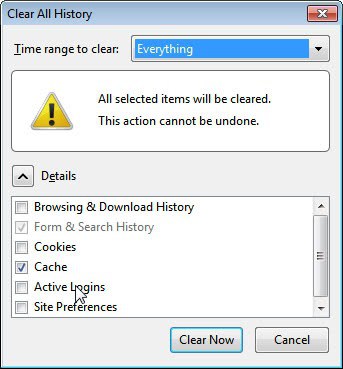
This prompt since then has been removed by Mozilla. Firefox users who want to re-enable the prompt in the Firefox browser can install the AskForSanitize add-on to do that. The add-on basically displays the clear recent history window whenever the user closes the browser.

clear all history

Here it is then possible to clear everything or only select data sets. Users can for instance delete the cache, browsing and download history or site preferences in the dialog. The time range to clear pulldown menu can be used to delete data that is older than the selected time range.

The Firefox extension ships with a toolbar button that triggers the delete browsing data prompt on mouse click. It is not added automatically to a toolbar, which means that users need to place it there manually (by right-clicking a toolbar, selecting customize and dragging and dropping the button to the desired location on a Firefox toolbar).

One question that may come up is this: Why would anyone want to display the delete browsing history window on exit if it can be configured to run on exit automatically?

The core reason here obviously would be if the data only needs to be deleted at times and not on all exits of the browser. The automation here is a more comfortable than triggering the deletion dialog manually whenever it is needed.

Which leads directly to the following question: How often do you clear your browsing data?


© Martin Brinkmann for gHacks Technology News | Latest Tech News, Software And Tutorials, 2011. | Permalink |
Add to del.icio.us, digg, facebook, reddit, twitter
Post tags: , , , ,


How To Clear Individual Cookies In Google Chrome

Question on how to clear individual cookies in the Google Chrome web browser just came up and I thought I write a small guide here on Ghacks about it. Google Chrome, just like any other modern web browser, accepts all cookies by default. Cookies are small data packages that are saved by domains on your computer. They can be used for positive things like saving preferences or session data, and negatively perceived things like tracking the user on the Internet.

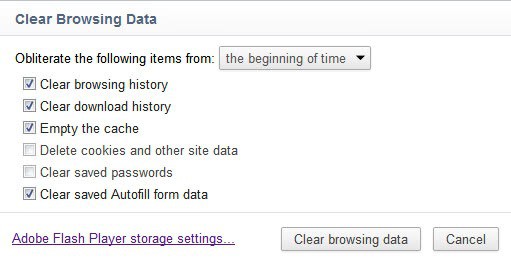
Google Chrome users can clear all browsing data, which includes cookies but also other data like the browsing and download history, by clicking on the wrench icon in the toolbar and selecting Tools > Clear Browsing Data from the menu that pops up.

It is alternatively possible to use the keyboard shortcut Ctrl-Shift-Del for the same effect. A window is displayed where the data can be cleared.

clear browsing data

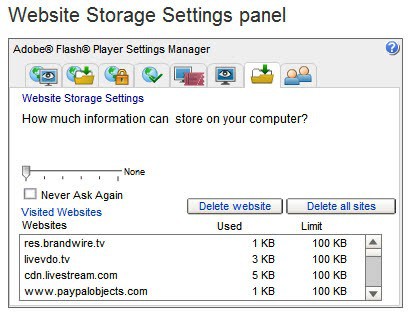
Please note that there is a link to the Adobe Flash Player storage settings. If you click on that link you will be taken to Adobe’s Website Storage Settings panel where you can delete all or select Flash cookies.

clear adobe flash cookies

If you go back to the Chrome browser you may have noticed that the clear browsing data window does not offer to clear individual files. Sometimes you may want to delete a specific cookie or a set of cookies only. This can be handy for web developers testing a new site feature, users who accidentally visited a site and want to delete its traces or users who want to clear personalized data.

The easiest way to clear individual cookies in Google Chrome is to enter chrome://settings/cookies into the address bar. This opens the cookies and other data listing in the browser. All stored cookies are displayed here. It is possible to remove all cookies or search for individual cookies.

A click on a site displays all cookies stored by that site on the computer. It takes another click to display detailed information about the cookie and the Remove button. If you click on Remove the selected cookie will be deleted from the system.

cookies and other data

And that’s how you delete standard and Flash cookies in the Chrome web browser individually.


© Martin Brinkmann for gHacks Technology News | Latest Tech News, Software And Tutorials, 2011. | Permalink |
Add to del.icio.us, digg, facebook, reddit, twitter
Post tags: , , , ,


Saturday, October 29, 2011

Intel SSD Toolbox 3 Released

With the rise of Solid State Drives came software from hardware manufacturers to manage and control those drives in a computing environment. Intel’s SSD Toolbox has recently been released in version 3. We have covered both the initial Intel Solid State Drive (SSD) Toolbox release and Intel Solid-State Drive Toolbox 2 release before. Lets see what’s new in the third major installment of the SSD toolbox.

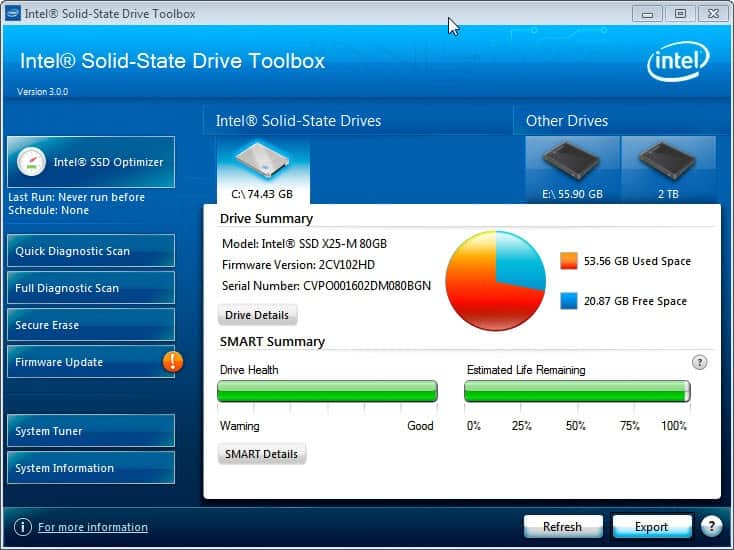
Users of previous versions of the Intel Solid-State Drive Toolbox will notice that the new installment ships with a redesigned interface. The start screen display information about all hard drives connected to the computer. The drives are separated by Intel SSD and Other Drives tabs. Information about the drive model, firmware version and serial number are displayed here next to drive health and estimated life remaining bars.

Linked from here are the drive details section and the SMART details section of the program.

intel solid-state drive toolbox 3

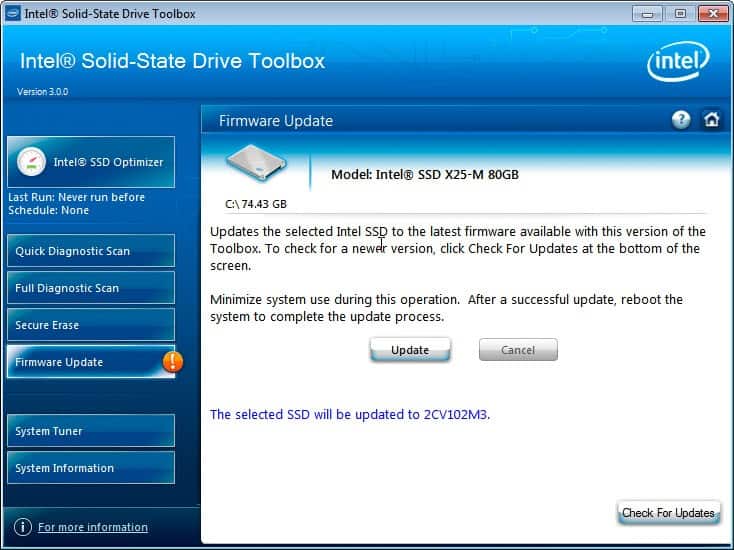
Probably the biggest new feature in this version is the new firmware update button that checks online for new firmwares for the SSD and informs the user if new versions are available. Users can install the new firmware right away from within the program interface and Windows. Intel surprisingly though only recommends to minimize system use during the operation and not to create a backup of the data on the drive prior to installing a new firmware.

Another issue here is that the update screen lacks information about the changes in the new firmware version. The new firmware version is however displayed on the screen so that a manual search for the version should reveal the update information. It is highly recommended to check the changes before installing the firmware update.

intel ssd firmware update

The program still offers to run the Trim command regularly on Windows operating systems that do not support it to retain the performance levels.

Windows 7 and newer users who can make use of the built-in Trim functionality can use other features of the toolbox that have already been available in previous versions of the application. Among them the System Tuner which runs a quick check to see if operating system features such as the disk defragmenter, ReadyBoost or Superfetch and Prefetch are configured optimally.

The Secure Erase feature on the other hand can be used to remove all data from the drive which can be handy before selling, lending or giving it away.

Windows users can download the latest iteration of Intel’s Solid-State Toolbox from the Intel website.


© Martin Brinkmann for gHacks Technology News | Latest Tech News, Software And Tutorials, 2011. | Permalink |
Add to del.icio.us, digg, facebook, reddit, twitter
Post tags: , , , ,


HP May Shut Down WebOS After All. What Does it Mean?

2011 has not been a good year for HP’s WebOS tablet operating system.  The year began with the company praising the product they had acquired when they bought Palm but there then followed the sudden announcement of the dropping of the TouchPad, the first WebOS tablet only seven weeks after it went on sale.  Now there’s talk that the company may shut down their WebOS division for good.

According to a report by NeoWin an unnamed HP employee has been quoted as saying “There’s a 95 (percent) chance we all get laid off between now and November, and I for one am thinking it’s for the best.”

In the last couple of months several companies have expressed an interest in buying WebOS, and as a TouchPad owner I can say it’s a remarkably capable and usable tablet OS.  So far nothing has come of it and HP haven’t given any indications that they would wish to sell it.

But could the company just kill it without selling it?  While unlikely this is a possibility and it begs the question where does this leave existing TouchPad owners?

Some people will install Android on it, and I suppose this is always the nuclear option for some.  Many people however will have no idea how to perform such an operation and will be left with a device that will no longer be supported.  In it’s simplest form this just means that the operating system won’t be refined and developed over time.  At it’s worst it means that any bugs and flaws in the system that could be exploited by others won’t be fixed.

Even if WebOS is sold it will be a very significant amount of time before the new owners can begin rolling out updates.  In short this is very bad news for TouchPad owners generally if the rumour turns out to be true.

To add weight to this, HP announced this week that they will be producing Windows 8 tablets for 2012, and we can assume they are already testing prototype hardware now.  It’s even been rumoured the TouchPad hardware might live on with Windows 8 on board, though this is unlikely.

Of equal concern is what will happen to owners of the HP smartphones that are also running WebOS.  These people will need security updates and patches more than tablet owners, because of the direct billing capabilities built into phones.  These people will need firm answers from HP, and pretty soon.

HP has previously said it was committed to WebOS, though the company has changed its mind so much in recent months that nobody would really believe them now whatever they said.  Only a couple of months ago they were talking about offloading their entire PC division, but now they’ve decided that they would really rather hang on to it.  This is company with serious decision-making issues!

For now we’ve just had another update to WebOS rolled out.  I love my TouchPad and wouldn’t want it to be the last.  WebOS is extremely capable and has huge amounts of potential.  In my view it is quite simply the finest tablet operating system available currently.

It’s such a shame then that it’s been so poorly managed.  Do you have a WebOS phone or tablet?  What do you think about this rumour?


© Mike Halsey (MVP) for gHacks Technology News | Latest Tech News, Software And Tutorials, 2011. | Permalink |
Add to del.icio.us, digg, facebook, reddit, twitter
Post tags: , ,


Bruce’s Unusual Typing Wizard, Learn How To Type For Free

Most Ghacks readers are tech savvy users who know how to type efficiently. When I visit friends, family or colleagues I sometimes notice that they type very slowly and in no optimal fashion. You have probably encountered the two-finger type users as well who hover with two fingers over the keys to find the next key that they want to press on the keyboard. I’m not saying that it does not work for them, but it takes a lot longer and more effort to reach the same result.

Bruce’s Unusual Typing Wizard has not been updated since 2006, and while that would disqualify most software immediately, I’d like to make an exception in this case. The program works worked flawlessly on my 64-bit Windows 7 edition and should run on pretty much any other Microsoft operating system as well.

The program offers two options to learn to type. First the typing lessons which starts a series of lessons that help the user learn to type, and typing practice which users can use to practice typing regular sentences.

learn to type

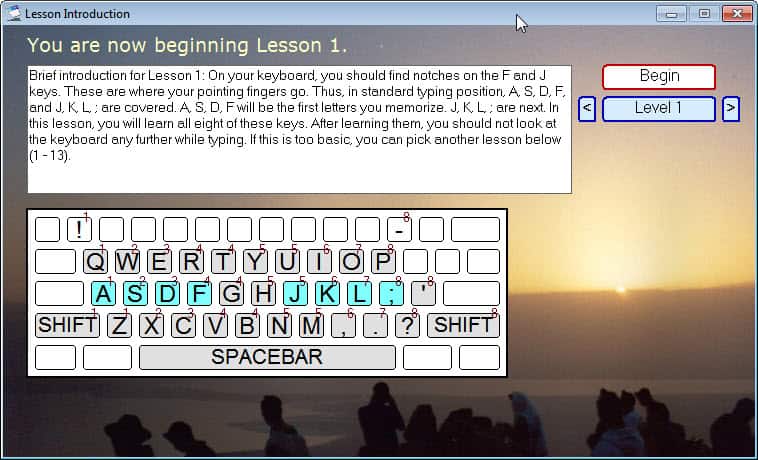
The program teaches the use how to type. Each lesson starts with an introductory screen. The first lesson for instance explains where the fingers have to go on the keyboard.

learn how to type

The typing tutor then displays words, phrases and even individual letters and characters in the interface that the user has to type. The next letter is always highlighted on the virtual keyboard in the program interface. It indicates the next letter, errors, the overall percentage and the typing speed in words per minutes.

Approximately two new keys are added per lesson to slowly improve the typing of the user. It has to be noted that the typing lessons only work for US keyboard layouts as special chars like the “;” may not be next to the “l” in other keyboard layouts. While it is possible to edit the sentences of the Typing Practice module, it is not possible to change the keyboard layout or edit the typing lesson layout.

Regardless of those limitations, Bruce’s Unusual Typing Wizard is a handy software to learn how to type faster. Windows users can download the application from the developer website.


© Martin Brinkmann for gHacks Technology News | Latest Tech News, Software And Tutorials, 2011. | Permalink |
Add to del.icio.us, digg, facebook, reddit, twitter
Post tags: , , , ,