Pages

Showing posts with label google docs. Show all posts

Tuesday, January 24, 2012

Export all Google Docs Files with Takeout

Google Takeout is a service that Google users can make use of to export their user data to their local PC. Not all Google services are supported by Takeout though, which limits the use of the service somewhat. Up until now, it only offered to export Picasa Web Albums, Google+ related information, Google Voice data or your Google Contacts.

The developers have now announced that they have added Google Docs to the list of services. Let me show you how you can export all of your Google Docs files now.

Visit the Google Takeout website. If you are not logged in you will be asked to sign in first before you can use the service’s functionality. The frontpage displays a list of all services that you can export data from.

google takeout

You can create an archive of data from all available services, or switch to the Choose services menu to select one service that you want to export data from. Pick Docs from the menu to initiate the export of Google Docs data.

Google Takeout will now calculate the data size of the Google Docs account. Additional services can be added to the archive, and a click on configure opens a menu where you can select the file types for different document formats. It is for instance possible to download spreadsheets in Microsoft Excel, PDF or Open Spreadsheet format.

Please note that the calculation can take quite some time before you will even see progress.

google docs takeout

Click the Create Archive button afterwards and wait until all files have been added to an archive that you can then download for a week before it automatically expires on the Google server.

Takeout is not the first service to export files from Google Docs. Check out Google Docs Adds Zip Document Export to find out how to export selected documents as a single zip document and Synchronize Google Docs documents With Local PCs for two additional options.


Monday, January 2, 2012

Synchronize Google Docs documents With Local PCs

Google Docs users have quite a few options to synchronize their online documents with local computer systems. Among them Gladinet Cloud Desktop, the Microsoft Office add-in OffiSync or DocSyncer.

Insync is a new option for Mac and Windows users (and soon Linux as a Linux port is in the making) who want to synchronize their Google Docs documents with local PCs. The program uses Google’s own authentication system for authorization, which means that you do not have to supply your Google login information to use the program.

The first thing that you need to do after installation is to link machines to the service. Linked machines are the only systems that will synchronize documents with Google Docs. Linking did not work right away on a test system, a restart of the application did however resolve the issue.

A web page is opened if your run the program from a new system to link the new computer with the synchronization service. Once done, files will get synced automatically to the system whenever the app is running. Please note that you do not have options to sync selected files or folders with local machines. If you configure Insync to run on a system, everything will be synchronized.

insync

Documents are by default stored in the Insync\Google Docs Email\ folder in the My Documents folder. It is possible to change the root document folder but not the folder name.

Any changes that you make locally to your documents will be synced with Google Docs automatically and vice versa.

sync google docs

The developers have hinted at the possibility to use Google Docs and Insync as a Dropbox alternative. Since it is possible to upload non-document file types to Google Docs, it is possible to use the service to host files online. The biggest advantage over Dropbox is the price for additional storage that is up to eight times cheaper.

Users who do not want to buy additional storage on the other hand get only 1 Gigabyte of free storage space, which is half of what they get when they sign up for a Dropbox account.

insync

The Insync guide lists features that the program offers that Dropbox does not offer:

  • Read/write + read only sharing permissions (on folder + file)
  • File sharing (you have to share folders in Dropbox)
  • Share recipients aren’t charged against their Google Docs storage quota
  • Nested sharing (you know who you are!)
  • Google Docs collaboration
  • Leave Insync anytime and all your stuff are in your Google Docs account
  • No direct access to your files (a rogue employee will have to create a program that uses the Google Docs API and steal your access credentials to get at your files)
  • Insync only stores your file metadata

Some of the functionality is provided only on the Insync website and not in the client. This includes the ability to share documents among other features.

Google Docs users who want to synchronize their documents with multiple machines may find Insync quite useful for that purpose. The developers do have plans to integrate premium features at a later point in time. (via Caschy)


© Martin Brinkmann for gHacks Technology News | Latest Tech News, Software And Tutorials, 2012. | Permalink |
Add to del.icio.us, digg, facebook, reddit, twitter
Post tags: , , ,


Friday, December 16, 2011

Create Charts Online With Chart Creator

Sometimes you may need to create a quick chart without access to a spreadsheet program such as Microsoft Excel or OpenOffice Calc. You could say that installing the spreadsheet program would resolve the issue. But that’s only possible if you are working on a computer where you have sufficient rights to do that. And that’s for instance not the case if you are using a public computer or a mobile phone. You may also be in a hurry and do not have time to download hundreds of Megabytes.

The next best thing is a web service that allows the creation of charts. You have the option to use a service like Google Docs or Microsoft Office Online for that, or something that is not as complicated to use.

Chart Creator is a free lightweight tool to create charts online. The program supports a total of 12 different chart types, from line and area charts to scatter, pie, map and trend charts.

chart creator

A click on Editor opens the configuration menu where you can configure how the chart should look like. A click on the customize tab offers to make additional modifications to the chart. This includes the layout of the legend, the chart title, values for the axis and additional features like log scale, reverse or stack.

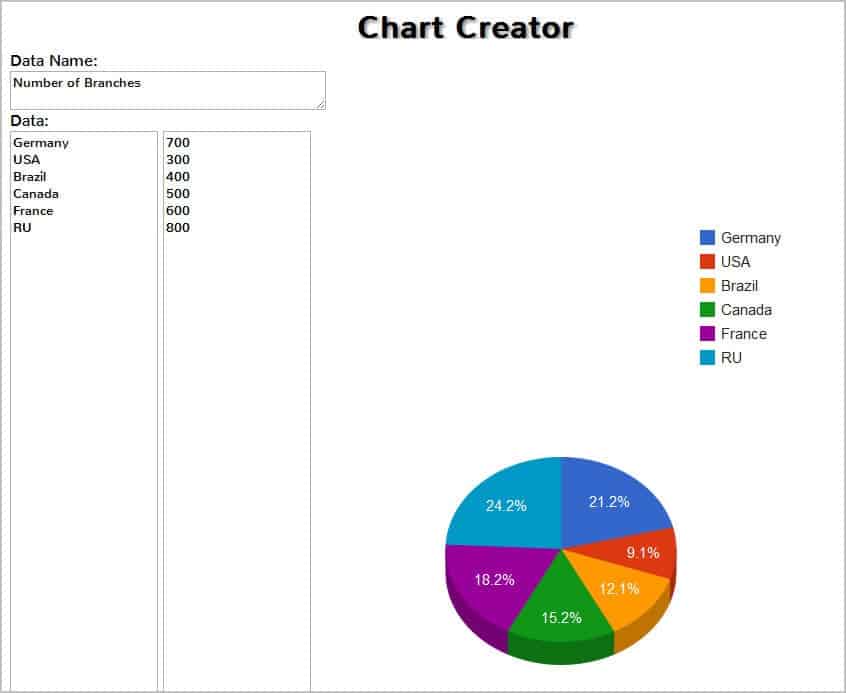
Once you are done with the initial configuration you can start entering data that you want displayed on the chart. The program limits you to charts with two data points, for instance countries and their population.

create charts online

A click on draw draws the chart on the screen. You can then use a screen capturing software to save the chart to your local system or use the print button to print it on a connected printer.

Chart Creator offers an easy option to create simple charts online. Users who need more functionality, for instance the ability to import data into a spreadsheet need to look at services such as Google Docs to do so as that is not possible with this chart creation service. (via)


© Martin Brinkmann for gHacks Technology News | Latest Tech News, Software And Tutorials, 2011. | Permalink |
Add to del.icio.us, digg, facebook, reddit, twitter
Post tags: , ,


Wednesday, November 9, 2011

GoogleLookup Discontinued

With Google Labs projects being discontinued by Google came the cancellation or transfer of popular services. One of the services that will be discontinued this November is GoogleLookup. GoogleLookup is a Google Labs technology that allows Google Docs spreadsheet users to search for and add data into their spreadsheets. Spreadsheet cells that make use of GoogleLookup data won’t return any data at the end of November.

Google Docs users could make use of GoogleLookup to display data like the population of a country, the birth day of people or company employees or CEOs.

Google has created a help page that offers further information about the effect on existing spreadsheet cells making use of GoogleLookup:

As of November 2011, the GoogleLookup function will no longer be supported. This function relies on technology from Google Squared, a Google Lab that’s been deprioritized.

To save your data, copy the selection that contains GoogleLookup functions. Then, go to the Edit menu, navigate to Paste special, and select Paste values only. When the function is no longer supported, cells containing GoogleLookup functions will return #NAME? errors.

Google is not providing users with an alternative to replace GoogleLookup with other data. The Google Operating System blog has a replacement suggestion:

Here’s a way to use the ImportXML function to extract facts from Google Search (the mobile interface):

=RegExExtract(ImportXML(“http://www.google.com/m/search?q=sri+lanka+capital”, “//span[@class='waa4kx']“), “-(.*)”)

Have you been using GoogleLookup or another Google Labs technology? Let us know if you will be missing the service and if you have found a replacement for the discontinued service.


© Martin Brinkmann for gHacks Technology News | Latest Tech News, Software And Tutorials, 2011. | Permalink |
Add to del.icio.us, digg, facebook, reddit, twitter
Post tags: , , ,