Pages

Showing posts with label Online Services. Show all posts

Friday, February 10, 2012

FotoForensics Indicates If Photos Have Been Digitally Modified

The rise of digital cameras and the move to digital photo formats made image manipulations a lot easier. Now everyone can fire up Photoshop or a comparable tool to make modifications to photos that are not detectable for the human eye. Often, this is used to optimize the output, e.g. increase an area’s brightness level or remove a mole from a face.

Some use it for larger scale modifications, for instance by removing people from images or placing other objects in photos. That’s not an issue if this is disclosed, but that is usually not the case. This is especially important in advertisement, as it may give you the wrong impression of a product.

Back in 2010 I reviewed the Error Level Analysis web service that you could use to analyze photos for modifications. It appears that this service is being shut down soon.

FotoForensics
has been created to fill the gap that it is leaving on the Internet. The new service improves upon the old in several ways. It supports both jpg and png image formats, and allows you to not only upload a photo from your computer, but also to analyze a photo that is already hosted on the Internet.

All you need to do to get started is to select either option. The program processes the selected image and displays its results on the next page.
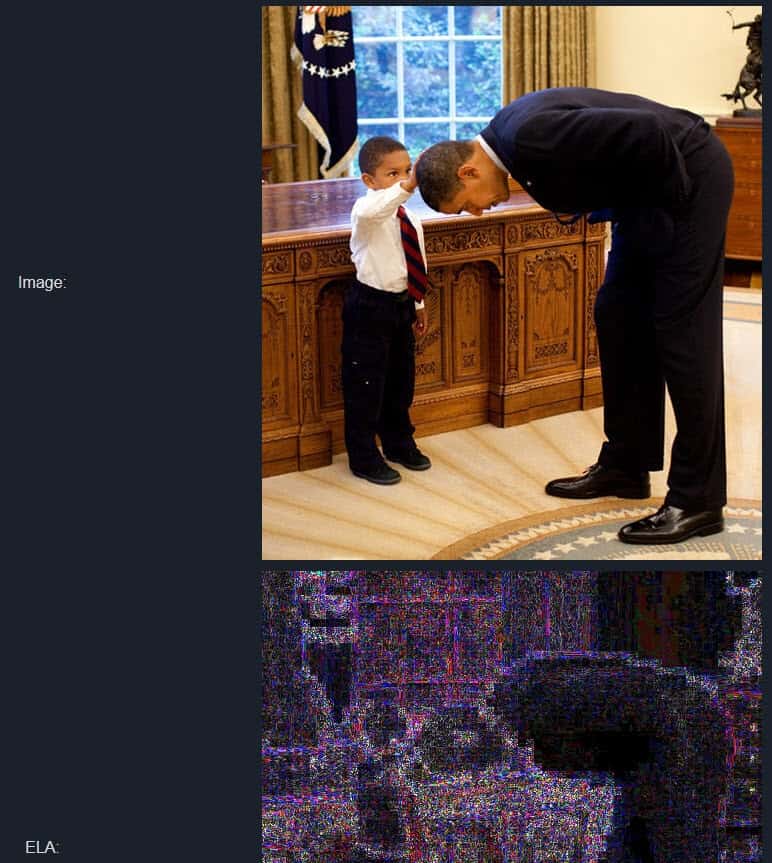
foto forensics

This won’t do you any good if you do not know how to interpret the results.

JPEG images use a lossy compression system. Each re-encoding (resave) of the image adds more quality loss to the image. Specifically, the JPEG algorithm operates on an 8×8 pixel grid. Each 8×8 square is compressed independently. If the image is completely unmodified, then all 8×8 squares should have similar error potentials. If the image is unmodified and resaved, then every square should degrade at approximately the same rate.

ELA saves the image at a specified JPEG quality level. This resave introduces a known amount of error across the entire image. The resaved image is then compared against the original image.

If an image is modified, then every 8×8 square that was touched by the modification should be at a higher error potential than the rest of the image. Modified areas will appear with a higher potential error level.

A good getting started guide is the tutorial on the Foto Forensics website that demonstrates different modification levels with sample photos.


Tuesday, February 7, 2012

WunderMap Displays Past and Present Weather Information

Ever wondered if it was that cold or hot last year as it is this year? Then WunderMap might be your go to weather application, as it offers to take you on a ride back in weather history. All you need to do to get started is to key in a location that you want weather information for. The app displays a list of suggestions if it is not immediately clear which location you are looking for. Once you hit enter or select one of the suggestions from the menu, you will see the app zoom in on the selected location.

weather report

You will notice immediately that WunderMap uses Google Maps as the underlying mapping service. The zoomed in map displays weather station information by default. This includes the temperature and wind strength and direction, with options to switch to dew point / humidity or precipitation instead. A click on a weather station displays all available information, plus forecasts.

weather station

Additional weather related information are selectable on the right. From severe weather and satellite imagery to webcams, traffic or storm reports. All that it takes to enable the new layers is to check an item to have it displayed on the map. Most offer options to change data sources or display different kinds of information on the map.

las-vegas

One interesting option is available with a click on the clock icon next to the selected location. Here you can go back in time (hour, day, month or year) for information about the weather location at a specific date and time in history.

You can furthermore select future dates (in the day range) to see weather forecasts on the map.

The different layers, and the ability to go back in time, make WunderMap an interesting service. It is usually not something that you would go to to get a weather report though. The service has its specialized uses, you can for instance pull past data from holiday locations to see how the weather conditions have been during your planned stay.

Some layers are only available if you are displaying a location in the United States. You can check out Wundermap here.


Thursday, February 2, 2012

Increase Your Dropbox Space By 4.5 Gigabyte

We have talked about Dropbox’s new camera import feature previously which allows you to import photos from digital cameras that you connect directly to your PC to your Dropbox storage. This can be useful if you use Dropbox to store your photos anyway. Free users may run into space issues pretty soon though, as individual photos these days take up Megabytes of free space.

Dropbox is currently running a promotion that extends the available storage space for users who use the service’s photo import feature.

Storage space is increased in 500 Megabyte chunks by a maximum of 4.5 Gigabytes. For this to work, it is necessary to run the new Dropbox 1.3.12 client. This client is experimental and only linked at the Dropbox forum and not on the main site.

It is not clear if users will keep the additional storage space forever, or if it is only available in the beta period.

During this beta period, we are also offering additional free space to test automatic uploading of photos and videos. For every 500MB of photos and videos automatically uploaded, you’ll receive another 500MB space bonus, up to 4.5GB total.

It is however likely that users will receive the space upgrade permanently.

To receive the update, users need to upload photos via the new photo import feature. If you do not have that many photos on your camera, you could simply shoot a lot of photos, connect your camera to Dropbox to get the additional 4.5 Gigabytes of online storage space.

Some users have reported that the feature is not available on their computer, even after installing the latest experimental Dropbox client. It is not clear why it is not there at this point, but there seems to be no option available to force it to appear. Dropbox also notes that photo import is currently not working under Linux or Apple Macintosh 10.4 systems.

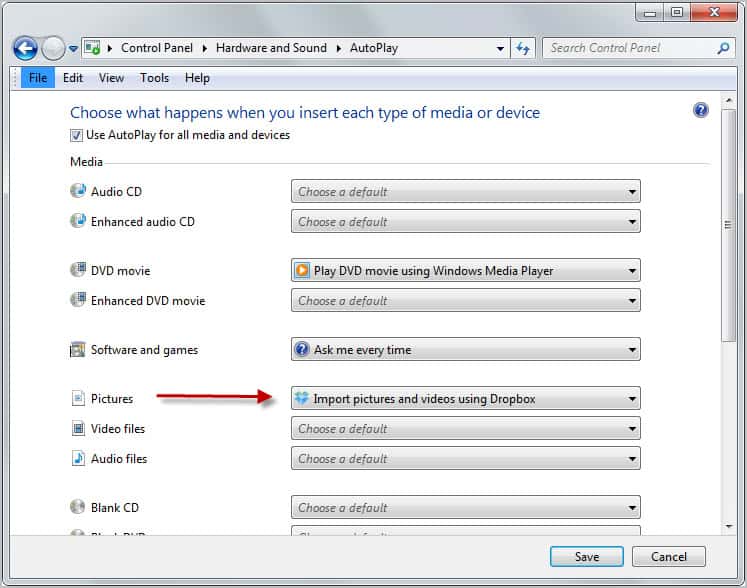
The photo import feature relies on Autoplay, which needs to be enabled. This is done under Start Menu > Control Panel > Hardware and Sound > AutoPlay in Windows 7.

dropbox photo import

Check out the forum post and let me know if you were able to get the import option to work on your computer. (thanks Caschy)

If it works on your computer, you could use it to get an extra 4.5 Gigabyte of Dropbox storage. Not too shabby if you ask me.


Wednesday, February 1, 2012

Looking For A Torrific Alternative? Try These!

Torrific offered a handy service for users who needed to download torrents files but could not use Bittorrent software or seedboxes for it. The service basically did all the hard working for the user. It downloaded the files attached to the torrent to their servers, and provided users with direct http download links. Torrific unfortunately though has been down for the last few days, and it is unlikely that the service will return again.

I have received emails and user comments from several users who wanted to know if there is an alternative to Torrific. There is, and it goes by the name BitLet. It is a web Bittorrent client that is powered by Java. You can just visit the website to get started right away, an account is not needed. Torrents can be added in two ways, first as web urls and second from the local computer system. You can paste in urls right away, or click on the select local torrent button to select a torrent from your system.

A click on download torrent opens a download window that displays information about the download status.

download torrents website

You are asked to select a destination directory for the files, and sit back afterwards as everything else is handled automatically from that moment on. Once finished, you can keep the torrent open to continue seeding it, or close the window to close all connections.

Bitlet on the other hand is not completely identical to Torrific, as the latter service downloaded the files first to their service, before they were made available as http downloads to the user.

Users more interested in an identical service can try ziTorrent, which offers pretty much the same functionality as Torrific. A free account is good for 10 Gigabytes of traffic, with a maximum file size of 1 Gigabyte per torrent per month. The service did not work that well though during tests, but this may have been a temporary flux.


Tuesday, January 31, 2012

ShowMeTrend Links Twitter Tags To Web News

The messaging platform Twitter can be used for trending purposes. The more users talk tweet about a certain topic, the more popular it has to be. While it is not possible to say that with absolute certainty, as other factors like automation play a role as well, it can often act as an indicator. Twitter displays the top ten trending topics for a single country, with options to change the country to another one on the page.

While it is possible to read the messages on Twitter about a trending topic, it is not guaranteed that you will see any links in the messages that you are reading.

That’s where the web service ShowMeTrend comes into play. The service links the top 10 Twitter trends of a particular day to Google News articles about that particular topic.

twitter trends

The trending topics get updated regularly, and it appears as if the links from Google News are pulled more or less whenever they appear there. All news articles are linking directly to the site they have been published on. It is furthermore possible to open Google News’ listing of all related news, or to go back and forward one news entry on the ShowMeTrend website.

Selections can be made at the top to switch from the day’s worldwide trends to country specific and date/time specific trends. About ten countries can be selected, from Germany and the United States to the Netherlands, UK or Brazil. The service’s back catalog of Twitter trends begins in October 2011, which is an indicator that it is a relatively new service. Users can not only select the date but also the time of a day to get a listing of trending topics.

One of the issues that the developers need to fix is the lack of links for some topics. Some trends show a white listing and not a single news item. One of the options here would be to either improve the search algorithm or to use additional news sources besides Google News.

ShowMeTrend is an interesting service for researchers, marketing agencies and individual users. Have you tried the service? If so, what is your take on it?


Monday, January 23, 2012

After Megaupload, How To Backup Your Online Files

Users who have been using the file hosting service Megaupload to host their own files were in for quite a shock when they received notice that authorities had taken down all company servers and files. For some it meant to upload the files again to another file hosting service, others who only had copies of the files on the hosting site realized that they did not have options to get their files back.

Uploading files to just another hoster is however no guarantee that the files stay available for a longer time. It should be clear by now that you need to have backups available either locally or in another location to reduce the likelihood that you will lose the data completely.

Mirror Services

One option that you have is to use so called mirror services such as Mirror Creator to distribute the files to multiple online hosting services. If one or two go down, you still have them available on others that you have selected.

mirror creator

The process of uploading files to those hosters is almost identical, with the difference that you cannot make use of existing accounts and their benefits.

  • Select files that you want to upload from your computer. A file limit is always displayed, in the case of MirrorCreator it is 500 Megabytes for free users.
  • Select the file hosting services you want to distribute your files to. Free users can select up to ten services.
  • Start to upload the files once, the mirror creation service will take care of the rest.

Here is a short list of file mirror creation services:

  • Gazup! – Supports six services in total, maximum file size 400 Megabyte if only four are selected.
  • Upload On All – Supports 12 services in total of which ten can be selected for distribution. Maximum file size is 300 Megabytes per upload.
  • Digzip – Lets you pick eight mirrors from a list of 18. Maximum upload size is 200 Megabytes.
  • Multi Upload – Upload to a total of nine different file hosting services
  • Upload Mirrors – Select up to 14 mirror servers where you want your files to be hosted. No information about file size limitations posted on site.

You can search for file hosting mirrors and similar phrases to find more services that distribute files for you.

Nothing changes for free users who stay below the upload maximum. Users who need to upload larger files have a few options as well. They could split the files using software like 7-zip or Haozip for this. Other services may be offered, for instance the option to delete uploads again, that are not available when mirror uploading services are used.

If you want to use a specific service, for instance because of the account benefits it provides, you should consider backing up your data at a second cloud hosting service to avoid total data loss if that particular services is no longer available. A suggestion here would be to use a backup and synchronization provider like Dropbox, or if more storage space is required Skydrive from Microsoft. This means however that you will have to upload the files at least twice for this. You could alternatively back them on a local device if you do not want to waste the bandwidth.

Have another suggestion? Lets discuss it in the comments.


Bitcasa Promises Unlimited Online Storage, How To Get An Invite

With file hosting sites closing left and right after the Megaupload takedown, it has become fairly uncertain if your file hosting service will offer you access to your files the next time you try to connect.

Bitcasa is a new file hosting service that is similar to Dropbox in many regards. Bitcasa just like Dropbox is application driven, which means that users need to install the Bitcasa client on their system to use the service. The client is currently available for Apple Macintosh OSX systems and Microsoft Windows (as an alpha), with a Linux version currently in development.

The client synchronizes data across all devices that have the Bitcasa software installed. Data gets encrypted before it is uploaded to the cloud to make sure that it is protected from unauthorized access. The developers state that they cannot access user data for any reason.

bitcasa

A core difference to Dropbox is that Bitcasa offers its users unlimited storage. It is not really clear how this will pan out in the long run, or if paid accounts will be introduced at a later time to make the service profitable. For now, users can upload, download and share as many files as they want.

Sharing is completely free as well, and the service highlights that friends and family can start accessing files “instantly without waiting for the entire files to download”. It seems though that recipients need to install the Bitcasa client and create and account as well for this.

Bitcasa has no web interface for users at this point. It is not clear if the developers will integrate one at a later time.

Bitcasa Beta Invites

Users can sign up for the beta queue on the Bitcasa homepage. If you do not want to wait, you can use the following link to sign up for an account directly. The link has been posted by Motou Xiao on Google+.

Just enter your email address and open the confirmation link once you receive the Bitcasa confirmation message. You can then download the software and create an account from within.

Closing Words

We cannot post screenshots of the application or signup process at this time as you have to agree to a NDA during signup. All information have been taken from public sources. We will post an update in the future.