Pages

Showing posts with label internet-radio. Show all posts

Monday, January 30, 2012

Manage And Play Internet Radio In Google Chrome

I have made the full switch to listening exclusively to Internet Radio stations many years ago. The core reasons? Accessibility while working on the PC, less ads and talking while songs are playing, and better recording possibilities (see our StreamWriter review for an excellent program that can be used for that purpose.

I usually use desktop media players like AIMP3 to listen to Internet Radio stations, as it is a lot more comfortable than having to keep a streaming page open all the time in the web browser. That’s especially true if you have to restart the browser every now and then.

Radio Player Live is an excellent Chrome extension that offers a great radio listening experience for Chrome users. First time users need to add at least one station to the extension before they start accessing the selected stations via the extension’s Chrome address bar button.
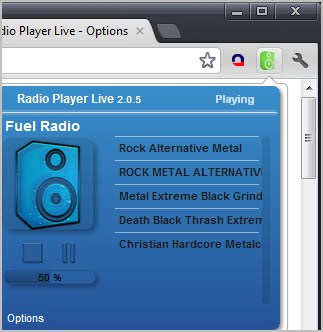
radio player live

This is done on the extension’s page. A click on Add radio stations lists all the available options. Users can add a station from the gallery listing maintained by the extension developers, add stations from popular sites such as the Shoutcast directory or Digitally Imported, or add stations manually.
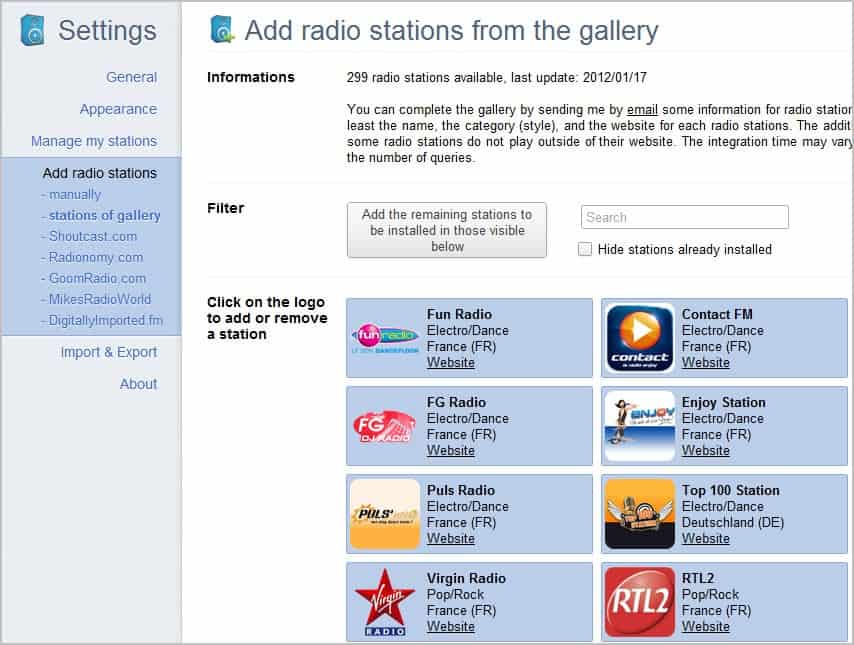
radio stations

All stations from the gallery can be added with a single click of the mouse button. They list many terrestrial stations, like RTL and RTL2, Virgin Radio, BBC 1 to BBC 6 or .977.

Third party stations lead to websites from where the stations need to be added. The extension adds buttons next to each station on those sites which can be used to add the selected radio station to the extension.
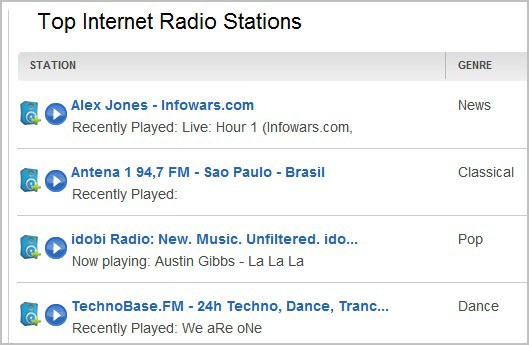
internet radio stations

A click on the Radio Player Live button loads an overlay prompt to add the selected station to the radio player. The station’s name, website, logo and category can be customized here.
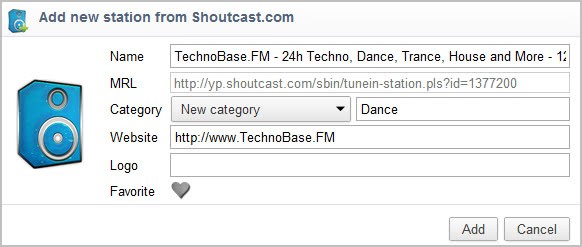
add radio station

The station can then be selected via the extension’s button in the Chrome interface. Stations can be sorted into categories for easier identification. You can do that when you add a station, or later on under Manage my stations in the program options.

Users who do not like the theme can modify it extensively in the options. From background and header text colors to borders, category names and srollbars. Nearly every visual aspect can be modified.

The player window itself displays a list of radio stations, the currently playing station, the volume, and pause and stop options. You can switch to another radio station with a click.

The program supports VLC and Windows Media Player plugins, but I was not able to get those to work in the Chrome browser. It is not clear from the description whether they are used to play the radio stations in the browser, or if the music is redirected to the desktop player from where they are then played.

Google Chrome users who like to listen to Internet radio while surfing should take a closer look at Radio Player Live.


Tuesday, January 17, 2012

Mentor FM Tunes Into Your Facebook Account To Play Music You Like

Mentor FM is one of those tools that it is pretty awesome and scary at the same time. The Internet radio tunes into your Facebook account to play music that you like. The awesome part is that it usually gets things pretty right in this regard. All you need to do is to give the app permissions to connect to your Facebook account before you can start listening to a playlist that has been specifically made for you.

The scary part is actually what makes the application that good: Facebook seems to know your music taste pretty well. The application displays up and down vote buttons on the radio page that you can use to further finetune the music listening experience.

mentor.fm

Basic playback controls are displayed on the page as well. Here you can change the volume of the music, pause, stop and play songs or skip ahead to the next song if you do not really like the one that is currently playing.

Mentor.fm displays the artist or band, and the genre of the music on the page as well. It feels rather strange that the name of the song is not among the information displayed there.

If the playlist is not what you are looking for, you can let the radio station load a new playlist with different songs.

The surprise me mode finally lets you look beyond your music taste to discover a different kind of music. When I first used surprise me the radio started to play songs from artists such as Emilio Santiago, Jazzkantine or Renata Tebaldi, music that I would not listen to at all otherwise.

The site is a music experiment, that will be online for about 2 months before the makers will take it offline again. One of the interesting aspects of the site is that you can just turn on the radio and start listening, without having to perform searches or songs first. The service uses a user’s likes on Facebook and generates the playlist from those information. (via Freeware Genius)


Tuesday, November 29, 2011

Play Playlist .PLS Files In Windows Media Player

The playlist (.pls) file format is without doubt one of the most popular formats when it comes to Internet radio stations. All it takes to tune into a radio station is to open the .pls file in a compatible player. Whenever I try to load a playlist file on my system Windows makes the suggestion to use Windows Media Player to play the file.

The only problem here is that Windows Media Player is not supporting the pls file format. Users who try it anyway receive the following error message:

Windows Media Player cannot play the file. The Player might not support the file type or might not support the codec that was used to compress the file.

windows media player pls file

Open PLS in WMP is a free software program for the Windows operating system that acts as a proxy between the pls file and Microsoft’s media player. Download the program from the Internet’s Codeplex project page first. The program has not been updated for three years now but it still works perfectly even with the latest Microsoft operating system and windows Media Player.

Installation should be straightforward and pose no troubles whatsoever. What you need to do afterwards is to assign the .pls file format with the newly installed Open PLS in WMP application. You do that by right-clicking a pls file on the system and selecting Properties from the context menu.

open pls in windows media player

Click on the change button, navigate to the Open PLS in WMP folder (defaults to the program files folder) and select the executable there.

You can alternatively start a playlist file directly on an Internet page, but only if Windows displays a file open dialog which leads to the process described above.

All pls files in Windows are from that moment on opened with Open PLS in WMP. The program extracts the stream information from the files and sends the information to Windows Media Player where the stream is then played like other music.

You may see a warning message about AAC streams when you load streams. I’m not entirely sure why it is displayed, it did not hinder playback of the playlist files that I tried. Just close the message and Windows Media Player should start playing pls files.


© Martin Brinkmann for gHacks Technology News | Latest Tech News, Software And Tutorials, 2011. | Permalink |
Add to del.icio.us, digg, facebook, reddit, twitter
Post tags: , , ,


Monday, November 28, 2011

Download Pandora Radio To Your PC

I have not looked at Pandora Radio ever since the service closed down its international access. Before that, I published two guides on saving Pandora music. That was back in 2006; Five years later and the situation has not changed a lot. Pandora is still only available for US Internet users and those who use virtual private networks (vpns) or web proxies to bypass the country IP limitation.

The two guides published in 2006 are obsolete now. They are both about software programs that are no longer available. This guide takes a look at a new and at the time of writing working method of downloading Pandora Radio to the PC. Even better, it uses a freeware application for that.

Head over to the Nirsoft website and download Video Cache View. Don’t let the name irritate you, it supports audio as well. The program basically scans web browser caches for media files and displays all files it finds in its interface.

The portable software scans for all media file formats in all browser caches. That may be a bit much and the first thing that we need to do after starting Video Cache View is to restrict the listing to audio. Click on Options in the menu and remove the checkmark next to show video files.

Now head over to the Pandora website and tune into a radio station there. I suggest you pick one of the top streams that are listed on the start page while testing. Make sure the radio streams music to your computer. When it does, switch back to Video Cache View and either wait until the program refreshes the listing automatically, or click on the refresh button manually to see the song that is now playing in the listing.

download pandora radio

Chance is, you see multiple audio files in the listing. Use the following indicators to locate the correct one that Pandora sent to your computer. You can first sort by browser to limit the display. The file size should be more than 1 Megabyte and less than 5 Megabytes. The Pandora Radio music files usually show up as .tmp files without content type and download url. A right-click on a file and the selection of Play opens the file in the default media player on the system.

play pandora music

Once you have identified the song that is playing right now right-click it again and select the Copy selected files to option from the context menu.

Please note that cached music files are removed from the cache automatically when the song stops. This means that you need to save the Pandora song while it is playing. You will always download the full song though no matter when you start the downloading.

Is there an easier way to download Pandora Radio music to the computer? Probably. It would for instance be nice if the identification and download could be automated, or if the cached files would not be deleted right away after the music stops playing.

Know of a different way to rip Pandora streams? Let me know in the comments.


© Martin Brinkmann for gHacks Technology News | Latest Tech News, Software And Tutorials, 2011. | Permalink |
Add to del.icio.us, digg, facebook, reddit, twitter
Post tags: , , , ,