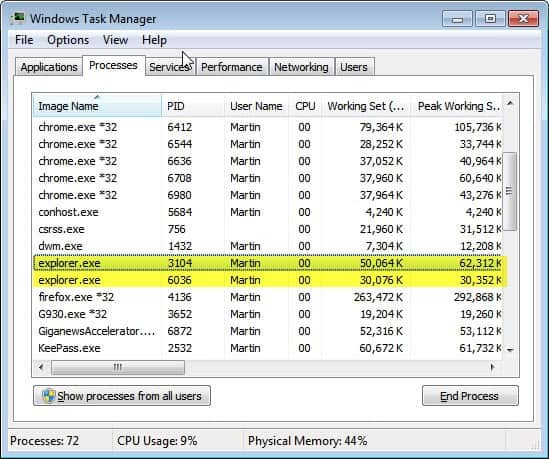
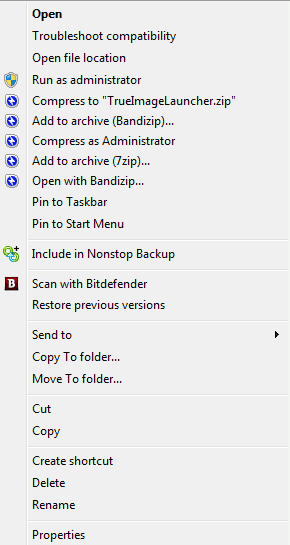
Windows users who think that the system’s default file management application Windows Explorer is too limited to be of practical use can pick from a wide array of free and paid products.
XYplorer Pro is a professional file manager for the Windows operating system that can be used in addition or as a replacement for Windows Explorer. A limited Home version is also available that retails for about half the price of the Pro version. Both versions come with free lifetime updates, and are offered as a portable and installed version.
Windows Explorer users should feel right at home when they start the program for the first time. The traditional two-paned interface displays folders on the left and the contents of the selected folder on the right. Unlike in Windows Explorer though, it is possible to customize the interface significantly to display more or less data on the screen.
A tap on F10 or a click on the Dual Pane button in the main toolbar adds another file browser to the system to make file operations and comparisons more comfortable.
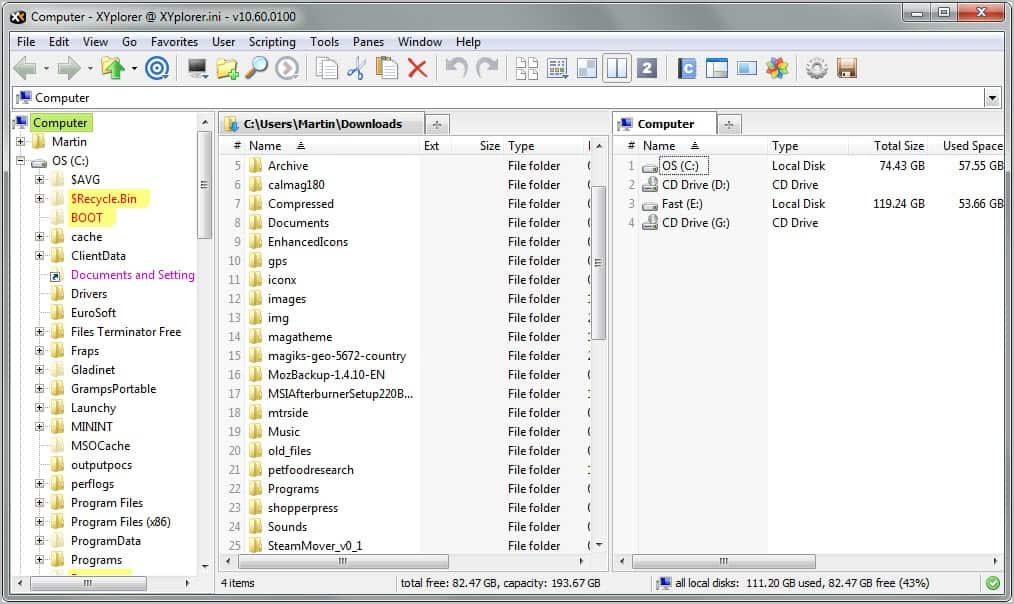
XYplorer ships with many easy to access features that make life that much easier when it comes to day to day operations. Users will for instance notice the highlighting of some folders in the file manager. System files, junctions or encrypted files are color coded to improve identification. The same is done for several popular file types like executable files, web files or images. Advanced users can even go into the options and create their own folder and program groups that they want highlighted on the system. File type highlighting is disabled by default and can be activated with a click on the enable color filters button in the main interface.
When it comes to the application’s interface, everything is just a click away from being customized. Options are available to display an info pane to display everything there is to know about a file or folder in the open, a catalog with filtering and bookmarking options, multiple view modes to display files and folders in various formats, and tabs to display multiple locations and information next to each other.
The Info Pane displays information that are hidden in nested menus in Windows Explorer. It for instance displays all file properties and attributes, a preview and raw view, and version information. File properties can be edited right away with just a click of the mouse button.
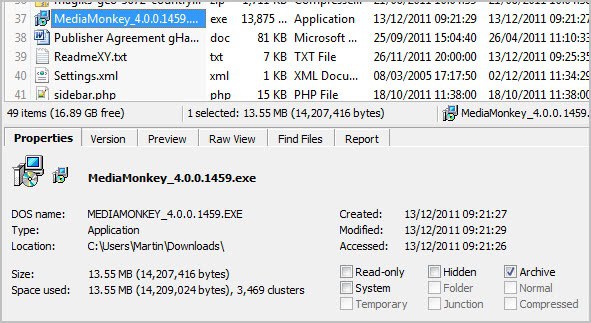
File search is also displayed in the Info Pane which can be accessed directly if the pane is displayed, or with the keyboard shortcut Ctrl-f. XYplorer supports Boolean and regular expression searches, filters (by size, date, file contents attribute) and options to search specific locations only.
Search results are displayed near instantly in one of the file browser panes. Files can be opened, modified, moved or deleted right in that pane. The file manager supports drag and drop operations, for instance from one file browser pane to the other to make copy and move operations more comfortable.
Catalogs, of which multiple can exist, act as favorites and file filters. The system is powerful, allowing users to run basic operations like opening a specific folder on the system to filtering a folder for specific file types or opening files with a selected program.
Another way to quickly find and work with files is the program’s tagging feature. Tagging buttons are not displayed in the toolbar by default but you can either add them by right-clicking on the toolbar and selecting the customize option or directly from the menu without making those customizations.
It still pays off to look at the customize toolbar menu as the menu offers dozens of buttons that are not displayed by default on the toolbar. This includes drive letters, the aforementioned tag buttons and even user defined buttons.
Advanced users find a large number of features at their disposal that improve the workflow further. Keyboard shortcuts, already available for many major program features, can be defined for more or less any program function. Shortcuts can for instance be added to user-defined commands, which work exactly as the catalog feature.
A scripting language is available for advanced operations. From saving last year’s doc files to a zip file, converting characters in text files or creating a formatted HTML document that lists all files of a directory. Examples are provided in the program’s help file and on the software’s homepage on the Internet.
The program’s configuration menu holds hundreds of configuration options that change the application’s functionality. From editing color filters and tags over fonts and templates to thumbnail dimensions and startup and exit behavior, it is all editable with just a click.

XYplorer’s list of features does not end here. Worth mentioning as part of the review are multi-level undo and redo options, queued file operations, a mini-tree view mode that displays only the folder structure of the currently selected folder and the flat view mode that displays all sub-folder contents in the file browser directly.
New users can take a look at some of the program’s core features on the tour index page. A 30-day trial version that is not limited in functionality is available for download at this page.
Verdict:
XYplorer Pro is a well thought out file manager for the Windows operating system. The standard version of the program, without any customizations done, is already that much better than Windows Explorer and many comparable file management tools. All major features and workflows are in reach and optimized for quick access.
The app begins to shine even more when you start to explore all under the hood options that it offers. From configuring keyboard shortcuts, the customizable tag and color highlighting system, and the portable version to XYplorer’s huge list of configuration options, scripting and the application’s speed and performance: it is what Windows Explorer should be but never will be.
The program does not come with an ftp client or native zip unpacking which some users may miss. The majority of users on the other hand will have specialized tools (like WinSCP or 7-zip) installed that offer a better functionality that any file manager could offer.
Giveaway
We have 19 XYplorer Pro lifetime licenses for this giveaway. Please leave a comment below to be included in the drawing. Let us know about the file management software that you are currently using.
© Martin Brinkmann for gHacks Technology News | Latest Tech News, Software And Tutorials, 2011. | Permalink |
Add to del.icio.us, digg, facebook, reddit, twitter
Post tags: file manager, ghacks Christmas giveaway, windows-explorer