Pages

Showing posts with label youtube-tips. Show all posts

Tuesday, January 17, 2012

Display The Inbox On The YouTube Frontpage

With YouTube’s redesign now live on the site and with no turning back opportunity anymore, it is time to realize that the changes have not all be for the better. If you are not logged in or an active YouTube user you can probably live with the new frontpage design and all, but if you are an active user who gets lots of messages and stuff you’d probably like a way to reach those messages more easily.

You see, YouTube made the decision to move the easily accessible inbox from the front page behind the account name in the top right corner of the screen. To reach the YouTube inbox, you need to first click on the name and then on Inbox to be taken there. Once there you still may need to select a different entry, e.g. comments instead of personal messages which means yet another click before you land there.

The free userscript YouTube startpage inbox changes this by adding the inbox and all of its links back to YouTube’s homepage.

youtube inbox

Once installed, you will see direct links to all inbox entries on the homepage again. The script adds them to the right sisdebar just above the recommended video section there. The links point to personal messages, shared with you, comments, contact suggestions and video responses. Each entry lists the number of unread messages which makes the feature that more convenient as you can now see directly if you have new messages or notifications waiting for you in your inbox.

The inbox at the top lists the total of unread messages and notifications.

Please note that the inbox is only displayed on the frontpage and not on other pages of YouTube.

The script has been tested in the Firefox web browser with the Scriptish extension. It likely works in other browsers such as Google Chrome as well.


Monday, January 9, 2012

How To Switch Back To YouTube’s Old Page Design

If you are a regular on YouTube you probably know that Google has recently redesigned the page completely, turning pretty much everything up side down. The new design has received quite the criticism, for instance for the centered fixed width layout, or the larger frame at the top of the YouTube home page.

Most YouTube users do not know that there is an option to reset the page to the old layout. This can be achieved by writing a cookie to the local system that tells the video hosting site that the old layout needs to be loaded and not the new page design.

Please note that this may cease to work at any time as YouTube may simply remove the old page design from their servers. Setting the cookie would have no effect then. For now though, it works splendid.

You can revert the YouTube homepage to its former self with the help of a userscript or by writing the cookie directly on the system. The userscript appears to be working in Firefox, with Greasemonkey or Scriptish installed, Google Chrome and Opera. The developer notes that Opera users need to import the script manually in the browser though. Instructions on how to do that are offered on the userscript page.

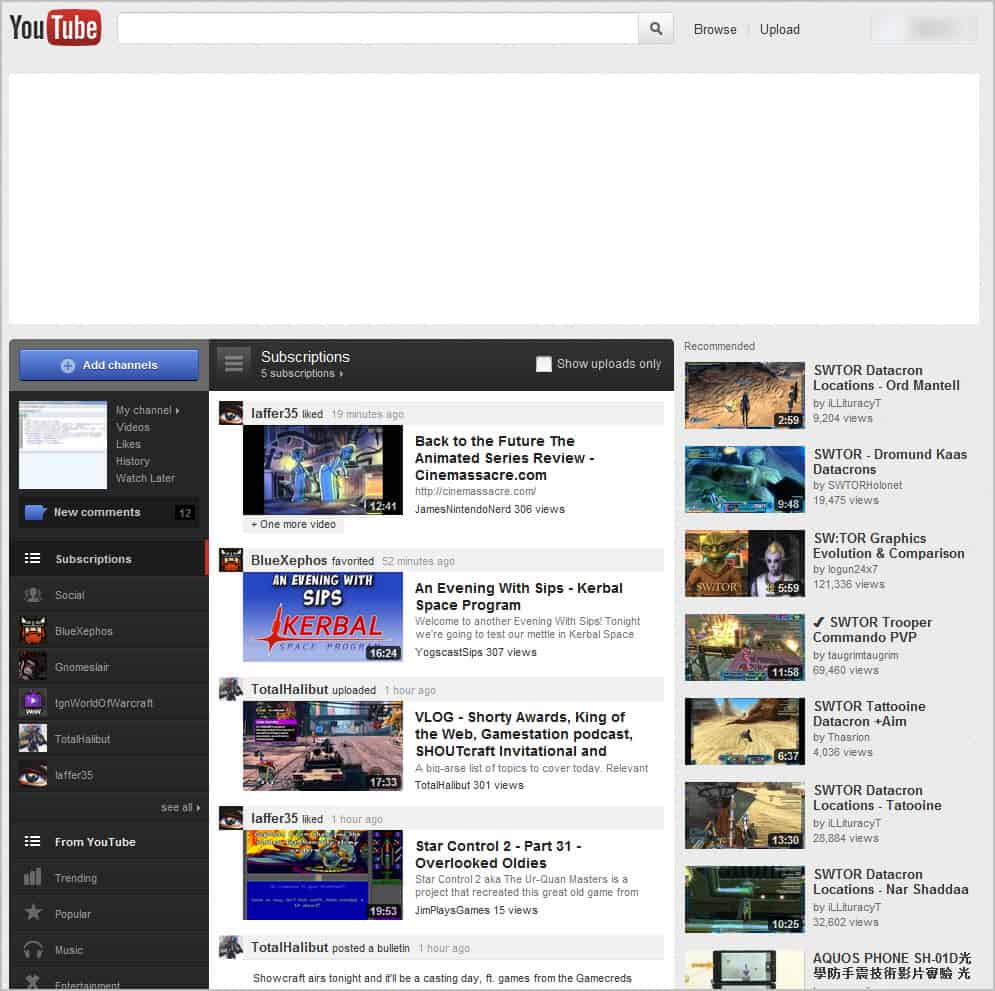
Take a look at the following two screenshots to see the difference. First the new YouTube page (no idea why the big header is showing up blank)

new youtube homepage

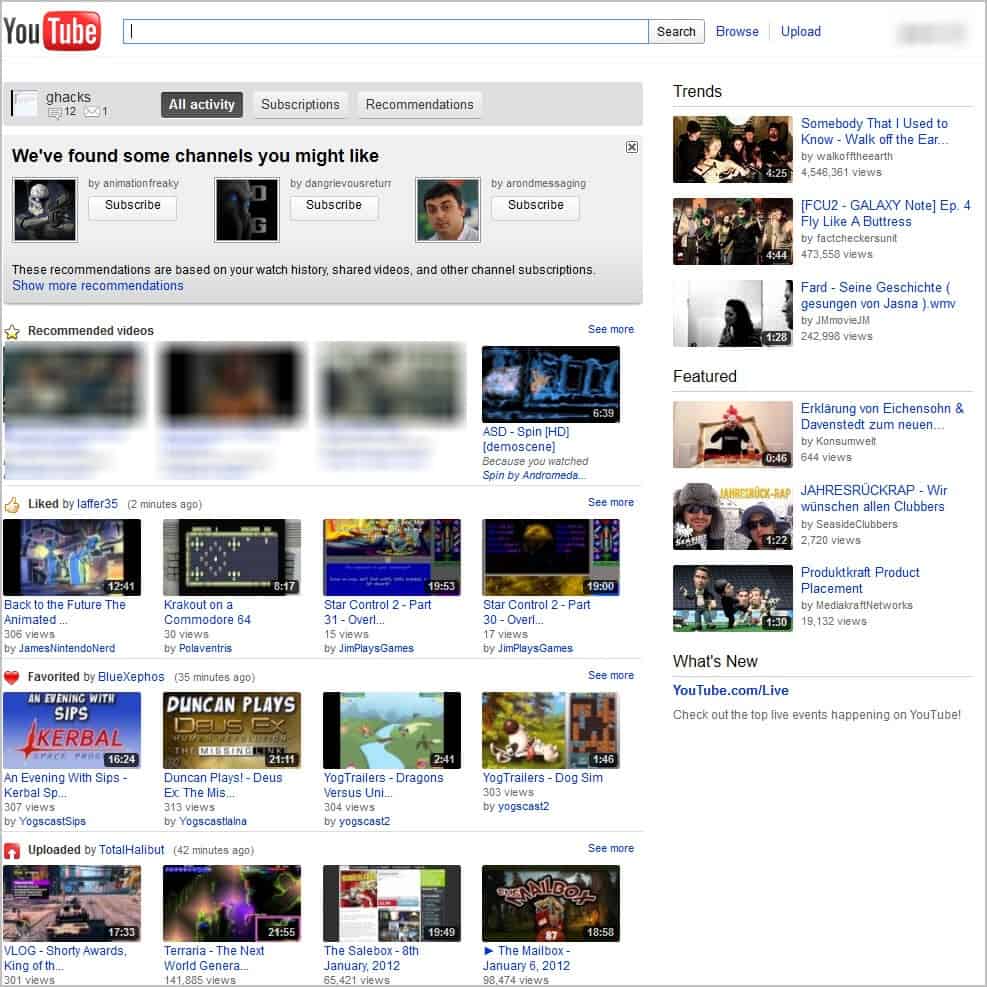
and then the old YouTube page.

old youtube page

All you need to do is to install the userscript to set the cookie. Please note that the homepage layout will stick even if you uninstall the userscript again. You need to clear the cookie that it writes on your system to get the new YouTube homepage layout again.

As I mentioned before, you can also set the cookie manually.

Open the YouTube website.
In Chrome, press Ctrl-Shift-j to open the Developer Tools
In Firefox, press Ctrl-Shift-k to open the web console
Enter document.cookie=”VISITOR_INFO1_LIVE=VISITOR_INFO1_LIVE=tYJElFX0sZI”; in the console tab and press Enter.
Reload the YouTube page.

If you are visiting YouTube regularly, which design do you prefer? (Thanks Odio for the tip)


© Martin Brinkmann for gHacks Technology News | Latest Tech News, Software And Tutorials, 2012. | Permalink |
Add to del.icio.us, digg, facebook, reddit, twitter
Post tags: ,


Saturday, January 7, 2012

YouTube Tip: Shortcut To Skip Part Of A Video

If you are an Internet regular you have probably heard about the Wadsworth Constant, an Internet meme that has come to some fame at the end of last year. A user named Wadsworth mentioned that he skipped 30% ahead of every YouTube he was viewing on the Internet. This spread quickly throughout the geeky parts of the Internet, with YouTube implementing the constant as a parameter on their site. If you add &wadsworth=1 at the end of the YouTube video url you are skipping the first 30% of the video. A bookmarklet has been created soon thereafter which automated the process.

There is however a much easier solution that that all YouTube users can make use of to skip ahead a certain percentage of the video. All that needs to be done is to press a number between 1 and 9 on the YouTube video page after you have clicked on the video. Nothing happens if you try to press the numbers once the video starts playing on the side. You need to click on the video, which pauses it, to use the functionality.

The numbers 1 to 9 correspond to 10 to 90 per cent of the play time of the video. If you press 3 you skip ahead 30% as suggested by the Wadsworth Constant, but you can select to skip more or less of the video by tapping on a different number on your keyboard.

This works well in combination with scripts that auto pause a video automatically, for instance to let it buffer for a while or save bandwidth by avoiding auto play. We have reviewed several scripts that can do that here on Ghacks. Check out the userscript Automatically Buffer Youtube Videos and Youtube Videos: Playback Problems And Fixes for general tips.

The constant works sometimes but not all of the time. It works great for trailers and videos produced by tv or film studios. You will obviously encounter videos where it does not work at all. Have you tried to skip ahead in videos to save time by skipping ahead to the important content?


© Martin Brinkmann for gHacks Technology News | Latest Tech News, Software And Tutorials, 2012. | Permalink |
Add to del.icio.us, digg, facebook, reddit, twitter
Post tags: ,


Sunday, November 20, 2011

How To Get The New YouTube Homepage Right Now

If you are following the chatter on social networking sites such as Google+, Facebook or Twitter, you may have noticed that YouTube is currently testing a new homepage design. Clever folks found out a way to enable the new design right now with a cookie. The advantage of this method is that you can clear the cookie to return to the old YouTube interface, no harm done.

Please note that this is being tested right now by Google. This new test homepage may or may not become the new YouTube homepage in the future. For now, YouTube visitors can enable it in the following way:

  • Open the YouTube website.
  • In Chrome, press Ctrl-Shift-j to open the Developer Tools
  • In Firefox, press Ctrl-Shift-k to open the web console
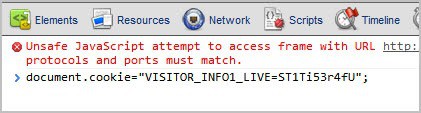
  • Enter document.cookie="VISITOR_INFO1_LIVE=ST1Ti53r4fU"; in the console tab and press Enter.
  • Reload the YouTube page.

google chrome javascript console

It is likely that this is working in other web browsers as well. I could not get it to work in the latest Opera web browser though.

The YouTube homepage looks like this after a reload.

youtube new homepage

YouTube users find their channel information prominently displayed on the left side. Listed here are links to the channel videos, likes, history and watch later groups, subscription information, YouTube specific information like trending or what’s popular as well as suggested channels to subscribe to.

The middle column is filled with updates from a user’s subscriptions. The right column finally displays recommended videos based on past videos that have been watched and activities on YouTube.

The new design seems to only affect the homepage and no other parts of the site. Several users seem to confuse the new YouTube homepage design with the previously released Cosmic Panda update. They are not the same and can in fact be run at the same time. I would suggest to first enable the new homepage design and then enable Cosmic Panda via the link above.

What I do not like about the new homepage is that it uses a fixed width for the content. If you have a widescreen monitor you end up with lots of whitespace there.

Have you tried the new homepage? If so, what is your opinion? I’m not sure where this all started, but one of the first, if not the first, to point it out was Moritz Tolxdorff on Google+.

And while we are at it. If you want to try out the new YouTube video uploader, you need to open the following web address: http://upload.youtube.com/my_videos_upload?forceui=4.

Update: You can remove the new YouTube homepage again by repeating the steps and changing the cookie command to this one: document.cookie="VISITOR_INFO1_LIVE=0";


© Martin Brinkmann for gHacks Technology News | Latest Tech News, Software And Tutorials, 2011. | Permalink |
Add to del.icio.us, digg, facebook, reddit, twitter
Post tags: , , ,