Pages

Showing posts with label Google Android. Show all posts

Monday, January 16, 2012

Log Into Google With Your Smartphone And A QR Code

Smartphone users can access most Google services on their smartphone. Those using Android are often logged in to a Google account all the time. Most do not know however that they can use their smartphone to log into their Google account on another computer. This is done with the help of a unique QR code. Let me give you a quick rundown on how this works.

You first need to be logged in to a Google account on your smartphone. You could obviously access most Google services directly on the phone, but sometimes you may want more screen estate, especially if a computer is available. That’s not a issue if you are working on your own computer, but what if you are on a public terminal or a friend’s house? You probably do not want to enter your log in information on the computer as a number of things can happen.

This includes a keylogger running on the PC, someone looking over your shoulders while entering your sign in details, forgetting to log out after you finish your session or configuring the sign in information to be saved on the computer.

If you have your smartphone at hand, you can perform the following steps instead. Visit http://goto.google.com/login. All you should see is a QR code on the page.

google sesame

Scan the code with the camera of your smartphone. You should see the following screen on your phone.

google smartphone login

Tap on Start with Google Mail or Start with iGoogle to load those pages in the web browser you have just scanned the QR code in. You can alternatively stop here to end the process without logging in, no harm done then.

Google Mail or iGoogle will be opened with the connected account, and without you having to enter your account username or password into the web browser or on the computer.

It needs to be noted that you will access data from the same account that you are logged in on the smartphone. There is no option, other than signing in into another account on the phone, to access a different account on the PC.

It is also important to log out of the service on the computer after you have finished using it. If you do not, the next user may be able to access your data.

Google Sesame can be quite useful in situations where you want to log in to your Google account on a computer that is not your own. Instead of having to enter your user data, you can simply use your smartphone to log in.

What’s your take on Google Sesame? Let me know in the comments? (via Caschy)

Update: Seems as if Google has pulled the plug on the new feature again. When you now visit the site where the QR code was initially displayed, you get the following message:

Hi there – thanks for your interest in our phone-based login experiment.

While we have concluded this particular experiment, we constantly experiment with new and more secure authentication mechanisms.

Stay tuned for something even better!

Dirk Balfanz, Google Security Team.

It is not clear why it has been removed by Google or whether it will be back at a later point in time.


Sunday, December 4, 2011

Bitdefender Carrier IQ Finder

The deeply integrated Carrier IQ software on mobile devices has made the rounds lately. Check out this introductory post for detailed information about Carrier IQ. The technology has recently been discovered on Android and Apple smartphones in a way that the discoverer called rootkit-like. Users have a hard time finding out if Carrier IQ is running on their phone, and virtually no possibility of finding out which data it collects or transfers. To top it all off, there is no native option to disable Carrier IQ from running on the phone.

If you are like me, you’d probably want to know if a program that can virtually access all data on the phone is running on it and with which server and companies it communicates.

Bitdefender Carrier IQ Finder is a new program for Android mobile phones by Bitdefender that can be used to find out if the technology is running on a phone.

Android users need to download the application from Android Market where it is available for free. The app has been designed to detect Carrier IQ on Android phones. It cannot remove the technology nor detect or remove malicious software from the phone.

Android users can point their browsers to the Bitdefender carrier IQ Finder market place listing to install the program directly from there. It is necessary to be logged in a Google account to install the app.

The app will search for traces of Carrier IQ on the phone on start up.

carrier iq detector

A red screen after the scan indicates that Carrier IQ has been found running on the system, a green screen that the technology has not been found on the smartphone.

What can you do if Carrier IQ has been found on your phone? It may be virtually impossible to remove the technology completely from the phone. You could contact your carrier for additional information about the technology. (via)


© Martin Brinkmann for gHacks Technology News | Latest Tech News, Software And Tutorials, 2011. | Permalink |
Add to del.icio.us, digg, facebook, reddit, twitter
Post tags: , ,


Thursday, December 1, 2011

How To Update Your Samsung Android Device

Looking at my mobile phone usage I can tell that I use the phone primarily for making calls and sending the occasional SMS. I do not use Internet, apps or other fancy stuff that smartphones ship with these days. If I had the choice, I’d buy a phone that comes without camera and all the gimmicks that I do not need.

I received the Samsung GT-S8500 when I renewed my contract with T-Mobile. That was about a year ago and I never bothered to connect the phone to the Internet or see if Samsung has released a newer firmware for the device.

That changed today when I decided to find out how to update the phone’s firmware. And since I’m probably not the only one who cannot figure it out in a matter of seconds, I have decided to write a tutorial on how its done.

You need the following equipment to check for and install updates: The Samsung Android phone, the USB cable to connect the phone to the computer, and the Samsung Kies software [here] which handles the updating and other things.

Install Samsung Kies first. This may take a while. The program installs mobile phone drivers and may restart your computer without warning. Next thing that you need to do is to close all open applications on your phone. This is done by holding down the center button on the phone’s front until a new screen pops up with an option to close all running applications.

Use the USB cable to connect your mobile device to the computer and select Samsung Kies as the USB connection method. Start the software, the mobile phone should be recognized immediately.

Samsung Kies will search for updates automatically if the computer it is running on is connected to the Internet.

samsung kies firmware update

I’d advise anyone to stop the process at that time to export the phone’s settings and data to the PC first. Firmware updates may alter or remove data on the phone and it is always a good idea to make sure you can restore your data if that is the case.

Click Import/Export in Kies, switch to Export and use the Export buttons to backup the phone’s data to your computer. You can backup contacts, photos, music, videos, schedule, or to-dos.

samsung kies backup phone

Go back to the basic information tab in the Samsung Kies software after you have backed up your phone’s data. Click on the Firmware Update button to start the upgrade.

upgrade firmware

An informational page is displayed next. Samsung offers tips on how to make sure that the firmware update will complete without errors. The company suggests to connect the phone to a power supply, to back up data before the process, to not use the phone during the upgrade and to not connect other devices to the computer in that time.

The process may take up to 30 minutes, but is usually faster. My phone’s firmware upgrade took about five minutes.

firmware upgrade

If everything went fine you will receive a success message in the end. The device needs to be restarted (happened automatically in my case). You should now check if the data that you have stored on your phone is still available. If it is not, use the import feature of the Samsung Kies software to upload the data again to your phone.

Have you ever updated your smartphone? If so, how would you describe the process?


© Martin Brinkmann for gHacks Technology News | Latest Tech News, Software And Tutorials, 2011. | Permalink |
Add to del.icio.us, digg, facebook, reddit, twitter
Post tags: , ,


Tuesday, November 22, 2011

BlueStacks, Android Apps On Windows Now Compatible With XP, Vista

With so many new and exciting apps coming out for mobile operating systems like Apple’s iOS or Google’s Android, it only is natural that some users want those apps to work on their desktop PCs as well. Maybe they want to utilize the bigger screen of their computer system, show off an app or device, or have access to an app even when their mobile phone is not in reach or accessible.

BlueStacks offers a solution for Windows based computer systems. It was first only compatible with Windows 7, the latest version released a few days ago added support for XP and Vista as well.

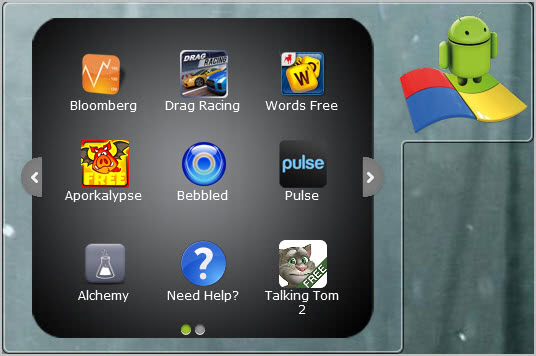
When you install BlueStacks on your computer an icon is added to the upper right screen of the operating system. This icon acts as the central hub. Here you can start Android applications, open the help file or the BlueStacks website to load additional apps on the computer.

The free version ships with ten preinstalled apps. It offers room for additional apps (The (changing) start page states the free version is limited to 26 additional apps) that can be installed from a list of featured apps on the BlueStacks homepage or by installing a BlueStacks client on the Android mobile which can then be used to push Android apps directly to the Windows PC. These apps appear in the hub listing after a short period of time.

bluestack android on windows

Available preinstalled are mostly game apps like Aporkalypse or Drag Racing. The featured apps section on the BlueStacks homepage, only accessible after connecting a Facebook account with the service, lists more games and some news related apps.

More interesting that the featured or preinstalled apps is the ability to push existing Android apps from your phone to your PC to access them on Windows. The developers say that not all apps may work at the current point in time.

Apps that work are launched in fullscreen. Take a look at the following videos to get a better expression.

The developers are continuing to work on the application. It will eventually reach beta and then final status. The plan of the company from what I can see is to keep offering the free version of the software with limited app storage space, and a professional version with unlimited space that is likely going to cost either a flat sum of money or a subscription fee.

Windows users can download the latest version of BlueStacks from the project website. Windows XP users should take a look at the prerequisite page before they install the software to make sure they have all the software installed on their system that is required to run BlueStacks.

Android users, have you tried the BlueStacks App Player yet? If so, what’s your opinion?


© Martin Brinkmann for gHacks Technology News | Latest Tech News, Software And Tutorials, 2011. | Permalink |
Add to del.icio.us, digg, facebook, reddit, twitter
Post tags: , , , , ,


Thursday, November 17, 2011

Google Music In A Nutshell

Music in the cloud, that’s where the journey goes. At least if you trust Apple, Amazon and Google in this regard. All three companies have introduced a cloud hosting and streaming service for music in past months. You can get an overview of the core services here. Apple recently has added iTunes Match to iCloud which gives users 25,000 songs storage space for $25 per year. The service tries to match the user’s music with music available in the iTunes store to reduce the upload time.

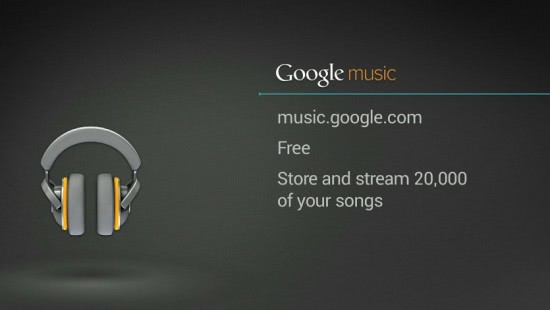
And now Google Music with its big announcement on November 16. Google Music gets rid of the beta status and remains a free service for all users (from the United States, and those who know how to use a proxy). Users can store up to 20,000 songs on Google servers.

google music

The Google Music store offers a library of 13 million songs which can be purchased on the Android Market. Songs cost 99 cent and are provided in 320 Kbit quality. Users can download songs or stream them to other devices. Google Music users who make purchases can share their purchases on Google+. This allows others to listen to the song once on Google’s social networking platform.

Payments are currently limited to T-Mobile US customers which benefit from carrier billing support. This basically means that Google Music purchases will appear on the monthly cellphone bill which improves the buying experience significantly. T-Mobile customers will get exclusive contents for free until the end of the year as part of the promotion to establish the service in the United States.

Artists can create their own space on Google Music where they can sell their music directly. The initial fee to setup an artist page is $25 US Dollars. It is likely – but not confirmed – that artists will have to share their earnings with Google.

When you look at both Google Music and iTunes Match, you will notice that they are both US-only at this point in time. Google Music is even more limited as the store is currently only available to T-Mobile USA customers.
What’s your take on the recent development? If you are living in the US, will you be using one of the services?


© Martin Brinkmann for gHacks Technology News | Latest Tech News, Software And Tutorials, 2011. | Permalink |
Add to del.icio.us, digg, facebook, reddit, twitter
Post tags: , , , ,


Wednesday, October 19, 2011

Feature-Complete NoScript Add-on Now Available For Firefox Mobile

If there is one Firefox add-on that I don’t want to live without it is the NoScript extension. It is a security add-on that will block all scripts by default which are one of the main attack vectors on today’s Internet. Users can whitelist scripts on specific domains temporarily, e.g. for a browsing session, or permanently.

A side effect of this is that most advertisements and other script driven objects and elements will be blocked as well by the extension.

NoScript offers more than just script blocking and whitelisting though. It comes with additional modules to enforce HTTPS usage, Cross-Site Scripting filters, Clickjacking protection and a firewall like component that the developer calls Application Boundaries Enforcer.

The developer of NoScript has been working for quite some time on a Firefox Mobile port of the extension. The recently released NoScript 3 Alpha 9 version is the first feature-complete version of the security add-on for Firefox Mobile on Android and Maemo devices.

NoScript Mobile in particular offers the following major security features that the desktop version of the add-on offers:

  • A domain based content permission management for scripts
  • Anti-XSS (cross-site scripting) filtering options
  • Clickjacking protection called ClearClick
  • The web application firewall App Boundaries Enforcer

noscript firefox mobile

NoScript Mobile furthermore introduces permission presets that can be configured after installation and later on in the extension’s options.

The developer has added four different permission presets to the add-on.

  • Easy Blacklist – The user picks the sites where JavaScript and plugins are blocked on
  • Click to Play – Plugins are automatically blocked until activated with a click by the user
  • Classic Whitelist – The standard setting on NoScript for desktop Firefox versions. Blocks all scripts automatically and will only run whitelisted scripts.
  • Fortress – Like the Classic Whitelist setting but all contents are blocked even on whitelist sites until clicked on.

Another interesting feature that will be implemented eventually is the ability to synchronize NoScript settings between desktop and mobile versions.

Users interested in running NoScript on mobile devices can download the latest version from the NoScript Anywhere project website.


© Martin Brinkmann for gHacks Technology News | Latest Tech News, Software And Tutorials, 2011. | Permalink |
Add to del.icio.us, digg, facebook, reddit, twitter
Post tags: , , , ,