Pages

Showing posts with label login. Show all posts

Monday, January 16, 2012

Log Into Google With Your Smartphone And A QR Code

Smartphone users can access most Google services on their smartphone. Those using Android are often logged in to a Google account all the time. Most do not know however that they can use their smartphone to log into their Google account on another computer. This is done with the help of a unique QR code. Let me give you a quick rundown on how this works.

You first need to be logged in to a Google account on your smartphone. You could obviously access most Google services directly on the phone, but sometimes you may want more screen estate, especially if a computer is available. That’s not a issue if you are working on your own computer, but what if you are on a public terminal or a friend’s house? You probably do not want to enter your log in information on the computer as a number of things can happen.

This includes a keylogger running on the PC, someone looking over your shoulders while entering your sign in details, forgetting to log out after you finish your session or configuring the sign in information to be saved on the computer.

If you have your smartphone at hand, you can perform the following steps instead. Visit http://goto.google.com/login. All you should see is a QR code on the page.

google sesame

Scan the code with the camera of your smartphone. You should see the following screen on your phone.

google smartphone login

Tap on Start with Google Mail or Start with iGoogle to load those pages in the web browser you have just scanned the QR code in. You can alternatively stop here to end the process without logging in, no harm done then.

Google Mail or iGoogle will be opened with the connected account, and without you having to enter your account username or password into the web browser or on the computer.

It needs to be noted that you will access data from the same account that you are logged in on the smartphone. There is no option, other than signing in into another account on the phone, to access a different account on the PC.

It is also important to log out of the service on the computer after you have finished using it. If you do not, the next user may be able to access your data.

Google Sesame can be quite useful in situations where you want to log in to your Google account on a computer that is not your own. Instead of having to enter your user data, you can simply use your smartphone to log in.

What’s your take on Google Sesame? Let me know in the comments? (via Caschy)

Update: Seems as if Google has pulled the plug on the new feature again. When you now visit the site where the QR code was initially displayed, you get the following message:

Hi there – thanks for your interest in our phone-based login experiment.

While we have concluded this particular experiment, we constantly experiment with new and more secure authentication mechanisms.

Stay tuned for something even better!

Dirk Balfanz, Google Security Team.

It is not clear why it has been removed by Google or whether it will be back at a later point in time.


Saturday, November 19, 2011

Mozilla Starting To Deploy BrowserID

Remember BrowserID, the Internet sign-in system developed by Mozilla? The project went silent shortly after the initially announcement in July, and it was not really clear if Mozilla was going forward with it or putting it on ice for the time being.

A recent post on the Mozilla Identity team blog revealed that Mozilla was working on BrowserID during that time. The organization plans to deploy BrowserID on all Mozilla web sites in the coming months.

Let me give you a quick fresh up. BrowserID steps away from the username and password log ins on today’s Internet. It instead concentrates on email addresses, and in this particular case on verifiable addresses.

If a user can verify their email address, they can as well use the account linked to that email address. That’s the basic idea. The technology that powers BrowserID uses a public private key system.

Some of the benefits should be obvious. User’s can register and log in more easily on web sites that support the new sign in system.

In the case of Mozilla and Mozilla owned web sites, users need one BrowserID account instead of multiple accounts that may even use different passwords. Even better, they only need their email address to log in and not a password.

The core difference to other sign-on systems like OpenID, Twitter, Facebook Connect, Google or Yahoo is that the identity provider will not be involved directly in the login process. In addition, data is not shared between sites. That’s great from a privacy perspective.

In addition, users can link multiple email accounts to their BrowserID account which makes it possible to use different email addresses for specific web sites.

It remains to be seen if other sites and services will implement BrowserID as one or even the only sign on system. More information are available at the Mozilla Identity blog.


© Martin Brinkmann for gHacks Technology News | Latest Tech News, Software And Tutorials, 2011. | Permalink |
Add to del.icio.us, digg, facebook, reddit, twitter
Post tags: , , , ,


Monday, November 14, 2011

Hotmail Single Use Code To Sign In With

Whenever possible I prefer not to enter login information on third party computer systems and networks. Why? Because I do not have full control over the software running in the background. Other means of logging in are preferred, especially passwords that are only valid once and expire afterwards.

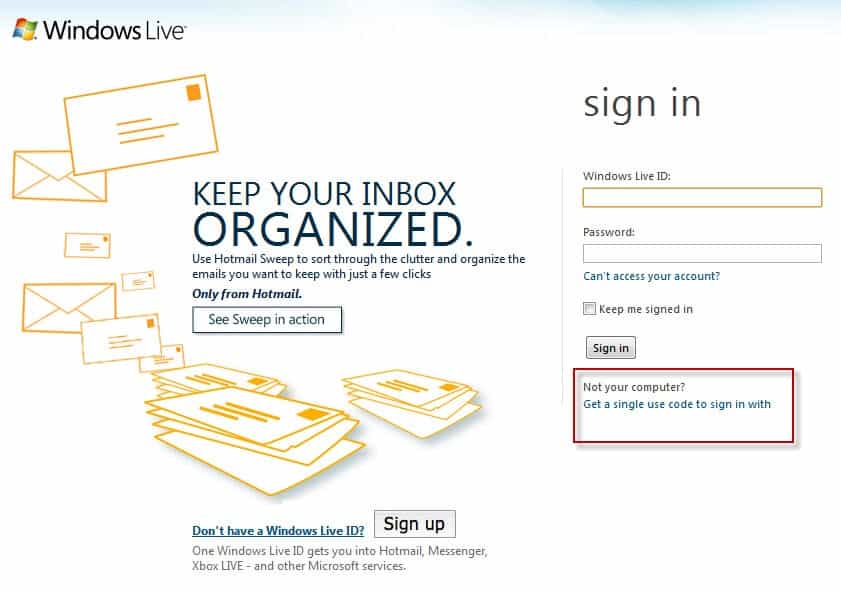
That’s what Hotmail has added to their website recently. When you open the Windows Live Hotmail website you see the standard Hotmail sign in screen for the most part. If you look below the Sign In button you see this:

Not your computer? Get a single use code to sign in with

hotmail sign in single use code

The sign in form changes when you click on the link. You are now asked to enter your Windows Live ID and the single use code instead of your regular password to log in to the service.

This is also indicated at the top where it states:

sign in with single use code. If you’re signing in from a public computer, you can use a single use code instead of your password for added security.

sign in single use code

If you do not have a code yet you can request one with a click on Get one here on the same page. You are then asked to enter your Windows Live ID and a mobile phone number that is linked to the account. Microsoft will send a text message to the phone number containing the single use code that you can use to sign in to Hotmail.

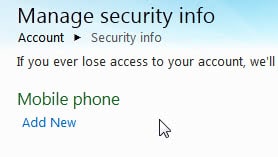
If you have not linked a mobile phone number to your Windows Live account yet you can do so in the account settings. Open the link and enter your standard login information. Click on the Manage link next to Security Info on the page and then on Add New below Mobile Phone on the next page.

hotmail mobile phone

The mobile phone number needs to be confirmed before it can be used for single use codes. Hotmail sends an email to the linked account email address. This email contains a confirmation link that you need to load to confirm the addition of the mobile phone number to the account. This obviously only adds to security if you do not use Hotmail as your email provider for that account email address.

Once the number has been verified you can start requesting single use codes for your Hotmail sign ins.

Single use codes are actually available on all Windows Live sign in forms.

The addition of single use codes adds to Hotmail’s and Windows Live’s security big time. What’s your take on this? (via)


© Martin Brinkmann for gHacks Technology News | Latest Tech News, Software And Tutorials, 2011. | Permalink |
Add to del.icio.us, digg, facebook, reddit, twitter
Post tags: , , , ,