Pages

Showing posts with label backup software. Show all posts

Saturday, December 17, 2011

EaseUS Todo Backup Workstation Review [Giveaway]

When it comes to making backups of data stored on your computer, you have got a lot to consider. Two of the most important aspects are the frequency of backups, and the location where they are stored. Storing backups in the cloud has advantages (if your house burns down or someone steals your PC, and you still got access to the backup), and disadvantages (the data is usually not hosted on a server that you have control over, and it may be quite expensive depending on the volume, both storage and bandwidth wise). Local backups basically reverse the disadvantages and advantages of cloud based backups. They are usually a lot cheaper to create and store, but are often stored in the same room as the PC.

EaseUS Todo Backup Workstation 3.5 is a commercial backup solution for Windows operating systems. The program is the big brother of the free EaseUS Todo Backup solution which I have reviewed a few weeks ago. If you look at the feature comparison chart over at the Todo Backup homepage you’ll notice that the Workstation version offers some interesting features that the free version does not offer.

This includes a remote control feature for remote backup and recovery sessions, and creating and recovering system snapshots.

The program interface displays core features prominently on the Home tab. This includes system and file backup options, disk cloning and backup management.
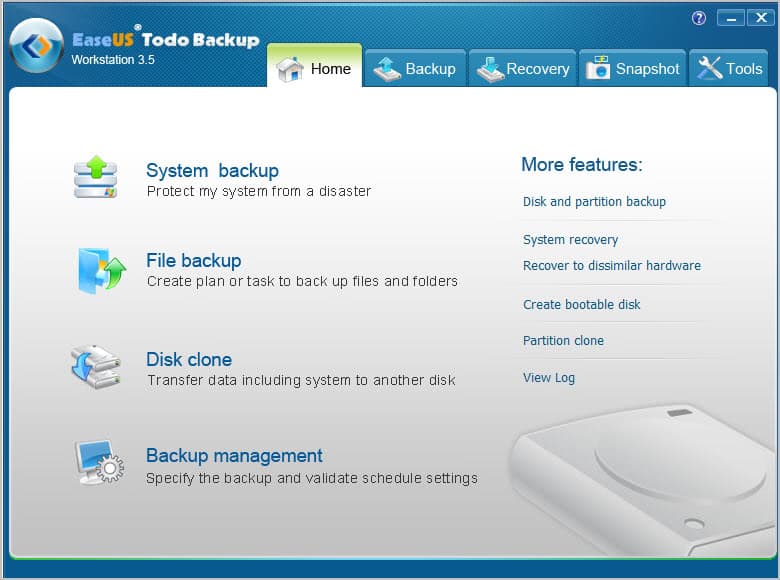
easeus todo backup workstation

The backup and recovery tabs display all related options. The option to create a disk and partition backup is displayed under backup next file backup and system backup. EaseUS recommends the create snapshots before software installations or as a recovery option when the system fails to boot.

Tools finally lists related applications that can be used to check the integrity of a previously created backup, mount backups to access files diretly, convert images to virtual disks or to create a bootable rescue disc to launch the backup software if the operating system is no longer loading properly.

System Snapshots

The snapshot feature needs to be enabled before it can be used. It creates virtual space on the main drive for snapshots

backup snapshots

The recovery tab lists options to recover previously created backups. Here it is furthermore possible to recover the system to different hardware, which can be useful if you want to move the operation system to a new PC.

The Snapshot tab offers to create and restore system snapshots. This works similar to Window’s system restore feature. Snapshots need less storage space than full system backups. Due to their size, it is usually a lot faster to restore a snapshot than it would be to restore a full backup.

The first snapshot is automatically activated on first boot after the feature has been enabled in the software. It is from that moment on possible to create snapshots from the menu.

Previously created snapshots can be deleted at any time to make up room for instance.

Remote Control

The second feature that is not available in the free version of EaseUS Todo Backup is the remote control feature. It helps you manage multiple PCs from a single machine.

remote computer connection

The remote control feature needs to be installed on the main system. Remote PCs also need to be running the program. You need to enter the computer’s IP address and log in with an existing user account to make use of the functionality. Please note that the user needs to have administrative privileges.

All program functionality becomes available once a remote session has been established. It is in particular possible to backup or recover files, disks and partitions, and the system.

Feature Overview

  • File backups – Create backups of files. Supports incremental and differential backups.
  • Disk and partition backups – Backup hard disks or partitions.
  • System Backup – Creates a backup of the operating system.
  • Schedule backups – Backups can be scheduled run regularly.
  • Backup options – Include compression, password protection, image splitting, notifications, programs that can be run before or after an operation and offsite copies.
  • Tools – Clone a partition or disk, mount images, check image integrity, wipe disks or partitions.
  • Pre-OS Recovery – Displays a boot menu with options to launch the backup software before the OS starts.

EaseUS Todo Backup Workstation is compatible with all recent 32-bit and 64-bit editions of the Microsoft Windows operating system. The program supports FAT and NTFS file systems, dynamic discs and hardware RAIDs.

Verdict

EaseUS Todo Backup Workstation is a powerful backup solution for the Windows operating system. Backups can be created with a few clicks. Advanced users find settings and options to customize backups to their liking.

The offsite copy option could however use more options than just backing up to ftp. Integration of cloud space providers, or even secure ftp connections would be welcome.

You find more information about EaseUS Todo Backup Workstation on the program page.

Giveaway

We have ten EaseUS Todo Backup Workstation 3.5 licenses for this give away. Please leave a comment below if you want to take part in the draw.


© Martin Brinkmann for gHacks Technology News | Latest Tech News, Software And Tutorials, 2011. | Permalink |
Add to del.icio.us, digg, facebook, reddit, twitter
Post tags: ,


Wednesday, November 9, 2011

OPA Backup, Microsoft Office Activation Backup

When you reinstall the Windows operating system you may need to reinstall other software like Microsoft Office as well. It may then be necessary to activate the software again which may not be a big problem in most cases, but might be one if the computer Office was reinstalled on has no permanent Internet connection. One option if Office has been reactivated before is to make a backup of that activation to restore it after the reinstallation of the Office suite on the new installation of Windows.

OPA Backup (which stands for Office-Produktaktivierung Backup, German for Office product activation backup) is a free portable software for the Windows operating system that can backup and restore the activation of Office on a computer system.

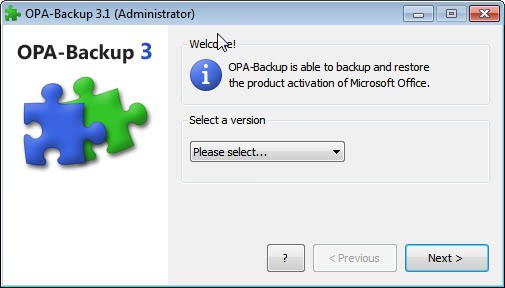
To backup, Microsoft Office needs to be activated on the system. The program won’t work if it is not. When you first start the program you may be asked to run it with administrative privileges. The main interface of OPA-Backup then displays a pulldown list where the installed version of Microsoft Office needs to be selected.

opa backup

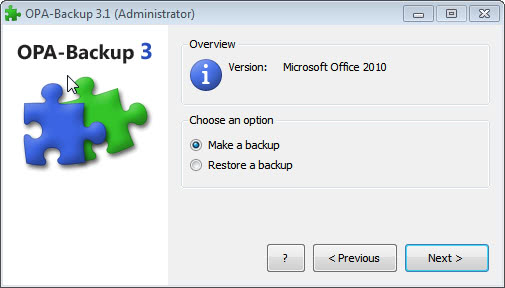
The program does not support auto-detection of the installed Office version. The user then has the option to make a backup of the Office activation on the system or to restore a previously recorded backup.

office activation backup

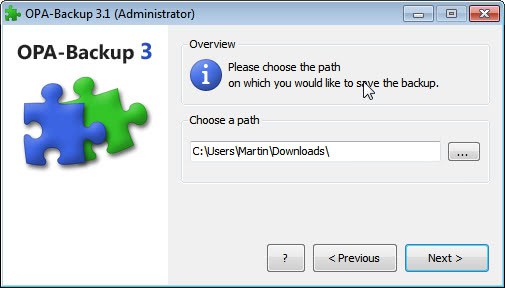
The backup path has to be selected on the next screen. The program displays a warning if a folder is selected that is part of the current Windows installation as it may be removed during a new installation of the operating system.

microsoft office backup

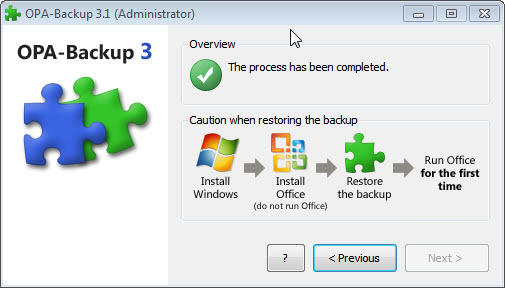
A status report is then displayed on the final screen of the backup or restoration process.

office backup

The process is nearly identical if the restore Office authentication option is selected.

The software can be handy in situations where Office cannot be re-activated over the Internet.

OPA-Backup supports all recent versions of Microsoft Office, including Office 2010. The software requires the Microsoft .NET Framework 3.0 on the system. The program can be downloaded from the developer website.


© Martin Brinkmann for gHacks Technology News | Latest Tech News, Software And Tutorials, 2011. | Permalink |
Add to del.icio.us, digg, facebook, reddit, twitter
Post tags: , , , ,


Sunday, October 16, 2011

Backup Folder Sync, Mirror Your Data Backups

Depending on your backup strategy, you may mirror your data backups for additional protection. One option here is to create a local system backup first and copy the backups to a remote location for safe keeping. This way it would be possible to access the latest backup(s) directly on the local computer and past backups by restoring them from the remote backup location.

Backup Folder Sync is a program that has been designed to mirror local backups. It is more of a file syncing software than a program to make backups of a Windows system.

Here is how it works. When you first start the program after installation you are asked to configure a job. The program displays all connected storage locations on the left sidebar of the application window. You select the backup folder with a right-click and exclude folders by holding down the Ctrl key before right-clicking.

backup folder sync

You then have to select the destination that should store the backup mirrors. This can be another local drive, a removable drive, network shares or mapped drives. Since the program is primarily being used to mirror existing backups, it makes sense to store those backups on a remote computer or server.

It is possible to test the configuration with a click on Simulate to toggle that option and another on Backup. Backup Folder Sync will test the configuration and display a log with all file operations that would have taken place on a regular backup run.

The log lists all files, their size and location as well as a backup summary in the end. The summary informs the user about new files, files where the source files were newer, older or different and files and folders that were no longer available in the source folders (and thus deleted).

While the program’s main purpose is to mirror backup locations, it can theoretically be used to sync any kind of data. It uses robocopy for data transfers.

The program lacks an option to schedule jobs which is the biggest shortcoming. Windows users who want to automate the mirror creation cannot use the program to do so.

Backup Folder Sync is available for download at the developer website. The program is compatible with all recent 32-bit and 64-bit editions of the Microsoft Windows operating system. It requires the Microsoft .Net Framework 2.0 to be installed on the system.

A file synchronization alternative with scheduler is the open source software Free File Sync.


© Martin Brinkmann for gHacks Technology News | Latest Tech News, Software And Tutorials, 2011. | Permalink |
Add to del.icio.us, digg, facebook, reddit, twitter
Post tags: , , , , ,


Wednesday, October 12, 2011

Using GFI Backup Free Edition to Backup Files to an External Drive

Backing up data on your computer is important and most users know this. Windows features a backup utility that allows you to backup your system and files. This is a useful utility but sometimes you might find that it does not completely backup your files or an error occurs. If you need to backup your files to an external hard drive urgently and you don’t have the time to deal with errors and Microsoft Help, you need another backup program. Rest assured that you do not have to come out of pocket to get a backup program up and running quickly. You can deal with errors in Windows Backup later. Right now, you need to get files on the hard drive in a format that can be easily restored. Many backup programs have been reviewed here. This article demonstrates how to use GFI Backup Free Edition in lieu of Windows Backup.

Download GFI Backup Free Edition from this link.

With GFI Backup 2011, you can back up essential documents, pictures and videos, music, e-mails, and program settings. This is all done through a user friendly GUI. It will backup data to local and external drives, CD/DVD, remote FTP servers, and other removable devices.

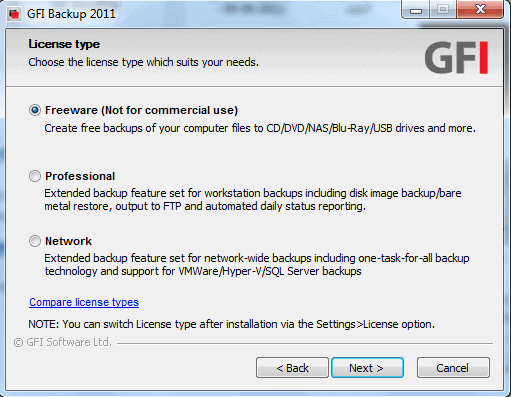
To use the Freeware version, during setup you will have to check the circle next to “Freeware” and then click Next. Then you will have to agree to the terms and conditions which include agreeing that you will not use this version for commercial use. You will enter your Username, password, and Domain. If your computer is on a Workgroup, you do not need to enter the Domain.

gfi backup

backup wizard

GFI Backup uses two GUIs. The first, pictured in the above screenshot, is the GFI Backup Agent. This is for standard backups and is fairly easy to use. For advanced network backups, you can use the Administrative Console, the second GUI feature. For this demonstration, the Agent will be used.

Click on New Backup to get started.

create backup

You can provide a name for the backup in the “Backup Task Name” box. By default, the backup will be named “MyBackup 1 (2, 3, etc.)” You can leave the default name or make up your own. There is an option to enter a description of the task and group related tasks. For basic purposes, leave these fields blank unless you need a description attached. Click Next to move on to the next step.

Now you select the source. You can backup Files and Folders, Registry Keys, and Email. Files and Folders are selected here. This will allow you to specify which files and folders on any given disk(s) for backup. Click OK and Next to move on to selecting the destination.

backup location

If you do not know the destination path of your external hard drive, you can find it on Computer in the Control Panel. In this case, it is drive (M:). Next you will choose your options and then scheduling. You may run it only once or schedule it for regular intervals. In the Events panel, you should probably leave the default settings. Click Next and the backup begins.

Depending on the size and number of files and drives selected, the duration of the backup varies. You should minimize the window and complete other tasks or go take a long break because it is going to take awhile. Now you don’t have to worry, your files are being safely backed up.


© Melanie Gross for gHacks Technology News | Latest Tech News, Software And Tutorials, 2011. | Permalink |
Add to del.icio.us, digg, facebook, reddit, twitter
Post tags: , , , ,


Monday, October 10, 2011

LojiklSweep, Free Backup Software With Online Backup Services Support

When you look at backup services and options for the Windows operating system you find that there are plenty local and online applications and services that you can select a suitable app from. The variety becomes apparent especially when you look at the functionality that is offered. This ranges from basic file copying programs to full backup solutions suitable for professional environments.

LojiklSweep has a professional look and feel to it despite the fact that it is currently offered for free by the developing company. You need to register on the website to receive a serial number for the backup program, but registration is free and the serial registers the program for a year.

When you first start the program you need to enter that serial number to enable all program functionality. Once done you have options to create a custom backup project or use a pre-configured project that backs up prominent folders on the operating system with a few clicks.

One of the interesting features of the application are the available backup options. Here it is for instance possible to select important Windows folders including the user folder, system fonts or Windows Live Mail, Registry hubs or specific folders from a connected storage device.

backup software lojiklsweep

Other options that can be configured right away are extensive filtering options, like including or excluding file types, using file dates for file selection or files with specific attributes. Another feature is the option to
execute batch files and scripts before or after a backup job.

The backup program supports storing backups on local or network drives, online storage services or on optical discs. Especially the online backup services that are available by default worth mentioning. They include ftp and WebDAV as well as DropBox, Box.net, CloudMe and Storegate at the time of writing. Even top notch commercial backup services usually do not offer this variety.

Other features include encryption and compression, advanced timestamping options and email notification options.

online backup services

Backups can be scheduled to run backups automatically. Another interesting option is the ability to create a backup project shortcut on the desktop to run a backup manually with a double-click on that shortcut.

LojiklSweep’s built-in restore manager can be used to display differences between the backup and backed up locations. The program will tell you “what is new, what has changed and what is missing”.

One of the few aspects that can be seen as a negative is that the program is not displaying storage size information when selecting folders, files or data on the system. While it is for instance possible to select the current user profile for backup, it is not possible to determine in the program if a Dropbox account would have enough space available to store the backup. That’s something that the developers need to work on.

The second issue that I personally have with the backup software is that the serial that you get is only activating the application for a year. It is likely that the developers will at one point in time make the decision to release the software as a commercial application. It is not clear if and how you can then use the program to restore previously created backups.

Interested Windows users can download LojiklSweep from the developer website. The software is offered as a 32-bit and 64-bit application for the Windows operating system.


© Martin Brinkmann for gHacks Technology News | Latest Tech News, Software And Tutorials, 2011. | Permalink |
Add to del.icio.us, digg, facebook, reddit, twitter
Post tags: , , , ,


Wednesday, October 5, 2011

Macrium Reflect Free 5, Free Disk Backup Software

When it comes to selecting the right backup software, you have to analyze your individual needs before looking for the right package. Some questions that you need to answer are the following: What kind of data and how much of it do you want to backup? How regularly? Would you like to backup the data offline on other drives or tapes, or do you prefer a cloud based backup solution? Do you want to pay money for a backup software, or should it be free?

Macrium Reflect Free 5 has just been released. The free backup software only supports disk based backups, which means that you won’t be able to backup individual folders and files. The new version of the drive imaging tool features several improvements over previous versions. Users who have worked with previous versions will notice the new user interface.

macrium reflect free 5

The backup software displays all connected hard drives in a list that displays their names, drive letters, used disk space and total disk space. The options and actions feel like they have been sprinkled by the developers all over the place.

An Actions link is displayed underneath the currently selected partition in the interface. A click opens a context menu with options to image the selected partition or analyze the partition’s file system.

Then there are the Clone this disk and Image this disk links underneath the main hard drive. These do not appear underneath secondary hard drives. The purpose of those links and of the check boxes in the interface are not really clear. It feels a bit strange that unselected drives are still displayed under the all-drives backup option (even though they will be excluded from the backup).

Windows users basically have the following options:

  • Backup one or multiple partitions.
  • Create an image of the Windows partitions
  • Clone the main Windows partition. Requires another hard drive connected to the computer.

The task that new users should start with is to create a recovery disk . Available options are a Linux based recovery media or recovery media based on Windows PE 3.1. Once done you can run backup tasks to create the backup images or clone the main partition. Backup locations include a folder on a hard drive, a CD or DVD burner and media, and even a list of alternate backup locations which will be tried in sequence until a suitable location is found to store the backups.

The software unfortunately does not support saving backups to remote locations. You can access advanced options during backup configuration to configure features such as compression, maximum file sizes or comments. There is no option to password protect backups.

Macrium Reflect Free supports scheduling of backups, but the creation is somewhat complicated. You cannot schedule backups right away, but need to create a job first, save it as a backup definition file and configure the scheduled backup once that file has been created.

Many tasks that users expect from a backup software are missing and only available in the commercial versions of the program. This includes incremental and differential backups, the ability to backup selected files and folders, remote backup location support or the aforementioned password protection and encryption.

Macrium Reflect Free is available for Windows based systems. It supports both 32-bit and 64-bit editions of Windows XP, Vista and Windows 7. The free version does not support Windows Server editions.

The developers need to work on the program layout and functionality if they want to compete with other free backup solutions.

A better program in many regards is Easeus Todo Backup which we reviewed two weeks ago. It comes with all the features that Macrium Reflect Free offers plus other features like the ability to backup individual files or folders.


© Martin Brinkmann for gHacks Technology News | Latest Tech News, Software And Tutorials, 2011. | Permalink |
Add to del.icio.us, digg, facebook, reddit, twitter
Post tags: , , ,