Pages

Showing posts with label adobe flash. Show all posts

Thursday, February 16, 2012

Adobe Releases A New Security Update For Flash Player

Adobe has released a new security update for Flash Player that fixes several critical security vulnerabilities in the product. The vulnerabilities affect all platforms Flash Player is available on. Affected software versions are Adobe Flash Player 11.1.102.55 and earlier for Windows, Macintosh, Linux and Solaris operating systems, as well as Adobe Flash Player 11.1.112.61 and earlier versions for Android 4.x, and Adobe Flash Player 11.1.111.5 and earlier versions for Android 3.x and 2.x.

Adobe users can test the version of their Flash Player installation at the about page on the Adobe website. There they see the installed version and the latest version available. Flash Player needs updating if the installed version is lower than the most recent version.
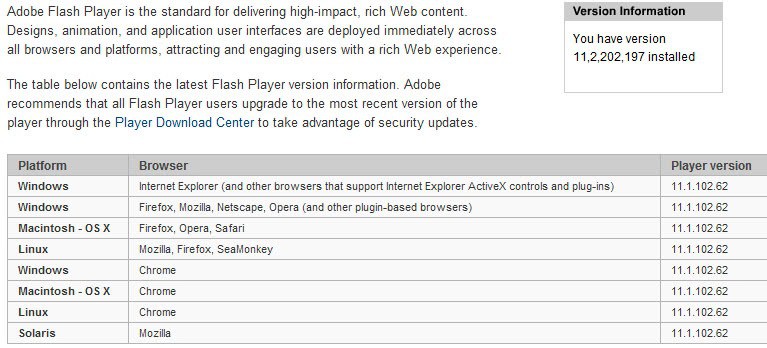
flash player version check

Android users can verify the version of Flash Player by going to Settings > Applications > Manage Applications > Adobe Flash Player x.x.

Adobe recommends to update Flash Player to the latest version as soon as possible to protect the system from attacks targeting the vulnerabilities.

The patch fixes vulnerabilities that could allow an attacker to cause a crash on the system to take control of it, and a single cross-site scripting vulnerability that could allow an attacker to take actions on ” a user’s behalf on any website or webmail provider, if the user visits a malicious website”. Adobe notes that the cross-site scripting vulnerability is actively exploited by attackers who try to trick users into clicking on a malicious link in email messages.

Google Chrome users have received the update automatically. A download at the official Flash Player download center is recommended for all other desktop operating systems. Android users find the latest Flash Player version on Android Market.

Flash Player users who cannot update to Flash Player 11 can download a patch for Flash Player 10.x from this Knowledge Base article.


Thursday, November 10, 2011

Adobe Releases Another Flash Security Update

A security update for Adobe Flash Player has been released today that fixes several critical security vulnerabilities that Adobe identified in the software. Affected by vulnerabilities are all desktop versions of Adobe Flash Player 11.0.1.152 and earlier for Windows, Apple Macintosh, Linux and Solaris as well as Adobe Flash Player 11.0.1.153 or earlier versions for the Android operating system. Adobe Air 3.0 and earlier are also affected by the security vulnerabilities.

Flash users are asked to visit the About Flash page to check the Flash version installed on their computer.

adobe flash security update

It is alternatively possible to right-click on Flash content to see the Flash Player version in the context menu.

adobe flash version

Adobe recommends to update Flash Player to the newest version 11.1.102.55 by downloading it from Adobe’s Flash Player Download Center. Is it alternatively possible to download Flash offline installers from the linked guide. Android users can update Flash by downloading the latest version from Android Market on their Android device. Google Chrome users do not need to run the update manually as it is automatically installed by the browser.

The security patch fixes several memory corruption, buffer overflow and stack overflow vulnerabilities in Adobe Flash Player that attackers could exploit to cause a crash on the system running Adobe Flash technologies. Code execution could then give the attacker control of the affected system.

Interested users can read the security bulletin over at the Adobe website. It offers additional information about each vulnerability found and download links to various technologies affected by the vulnerabilities.

The next big Flash release (that is Adobe Flash 11.2) will introduce automatic silent updates on Windows. This means that it will become more comfortable for Windows users to keep their installed version of Flash up to date on their system. See Flash Player 11.2 Introduces Automatic Updates for details.


© Martin Brinkmann for gHacks Technology News | Latest Tech News, Software And Tutorials, 2011. | Permalink |
Add to del.icio.us, digg, facebook, reddit, twitter
Post tags: , , ,


Sunday, November 6, 2011

Disable Google Chrome’s Native PDF Viewer, Flash Plugin

When you look at Google Chrome’s feature set and compare it to that of other browsers like Opera, Internet Explorer or Firefox, you will come to the conclusion that web browsers are more alike than they are different. Two items that will definitely be on the list are the built-in PDF viewer and the native Adobe Flash plugin. (Firefox may get a native pdf viewer in future versions)

Google Chrome users can open pdf documents directly in the browser. While the viewer is not comparable in functionality to desktop pdf readers, it is certainly enough to read a document online.

And native support for Adobe’s Flash technology ensures that Chrome users are automatically updated to the newest version whenever it is released, which improves overall security significantly.

Some Chrome users on the other hand may not want to use the native plugins of the Chrome browser. This can be the case if they have noticed that the Flash plugin is acting up or if they have installed a feature rich pdf reader on their system that they prefer to use.

Chrome, even with another Flash or PDF reader plugin installed, continues to use its native plugins for Flash and PDF contents (see Why are Two Flash Player Plugins Running In Google Chrome? for instance for an explanation).

Users of the Chrome web browser need to disable the native plugins before they can use third party plugins or software instead. This is done by entering chrome://plugins/ in the Chrome address bar and hitting enter.

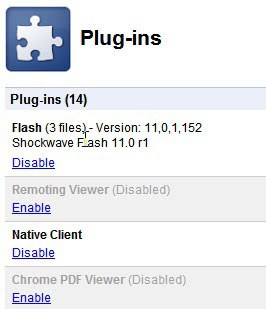
The page that opens displays a list of all plug-ins currently installed in the Chrome browser. Relevant for this guide are the Flash and Chrome PDF Viewer plugins. A click on Disable below the Chrome PDF Viewer disables those capabilities in the browser.

disable chrome pdf viewer

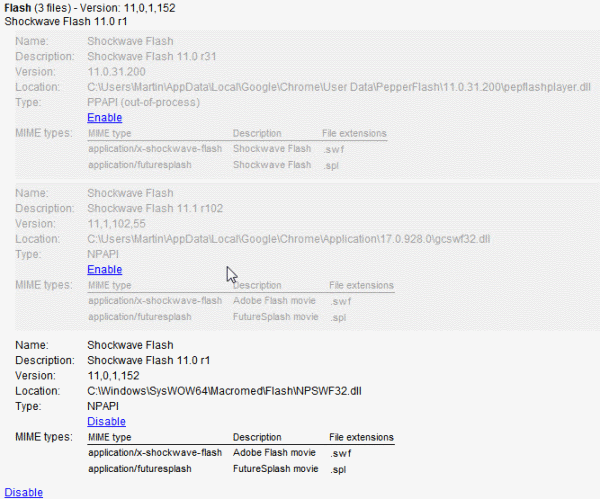
In regard to Flash, it is a bit more complicated. It is necessary to click on Details first to display all installed Flash plugins in Chrome. Locate the Flash plugin that has its location in the Chrome application folder and click the disable link to disable it. Make sure another Flash plugin is still active if you want to use the technology on the Internet.

disable native flash chrome

That’s how you disable both the native Flash plugin and the native pdf viewer in Google Chrome.

Are you using Google Chrome’s native plugins? Or did you notice issues using those plugins?


© Martin Brinkmann for gHacks Technology News | Latest Tech News, Software And Tutorials, 2011. | Permalink |
Add to del.icio.us, digg, facebook, reddit, twitter
Post tags: , , , ,


Friday, November 4, 2011

Low Quality Flash, Improve Flash Performance In Firefox

Flash applications can be very taxing performance wise. If you ever had to run Flash apps on underpowered hardware, e.g. a netbook or tablet PC, then you know that you may experience frame drops and other performance related issues. Most performance issues are caused by games which can be very taxing. I remember that I once tried to play a shoot em up game on my Acer notebook only to find out that I could not play the game at all because of a low frame rate.

There is not really a lot that users can do to improve the Flash performance on their computer. While some may be able to increase fps by closing background applications or overclocking their graphics adapter, others may not see a difference at all in this regard.

The Firefox add-on Low Quality Flash offers a different solution. The extension modifies the HTML source code to load Flash elements in low quality. This is an automated process that happens on every page load if Flash elements are loaded. This works on games but also on regular Flash applications and media including advertisement banners.

Reducing the quality of Flash should have a positive effect on the overall performance on the page. It can on the other hand reduce the visual quality of the contents. Depending on the Flash element this can be visible or not visible at all. The add-on works on most sites but not on all. You may encounter sites where you won’t see a difference.

low quality flash

The add-on can also improve the performance on Flash heavy sites in general which includes faster navigating or scrolling for instance. The most recent versions of the Low Quality Flash add-on come with a preference to switch from low quality to medium quality Flash contents instead. This may be interesting for computer systems that cannot play high quality or ultra quality Flash contents but are sufficiently fast to play medium quality contents.

Firefox users can install Low Quality Flash directly from the official Mozilla Firefox add-on repository.


© Martin Brinkmann for gHacks Technology News | Latest Tech News, Software And Tutorials, 2011. | Permalink |
Add to del.icio.us, digg, facebook, reddit, twitter
Post tags: , , , ,


Unable to Terminate Process, Windows Task Manager Alternatives

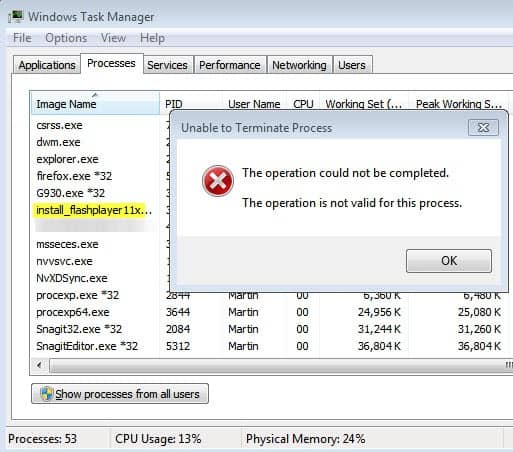
Today I tried to install the Adobe Flash Plugin for Microsoft’s Internet Explorer. The basic idea was to download the executable, run it and have Flash installed. The problem was that somehow the whole process got corrupted which had several consequences. The Flash Player installation running in the background was creating new temporary Flash executables in the temporary cache directory. When I tried to terminate the process via Windows Task Manager I received the message that access was denied. This happened with the online installer. I received the message “Unable to Terminate Process The operation could not be completed The operation is not valid for this process”.

I’m not sure what caused the issue, but what I did know was that I had to stop the installer from creating new Flash installer instances on my computer. With Windows Task Manager out of the picture, I had to find a way to terminate the process.

unable to terminate process

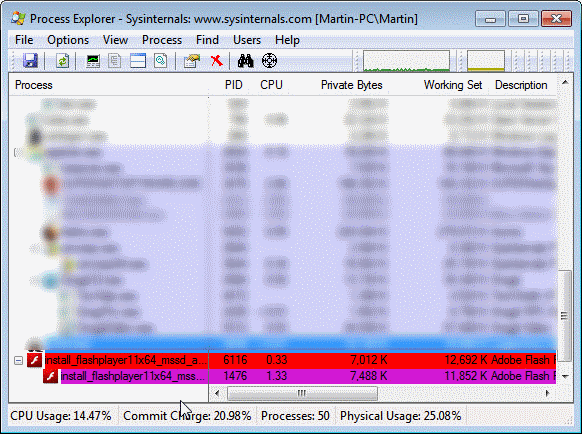
One of the best Windows Task Manager alternatives is Process Explorer from Sysinternals (which have been part of Microsoft for the past years). You can download the latest version of Process Explorer from here.

install flashplayer process corrupt

I started the process manager with standard rights first only to find out that I could not use it this way to terminate the process. After exiting and restarting it with elevated rights (by right-clicking and selecting run as administrator) I was able to terminate the process on the system.

Other programs, like Process Lasso, Kill Process or the recently reviewed Daphne may have also been able to terminate the rogue process.

I have learned two things this morning: First, that Windows Task Manager is not almighty when it comes to terminating processes on Windows, and second that it is definitely better to download and install Adobe Flash Player offline installers.

Did you ever encounter a process that you could not kill? What did you do to resolve it?


© Martin Brinkmann for gHacks Technology News | Latest Tech News, Software And Tutorials, 2011. | Permalink |
Add to del.icio.us, digg, facebook, reddit, twitter
Post tags: , , , ,


Tuesday, November 1, 2011

Flash Player 11.2 Introduces Automatic Updates

If you are not running Google Chrome as your one and only browser on your PC system, you are probably tired of having to update Adobe’s Flash Player regularly to protect the system from security vulnerabilities. This could change soon with the release of Adobe’s Flash Player 11.2. The new version of Flash, currently available as a beta download at Adobe Labs, introduces a technology called Flash Player Background Updater.

The auto-updater is only provided for Windows systems in Flash 11.2. Windows users who install Flash Player 11.2 or later will see the following prompt after the successful installation.

adobe flash player automatic updates

It reads:

Security updates and enhancements are periodically released for Adobe Flash Player that can be downloaded and installed automatically.

Choose your update method:

  • Install updates automatically when possible (recommended)
  • Notify me when updates are available
  • Never check for updates (not recommended)

The first option checks for and installs Flash Player versions automatically on the operating system. Depending on the Flash version installed, this may include one (Internet Explorer version or other browser version) or even both versions if both are installed on the system.

The second option will perform the same checks for new versions. Instead of installing new versions automatically it will inform the user instead.

Flash Player will check for updates once per hour if the first or second option are selected. Adobe notes that users need to restart their web browser after an update has been installed to use the new version of Flash Player in the web browser.

The latest version of Adobe Flash Player 11.2 is available on the Adobe Labs download page. The installer is provided for all 32-bit and 64-bit operating systems that support Adobe Flash. The very same page offer downloads for the Flash Player uninstaller for 32-bit and 64-bit systems to uninstall the test version from the system again.

The update checks for new Flash versions are added as a Windows task so that no update program is running all the time on the computer system. It is likely that this new security feature will decrease the number of successful Flash player based attacks on Windows significantly. (via)


© Martin Brinkmann for gHacks Technology News | Latest Tech News, Software And Tutorials, 2011. | Permalink |
Add to del.icio.us, digg, facebook, reddit, twitter
Post tags: , , , , ,


Tuesday, October 25, 2011

Why are Two Flash Player Plugins Running In Google Chrome?

Most users of the Google Chrome web browser know that Google has integrated Adobe’s Flash Player in cooperation with Adobe into the web browser. The core advantage here is that Google can update the Flash plugin in the browser for its users. That’s a stark contrast to other web browsers like Internet Explorer, Firefox or Opera, where the user has to make sure that Flash updates are installed in a timely manner to protect the computer system from possible exploits and attacks.

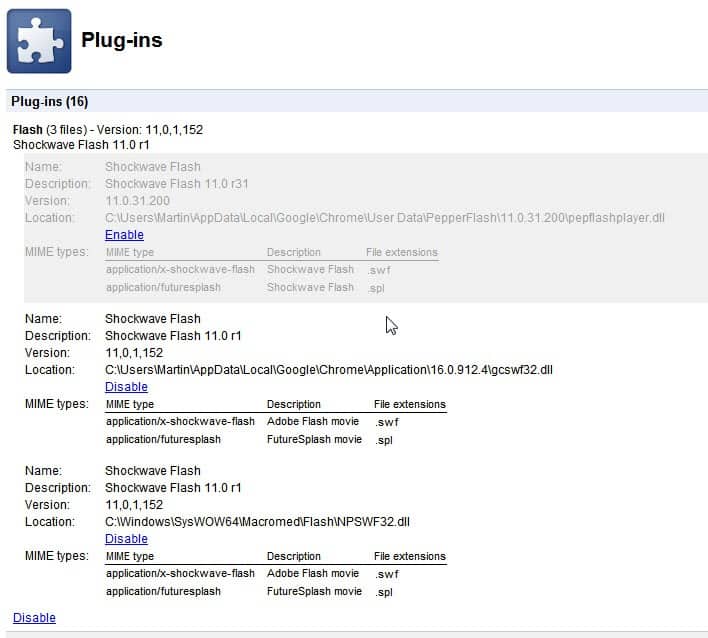
If you look at the plugin listing in the Chrome web browser you may notice that the Flash listing says something like Flash (3 files) or Flash (2 files). You need to click on Details on the page to see what’s going on there.

google chrome flash plugins

You may notice that multiple Flash plugins are loaded in the Chrome web browser instead of just the native plugin. You can click on the Disable or Enable links to disable or enable specific Flash versions in the browser. This can be handy for Flash developers who need to test their applications in a different version of Flash, and for end users who do not want multiple running plugins in the owser.

Multiple enabled Flash plugin versions in the browser are not a problem according to Google.

It’s normal to see two Flash files in about:plugins. When both are listed as enabled, Google Chrome uses the built-in version by default, so you shouldn’t have to specify which one to use unless you specifically want Chrome to use the system version instead (has ‘NPSWF32.dll’ in the location field). Keep in mind that if you use the system version, you’re responsible for keeping Flash updated while the built-in version will update automatically via Chrome’s auto-update mechanism.

If multiple Flash plugins are enabled and the native plugin is one of them, then that plugin is used to display Flash contents in the Google Chrome web browser. This does not explain why a second Flash plugin is enabled in the browser, as it does not make sense if the native Flash plugin is always used if active.

My suggestion would be to disable the non-native Flash plugin in Chrome to be on the safe side.


© Martin Brinkmann for gHacks Technology News | Latest Tech News, Software And Tutorials, 2011. | Permalink |
Add to del.icio.us, digg, facebook, reddit, twitter
Post tags: , , , ,