Pages

Friday, November 4, 2011

Microsoft Releases Critical Windows Security Update

Back in October a rootkit was discovered that exploits a critical security vulnerability in the Windows operating system. We covered a detection and removal tool two days ago that would scan a PC and remove any traces of the Duqu rootkit from a system.

Microsoft today has releases a security advisory to give customers “guidance for the Windows kernel issue related to the Duqu malware”.

The advisory describes a vulnerability in TrueType font parsing that could allow elevation of privileges. Attackers who manage to exploit the vulnerability can run arbitrary code in kernel mode which would allow them to install programs, “view, change or delete data” and create new accounts with “full user rights”.

Microsoft confirms that targeted attacks are carried out currently that use the vulnerability. The overall impact is however rated as low.

Microsoft is offering a manual workaround for affected versions of Windows on the security advisory page:

On Windows XP and Windows Server 2003:

For 32-bit systems, enter the following command at an administrative command prompt:

Echo y| cacls “%windir%\system32\t2embed.dll” /E /P everyone:N

For 64-bit systems, enter the following command from an administrative command prompt:

Echo y| cacls “%windir%\system32\t2embed.dll” /E /P everyone:N

Echo y| cacls “%windir%\syswow64\t2embed.dll” /E /P everyone:N

On Windows Vista, Windows 7, Windows Server 2008, and Windows Server 2008 R2:

For 32-bit systems, enter the following command at an administrative command prompt:
Takeown.exe /f “%windir%\system32\t2embed.dll”

Icacls.exe “%windir%\system32\t2embed.dll” /deny everyone:(F)

For 64-bit systems, enter the following command at an administrative command prompt:
Takeown.exe /f “%windir%\system32\t2embed.dll”

Icacls.exe “%windir%\system32\t2embed.dll” /deny everyone:(F)

Takeown.exe /f “%windir%\syswow64\t2embed.dll”

Icacls.exe “%windir%\syswow64\t2embed.dll” /deny everyone:(F)

The workaround may impact applications that “rely on embedded font technologies”.

The workaround can be undone again the following way:

On Windows XP and Windows Server 2003:

For 32-bit systems, enter the following command at an administrative command prompt:
cacls “%windir%\system32\t2embed.dll” /E /R everyone

For 64-bit systems, enter the following command at an administrative command prompt:
cacls “%windir%\system32\t2embed.dll” /E /R everyone

cacls “%windir%\syswow64\t2embed.dll” /E /R everyone

On Windows Vista, Windows 7, Windows Server 2008, and Windows Server 2008 R2:

For 32-bit systems, enter the following command at an administrative command prompt:
Icacls.exe %WINDIR%\system32\t2embed.DLL /remove:d everyone

For 64-bit systems, enter the following command at an administrative command prompt:
Icacls.exe %WINDIR%\system32\t2embed.DLL /remove:d everyone

Icacls.exe %WINDIR%\syswow64\t2embed.DLL /remove:d everyone

Microsoft furthermore has released a fix it solution that users can run on their system to protect it from the security vulnerability

The fix it can be downloaded from the following Microsoft Knowledge Base article.
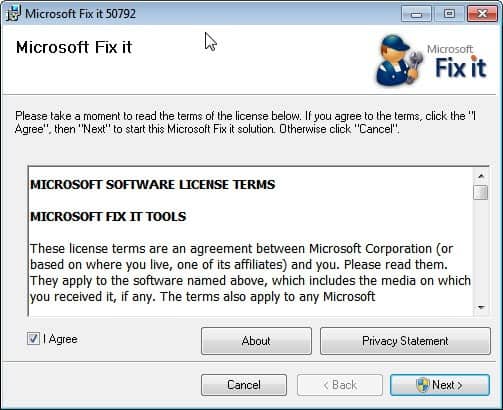
microsoft fix-it duqu rootkit

It is recommended to apply the workaround on computer systems until Microsoft releases a security patch that resolves the issue without side effects.

Please note that there is a fix-it for enabling and one for disabling the workaround.


© Martin Brinkmann for gHacks Technology News | Latest Tech News, Software And Tutorials, 2011. | Permalink |
Add to del.icio.us, digg, facebook, reddit, twitter
Post tags: , , , ,


MakeUseOf Guides, Free Downloadable Tech Guides

Guides can be a really great way of learning about a specific topic in little time. For me, a good guide is as short as possible without leaving out any of the essentials one would expect. Nothing’s worse than having to read a 500+ pages guide that beats around the bush.

When you look at the guides over MakeUseOf you will notice that they are all straight and up to the point. Available right now are more than 50 guides about general and specialized tech related topics. Guides that sparked my interest include the Microsoft Office 2010 Ultimate Guide, the Windows on Speed guide and the Facebook marketing guide. I have put other tech guides on my to-read list, including the guide to PC Security, How to create professional reports and docs on word or the ultimate guide to Gmail.

makeuseof guides

You find a listing of all guides on the official download page. All guides are displayed on the page with their title, book cover and the download count.

Here is a list of all guides currently available for free download:

50 Cool Uses for Live CDs
An Android Guide : These Are The Droids You’re Looking For
An Easy Guide to Build Your Own WordPress Site
An Idiot’s Guide To Photoshop
Bam! Your Guide To Cool Online Comic Books
Best of the Web, Delivered: The Reddit Manual
Computer In Your Computer: How To Use VirtualBox
Go Google: Free Email and More On Your Domain
HackerProof: Your Guide To PC Security
Hard Drive Of The Future: 101 Guide To Solid State Drives
How The Internet Works
How To Build a Gaming PC
How To Build A Great Media Center PC
How To Create Professional Reports & Docs on Word
Learn to Speak “Internet”: Your Guide To xHTML
Lockdown: Secure Your Files with TrueCrypt
MakeUseOf’s Smart Productivity Guide
Microsoft Office 2010: Ultimate Tips & Tricks
New Life: Bring Old PC To Life With Ubuntu [PDF]
Newbie’s Getting Started Guide to Linux
Open Book: Managing Your eBooks With Calibre
Operation Cleanup: Complete Malware Removal Guide
Picture Perfect: Set Up Your Own Photoblog
Set Up Your Blog With WordPress: The Ultimate Guide
Step-By-Step Guide To Using GarageBand
Stuff Happens: The Backup & Restore Guide
The (Very) Unofficial Facebook Privacy Guide
The Awesome Automation Guide for Mac Users
The BIG Book Of iTunes for FREE
The Complete Beginners Guide To Joomla
The Complete Guide To Twitter
The Easy Guide To Computer Networks
The Essential Guide To Digital Photography
The First Unofficial Guide To Dropbox
The Five-Star Guide For Your iPad
The FREE A-Z Torrent Guide
The FREE Mac Manual
The Idiot’s Ultimate Guide to Build Your Own PC
The Internet Guide to the Movie Addict
The Internet Music Guide For The Audiophile
The Laptop Buying Guide 2011
The MakeUseOf Guide to File Sharing Networks
The MakeUseOf Guide To Internet Searching
The MakeUseOf Online Shopping Guide
The MakeUseOf Windows Mobile Guide
The Office Worker’s 101 Guide to a USB Thumb Drive
The Ubuntu Karmic Koala Bible
The Ultimate Guide To Gmail
The Ultimate Windows 7 Guide
The Underground Guide To The iPhone
Virtual Currency: The MakeUseOf BitCoin Manual
Watch The Web: AWESOME Media Center Guide 2011
Windows on Speed: Ultimate PC Acceleration Manual
You Like This: The Facebook Marketing Guide
Your PC, Inside and Out [Part 1]
Your PC, Inside And Out [Part 2]

A click on the Download Now button opens a page with a short description, links to similar ebooks and a download now button that is protected by a password. Normally you would have to subscribe to the MakeUseOf newsletter to get the password or you would need to share the link on a social networking site.

The guys over at MakeUseOf where nice enough to hand out a password for all guide downloads on their site. Just enter makeuseof (who would have thought that) into the password form to enable the download right away.

Each guide comes with bookmarks and a menu to quickly load a specific chapter. The overall design is well done and includes screenshots, headings and links.

tech guide

The guides are packed with information and contain no advertisement whatsoever (apart from linking to the Makeuseof website that is).

Have you had the chance to read one of the guides yet? If so, which one did you read and what’s your overall opinion?


© Martin Brinkmann for gHacks Technology News | Latest Tech News, Software And Tutorials, 2011. | Permalink |
Add to del.icio.us, digg, facebook, reddit, twitter
Post tags: , , ,


Want To Play Battlefield 3 Without Origin? Do This!

Origin is a controversially “Steam-like” distribution and gaming platform by Electronic Arts. The service has recently received bad press because of its end user license agreement which EA in the meantime has updated several times. Regardless of that, it is still heavily criticized by privacy organizations and end users alike for its abilities to crawl a system and collect data about it.

Computer gamers who wanted to play Battlefield 3 without Origin hat two options until now. They could get the Xbox 360 or Playstation 3 version of the game, both of which shipped without Origin. Or, they could download a modified executable that would render Origin useless. Depending on the jurisdication, the latter method may have been outright illegal.

There is a third option according to the German computer magazine Golem.de that allows players to play the online shooter Battlefield 3 without Origin. Best of all, it does not require third party programs to be installed on the system.

All that it takes is to block Origin from accessing the Internet. This can be done in the Windows Firewall or any other software or hardware firewall available on the system.

The game can then be started by loading the following url in a compatible web browser: http://battlelog.battlefield.com/bf3/gate/.

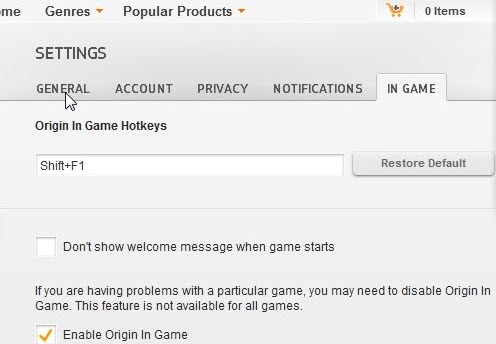
According to Golem’s information, that’s exactly what Origin does. Playing Battlefield 3 in multiplayer worked but only after disabling two features in the Origin configuration. Enable Origin In Game needs to be disabled under the Settings > In Game tab.

disable origin

Second the Cloud Storage for supported games needs to be disabled as well.

disable cloud storage

Users can then open the Battlefield 3 Battlelog website manually in their web browser, log into their account and start joining servers just as they did before. The only difference is that Origin is not communicating with EA servers in the background anymore.

battlefield 3 without origin

I’m not a Battlefield 3 player, which means that I cannot vouch for the method. It should however work with other games as well. I still hope that Star Wars The Old Republic will not force users to use Origin though as I’d prefer not to have Origin on my system at all.

Have you bought Battlefield 3? What’s your Origin experience so far?


© Martin Brinkmann for gHacks Technology News | Latest Tech News, Software And Tutorials, 2011. | Permalink |
Add to del.icio.us, digg, facebook, reddit, twitter
Post tags: , , , ,


Low Quality Flash, Improve Flash Performance In Firefox

Flash applications can be very taxing performance wise. If you ever had to run Flash apps on underpowered hardware, e.g. a netbook or tablet PC, then you know that you may experience frame drops and other performance related issues. Most performance issues are caused by games which can be very taxing. I remember that I once tried to play a shoot em up game on my Acer notebook only to find out that I could not play the game at all because of a low frame rate.

There is not really a lot that users can do to improve the Flash performance on their computer. While some may be able to increase fps by closing background applications or overclocking their graphics adapter, others may not see a difference at all in this regard.

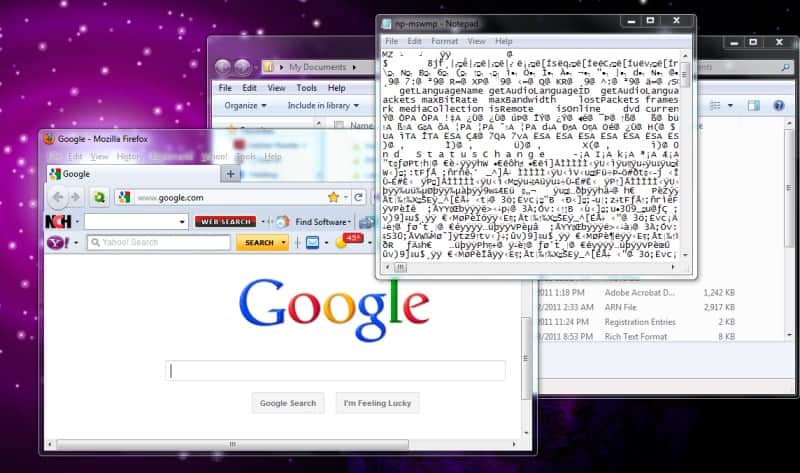
The Firefox add-on Low Quality Flash offers a different solution. The extension modifies the HTML source code to load Flash elements in low quality. This is an automated process that happens on every page load if Flash elements are loaded. This works on games but also on regular Flash applications and media including advertisement banners.

Reducing the quality of Flash should have a positive effect on the overall performance on the page. It can on the other hand reduce the visual quality of the contents. Depending on the Flash element this can be visible or not visible at all. The add-on works on most sites but not on all. You may encounter sites where you won’t see a difference.

low quality flash

The add-on can also improve the performance on Flash heavy sites in general which includes faster navigating or scrolling for instance. The most recent versions of the Low Quality Flash add-on come with a preference to switch from low quality to medium quality Flash contents instead. This may be interesting for computer systems that cannot play high quality or ultra quality Flash contents but are sufficiently fast to play medium quality contents.

Firefox users can install Low Quality Flash directly from the official Mozilla Firefox add-on repository.


© Martin Brinkmann for gHacks Technology News | Latest Tech News, Software And Tutorials, 2011. | Permalink |
Add to del.icio.us, digg, facebook, reddit, twitter
Post tags: , , , ,


Unable to Terminate Process, Windows Task Manager Alternatives

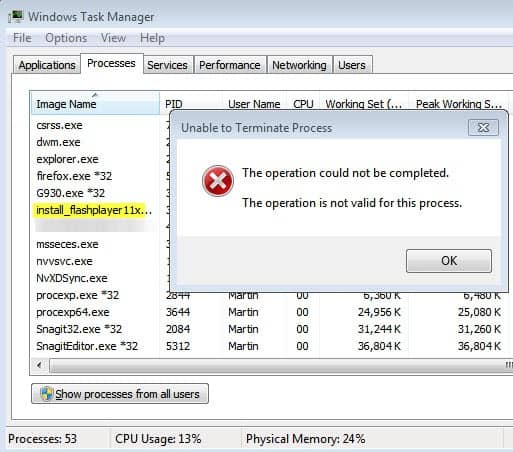
Today I tried to install the Adobe Flash Plugin for Microsoft’s Internet Explorer. The basic idea was to download the executable, run it and have Flash installed. The problem was that somehow the whole process got corrupted which had several consequences. The Flash Player installation running in the background was creating new temporary Flash executables in the temporary cache directory. When I tried to terminate the process via Windows Task Manager I received the message that access was denied. This happened with the online installer. I received the message “Unable to Terminate Process The operation could not be completed The operation is not valid for this process”.

I’m not sure what caused the issue, but what I did know was that I had to stop the installer from creating new Flash installer instances on my computer. With Windows Task Manager out of the picture, I had to find a way to terminate the process.

unable to terminate process

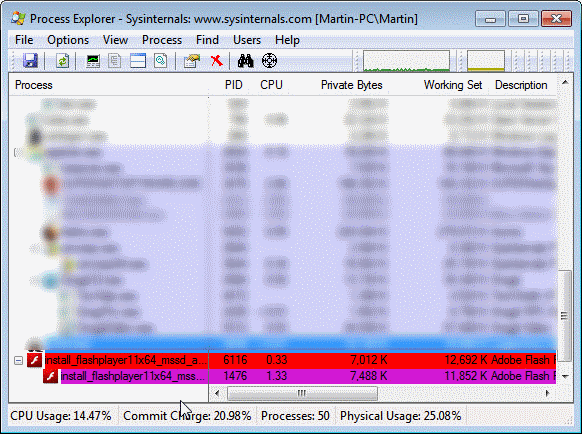
One of the best Windows Task Manager alternatives is Process Explorer from Sysinternals (which have been part of Microsoft for the past years). You can download the latest version of Process Explorer from here.

install flashplayer process corrupt

I started the process manager with standard rights first only to find out that I could not use it this way to terminate the process. After exiting and restarting it with elevated rights (by right-clicking and selecting run as administrator) I was able to terminate the process on the system.

Other programs, like Process Lasso, Kill Process or the recently reviewed Daphne may have also been able to terminate the rogue process.

I have learned two things this morning: First, that Windows Task Manager is not almighty when it comes to terminating processes on Windows, and second that it is definitely better to download and install Adobe Flash Player offline installers.

Did you ever encounter a process that you could not kill? What did you do to resolve it?


© Martin Brinkmann for gHacks Technology News | Latest Tech News, Software And Tutorials, 2011. | Permalink |
Add to del.icio.us, digg, facebook, reddit, twitter
Post tags: , , , ,


How to Adjust On-Screen Windows Using the Number Pad with ReSizer

The AeroSnap feature that is included in Windows 7 allows you to resize windows and adjust multiple windows viewing on the screen. ReSizer is a system utility that uses AeroSnap functions to give you the option of focusing, resizing and changing windows from the num pad (number pad on the right of most keyboards). This allows for faster switching between application windows and the utility also gives you the option to define application shortcut mappings.

resizer

If this sounds like something you would like to include in your toolbox of customization utilities, download reSizer:

Upon running the installation, you will need to close all applications. Save any data from applications and then close them. There is a destination folder set by default, but you are offered the option to change the destination folder to one that can be easily located according to your standards. There will be no desktop shortcut or Toolbar shortcut and there is no interface for the utility and you cannot configure any settings either. You can find the icon in the system tray. Right-clicking this icon presents the options to either enable or disable reSizer. The option to set the utility to start on Windows 7 startup is also included.

Once you enable reSizer, the following list details the hotkey commands:

To change windows locations:

  • Win + Arrows : Move window.
  • Win + Shift + Arrows : Move window (per pixel).
  • Win + NumPad 1 : Move window to lower-left corner.
  • Win + NumPad 2 : Move window to lower-center.
  • Win + NumPad 3 : Move window to lower-right corner.
  • Win + NumPad 4 : Move window to middle-left side.
  • Win + NumPad 5 : Center window on screen.
  • Win + NumPad 6 : Move window to middle-right side.
  • Win + NumPad 7 : Move window to upper-left corner.
  • Win + NumPad 8 : Move window to upper-center.
  • Win + NumPad 9 : Move window to upper-right corner.
  • Win + NumPad 0 : Maximize / Restore active window.
  • Win + NumPad . : Minimize active window.
  • Win + Backspace : Move window to the next monitor (if you are working with more than one).

To change window size:

  • Win + Ctrl + Arrows : Resize window.
  • Win + Ctrl + Shift + Arrows : Resize window (per pixel).
  • Win + Ctrl + (2-keypad number sequence) : This resizes a window to fit a specific area of the screen. The first number will set the start point while the second sets the end point. For example, Win + Ctrl + 24 will resize the window you are currently using to fit the lower left corner of the screen.

To change the properties of a window:

  • Win + NumPad * : Toggle Always on Top.
  • Win + NumPad / : Toggle Opacity.

To switch to other windows:

  • Win + NumPad + : Switch to next visible application.
  • Win + NumPad – : Switch to previous visible application.
  • Win + Shift + NumPad + : Switch to next application.
  • Win + Shift + NumPad – : Switch to previous application.
  • Win + Ctrl + NumKey (0-9) : Store application type at selected index.
  • Win + NumKey (0-9) : Next application of the same type at selected index.
  • Win + Shift + NumKey (0-9) : Previous application of the same type at selected index.

Once you learn all of the shortcut keys, you can adjust window sizes, opacity and other properties of active windows without using the mouse. If you like to use shortcut hotkeys and need quick window alterations, reSizer is an excellent choice.


© Melanie Gross for gHacks Technology News | Latest Tech News, Software And Tutorials, 2011. | Permalink |
Add to del.icio.us, digg, facebook, reddit, twitter
Post tags: , , ,


MTV Generation

If you identified with the kids from The Breakfast Club when it came out, you're now much closer to the age of Principal Vernon.