Pages

Tuesday, January 31, 2012

Command & Conquer Remake In HTML5, JavaScript

I was a fan of the Dune games on the Commodore Amiga, and later on of Command & Conquer on the PC even though I preferred Blizzard’s Warcraft series over the Westwood game. Most games in the Command & Conquer universe afterwards failed to impress me though.

Imagine my excitement when I heard that Aditya Ravi Shankar has started to port the classic Command & Conquer game to HTML5 and JavaScript.

The developer has released an impressive looking preview version that is allowing you to play the beginning of the campaign.

You start with two light tanks and a base unit that can build your base on the map. From there you start building up your base, adding power plants, a refinery to harvest and weapons factories to produce troops to fight the enemy.

command and conquer

The developer has made the decision to use the game’s original control mechanism. This means that you control and move units with the left mouse button. You can draw a rectangle across multiple units to control them together. The Ctrl-[0-9] keys allow you to create control groups which you can then activate with another tap on the selected key.

The current game version 0.3d runs best in Google Chrome and Mozilla Firefox, according to the developer. My personal experience was different though. The Firefox version lagged significantly, the Chrome version a little bit less. It did however refresh the border of the game window several times per second which made the game unplayable in the browser. The Opera version was the one that ran smoothly and without issues. I also tried running the game in Microsoft’s Internet Explorer 9 but never came past the loading screen on that machine.

The developer, who is currently looking for volunteers to push the project forward, aims to take the project as far as possible. According to information posted on the site, he plans to integrate multiplayer later on.

There is one issue though that could torpedo the project. If the current rights holder, that would be EA if my information are correct, would put an end to the project. Nevertheless, the game shows great promise, and I personally would not mind playing through the campaign again in a web browser, provided that it works smoothly in there.

What’s your take? Let me know in the comments.


ShowMeTrend Links Twitter Tags To Web News

The messaging platform Twitter can be used for trending purposes. The more users talk tweet about a certain topic, the more popular it has to be. While it is not possible to say that with absolute certainty, as other factors like automation play a role as well, it can often act as an indicator. Twitter displays the top ten trending topics for a single country, with options to change the country to another one on the page.

While it is possible to read the messages on Twitter about a trending topic, it is not guaranteed that you will see any links in the messages that you are reading.

That’s where the web service ShowMeTrend comes into play. The service links the top 10 Twitter trends of a particular day to Google News articles about that particular topic.

twitter trends

The trending topics get updated regularly, and it appears as if the links from Google News are pulled more or less whenever they appear there. All news articles are linking directly to the site they have been published on. It is furthermore possible to open Google News’ listing of all related news, or to go back and forward one news entry on the ShowMeTrend website.

Selections can be made at the top to switch from the day’s worldwide trends to country specific and date/time specific trends. About ten countries can be selected, from Germany and the United States to the Netherlands, UK or Brazil. The service’s back catalog of Twitter trends begins in October 2011, which is an indicator that it is a relatively new service. Users can not only select the date but also the time of a day to get a listing of trending topics.

One of the issues that the developers need to fix is the lack of links for some topics. Some trends show a white listing and not a single news item. One of the options here would be to either improve the search algorithm or to use additional news sources besides Google News.

ShowMeTrend is an interesting service for researchers, marketing agencies and individual users. Have you tried the service? If so, what is your take on it?


Monday, January 30, 2012

Manage And Play Internet Radio In Google Chrome

I have made the full switch to listening exclusively to Internet Radio stations many years ago. The core reasons? Accessibility while working on the PC, less ads and talking while songs are playing, and better recording possibilities (see our StreamWriter review for an excellent program that can be used for that purpose.

I usually use desktop media players like AIMP3 to listen to Internet Radio stations, as it is a lot more comfortable than having to keep a streaming page open all the time in the web browser. That’s especially true if you have to restart the browser every now and then.

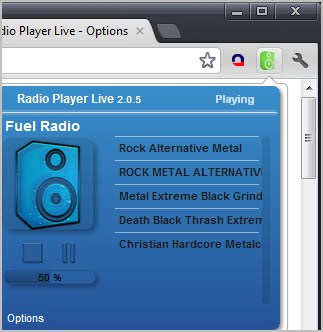
Radio Player Live is an excellent Chrome extension that offers a great radio listening experience for Chrome users. First time users need to add at least one station to the extension before they start accessing the selected stations via the extension’s Chrome address bar button.

radio player live

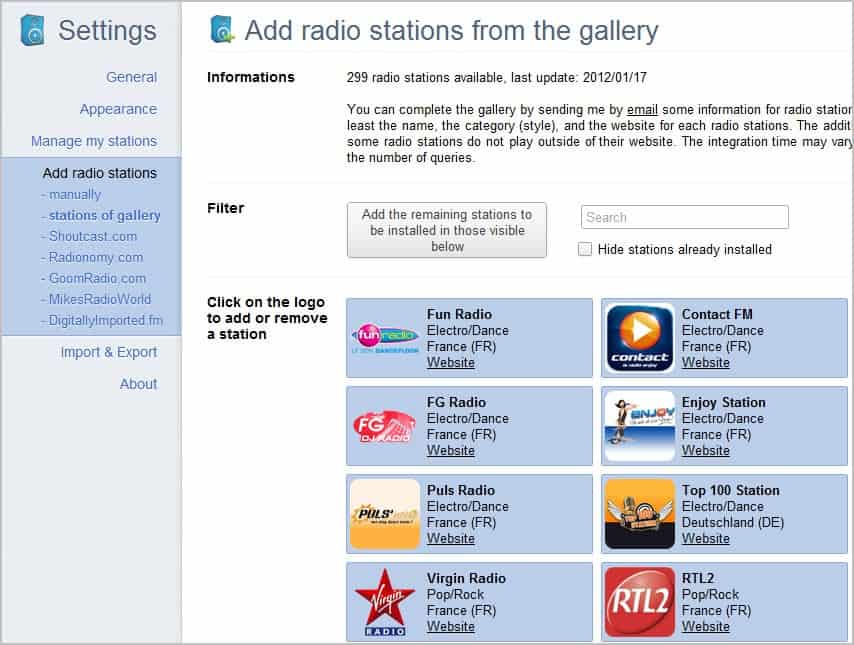
This is done on the extension’s page. A click on Add radio stations lists all the available options. Users can add a station from the gallery listing maintained by the extension developers, add stations from popular sites such as the Shoutcast directory or Digitally Imported, or add stations manually.

radio stations

All stations from the gallery can be added with a single click of the mouse button. They list many terrestrial stations, like RTL and RTL2, Virgin Radio, BBC 1 to BBC 6 or .977.

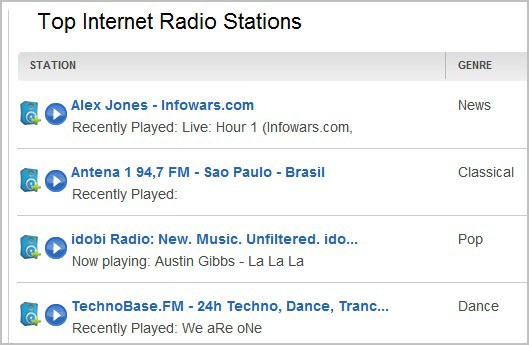
Third party stations lead to websites from where the stations need to be added. The extension adds buttons next to each station on those sites which can be used to add the selected radio station to the extension.

internet radio stations

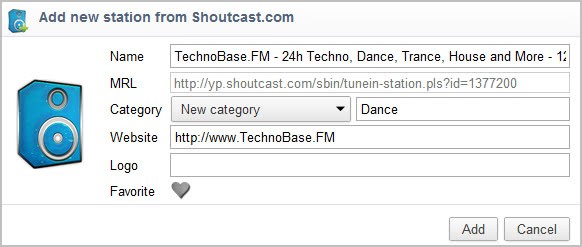
A click on the Radio Player Live button loads an overlay prompt to add the selected station to the radio player. The station’s name, website, logo and category can be customized here.

add radio station

The station can then be selected via the extension’s button in the Chrome interface. Stations can be sorted into categories for easier identification. You can do that when you add a station, or later on under Manage my stations in the program options.

Users who do not like the theme can modify it extensively in the options. From background and header text colors to borders, category names and srollbars. Nearly every visual aspect can be modified.

The player window itself displays a list of radio stations, the currently playing station, the volume, and pause and stop options. You can switch to another radio station with a click.

The program supports VLC and Windows Media Player plugins, but I was not able to get those to work in the Chrome browser. It is not clear from the description whether they are used to play the radio stations in the browser, or if the music is redirected to the desktop player from where they are then played.

Google Chrome users who like to listen to Internet radio while surfing should take a closer look at Radio Player Live.


Protect Files From Unauthorized Access With Encoding Decoding

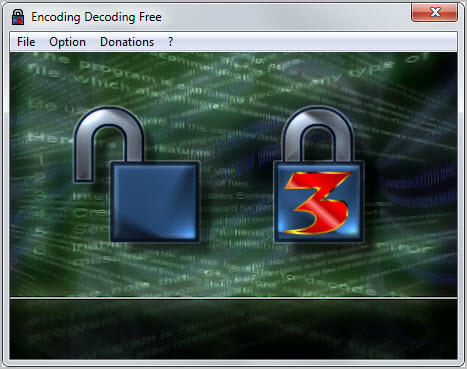
Full disc encryption or encrypted container files are useful to prevent unauthorized access to a larger number of files. This may feel like overkill though if you only want to make sure that a single file is protected from access. That’s where a program like Encoding Decoding comes into play. The program, available as a portable version and setup, can be used to encrypt and decrypt individual files in record time.

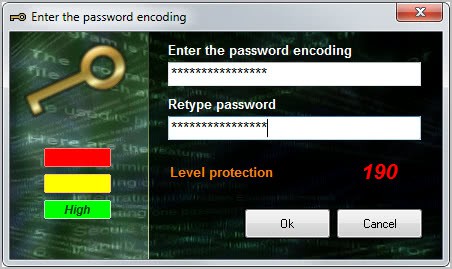
All that needs to be done is to drag and drop a file into the application window to encrypt or decrypt files. A password prompt is displayed if you drag and drop an unencrypted file into the program interface. This password along with an internal algorithm is used to encrypt the file, so that only users with the password can decrypt it to access its contents. Encoding Decoding displays the password strength of the selected password directly in the program interface which can act as a guideline for users who want to make sure they select a secure password.

protect files

Please note that the original file will remain on the system. If you do not want that, you need to delete it manually as there is no option to delete the original file automatically after a successful encryption. Check out securely delete files if you want to delete the file so that it cannot be recovered anymore.

The decryption works in exactly the same way. Drag and drop an encrypted file into the program interface and enter the correct password to decrypt the file. The file is then saved to the same directory the encrypted file is stored in.

encoding decoding

Users who do not want to drag and drop files into the interface can alternatively click in the program window to open the file browser. The program supports three different encoding algorithms which are unfortunately not explained in the program window, help file or the developer page.

Windows users interested in the program can download it from the developer website. It is compatible with all recent 32-bit and 64-bit editions of the operating system.


Get Your Free Cebit 2012 Tickets Here

Cebit, the world’s largest computer expo, is held each year in Hannover, Germany. It is an international expo that is attracting companies and trade experts, as well as tech savvy visitors from all over the world. This year’s Cebit is taking place from March 6 to 10. Single tickets and full-event tickets can be ordered on the official website and at the expo directly. A single day ticket sets you back 34 Euros, a full-event ticket 79 Euros.

It is fairly common that tech companies give away Cebit day tickets to trade experts and sometimes even interested visitors who have no ties to the industry.

One company that is currently giving away Cebit Tickets is the computer manufacturer Dell. Please note that the whole Registration process is in German. I have added annotations to the screenshots for your convenience. Visit the ticket registration page on this web page and fill out the form in the lower right of the screen.

cebit 2012 tickets

All you need to fill out is your first name, last name, email address, phone number and company that you are working for. You also need to click on the pulldown menu to select the number of tickets that you want. You can select between one to five tickets.

You are then taken to the next page where your tickets are listed on as links. These links lead to the official Cebit website where you have to register again to complete the registration process.

register cebit ticket

Good news is that you can switch that registration form to English. The ticket code should have been entered automatically, so that you only need to click on the next button to go to the next step of the registration process.

cebit free tickets

You are then asked to enter user account information and business details into the forms on the next two pages, before you will receive confirmation that your ticket has been registered successfully on the last page. Please note that you need to complete the same steps – without the registration of course – for each ticket that you have ordered from Dell.

Each ticket is then send automatically as a printable e-ticket to the registered email address. You need to print out the ticket and have it with you to gain admission.

It is not clear if the contingent is limited. I suggest you use it immediately if you are interested in free Cebit tickets. I’m not sure if I can make it this year, but if I do, I’d love to meet some of you there. (thanks Caschy)


View and Extract File Icons With Thumbico

File and program icons distinguish different file types and applications visually from each other. Users come into contact with icons every time they use the computer, but only a few would consider changing or modifying program icons on their system. I can only think of two user groups who would need the to view, modify and extract file icons: First users who like to install custom themes and total conversions. Default icons might not always match the installed custom theme, which is why some users go the extra mile and change their computer’s program and file thumbnail icons as well.

Developers are the second group. They might want to experiment with different program icons for their applications to find the most suitable one. Thumbico is a free portable software for Windows that acts both as an icon viewer and extractor.

thumbico

You can drag and drop icons into the program interface to view them in the selected resolution. One of the features of Thumbico is that it can display icons in a larger resolution than Windows can. You can change the resolution in the application’s top menu bar, with a right-click and the selection of Make Bigger or Smaller, or with the keyboard shortcuts Ctrl+ or Ctrl-. If you ever wanted a larger than life version of the Firefox logo, now is your chance to take a look at it.

program icon

Standard icon sizes are available through the right-click context menu and the keyboard shortcuts Alt+ or Alt- as well. The latter cycle through all available icon sizes from 16×16 to 512×512 pixels.

Icons can be saved in their current display size and in various formats including bmp, gif, png and jpg. You can alternatively copy the image to the Windows clipboard to paste it directly into another application. The image will be saved with the background color that is displayed in the program interface. You can change the color or enable glass mode which adds transparency to the image if you save it in a format supporting transparency.

Most program features are accessible via keyboard shortcuts for fast access.

If there is one thing to criticize it is the lack of a load option in the program interface. The only way to load icons into the program is via drag and drop.

Thumbico is despite that a useful program for developers and users who want to customize their operating system.

Windows users can download the latest version of Thumbico from the developer website.

Update: Just got word from the author of the application that a load button is available after all. It is the top leftmost button in the program interface.


Search For Highlighted Text With Context Search X For Firefox

I sometimes see phrases or words on a page that I need to look up. Sometimes, those phrases can also lead to additional resources about a certain subject that I’m researching. While I could highlight and right-click the phrase to search for it on the default search engine, I do not have options to search other search engines directly. For that, I would have to highlight and copy the phrase, open a new tab, and use keyword searches to run a search on the topic. Firefox users with the search form displayed in the browser interface can alternatively paste the phrase in the form and select a different search engine from the list.

The Firefox add-on Context Search X adds additional search engines to Firefox’s right-click context menu to run searches right from there.

Once you have the extension installed in the browser, you can start firing away searches with a right-click on the highlighted phrase and the selection of the search engine that you want to search on.

context menu search

A list of all available search engines currently configured in the browser are displayed for selection. A click opens the search results page of the selected search engine in a new tab in Firefox.

You can click on Manage Search engines to change the order of search engines in the context menu, remove engines from the listing or modify the extension’s behavior further.

One interesting option is the ability to configure search engines to appear in the root context menu instead of the extension’s submenu.

manage search engine list

This is done with a click on the Context Menu button in the interface.

context menu

Select the Outside Submenu option to have the selected search engine appear in the root context menu.

If your favorite search engine is not installed in the browser, you can do so by visiting Mozilla’s Search Tools page which lists hundreds of different search engines that can be added with a click. You can alternatively check out Add any Search Box to Firefox Search if your favorite search engine is not listed on the page.

Context Search X is a fork of the popular Firefox Context Search add-on which has not been upgraded for over a year. Firefox users who like to run searches from their context menu should take the add-on for a test drive. Those who are just looking to replace the default search engine can look at Replace Firefox’s Right-Click Search Engine to find out how to do that.