
Wednesday, November 2, 2011

Tuesday, November 1, 2011
Supercharge The Firefox Reload Button With Reload Plus
Did you know that there are actually several reload options available for page reloads in the Firefox web browser (actually those reload options are available in all modern Internet browsers)? When you click the reload button you do a standard reload of the web page which will use the browser’s cache for faster page rendering times. Sometimes though you may want to force the browser to reload the page completely from the Internet server bypassing the cache. Firefox users can do that with the keyboard combination Ctrl-F5, holding down Shift and clicking on the Reload button in the user interface or holding down Ctrl and Shift while tapping on the R button on the keyboard.
While it is possible to work with those two versions of page reloads in Firefox, some users may want additional options or an easier to access functionality.
The Firefox add-on Reload Plus supercharges the reload button and functionality in the Firefox browser. Once installed, it improves the reloading capabilities in the following ways:
- Left Mouse (or F5) = Standard Reload
- Ctrl+LMouse (or Ctrl+F5) = Override Cache
- Alt+LMouse (or Alt+F5) = Load Missing Images
- Shift+LMouse (or Shift+F5) = Google Cache
- Middle Mouse = Standard Reload (new tab)
- Ctrl+MMouse = Override Cache (new tab)
- Alt+MMouse = Reload All Tabs
- Shift+MMouse = Google Cache (new tab)
The standard reload options remain as they are in the browser. It is still possible to click on reload or press F5 to reload the page, or use the Ctrl-F5 option to reload bypassing the Firefox cache.
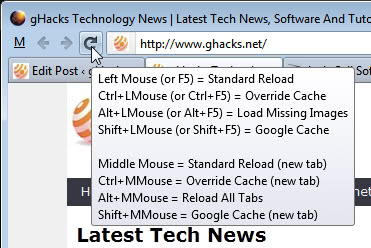
The extension adds several new options though. Users can load the Google Cache version of a web page by holding down shift while clicking on the reload button or with the keyboard combination Shift-F5. They can furthermore load missing images on a page with Alt-F5 or Alt and a left-click on the reload button.
Basically, the two new features are that introduced by Reload Plus are to load the Google Cache version or the missing images of a page.
The extension furthermore adds new shortcuts and mouse keyboard combinations, and options to open the cached pages in new tabs instead of the current tab.
Firefox users who want improved reloading capabilities can install the Reload Plus add-on at the official Mozilla add-on repository.
© Martin Brinkmann for gHacks Technology News | Latest Tech News, Software And Tutorials, 2011. | Permalink |
Add to del.icio.us, digg, facebook, reddit, twitter
Post tags: Firefox, firefox add-ons, reload websites


How To Remove What’s Hot On Google+
Google recently introduced What’s Hot On Google+ on their social networking site. The new feature is linked on the Google+ sidebar under What’s Hot and in the user’s stream directly. The most recent message of the What’s Hot message pool is directly displayed in the stream. While it is possible to collapse the feature, it is not possible by default to remove or hide it on Google Plus.
What’s Hot is basically a collection of popular messages and stories by other Google+ users. You find the usual assortment of images, videos, animated gifs and messages listed there. The majority of hot items shared in the What’s Hot section are animated gifs and funny images, nothing in particular what many Internet users want to see in their stream. All messages have in common that they have been “plused” and shared by a lot of users on Google+. Most users probably would not have a problem with the What’s Hot feature if it was only listed in the sidebar and not injected in the user stream directly.
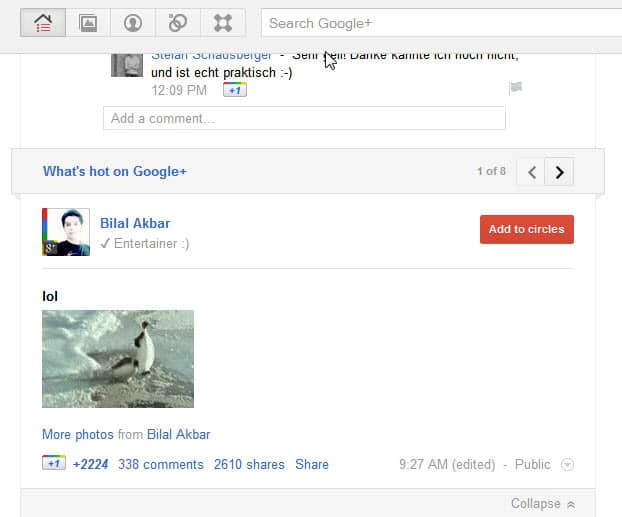
Some Google+ users have voiced complaints. Especially the lack of options to hide the What’s Hot On Google+ feature has been mentioned over and over again.
Gabriel Vasile has posted a solution for Adblock Plus users. The browser extension is available for Google Chrome, Firefox and Safari. All that needs to be done now is to add two new filters to the extension to block the What’s Hot on Google+ section.
- plus.google.com##DIV[class="zhMuaf Tp6dle"]
- A[class="a-j c-i-j-ua tg3b4c qQWXrb g2Lc3b dfrbjb"]
This works as of now. Please note that it can stop working at anytime if Google decides to change the class IDs. I have not found a userscript yet to remove the What’s Hot section on Google Plus. It is however likely that it is only a matter of time until one is released with that functionality.
Found another way to hide the What’s Hot on Google+ section on Google Plus? Let me know in the comments.
Update: The userscript What’s Hot… Isn’t removes the What’s Hot section in the middle of the stream while leaving the link in the sidebar. That’s probably the best way of dealing with it and a great option for users who do not use Adblock Plus in their browsers.
© Martin Brinkmann for gHacks Technology News | Latest Tech News, Software And Tutorials, 2011. | Permalink |
Add to del.icio.us, digg, facebook, reddit, twitter
Post tags: adblock plus, Google, Google Plus


Flash Player 11.2 Introduces Automatic Updates
If you are not running Google Chrome as your one and only browser on your PC system, you are probably tired of having to update Adobe’s Flash Player regularly to protect the system from security vulnerabilities. This could change soon with the release of Adobe’s Flash Player 11.2. The new version of Flash, currently available as a beta download at Adobe Labs, introduces a technology called Flash Player Background Updater.
The auto-updater is only provided for Windows systems in Flash 11.2. Windows users who install Flash Player 11.2 or later will see the following prompt after the successful installation.

It reads:
Security updates and enhancements are periodically released for Adobe Flash Player that can be downloaded and installed automatically.
Choose your update method:
- Install updates automatically when possible (recommended)
- Notify me when updates are available
- Never check for updates (not recommended)
The first option checks for and installs Flash Player versions automatically on the operating system. Depending on the Flash version installed, this may include one (Internet Explorer version or other browser version) or even both versions if both are installed on the system.
The second option will perform the same checks for new versions. Instead of installing new versions automatically it will inform the user instead.
Flash Player will check for updates once per hour if the first or second option are selected. Adobe notes that users need to restart their web browser after an update has been installed to use the new version of Flash Player in the web browser.
The latest version of Adobe Flash Player 11.2 is available on the Adobe Labs download page. The installer is provided for all 32-bit and 64-bit operating systems that support Adobe Flash. The very same page offer downloads for the Flash Player uninstaller for 32-bit and 64-bit systems to uninstall the test version from the system again.
The update checks for new Flash versions are added as a Windows task so that no update program is running all the time on the computer system. It is likely that this new security feature will decrease the number of successful Flash player based attacks on Windows significantly. (via)
© Martin Brinkmann for gHacks Technology News | Latest Tech News, Software And Tutorials, 2011. | Permalink |
Add to del.icio.us, digg, facebook, reddit, twitter
Post tags: adobe flash, adobe flash player, adobe flash player update, adobe flash security, flash player, flash update


How To Turn Off Automatic Updates For Individual Firefox Add-Ons
Automatic add-on updates can be a fine thing. You save some time and make sure that your add-ons are always up to date. That’s great to resolve security or stability issues as soon as possible. It can however also mean that you get feature additions that you did not want or expect. I just read about the Download Statusbar add-on fiasco over at Donation Coder and the add-on’s reviews page at the official Mozilla website. According to information posted on both sites, the popular Firefox add-on Download Statusbar turned adware for a period of time before it was pulled from the add-on repository only to be reinstated without the sponsorship mechanism.
Regardless of that, it shows that automatic updates can cause problems. Sometimes you may want to block add-ons from being updated automatically. Maybe because you know that a new version that is already out is causing issues on your system or adding unwanted features, or because you want to research each update before you install it.
The Firefox web browser has two options for users who want to customize the automatic add-on updating mechanism of the browser. The first option is to disable automatic add-on updates completely. This is done under Options > Advanced > Update. Here you need to remove the checkmark of the Add-ons listing under Automatically check for updates to.
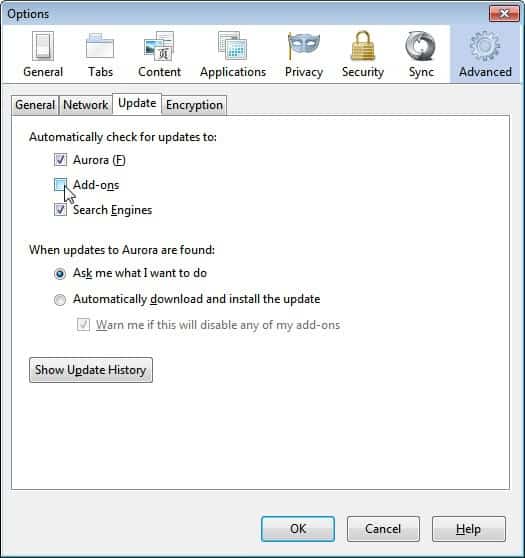
For extra protection, make sure that Ask me what I want to do when updates to Firefox are found is enabled.
Sometimes you want to make sure that only some installed add-ons do not update automatically, or that some do if you have selected the do not check for automatic updates option mentioned earlier in this guide.
Open the Firefox add-on manager. You can do that by entering about:addons in the address bar. All installed add-ons are displayed under Extensions there. To configure automatic updates for a specific add-on do the following. Click on the More link next to the add-ons description.
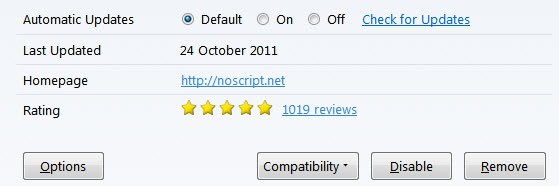
Look for the Automatic Updates listing on the page. Default means that it will use the global automatic update options of the Firefox options. You can set automatic updates to on or off instead. It is furthermore possible to check for updates manually with a click on the link of the same name.
You can also click on the settings button at the top to perform various operations, including a check for updates, reseting all add-ons to update manually or enabling or disabling add-on updates automatically.
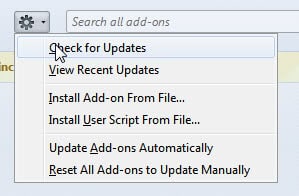
To paraphrase. Firefox users can keep automatic updates turned on and turn off updates for specific add-ons only, or turn off automatic updates and turn them on for trusted add-ons instead.
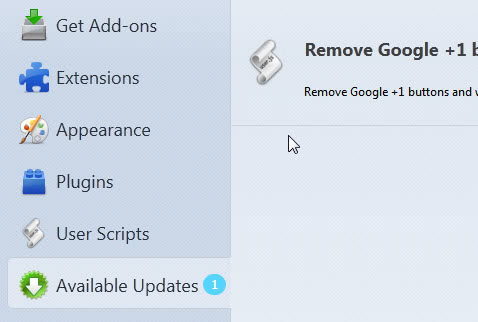
Firefox users who have set their add-ons to update manually only will see a new listing in the add-ons manager. Available Updates list the available updates for all add-ons set to update manually.
Have you set your Firefox add-ons to update manually or automatically?
© Martin Brinkmann for gHacks Technology News | Latest Tech News, Software And Tutorials, 2011. | Permalink |
Add to del.icio.us, digg, facebook, reddit, twitter
Post tags: automatic update, Firefox, firefox add-on updates, firefox add-ons, firefox updates


Opera Reader Could Revolutionize The Way We Read On The Internet
One of the biggest usability issues on today’s Internet are scrolling web pages. Browsers automatically add scrollbars to web pages if the contents exceed the vertical or horizontal display limitations of the window or computer screen. This scrolling breaks the readability of a web page significantly. Users who scroll need to locate the text position where they stopped reading afterwards. Most Internet users use headlines, paragraphs or other visible elements on a page as markers for that.
Opera Reader is an experimental Opera version that does away with all the scrolling on the Internet. It’s premise is to display all contents of a website directly on the screen. It basically breaks down a website into pages that are displayed just like the pages of a book. The developers have used a scroll and book comparison to highlight the differences. Scrolls are like standard websites that go on and on until the content ends, while books use pages that offer several advantages over scrolls.
Opera Reader turns scrolls (aka scrolling web pages) into books (aka paged web pages). Whenever you open a compatible web page in Opera Reader, you will notice that all of its contents are displayed on the screen without horizontal or vertical scrollbars. Here is how a compatible page looks in the standard Opera browser and in Opera Reader.

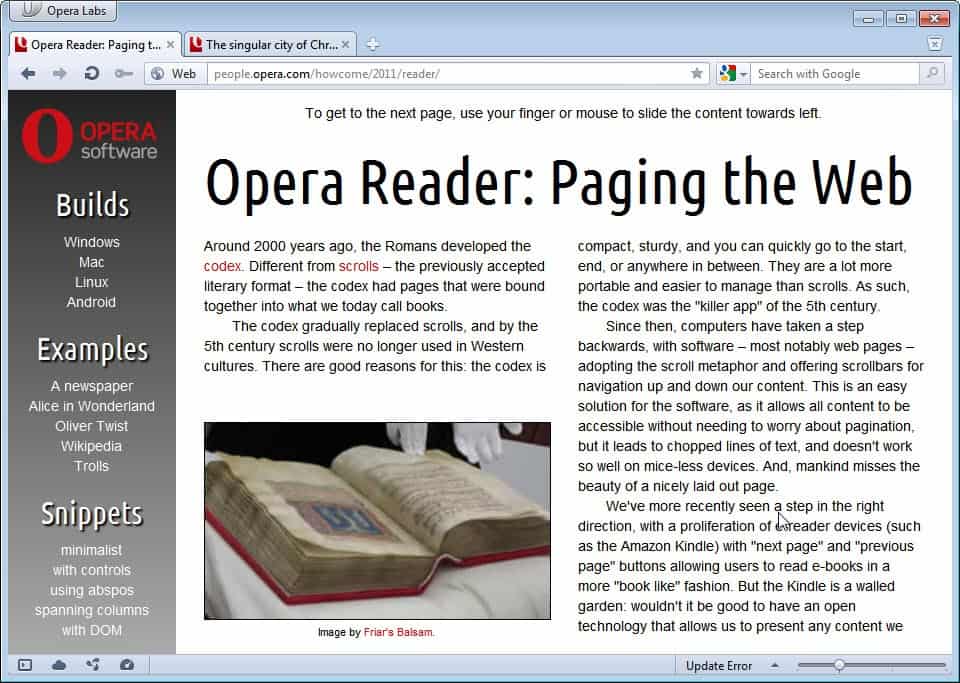
The core difference is the missing scrollbar. Opera Reader users can use the mouse to flip pages. Alternatives including using the keyboard (left and right) or gestures on touch enabled devices.
Separating a website into pages does not reduce the browser’s functionality at all. It is still possible to search, print or work with the whole web page like it would be in a standard version of Opera.
The Opera team has published a few examples on the Opera Reader website. This includes a basic newspaper, the novels Oliver Twist and Alice in Wonderland and a sample Wikipedia page.

The biggest issue with Opera Reader in its current form is that websites need to add specific CSS3 code to support the feature. Opera needs to come up with a way to automate the processing of web pages in Opera Reader. If the company manages to do that, it could change the way we read contents on the web forever.
Opera Reader is currently available as a preview version for Windows, Mac, Linux and Android devices. Interested users can download the preview release from the official project website over at Opera. (via)
© Martin Brinkmann for gHacks Technology News | Latest Tech News, Software And Tutorials, 2011. | Permalink |
Add to del.icio.us, digg, facebook, reddit, twitter
Post tags: internet, Opera, opera reader, web browser


IsItOld, Check If A Link Is Still Share-Worthy On Twitter
Have you ever posted a link, image, text or video on a website or forum only to receive the discouraging “it is old” reply? Maybe you have sworn to yourself that you will never again post already known contents on that site. And while you could make sure of that manually by running a series of searches on popular search engines, you may be better off using a service such as IsItOld for the same task.
IsItOld takes a link and checks if that link has been posted on Twitter already. It is not a 100% giveaway if you have the intention to post the link on another site, but it could very well be an indicator.
All you need to do is to paste the link into the form on the IsItOld website. You can paste in any link regardless of the web page’s actual contents. This works for YouTube videos, images, plain websites and even applications.

The link scan on Twitter takes a few seconds tops. The service displays information about that link on the result’s page.

Ratings range from OK over Kinda OK to Dead. IsItOld displays the number of shares on Twitter and the time of the first share. In this example, the link was tweeted more than 3000 times in the last two years.
IsItOld cannot make decisions for you. At its core, it is nothing more than a script that checks a link’s popularity on Twitter. Twitter is however often a good indicator if something has already made the round or if it is brand new. This could be interesting for webmasters and writers who are not sure if they should cover a certain topic on their blog or website.
It is probably easier to ignore the “old” sayers on forums and social networking sites than using the IsItOld site regularly. You can run your own Is It Old checks here.
© Martin Brinkmann for gHacks Technology News | Latest Tech News, Software And Tutorials, 2011. | Permalink |
Add to del.icio.us, digg, facebook, reddit, twitter
Post tags: links, rickroll, twitter


